
Introduction
This manual provides detailed instructions for the JADEMALL Bluetooth Keyboard with Trackpad, designed specifically for the Xiaomi Pad 6 and Xiaomi Pad 6 Pro 11-inch tablets. This 2-in-1 accessory combines a protective case with a detachable, backlit Bluetooth keyboard, enhancing your tablet's functionality for work, study, and entertainment.
Compatibility
This keyboard case is exclusively designed for the Xiaomi Pad 6 and Xiaomi Pad 6 Pro 2023 11-inch models. It is not compatible with any other tablet models, including the Xiaomi Pad 5/5 Pro. Please verify your tablet model before use.

Image: Visual guide confirming compatibility with Xiaomi Pad 6/6 Pro (left) and incompatibility with Xiaomi Pad 5/5 Pro (right).
What's in the Box
- 1 x JADEMALL Protective Case for Xiaomi Pad 6/6 Pro
- 1 x Bluetooth Trackpad Keyboard
- 1 x USB Charging Cable for Keyboard
- 1 x Instruction Manual (this document)
Setup
Bluetooth Connection
Follow these steps to connect your keyboard to your Xiaomi Pad 6/6 Pro:
- Ensure the keyboard is charged. Locate the power switch on the keyboard and turn it ON.
- On your Xiaomi Pad 6/6 Pro, go to Settings > Bluetooth and turn ON Bluetooth.
- On the keyboard, press the Fn + C keys simultaneously. The Bluetooth indicator light on the keyboard will begin to flash blue, indicating it is in pairing mode.
- On your tablet, in the Bluetooth device list, select "Bluetooth 5.0 Keyboard" (or similar name). The tablet will connect to the keyboard. The blue indicator light on the keyboard will turn off once connected.
For subsequent uses, once the keyboard and tablet have been paired, they should automatically connect within a few seconds when both devices' Bluetooth functions are active and the keyboard is powered on.

Image: Illustration of the wireless Bluetooth keyboard, its magnetic integration, and compatibility with various operating systems.
Operating Instructions
Using the Trackpad
The integrated trackpad allows for precise navigation and control of your tablet, similar to a laptop mouse. Standard gestures such as tapping, scrolling, and pinch-to-zoom are supported, depending on your tablet's operating system and application support.
Adjusting Backlight
The keyboard features 7-color backlighting with 3 adjustable brightness levels. Use the dedicated backlight keys (often indicated by a light bulb icon or Fn + specific keys) to cycle through colors and adjust brightness to suit your environment.

Image: The keyboard displaying its 7-color backlight feature, enhancing visibility in low-light conditions.
Adjustable Viewing Angles
The protective case is designed with integrated anti-slip grooves, allowing you to set your tablet at 3 different stable viewing angles. This flexibility is ideal for various activities such as typing, watching videos, or making presentations.
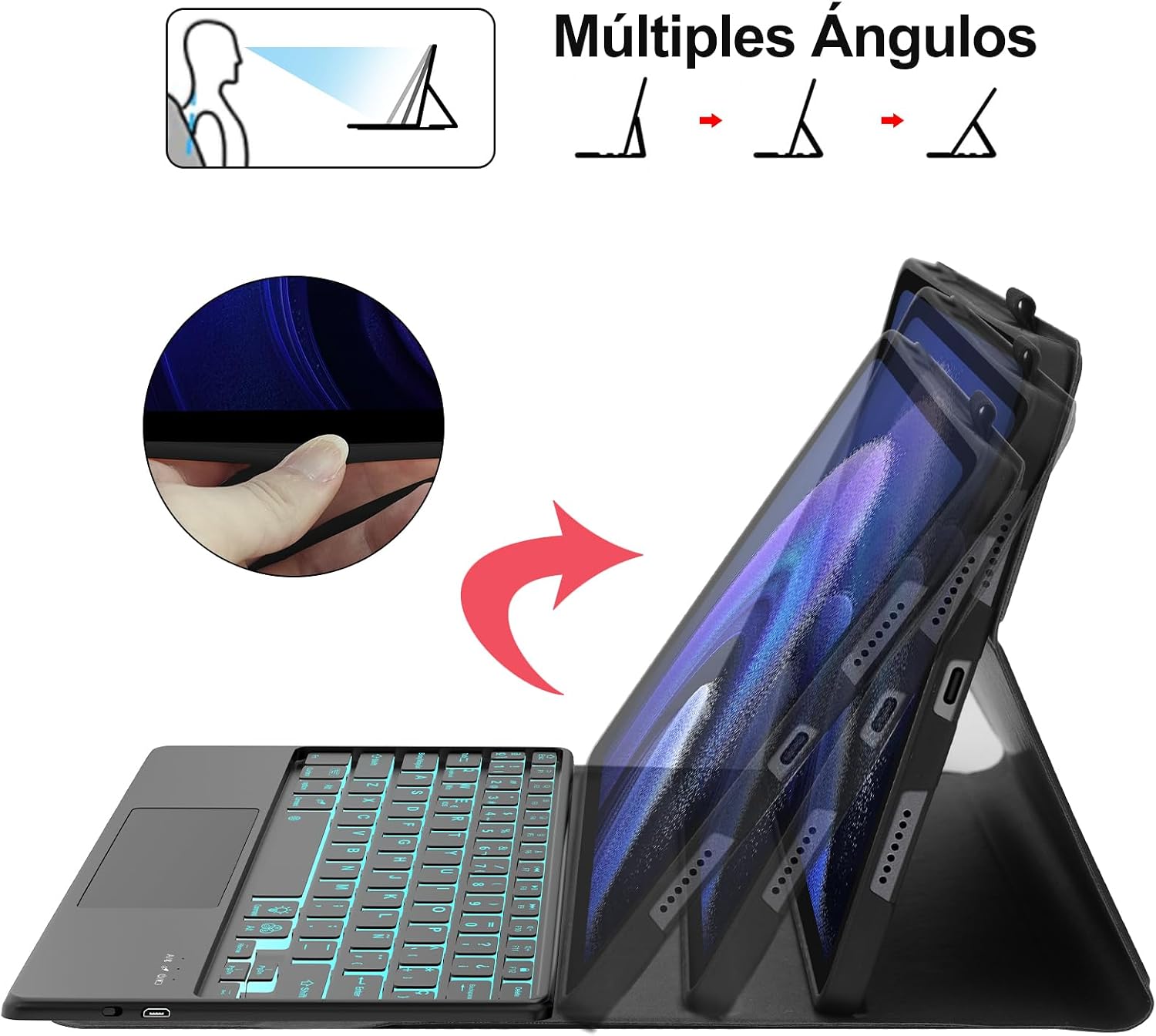
Image: Diagram illustrating how to adjust the tablet to multiple viewing angles using the case's design.
Automatic Sleep/Wake Function
The case supports an automatic sleep/wake function. Opening the case will automatically wake your Xiaomi Pad 6/6 Pro, and closing it will put the tablet to sleep, helping to conserve battery life.
Integrated Pen Holder
The case includes a dedicated slot for your stylus (S Pen or similar), ensuring it is securely stored and easily accessible.

Image: Close-up view highlighting the integrated pen holder, USB charging port, and the keyboard's rechargeable lithium battery.
Maintenance
Cleaning
To clean the case and keyboard, use a soft, damp cloth. Avoid using harsh chemicals or abrasive materials that could damage the surfaces. Ensure the keyboard is powered off and disconnected from the tablet before cleaning.
Charging the Keyboard
The keyboard has a built-in rechargeable lithium polymer battery. When the battery is low, connect the provided USB charging cable to the keyboard's charging port and to a standard USB power adapter (not included) or a computer's USB port. The charging indicator light will illuminate during charging and turn off when fully charged.
Troubleshooting
- Keyboard not connecting via Bluetooth:
- Ensure the keyboard is powered on and fully charged.
- Make sure Bluetooth is enabled on your Xiaomi Pad 6/6 Pro.
- Press Fn + C on the keyboard to enter pairing mode (blue light flashing).
- Forget the device in your tablet's Bluetooth settings and attempt to re-pair.
- Restart both the keyboard and your tablet.
- Trackpad or keys not responding:
- Check if the keyboard is properly connected via Bluetooth.
- Ensure the keyboard battery is not critically low.
- Restart the keyboard and tablet.
- Backlight not working:
- Ensure the keyboard is powered on and connected.
- Press the backlight adjustment keys to cycle through colors and brightness levels.
Specifications
| Model Number | Xiaomi Pad 6/6 Pro |
| Connectivity Technology | Bluetooth |
| Keyboard Layout | QWERTY |
| Number of Keys | 78 |
| Special Feature | Backlit (7 colors, 3 brightness levels), Integrated Trackpad |
| Power Source | Rechargeable Lithium Polymer Battery |
| Material | Synthetic Leather (case), ABS (keyboard) |
| Compatible OS | Android (Minimum Android 13.0 required) |
| Package Dimensions | 28.5 x 21.5 x 3.4 cm |
| Weight | 790 g |
Warranty and Support
JADEMALL is committed to providing quality products and customer satisfaction. If you encounter any issues with your keyboard case, please contact the seller or JADEMALL customer support directly for assistance. Please refer to your purchase documentation for specific warranty terms and contact information.