
Introduction
This manual provides detailed instructions for setting up and operating your Sungale 10-inch Cloud Frame. Please read this manual thoroughly to ensure proper use and to maximize your experience with the device. This digital picture frame allows for effortless photo sharing and display of cherished memories.
1. Setup
1.1 Unpacking and Initial Placement
Carefully remove the Sungale Cloud Frame from its packaging. Place the frame on a stable surface or mount it on a wall using the integrated wall mounting hole. The frame features an auto-rotate function, allowing it to display photos correctly in both portrait and landscape orientations.
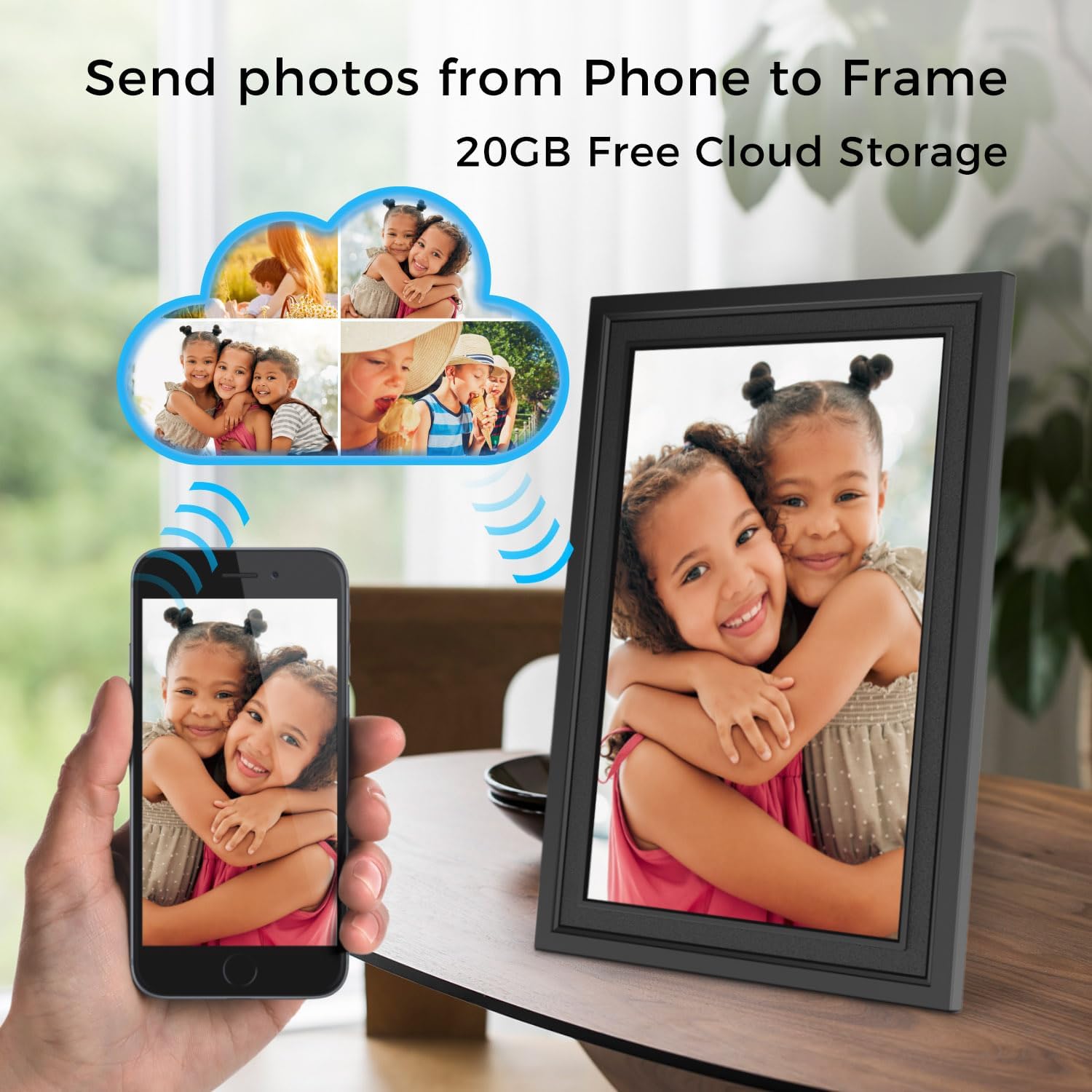
Image: The Sungale 10-inch Cloud Frame displayed on a surface.

Image: Rear view of the Sungale Cloud Frame, highlighting the adjustable stand and wall mounting hole.
1.2 Power Connection
Connect the provided power adapter to the frame and then plug it into a standard electrical outlet. The frame will power on automatically.

Image: The digital frame connected to power, illustrating easy setup.
1.3 Network Connection
Follow the on-screen prompts to connect your Sungale Cloud Frame to a Wi-Fi network. A stable internet connection is required for cloud features and remote management.
1.4 Sungale Cloud App Download and Account Creation
Download the "Sungale Cloud" app from the Apple App Store (for iOS devices) or Google Play Store (for Android devices). Create a new account or log in with an existing one to manage your frame and share photos.
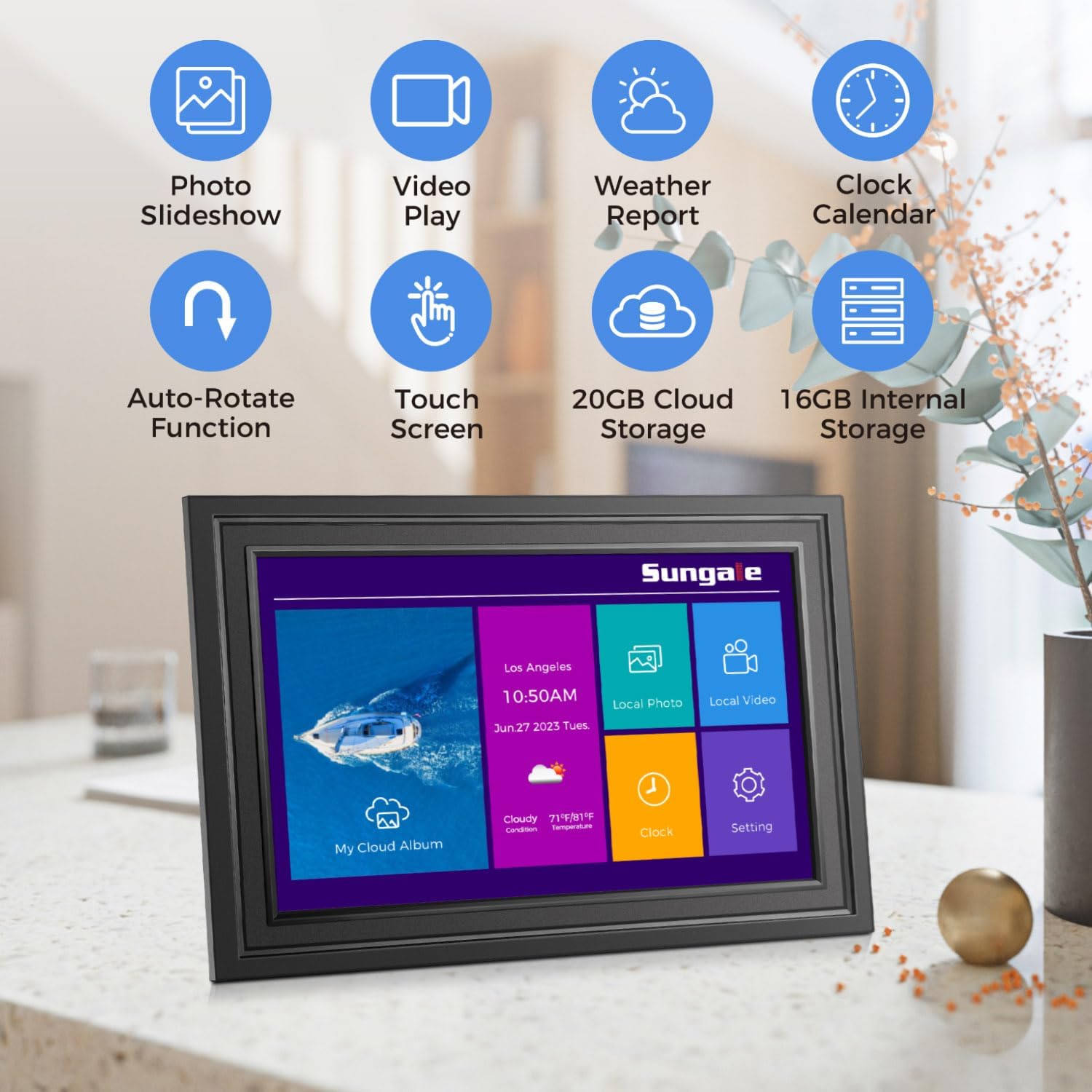
Image: The Sungale Cloud App interface displayed on a smartphone, showing album management.
2. Operating Instructions
2.1 Photo and Video Sharing
The Sungale Cloud Frame supports multiple methods for sharing photos and videos:
- Via Sungale Cloud App: Use the mobile app to select and send photos or videos directly from your smartphone or tablet to your frame. You can create cloud albums and invite others to contribute.
- Via Web Portal: Access the Sungale Cloud web portal from any computer to upload and manage content for your frame.
- Multi-User Connection: Invite family and friends to send photos to your cloud frame, allowing multiple users to share memories.

Image: A smartphone wirelessly sending photos to the Sungale Cloud Frame.

Image: Illustration of multiple family members sharing photos to a single cloud frame.

Image: A laptop displaying the Sungale Cloud web portal for managing photos.
2.2 Storage Options
The frame offers flexible storage solutions:
- 20GB Free Cloud Storage: Utilize the complimentary cloud storage to save and access your photos and videos from anywhere.
- 16GB Internal Memory: The frame includes built-in storage for immediate use.
- External Storage: Expand storage up to 128GB using an SD card or USB drive. Insert the SD card or USB drive into the designated slot on the frame.
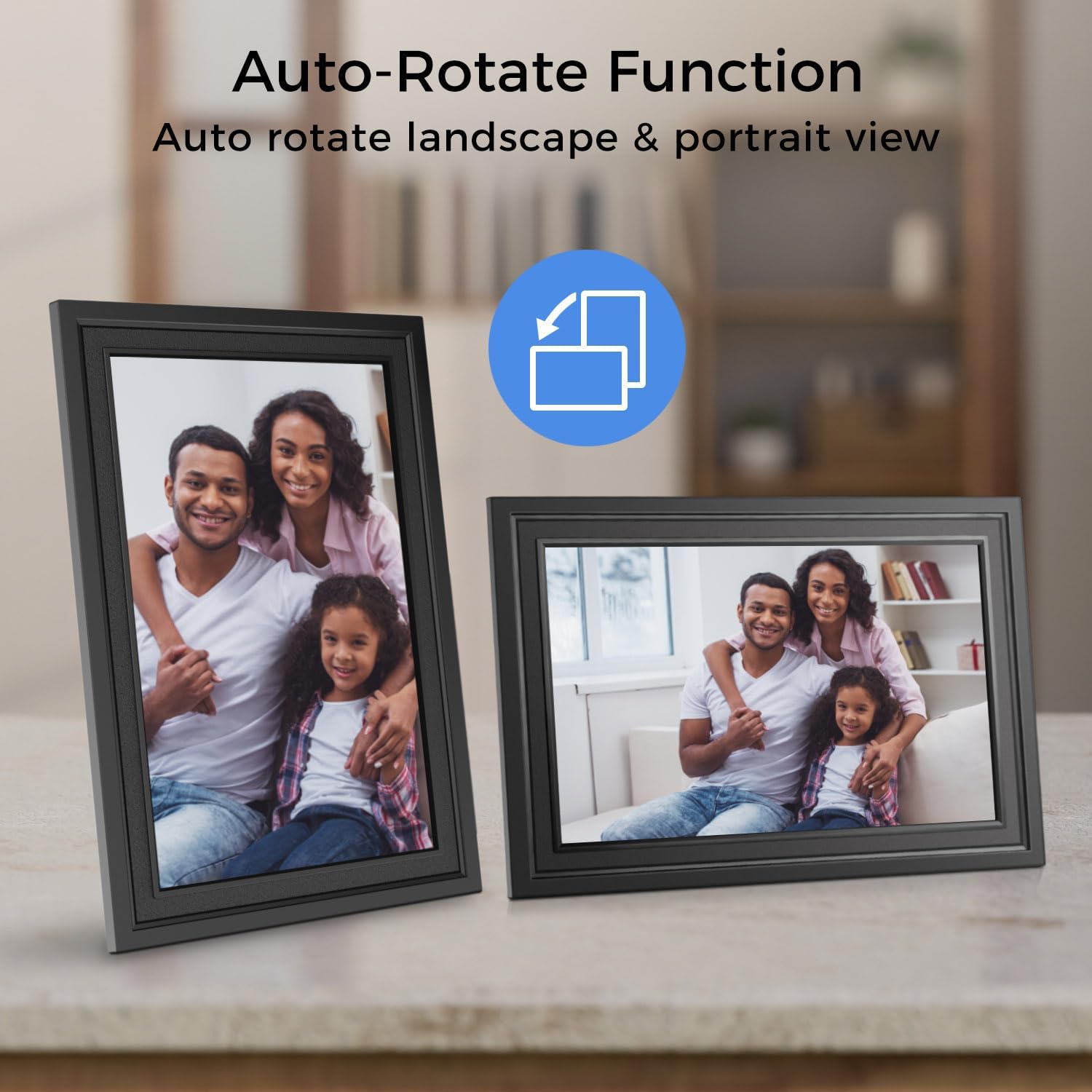
Image: A hand inserting an SD card into the side slot of the digital frame.
2.3 Display Features
- 10.1" IPS HD Touch Screen: Navigate the frame's functions and view your media with a responsive touch screen and vivid display.
- Auto-Rotate Function: The frame automatically adjusts the orientation of photos and videos to match its physical placement (portrait or landscape).

Image: A finger interacting with the touch screen of the digital frame.

Image: The auto-rotate feature demonstrated with the frame showing images correctly in both horizontal and vertical positions.
2.4 Additional Functions
The Sungale Cloud Frame offers several utility features:
- Photo Slideshow: Enjoy a continuous display of your uploaded photos.
- Video Playback: Play short video clips on the frame.
- Alarm Clock: Set alarms directly from the frame's interface.
- Calendar: View the current date and schedule.
- Weather Forecast: Display local weather information.

Image: Visual representation of the frame's features including photo slideshow, video play, weather report, clock, auto-rotate, touch screen, cloud storage, and internal storage.

Image: The digital frame showing a weather panel alongside a photo.
3. Maintenance
3.1 Cleaning the Frame
To clean the screen, gently wipe it with a soft, lint-free cloth. For stubborn smudges, slightly dampen the cloth with water or a screen-safe cleaning solution. Avoid using harsh chemicals or abrasive materials. Clean the frame's body with a dry, soft cloth.
3.2 Software Updates
Ensure your frame's software is up to date for optimal performance and new features. The frame may prompt you for updates, or you can check for them manually in the settings menu.
4. Troubleshooting
- Frame not powering on:
Ensure the power adapter is securely connected to both the frame and a working electrical outlet. Try a different outlet if necessary.
- Cannot connect to Wi-Fi:
Verify your Wi-Fi password is correct. Ensure the frame is within range of your Wi-Fi router. Restart your router and the frame, then attempt to connect again.
- Photos not appearing on the frame:
Check your internet connection. Confirm that photos have been successfully uploaded to your Sungale Cloud account or inserted via SD card/USB. Ensure the frame is linked to the correct cloud account.
- Touch screen unresponsive:
Restart the frame by unplugging it and plugging it back in. Ensure the screen is clean and free of debris.
5. Specifications
| Feature | Detail |
|---|---|
| Product Dimensions | 7.25 x 10.5 x 0.99 inches |
| Item Weight | 2.2 pounds |
| Manufacturer | Sungale |
| Item Model Number | 884945006873 |
| Batteries Required | No |
| Color | Black |
| Resolution | XGA (1280x800) |
| Compatible Devices | Smartphone |
| Screen Size | 10 Inches |
| Internal Storage | 16GB |
| Cloud Storage | 20GB Free |
| External Storage Support | Up to 128GB (SD card or USB drive) |