
Cuifati TX200 (Cuifatiy38znvor20)
Cuifati TX200 Bluetooth 5.0 Music Transmitter Receiver User Manual
Model: TX200 (Cuifatiy38znvor20)
1. Introduction
The Cuifati TX200 is a versatile Bluetooth 5.0 adapter designed for both transmitting and receiving audio signals. It offers ultra-long-range transmission, low latency, and dual-stream capabilities, making it ideal for connecting various audio devices such as TVs, computers, and home stereo systems wirelessly.
Key Features:
- Ultra-Long Range Transmission: Achieves signal transmission up to 120m (393ft) in open areas, minimizing delay or interference. Note: Range may be affected by physical obstacles like walls or Wi-Fi routers.
- Low Latency and Dual Stream: Utilizes Aptx Low Latency technology to eliminate Bluetooth audio delay. Supports simultaneous connection to two Bluetooth headsets or two Bluetooth speakers for ultra-fast streaming.
- Transmitter (TX) and Receiver (RX) Modes: Easily switch between modes. In TX mode, connect to an output device (e.g., TV, computer) to stream audio to Bluetooth speakers or headphones. In RX mode, stream audio from your phone to non-Bluetooth devices (e.g., home stereo, wired speakers).
- Bluetooth 5.0 Technology: Features updated Bluetooth 5.0 for double the data transfer speed of Bluetooth 4.2, ensuring a more stable and consistent connection.
- LED Indicator Status and 17-Hour Standby: An intuitive indicator design allows for quick identification of content and connection methods. The built-in 450mAh battery provides up to 17 hours of operation after approximately 2.5 hours of charging.
2. Package Contents
Please check the package for the following items:
- 1 x Bluetooth Adapter (TX200)
- 1 x 3.5mm Audio Cable
- 1 x RCA Audio Cable
- 1 x Optical Cable
- 1 x Type-C Charging Cable
- 1 x User Manual

Image: The Cuifati TX200 Bluetooth adapter shown alongside its included accessories: a Type-C charging cable, a 3.5mm audio cable, an RCA audio cable, and an optical cable.
3. Product Overview
Familiarize yourself with the device's components and indicators.

Image: Top view of the TX200 adapter, displaying LED indicators for TX (Transmitter), RX (Receiver), ACC, HD, OPT (Optical), AUX, APTX, LL (Low Latency), SBC, and A/B. Below these are control buttons: Volume Down (-), Mode (M), Power, A/B (pairing), and Volume Up (+).

Image: The TX200 adapter showing its rear ports: DC-5V (Type-C charging port), SPDIF IN (receiving fiber port), SPDIF OUT (transmitting fiber port), and AUX (3.5mm port for transmit/receive). The image also illustrates the device's compact size and its interaction with a smartphone interface.
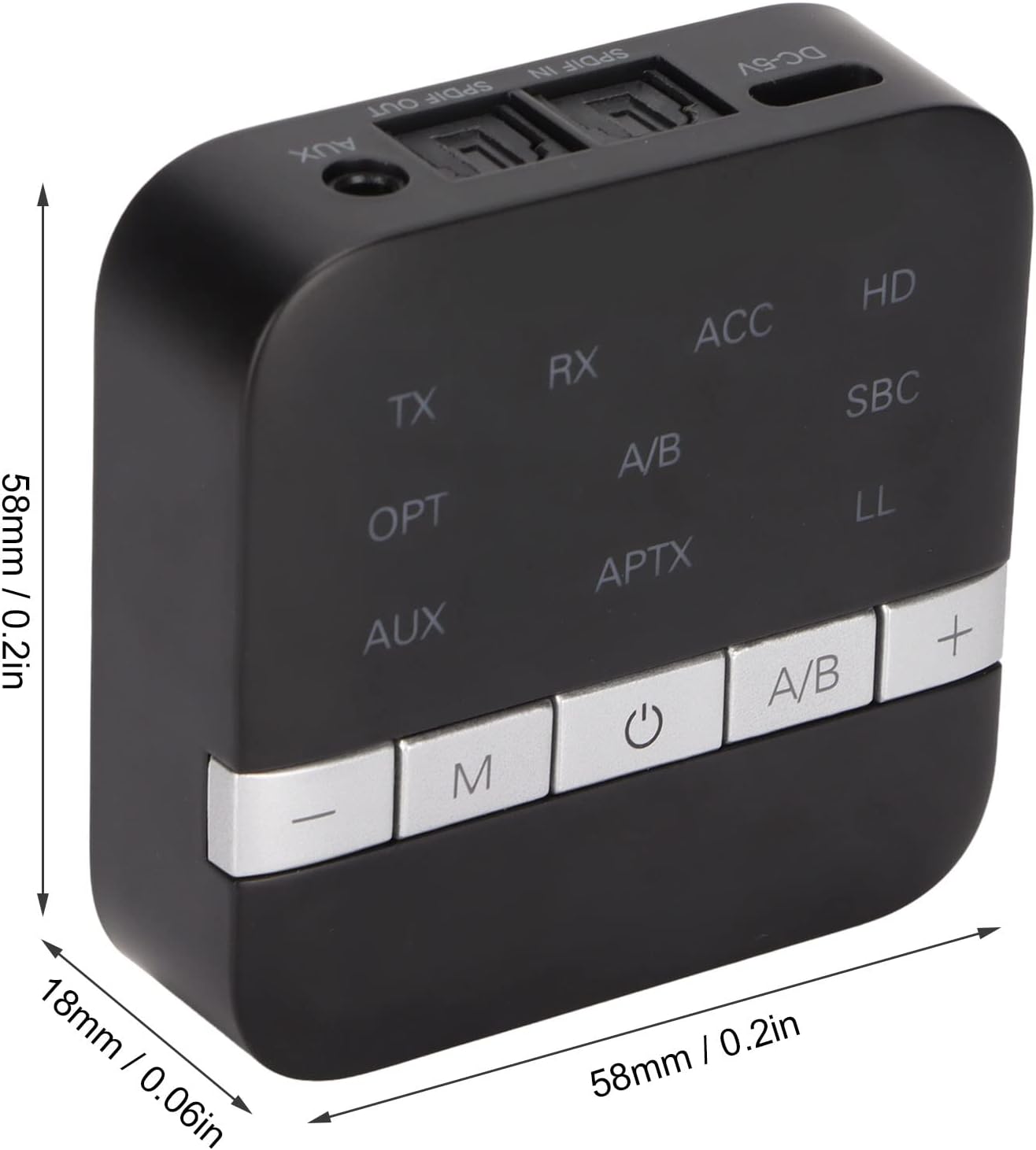
Image: A diagram illustrating the compact dimensions of the TX200 adapter, measuring approximately 58mm x 58mm x 18mm (2.28in x 2.28in x 0.71in).
4. Setup
Charging the Device:
- Connect the provided Type-C charging cable to the DC-5V port on the TX200.
- Connect the other end of the charging cable to a USB power adapter (5V/1A recommended) or a computer USB port.
- The charging indicator will light up during charging and turn off when fully charged. A full charge takes approximately 2.5 hours.
Transmitter (TX) Mode Setup:
Use TX mode to stream audio from non-Bluetooth devices (e.g., TV, PC, projector) to Bluetooth headphones or speakers.
- Ensure the TX200 is powered on.
- Connect the TX200 to your audio source device (TV, PC, etc.) using one of the following methods:
- Optical Cable: Connect one end of the optical cable to the SPDIF OUT port on the TX200 and the other end to the optical audio output port of your source device.
- 3.5mm Audio Cable: Connect one end of the 3.5mm audio cable to the AUX port on the TX200 and the other end to the 3.5mm audio output (headphone jack) of your source device.
- RCA Audio Cable: If your source device has RCA audio outputs, use the provided RCA to 3.5mm cable. Connect the RCA ends to your source device's L/R audio outputs and the 3.5mm end to the AUX port on the TX200.
- Set the TX200 to TX mode (the TX indicator LED should be lit). If not, press the 'M' button to switch modes.
- Place your Bluetooth headphones or speakers in pairing mode.
- The TX200 will automatically search for and connect to nearby Bluetooth devices. Once connected, the corresponding codec indicator (e.g., APTX, LL, SBC) will light up.
Receiver (RX) Mode Setup:
Use RX mode to stream audio from your Bluetooth-enabled device (e.g., smartphone, tablet) to non-Bluetooth audio systems (e.g., home stereo, wired speakers).
- Ensure the TX200 is powered on.
- Connect the TX200 to your audio receiving device (home stereo, wired speakers, car audio) using one of the following methods:
- Optical Cable: Connect one end of the optical cable to the SPDIF IN port on the TX200 and the other end to the optical audio input port of your receiving device.
- 3.5mm Audio Cable: Connect one end of the 3.5mm audio cable to the AUX port on the TX200 and the other end to the 3.5mm audio input of your receiving device.
- RCA Audio Cable: If your receiving device has RCA audio inputs, use the provided RCA to 3.5mm cable. Connect the RCA ends to your receiving device's L/R audio inputs and the 3.5mm end to the AUX port on the TX200.
- Set the TX200 to RX mode (the RX indicator LED should be lit). If not, press the 'M' button to switch modes.
- Enable Bluetooth on your smartphone or tablet and search for "TX200" in the list of available devices.
- Select "TX200" to pair. Once connected, the corresponding codec indicator will light up.

Image: The TX200 adapter positioned in a living room, connected to a television, demonstrating its use for streaming audio to wireless headphones, providing a visual example of a typical setup.
5. Operating Instructions
Power On/Off:
- Power On: Press and hold the Power button (⏻) for approximately 3 seconds until the indicator lights turn on.
- Power Off: Press and hold the Power button (⏻) for approximately 3 seconds until the indicator lights turn off.
Mode Switching:
- Press the 'M' button to switch between Transmitter (TX) mode and Receiver (RX) mode. The corresponding TX or RX LED indicator will illuminate.
Pairing and Dual Stream:
- Single Device Pairing: In either TX or RX mode, the device will automatically enter pairing mode if no device is connected. Search for 'TX200' on your Bluetooth device (in RX mode) or put your Bluetooth audio device into pairing mode (in TX mode).
- Dual Stream (Connecting Two Devices Simultaneously):
- Connect the first Bluetooth device (headphone/speaker in TX mode, or smartphone/tablet in RX mode) as described above.
- Once the first device is connected, press the 'A/B' button on the TX200. The A/B indicator will flash, indicating it's searching for a second device.
- Put your second Bluetooth device into pairing mode. The TX200 will automatically connect to it.
- Both A and B indicators will be solid when two devices are successfully connected.
Volume Control:
- Press the '+' button to increase volume.
- Press the '-' button to decrease volume.

Image: The TX200 adapter shown in a scenario where it facilitates low-latency audio streaming from a source device to headphones, emphasizing its capability for synchronized audio and video.
6. Maintenance
- Keep the device dry. Avoid exposure to moisture, humidity, or corrosive liquids.
- Do not use harsh chemicals, cleaning solvents, or strong detergents to clean the device. Wipe it with a soft, dry cloth.
- Store the device in a cool, dry place away from extreme temperatures.
- Avoid dropping, knocking, or shaking the device, as this can damage internal components.
- Do not attempt to disassemble or modify the device. This will void the warranty and may cause damage.
7. Troubleshooting
No Power:
- Ensure the device is fully charged. Connect it to a power source using the provided Type-C cable.
- Press and hold the Power button for at least 3 seconds to turn it on.
Cannot Pair/Connect:
- Ensure the TX200 is in the correct mode (TX for transmitting, RX for receiving).
- Make sure the other Bluetooth device is in pairing mode.
- Bring the devices closer together (within 10 meters/33 feet).
- Clear the pairing history on both devices and try pairing again.
- Restart both the TX200 and the other Bluetooth device.
No Audio/Poor Audio Quality:
- Check if the audio cables (optical, 3.5mm, RCA) are securely connected to both the TX200 and your audio source/receiving device.
- Ensure the correct input/output source is selected on your TV, stereo, or other connected device.
- Adjust the volume on both the TX200 and the connected audio device.
- Verify that the correct audio codec (APTX HD, APTX LL, APTX, SBC) is indicated on the TX200.
- Reduce interference by moving away from other wireless devices (Wi-Fi routers, cordless phones).
Intermittent Connection/Short Range:
- Ensure there are no significant physical obstacles (thick walls, metal objects) between the TX200 and the connected Bluetooth device.
- Move the devices closer to each other.
- Avoid placing the TX200 near other strong signal sources.
8. Specifications
| Item Type | Bluetooth Adapter |
|---|---|
| Material | ABS |
| Model | TX200 |
| Color | Black |
| Function | Bluetooth Adaptation (Transmitter/Receiver) |
| Application Scope | TV, Computer, iPod, Projector, Home Stereo Systems |
| Bluetooth Version | V5.0 APT-X, HD, Low Latency |
| Bluetooth Chip | CSR8675 |
| Frequency Range | 2.402 GHz - 2.480 GHz |
| Communication Distance | RX: Approx. 120m / 393ft, TX: Approx. 120m / 393ft (open areas) |
| Bluetooth Protocol | A2DP, AVRCP |
| Codec Support | APTX HD, APTX LOW LATENCY, APTX, SBC |
| Power Supply Mode | Type-C Interface (DC 5V) |
| Working Temperature | -10℃ - 55℃ (14℉ - 131℉) |
| Built-in Battery | 450 mAh Polymer-Lithium Battery |
| Dimensions (L x W x H) | Approx. 58mm x 58mm x 18mm (2.28in x 2.28in x 0.71in) |
| Hardware Interface | Bluetooth, Bluetooth 5 |
| Compatible Devices | Desktop, TV, iPod, Projector, Home Stereo Systems |
| Data Link Protocol | Bluetooth |
9. Warranty and Support
This product comes with a standard manufacturer's warranty. Please refer to the warranty card included in your package for specific terms and conditions, including warranty period and coverage details. For technical support, troubleshooting assistance, or warranty claims, please contact Cuifati customer service through the retailer where you purchased the product or visit the official Cuifati website for contact information.
Ask a question about this manual
Ask about setup, troubleshooting, compatibility, parts, safety, or missing instructions. Manuals+ will review the question and use this page’s manual context to help answer it.