
1. Introduction
This manual provides essential instructions for setting up, operating, maintaining, and troubleshooting your VIBOX VI-63 PC Gamer. Please read this guide thoroughly before using your new computer to ensure optimal performance and longevity.
2. Safety Information
- Ensure the PC is placed on a stable, flat surface with adequate ventilation.
- Do not block any ventilation openings on the PC case.
- Keep the PC away from direct sunlight, heat sources, and liquids.
- Use only the power adapter supplied with your PC.
- Disconnect the power cable before cleaning or performing any maintenance.
- Avoid opening the PC case unless instructed by VIBOX support, as this may void your warranty.
3. Package Contents
Verify that all items listed below are included in your package:
- VIBOX VI-63 PC Gamer Tower
- 22-inch Monitor
- RGB Gaming Keyboard
- RGB Gaming Mouse
- Black Mouse Pad
- Gaming Headset with Microphone
- Wireless WiFi Network Adapter (600 Mbps)
- Power Cable(s)
- Display Cable (HDMI or VGA, depending on monitor)
- Documentation (this manual)
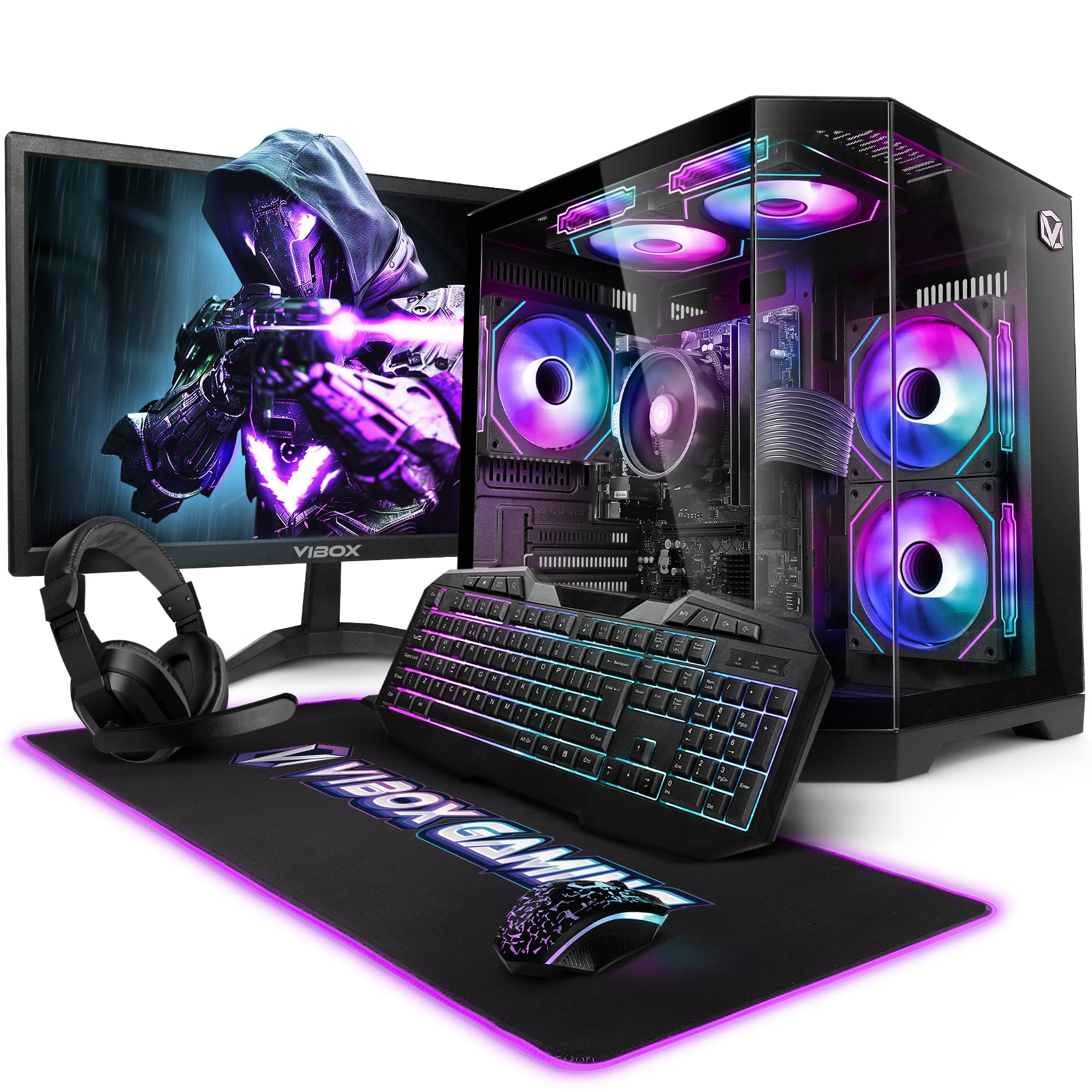
Image 3.1: VIBOX VI-63 PC Gamer Tower with internal RGB lighting.
4. Setup Instructions
4.1. Unpacking and Placement
- Carefully remove all components from their packaging.
- Place the PC tower on a flat, stable surface. Ensure there is sufficient space around the tower for proper airflow.
- Place the monitor on a stable surface at a comfortable viewing height.
4.2. Connecting Peripherals
- Monitor: Connect one end of the display cable (HDMI or VGA) to the corresponding port on the back of the PC and the other end to the monitor.
- Keyboard and Mouse: Connect the USB cables of the keyboard and mouse to any available USB ports on the PC.
- Headset: Connect the headset to the audio jacks (headphone and microphone) on the front or rear of the PC.
- WiFi Adapter: Insert the wireless WiFi network adapter into an available USB port.
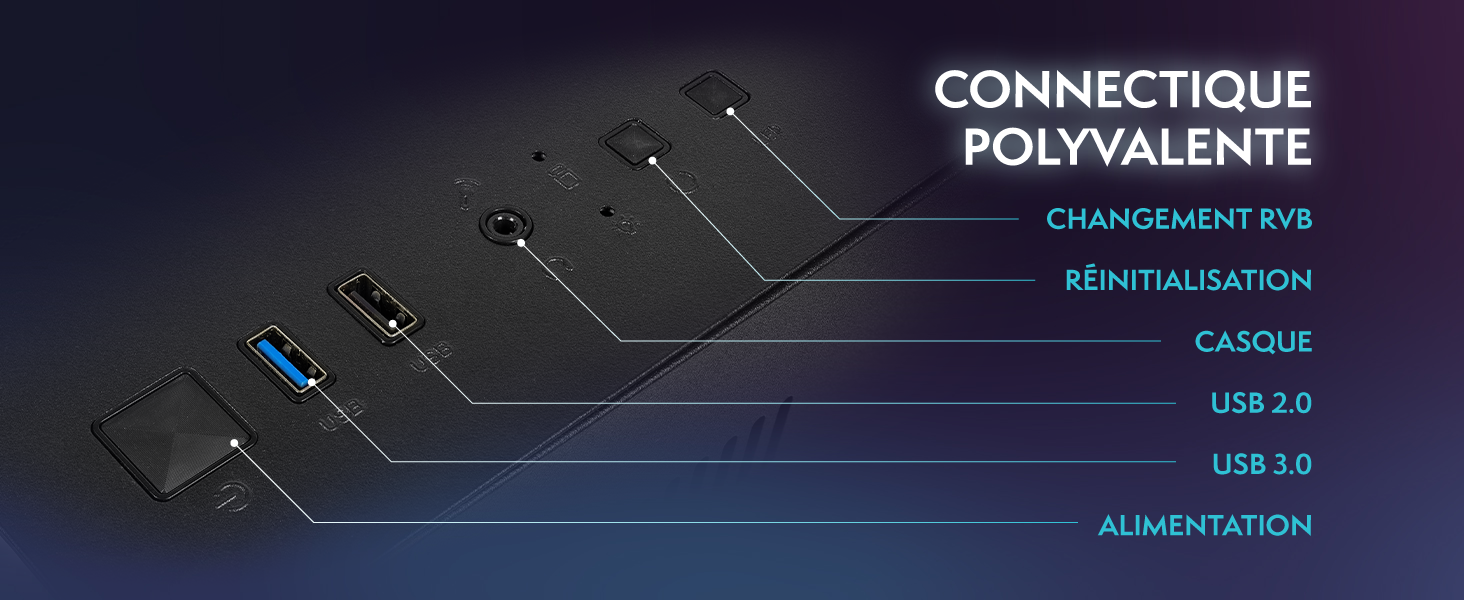
Image 4.1: Front panel connections including USB 2.0, USB 3.0, headset jack, reset button, and RGB change button.
4.3. Power Connection
- Connect the power cable to the power supply unit (PSU) at the back of the PC.
- Connect the other end of the power cable to a wall outlet.
- Connect the monitor's power cable to a wall outlet.
4.4. Initial Boot and Windows 11 Setup
- Press the power button on the front of the PC tower.
- Turn on the monitor.
- Follow the on-screen instructions to complete the Windows 11 Home setup. This typically involves selecting your region, language, creating a user account, and connecting to a Wi-Fi network.
5. Operating Instructions
5.1. Basic Operation
- Power On/Off: Press the power button to turn on the PC. To shut down, click the Start button in Windows, then Power > Shut down.
- Restart: From the Start menu, select Power > Restart.
- Sleep Mode: From the Start menu, select Power > Sleep.
5.2. Windows 11 Features
Your VIBOX VI-63 PC Gamer comes with Windows 11 Home pre-installed, offering features designed to enhance your computing and gaming experience:
- DirectStorage: Enables faster loading times for compatible games.
- AutoHDR: Automatically enhances visuals for a wider range of games.
- Xbox Game Pass Integration: Seamless access to a library of games (subscription may be required).
- Optimized CPU Performance: Windows 11 is designed to optimize CPU usage for gaming and multitasking.
5.3. Gaming Performance
The VIBOX VI-63 is equipped with an AMD Ryzen 3 3200GE processor and integrated Radeon Vega 8 graphics, providing solid performance for everyday computing and gaming at 720p to 1080p resolutions.

Image 5.1: Overview of internal components including CPU, GPU, RAM, and storage.
5.4. RGB Lighting Control
Your PC features RGB lighting. Use the dedicated RGB change button on the front panel (refer to Image 4.1) to cycle through different lighting modes and colors.
6. Maintenance
6.1. Cleaning the PC
- Exterior: Use a soft, damp cloth to wipe down the exterior of the PC case and monitor. Avoid abrasive cleaners.
- Dust: Periodically use compressed air to clear dust from the ventilation openings and fan grilles. Ensure the PC is powered off and unplugged before doing so.
- Peripherals: Clean your keyboard and mouse regularly to prevent dust and debris buildup.
6.2. Software Updates
- Regularly check for and install Windows updates to ensure system stability and security. Go to Settings > Windows Update.
- Keep your graphics drivers updated for optimal gaming performance. You can usually download the latest drivers from the AMD website.
6.3. System Care
- Avoid installing unnecessary software to keep your system lean and fast.
- Run regular antivirus scans to protect against malware. Windows Defender is pre-installed.
- Ensure proper airflow around the PC to prevent overheating. The inverted airflow design helps with cooling.
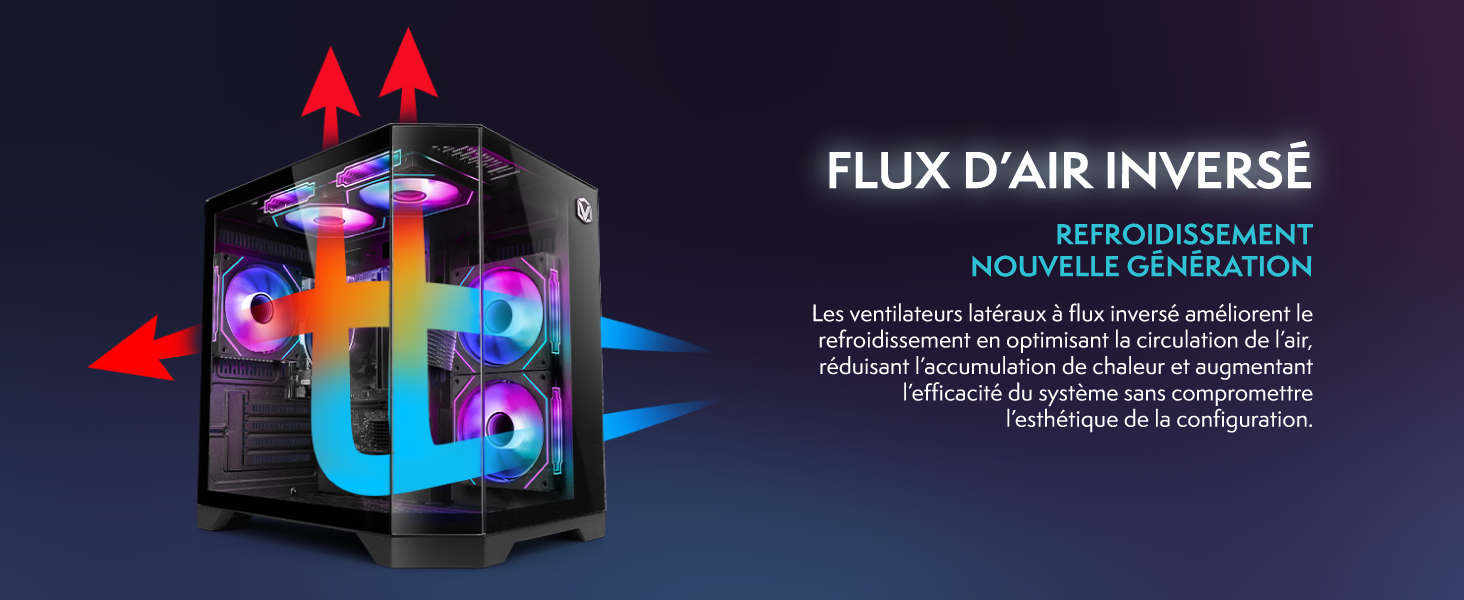
Image 6.1: Inverted airflow design for efficient cooling.
7. Troubleshooting
- No Power: Check all power cable connections. Ensure the wall outlet is functional.
- No Display: Ensure the monitor is powered on and the display cable is securely connected to both the PC and the monitor. Try a different display cable or port if available.
- No Internet Connection: Verify the WiFi adapter is properly installed. Check your router and internet service. In Windows, go to Settings > Network & internet to troubleshoot.
- PC Freezes/Crashes: Restart the PC. Ensure all drivers are updated. Check for overheating (ensure good airflow).
- Peripherals Not Working: Try connecting the keyboard, mouse, or headset to different USB/audio ports. Ensure drivers are installed if required.
8. Specifications
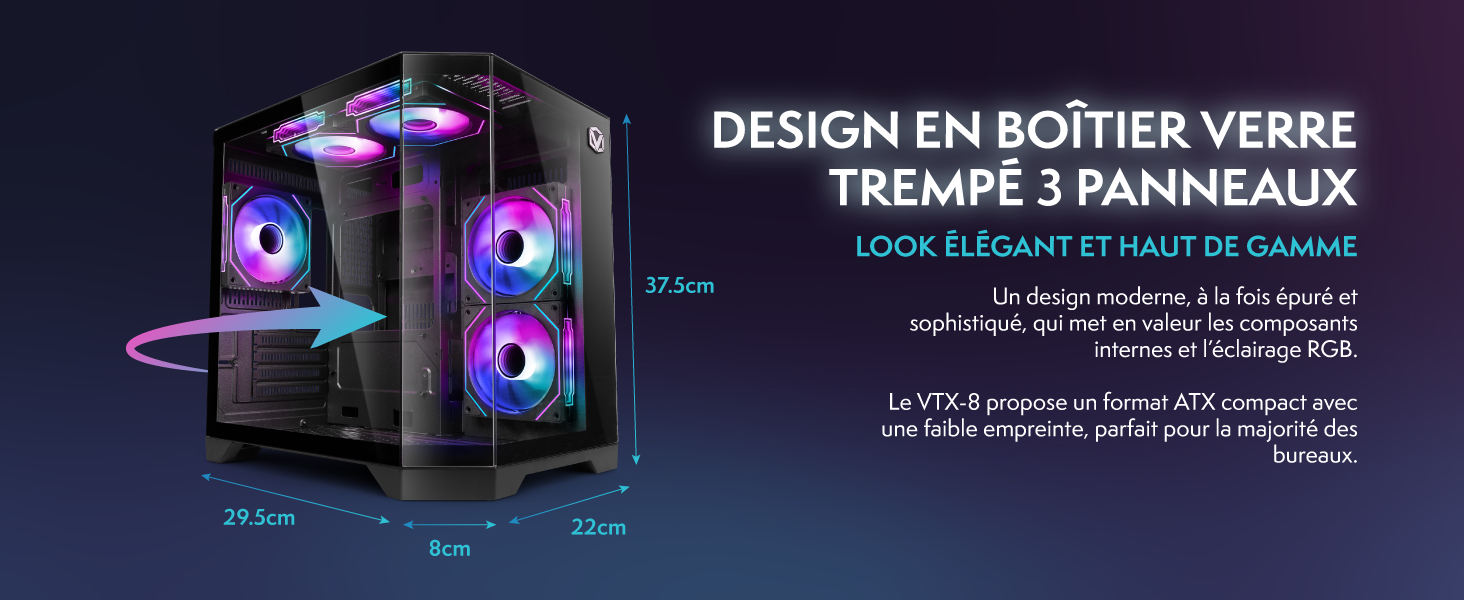
Image 8.1: VIBOX VI-63 PC Gamer case dimensions.
| Feature | Specification |
|---|---|
| Brand | VIBOX |
| Model Name | Vibox VI-63 Gaming PC |
| Operating System | Windows 11 Home |
| CPU Model | AMD Ryzen 3 3200G |
| CPU Speed | 3.6 GHz (4 GHz Turbo) |
| CPU Cores | 4 |
| Graphics Coprocessor | Radeon Vega 8 (Integrated) |
| Graphics RAM | 2 GB (Shared) |
| RAM Installed | 16 GB DDR4 |
| RAM Speed | 2666 MHz |
| Storage Capacity | 1 TB SSD |
| Hard Drive Technology | SSD |
| Monitor Size | 22 Inches |
| Max Display Resolution | 1920x1080 Pixels |
| Video Output Interface | HDMI, VGA |
| Connectivity Technology | AMD Radeon Vega 8, Ethernet, HDMI, USB, Wi-Fi |
| Dimensions (L x W x H) | 32.6 x 19.5 x 42 cm |
| Color | VTX-1 Black |
9. Warranty and Support
9.1. Warranty Information
Your VIBOX VI-63 PC Gamer comes with a 2-year warranty on spare parts. This warranty covers manufacturing defects and component failures under normal use. Please retain your proof of purchase for warranty claims.
9.2. Customer Support
For technical assistance, troubleshooting, or warranty inquiries, please contact VIBOX customer support. Refer to the contact information provided with your purchase documentation or visit the official VIBOX website for support details.
Online Resources: For additional support and FAQs, please visit the VIBOX official website.


