
1. Introduction
This manual provides detailed instructions for the setup, operation, and maintenance of your Arktronic Frameo 8-Inch Smart WiFi Digital Photo Frame, Model C080BF. Please read this guide thoroughly to ensure optimal performance and longevity of your device.
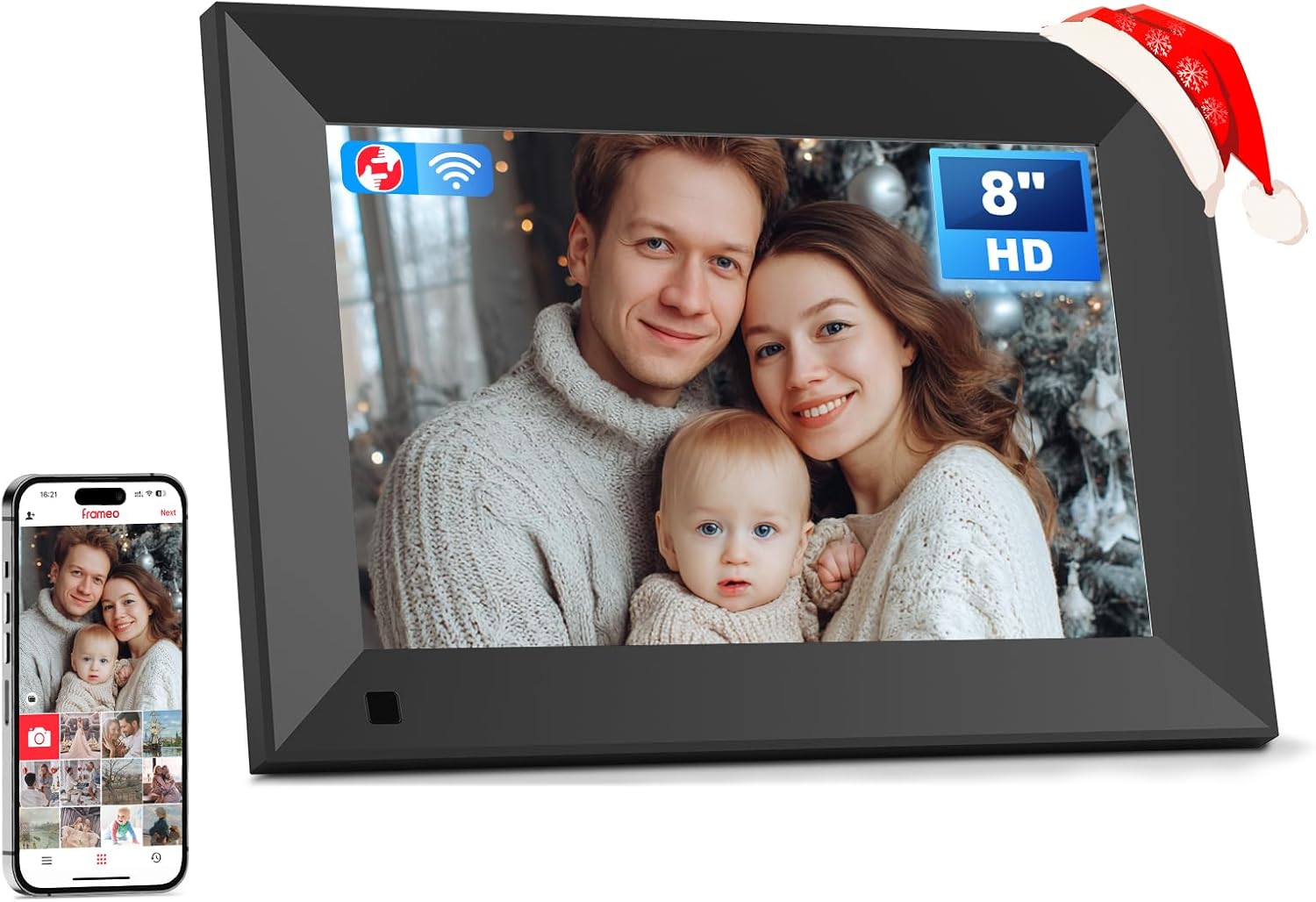
Figure 1: Arktronic Frameo 8-Inch Smart WiFi Digital Photo Frame
2. Package Contents
Verify that all items listed below are included in your package:
- Frameo 8-Inch Smart WiFi Digital Photo Frame
- Power Adapter (with US Plug)
- Stand
- Screws & Wall Anchors (for wall mounting)
- User Manual & Quick Start Guide

Figure 2: What's in the Box
3. Product Overview
The Arktronic Frameo digital photo frame features an 8-inch 1280x800 HD IPS touchscreen, 16GB of internal memory, and supports sharing photos and videos via the Frameo app. It is designed for both freestanding and wall-mountable use.
Key Features:
- 8-Inch 1280x800 HD IPS Touchscreen: Provides clear image display and easy navigation.
- 16GB Internal Memory: Stores up to 160,000 photos. Expandable via Micro SD card (up to 64GB, not included).
- Frameo App Integration: Share photos and videos directly from your smartphone.
- Multi-functionality: Supports portrait or landscape mode, captions, weather, clock display, background music, light sensor, sleep mode, image zoom, adjustable brightness, slideshow modes, and playback order adjustment.
- Media Compatibility: Supports JPG, GIF, BMP, PNG image formats and MPEG1, MPEG2, MPEG4, Xvid, AVI, M-JPEG, H.264, MOV, VOB, MKV, DIVX4, DIVX5 video formats.

Figure 3: Back of the Frame with Ports and Mounting Holes
4. Setup Guide
4.1 Initial Power-On
- Connect the power adapter to the frame and then to a power outlet.
- The frame will automatically power on. Follow the on-screen prompts to select your language and time zone.
4.2 Connecting to Wi-Fi
- On the frame's touchscreen, navigate to the Wi-Fi settings.
- Select your desired Wi-Fi network from the list.
- Enter the Wi-Fi password using the on-screen keyboard and tap 'Connect'.
4.3 Downloading the Frameo App
To share photos and videos, download the 'Frameo' app on your smartphone or tablet:
- For iOS devices, search 'Frameo' in the Apple App Store.
- For Android devices, search 'Frameo' in the Google Play Store.
4.4 Pairing the Frame
- Open the Frameo app on your smartphone and create an account or log in.
- On your Frameo digital photo frame, tap 'Add Friend' to generate a unique 6-digit code.
- In the Frameo app, enter this 6-digit code to pair your device with the frame.
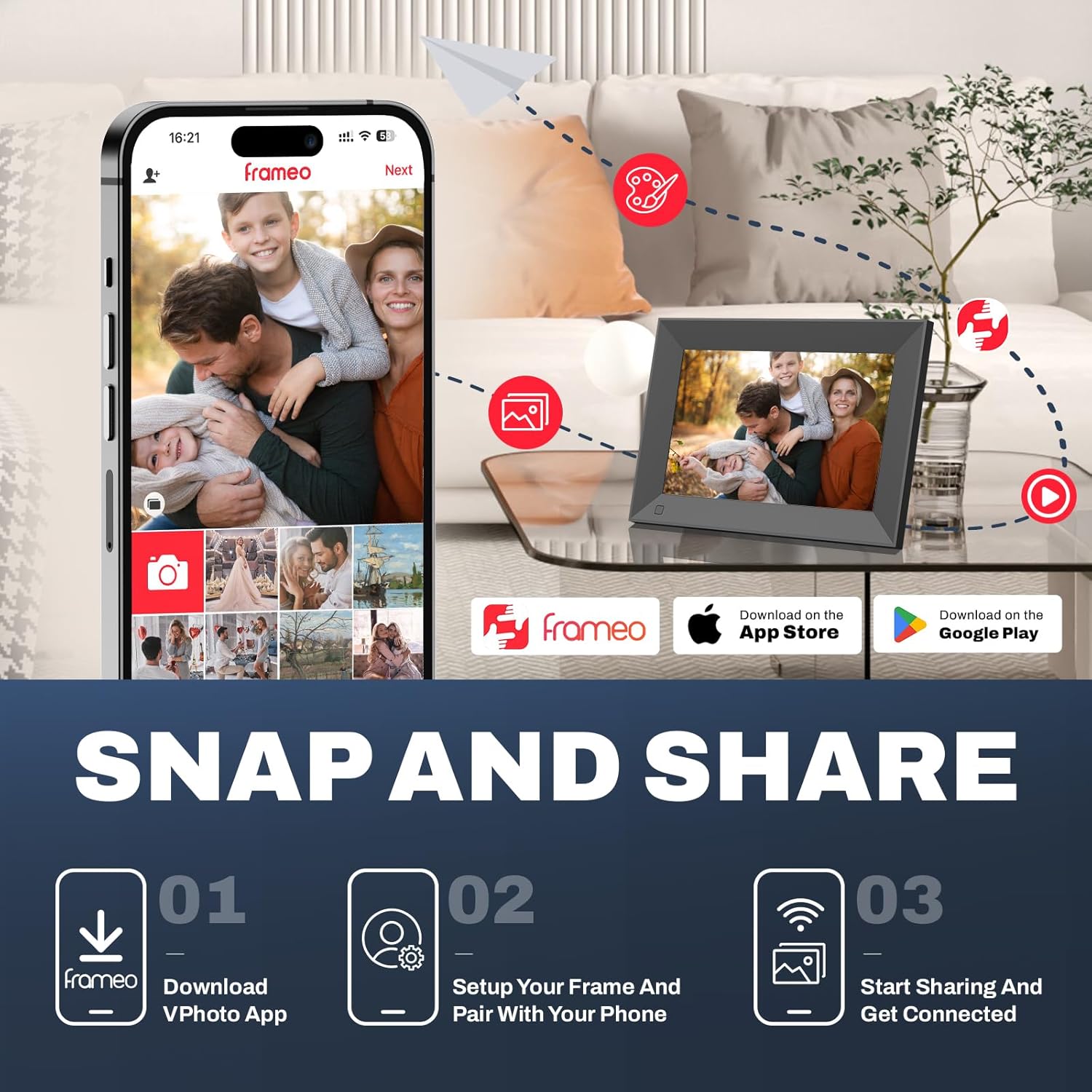
Figure 4: Snap and Share Process
5. Operating Instructions
5.1 Sharing Photos and Videos via the Frameo App
Once paired, you can easily send photos and short videos to your Frameo digital photo frame:
- Open the Frameo app on your smartphone.
- Select the photos or videos you wish to send.
- Choose your Frameo device from the list of connected frames.
- Add an optional caption to your media.
- Adjust the cropping if necessary to fit the frame's display.
- Tap 'Send' to upload the media to your frame.

Figure 5: Interacting with Loved Ones by Sharing Photos
5.2 Touchscreen Navigation
The frame's touchscreen allows for intuitive control:
- Swipe: Swipe left or right to navigate through photos and videos.
- Tap: Tap the screen to reveal options such as reacting to photos, hiding photos, accessing the gallery, or adjusting settings.
- Pinch-to-Zoom: Use two fingers to zoom in on photos.

Figure 6: Responsive Touchscreen Interface
6. Customization and Settings
Access the settings menu on your frame to personalize your experience:
- Display Settings: Adjust brightness, enable/disable captions, show weather, or clock.
- Slideshow Settings: Customize photo display order (by date received, shuffle), set the duration for each photo (e.g., 30 seconds, 1 minute), and choose a frame background (e.g., blurred bars).
- Sleep Mode: Configure the frame to automatically turn off and on at specific times to conserve energy.
- Video Playback: Set videos to autoplay or play once, and adjust video volume. You can also mute videos by default.
- Backup and Restore: Create backups of your photos and settings.
7. Placement and Mounting
The Arktronic Frameo digital photo frame offers flexible placement options:
- Freestanding: Use the included stand to place the frame on any flat surface in either portrait or landscape orientation.
- Wall Mountable: The frame is designed for two-way wall mounting. Use the provided screws and wall anchors to securely attach it to a wall. Ensure the power cord is managed neatly.

Figure 7: Versatile Placement Options

Figure 8: Wall Mounted Frame with Dimensions
8. Technical Specifications
| Product Dimensions | 8.66 x 6.1 x 0.99 inches |
| Item Weight | 1.48 pounds |
| Model Number | C080BF |
| Brand | Arktronic |
| Color | Black |
| Resolution | 1280x800 HD |
| Compatible Devices | Smartphone |
| Screen Size | 8 Inches |
9. Care and Maintenance
- Cleaning: Use a soft, dry cloth to clean the screen and frame. Avoid abrasive cleaners or solvents.
- Placement: Place the frame on a stable surface or mount it securely to prevent accidental falls. Avoid direct sunlight or extreme temperatures.
- Software Updates: Ensure your frame's software is up-to-date for optimal performance and new features. Updates are typically managed through the Frameo app or frame settings.
10. Troubleshooting
- Frame Not Connecting to Wi-Fi: Ensure your Wi-Fi password is correct and the frame is within range of your router. Try restarting both the frame and your router.
- Photos Not Appearing on Frame: Verify that the frame is connected to Wi-Fi and the Frameo app is successfully paired. Check your internet connection on your smartphone.
- Screen Unresponsive: Try restarting the frame by unplugging it and plugging it back in. If the issue persists, contact customer support.
- Video Playback Issues: Ensure the video format is supported. Check video volume settings on the frame.
11. Warranty and Support
Arktronic provides a 1-year worry-free warranty for this product. For any issues or inquiries, please contact Arktronic customer service. They also offer a 30-day money-back commitment and lifetime professional service.
12. Official Product Video
Watch this official video for a visual guide on the Arktronic Frameo Smart WiFi Digital Picture Frame:
Video 1: Official product video demonstrating the features and usage of the Arktronic Frameo Smart WiFi Digital Picture Frame.