1. Introduction
This manual provides comprehensive instructions for setting up, operating, and maintaining your HP DeskJet 2810e All-in-One Printer. Designed for home use, this printer offers reliable wireless printing, scanning, and copying capabilities. It is also part of HP's commitment to sustainability, being made with at least 60% recycled plastic.
For optimal performance and to take advantage of features like Instant Ink, please follow the guidelines provided in this document.

Figure 1.1: HP DeskJet 2810e All-in-One Printer, showcasing its compact design and Instant Ink offer.
Video 1.1: HP DeskJet 2800 series Product Overview. This video provides a visual introduction to the printer's features and design.
2. Setup Guide
Setting up your HP DeskJet 2810e printer is a straightforward process. Follow these steps to get your printer ready for use.
2.1 What's in the Box
Before you begin, ensure all components are present:
- HP DeskJet 2810e printer
- HP 305 setup black cartridge
- HP 305 setup tri-colour cartridge
- Regulatory flyer
- Setup guide
- Reference guide
- Power cord
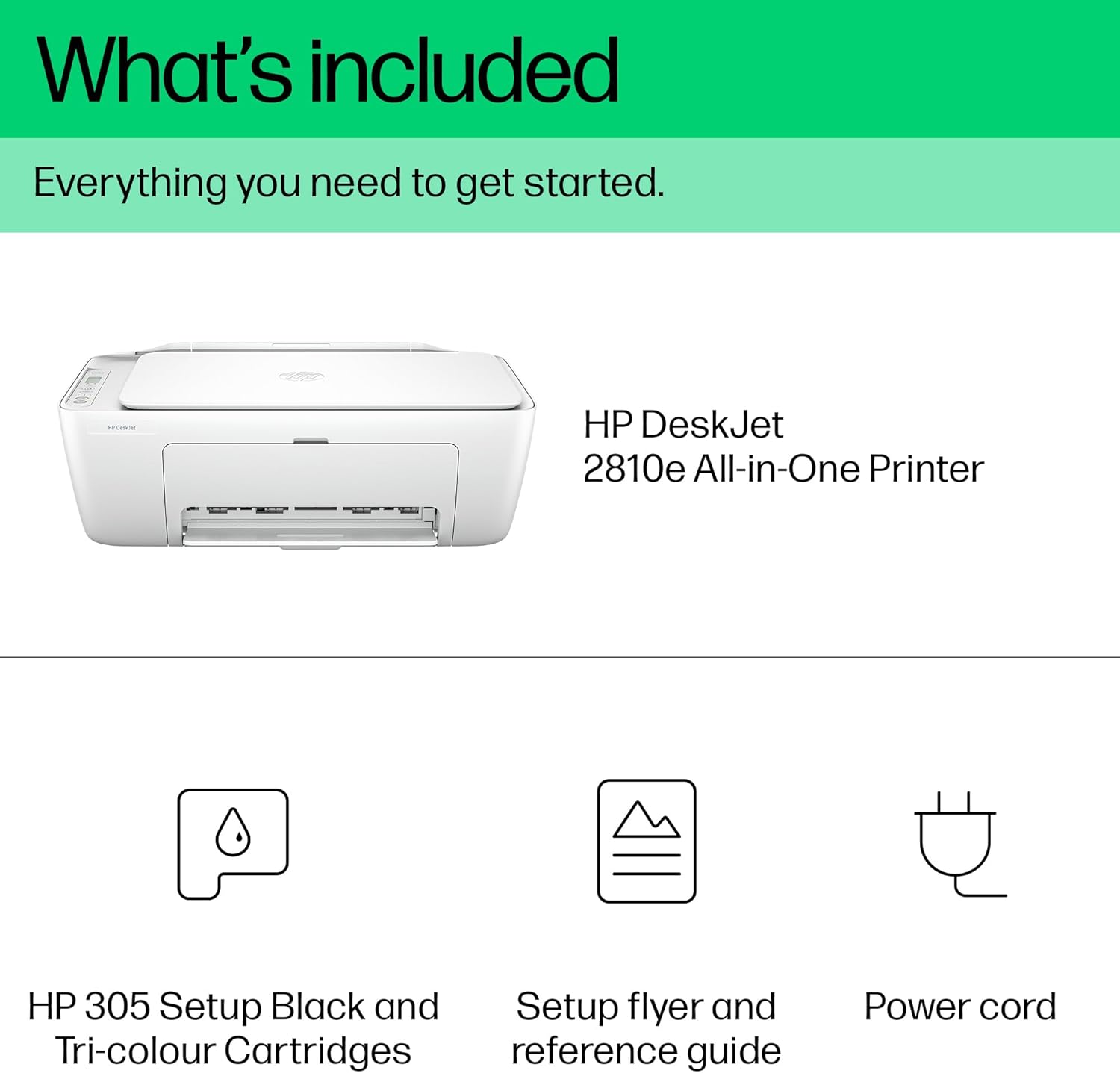
Figure 2.1: Contents included with your HP DeskJet 2810e printer.
2.2 Initial Power-On and Ink Installation
- Connect the power cord to the printer and a wall outlet.
- Press the power button to turn on the printer.
- Open the ink cartridge access door. Wait for the carriage to stop moving.
- Insert the black and tri-colour HP 305 setup cartridges into their respective slots. Ensure they click into place.
- Close the ink cartridge access door.

Figure 2.2: Installing the HP Instant Ink cartridges into the printer.
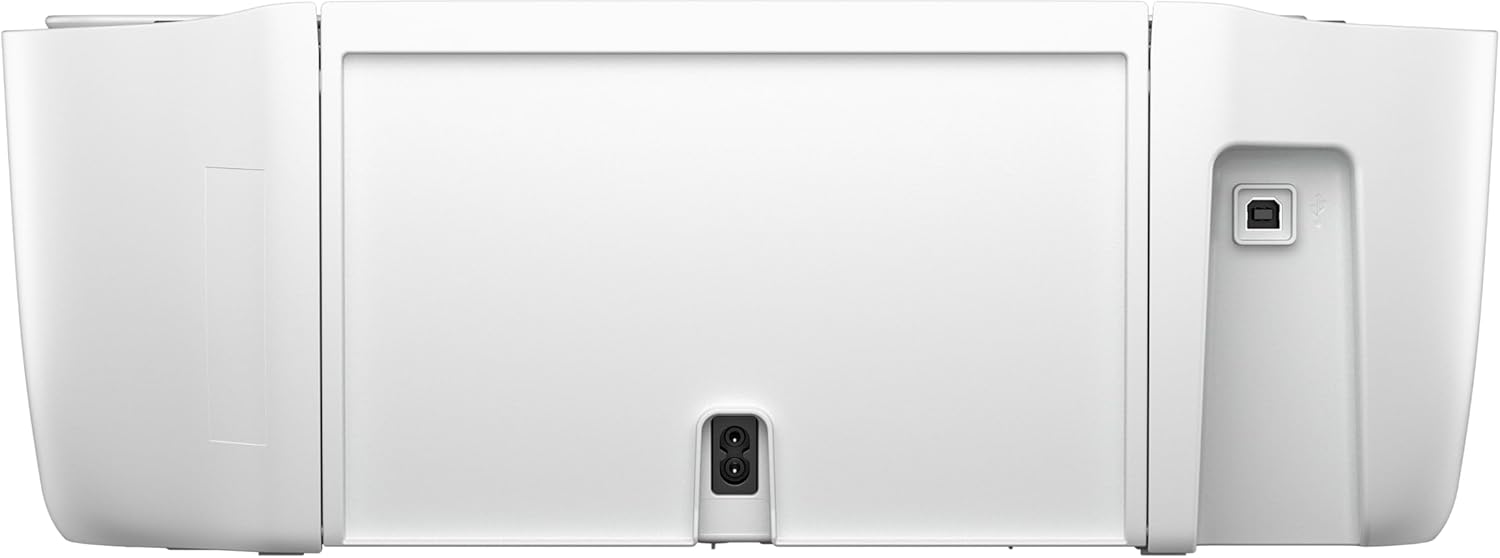
Figure 2.3: Rear view of the printer, highlighting the power and USB connection points.
2.3 Connecting to Wi-Fi and HP Smart App
The easiest way to set up your printer and connect to Wi-Fi is by using the HP Smart app.
- Download the HP Smart app from your device's app store (available for iOS, Android, Windows, and macOS).
- Open the HP Smart app and follow the on-screen instructions to add your new printer. The app will guide you through connecting the printer to your wireless network.
- Ensure your device is connected to the same Wi-Fi network you intend to connect the printer to.
- The printer features reliable Wi-Fi that automatically reconnects if the connection is lost.
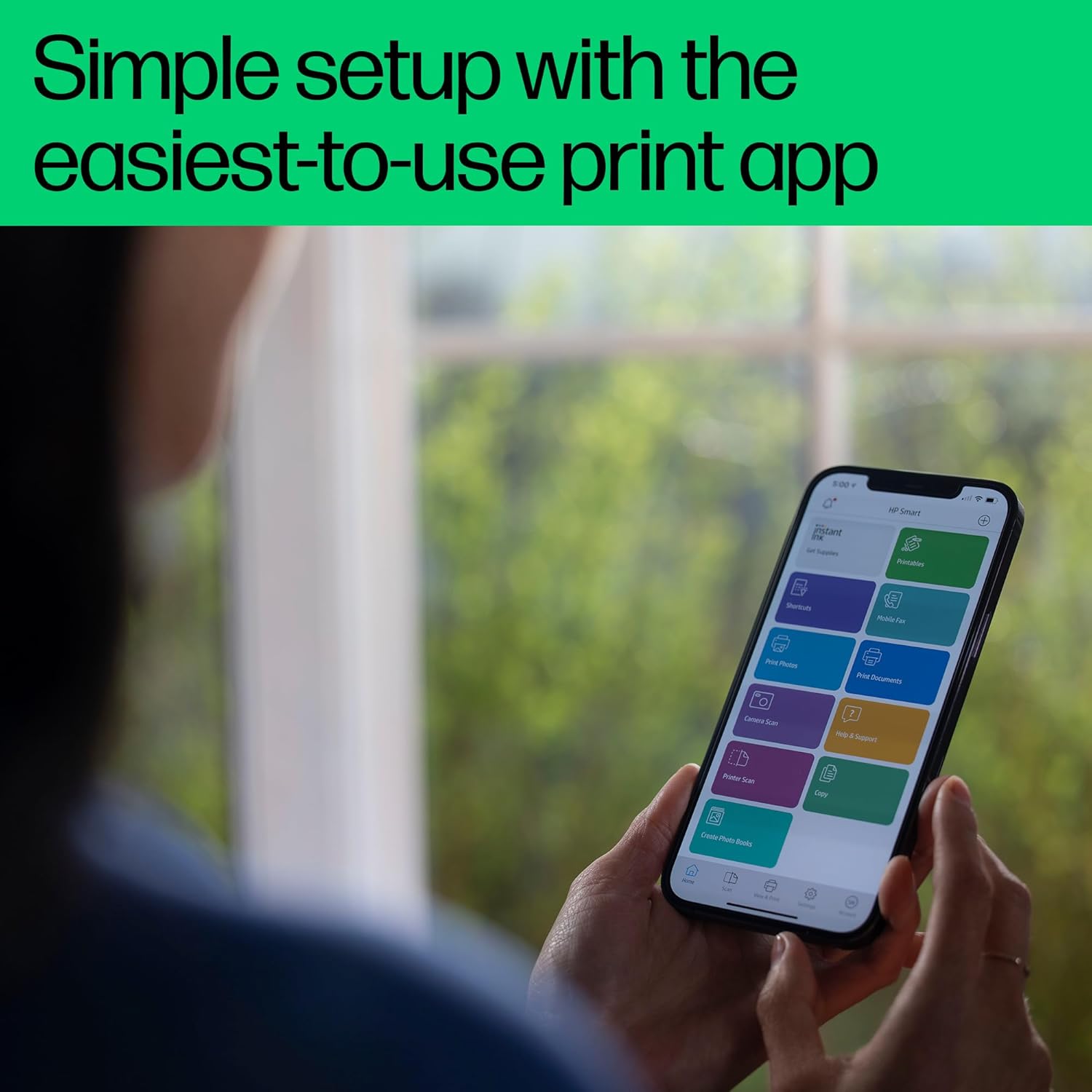
Figure 2.4: Using the HP Smart app for easy setup and management.
3. Operating the Printer
Your HP DeskJet 2810e allows you to print, scan, and copy documents and photos with ease.
3.1 Printing Documents
- Load paper into the input tray. The printer has a maximum input sheet capacity of 60 sheets.
- From your computer or mobile device, open the document or image you wish to print.
- Select the print option (usually File > Print).
- Choose your HP DeskJet 2810e printer from the list of available printers.
- Adjust print settings as needed (e.g., paper size, print quality, color/black & white). The printer supports a maximum black and white print resolution of 1200 x 1200 dpi and a maximum color print resolution of 1200 x 1200 dpi.
- Click Print.
The printer can print in black and white at 7.5 pages per minute (ppm) and color at 5.5 ppm.

Figure 3.1: The printer in action, producing a printed document.
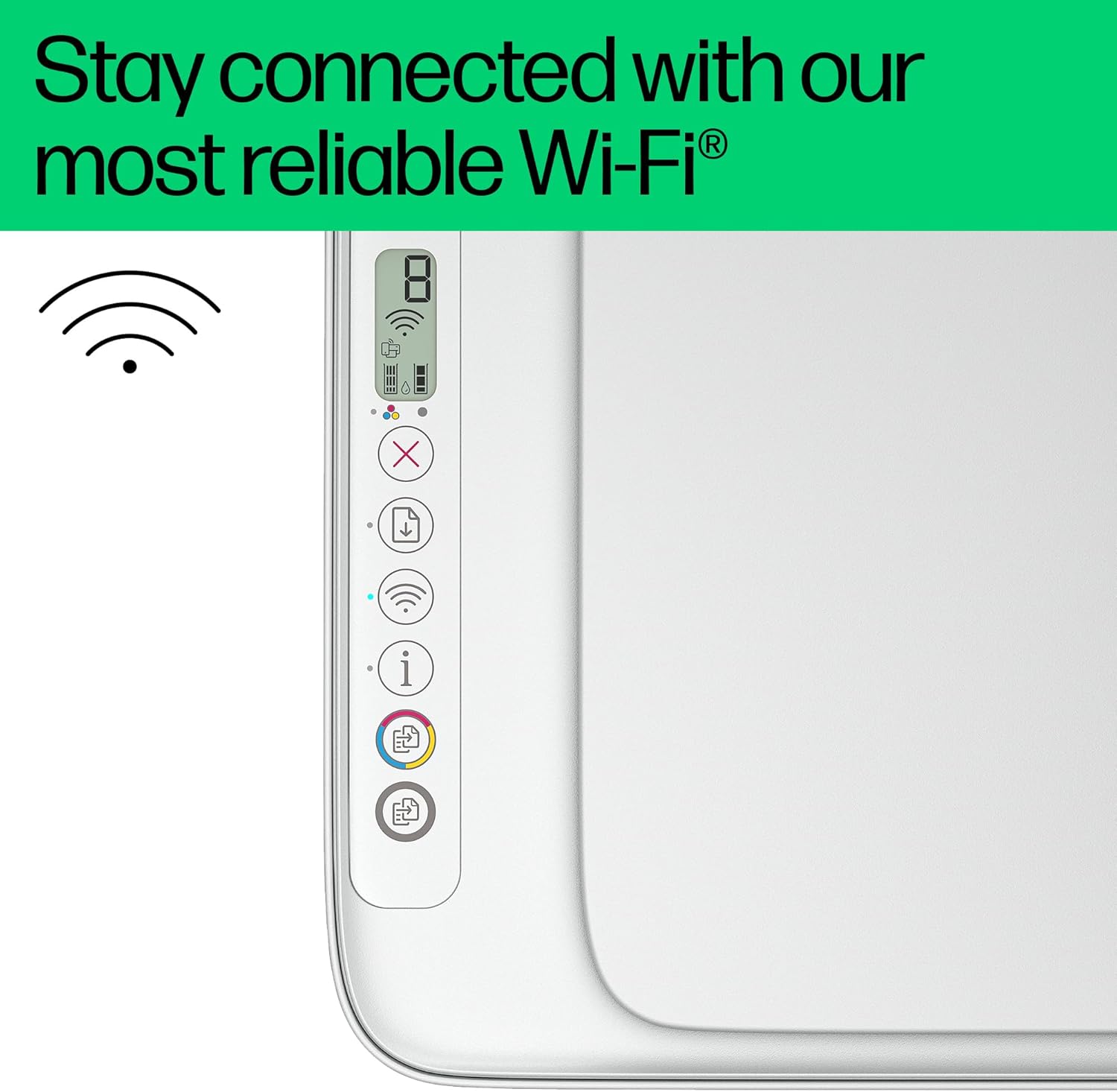
Figure 3.2: The easy-to-use control panel of the printer.
3.2 Scanning Documents
The HP DeskJet 2810e features a flatbed scanner for high-quality digital copies.
- Lift the scanner lid.
- Place the document or photo face-down on the scanner glass, aligning it with the guide.
- Close the scanner lid.
- Open the HP Smart app on your device.
- Select the Scan option and follow the prompts to adjust settings (e.g., resolution, color, file type) and save your scanned document.
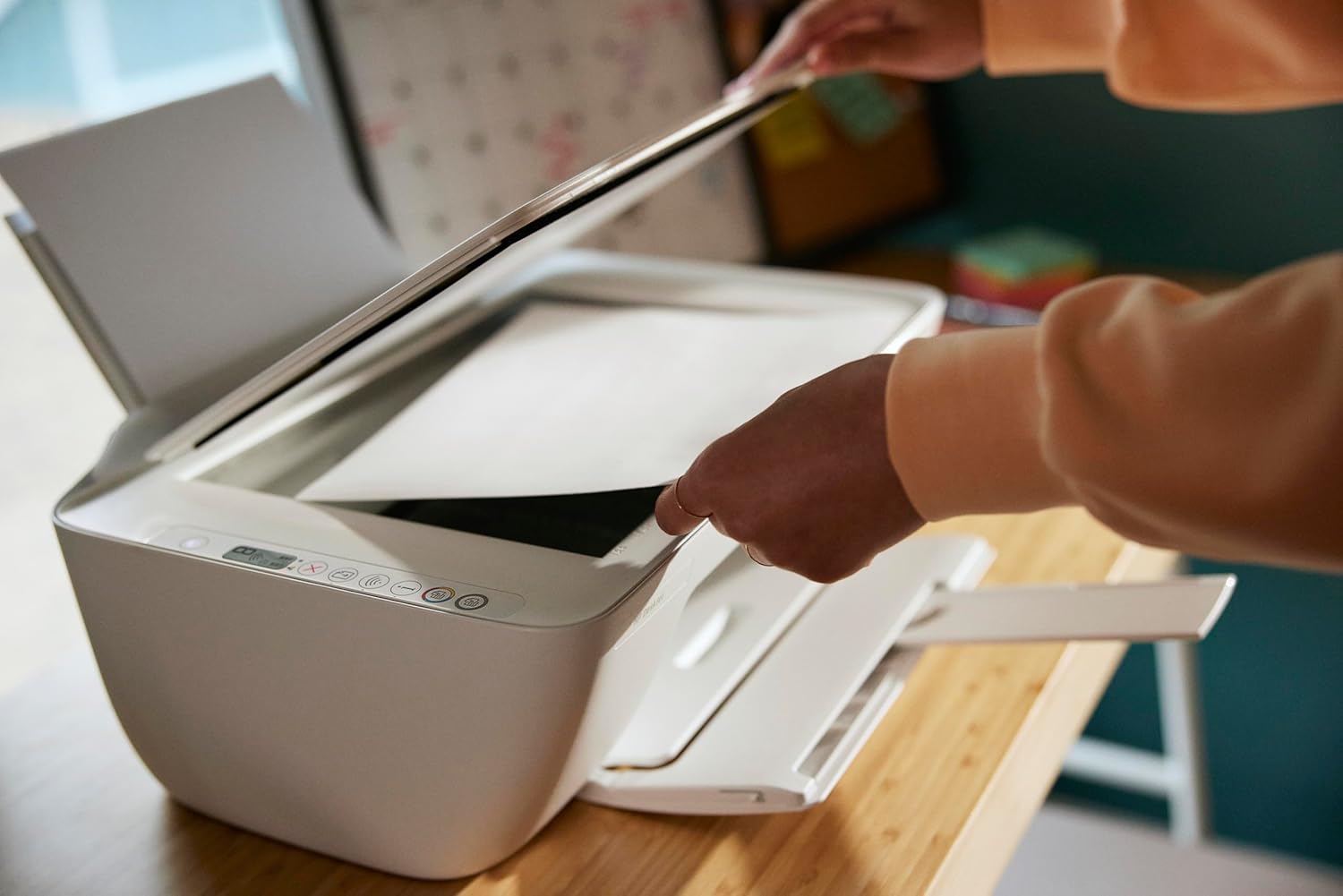
Figure 3.3: Accessing the flatbed scanner for document digitization.
3.3 Copying Documents
To make a quick copy directly from the printer:
- Place the document on the scanner glass as described in Section 3.2.
- On the printer's control panel, press the Black Copy button for a black and white copy or the Color Copy button for a color copy.
- The printer will automatically make a copy. You can make a maximum of 1 copy per run directly from the control panel. For multiple copies, use the HP Smart app.
4. Maintenance
Proper maintenance ensures the longevity and optimal performance of your HP DeskJet 2810e printer.
4.1 Replacing Ink Cartridges
When ink levels are low, the printer will indicate this. Replace cartridges as follows:
- Ensure the printer is on.
- Open the ink cartridge access door.
- Wait for the print carriage to move to the center and stop.
- Gently press down on the old cartridge to release it, then pull it out.
- Remove the new cartridge from its packaging and remove the protective tape.
- Slide the new cartridge into its slot until it clicks into place.
- Close the ink cartridge access door.
Consider enrolling in HP Instant Ink to have ink automatically delivered to your door when you're running low, potentially saving up to 70% on ink costs.

Figure 4.1: Benefits of HP Instant Ink, including cost savings and automatic delivery.

Figure 4.2: Overview of HP Instant Ink monthly printing plans.
Video 4.1: HP Instant Ink 2023. This video explains how the Instant Ink service works to ensure you never run out of ink.
4.2 Cleaning the Printer
Regular cleaning helps maintain print quality:
- Wipe the exterior of the printer with a soft, lint-free cloth.
- Clean the scanner glass with a soft cloth dampened with glass cleaner (non-abrasive).
- If print quality issues arise, use the HP Smart app or printer software to perform printhead cleaning or alignment.
5. Troubleshooting
Here are solutions to common issues you might encounter:
5.1 Printer Not Responding/Offline
- Ensure the printer is powered on and connected to the same Wi-Fi network as your device.
- Restart the printer and your Wi-Fi router.
- Check the printer's control panel for any error messages or blinking lights.
- Use the HP Smart app's diagnostic tools to identify and resolve connection issues.
5.2 Print Quality Issues
- Check ink levels and replace any low or empty cartridges.
- Perform a printhead cleaning cycle through the HP Smart app or printer software.
- Ensure you are using genuine HP ink cartridges.
- Verify that the paper type setting in your print dialog matches the paper loaded in the tray.
5.3 Paper Jams
- Turn off the printer and unplug the power cord.
- Carefully remove any jammed paper from the input tray, output tray, or inside the printer. Avoid tearing the paper.
- Ensure paper is loaded correctly and not overfilled in the input tray.
- Reconnect the power cord and turn on the printer.
6. Specifications
| Feature | Detail |
|---|---|
| Model Name | DeskJet 2810e All-in-One Printer |
| Functions | Print, Scan, Copy |
| Print Technology | Thermal Inkjet |
| Print Speed (Black) | Up to 7.5 ppm |
| Print Speed (Color) | Up to 5.5 ppm |
| Print Resolution (Black) | Up to 1200 x 1200 dpi |
| Print Resolution (Color) | Up to 1200 x 1200 dpi |
| Scanner Type | Flatbed |
| Max Input Sheet Capacity | 60 sheets |
| Connectivity | Wi-Fi, USB 2.0 |
| Product Dimensions (D x W x H) | 3.04D x 4.25W x 1.54H metres |
| Item Weight | 3.42 kg |
| Recycled Plastic Content | Made with at least 60% recycled plastic |
7. Warranty and Support
Your HP DeskJet 2810e printer comes with a standard manufacturer's warranty. Please refer to the warranty information provided in the box for specific terms and conditions.
For technical support, driver downloads, and additional resources, visit the official HP support website or contact HP customer service. The HP Smart app also provides access to support features and troubleshooting guides.
For more information, you can visit the HP Store on Amazon.