1. Introduction
The Weymic F7-Pro is a 7-channel professional audio mixer designed for various applications including recording, DJ performances, stage events, and karaoke. It features a 2-bus design, a built-in USB audio interface, and integrated digital effects. This manual provides detailed instructions for the setup, operation, and maintenance of your mixer.
2. Safety Information
- Power Supply: Use only the specified power adapter. Ensure the voltage matches your local power supply.
- Ventilation: Do not block ventilation openings. Ensure adequate airflow around the unit.
- Moisture: Do not expose the unit to rain, moisture, or excessive humidity.
- Cleaning: Disconnect power before cleaning. Use a dry, soft cloth. Avoid liquid cleaners.
- Servicing: Do not attempt to service the unit yourself. Refer all servicing to qualified personnel.
- Placement: Place the mixer on a stable, flat surface. Avoid placing it near heat sources or in direct sunlight.
3. Product Overview and Features
The Weymic F7-Pro mixer offers a comprehensive set of features for audio mixing and processing:
- 7-Channel Design: Multiple input channels for microphones and line-level instruments.
- USB Audio Interface: Connects to computers (Mac/PC) for recording and playback.
- 48V Phantom Power: Available on microphone inputs for condenser microphones.
- Built-in Bluetooth: Wireless audio streaming from compatible devices.
- Integrated MP3/USB Player: Direct playback from USB flash drives with control functions.
- 16 Digital Effects (DSP): Preset effects with adjustable depth and speed.
- 3-Band Equalization: High, Mid, and Low frequency controls on each channel for precise tone shaping.
- Compact Design: Ultra-thin and durable construction for portability.
- Wide Compatibility: Supports various devices including wired/wireless microphones, guitars, and amplifiers.

Figure 3.1: Weymic F7-Pro 7-Channel Professional Mixer front panel view. This image displays the complete layout of the Weymic F7-Pro mixer, showcasing all input channels, control knobs, faders, and the master section with its digital display.
4. Controls and Connectors
4.1 Input Channels (MIC/LIE 1-5, LINE 6/7)

Figure 4.1: Labeled diagram of an individual channel's controls. A detailed diagram labeling the controls for an individual input channel, showing the Gain control, Pan control, High, Mid, and Low tone adjustments, Channel Volume fader, AUX regulating knob, and EFF (effects) regulating knob.
- MIC/LIE (XLR/TRS Combo Jack): Connect microphones (XLR) or line-level instruments (TRS).
- +48V Phantom Power Switch: Activates phantom power for condenser microphones on individual channels.
- GAIN Control: Adjusts the input sensitivity for the connected device.
- HIGH/MID/LOW EQ: 3-band equalizer to adjust the treble, midrange, and bass frequencies of the channel.
- PAN Control: Adjusts the stereo position (left/right) of the channel's signal.
- AUX Control: Sends a portion of the channel's signal to the auxiliary output.
- EFF Control: Sends a portion of the channel's signal to the internal effects processor.
- PEAK LED: Illuminates when the input signal is too high, indicating potential clipping.
- Channel Volume Fader: Adjusts the output level of the individual channel to the main mix.
4.2 Master Section and Outputs
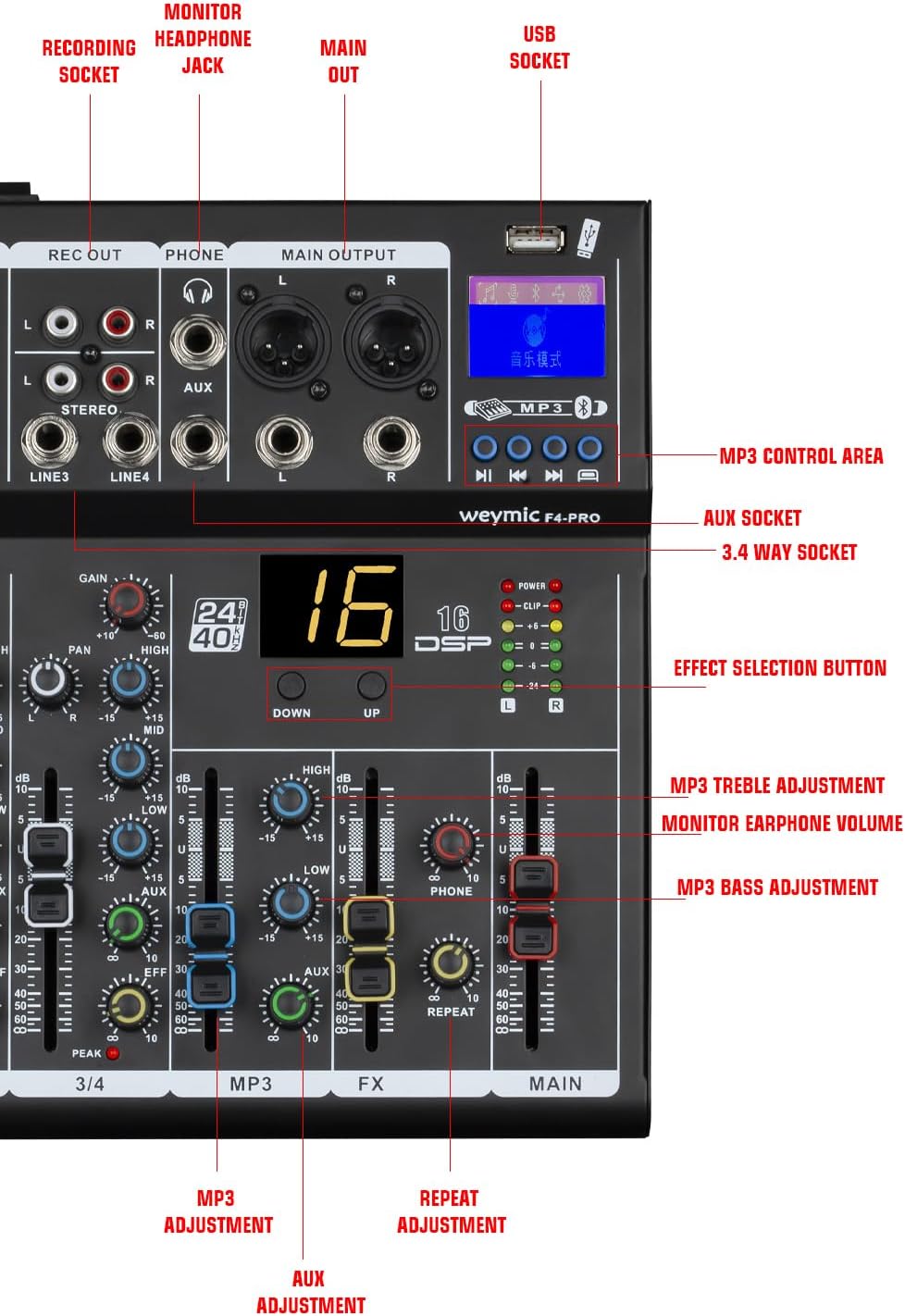
Figure 4.2: Labeled diagram of the master section controls. This diagram labels the master section controls, pointing out the USB socket, MP3 control area, AUX socket, Effect Selection button, MP3 Treble and Bass adjustments, and the Monitor Earphone Volume control.
- REC OUT (RCA): Stereo RCA outputs for connecting to a recording device.
- PHONE (TRS Jack): Headphone output for monitoring the main mix.
- MAIN OUT (XLR/TRS Combo Jack): Main stereo outputs for connecting to power amplifiers or powered speakers.
- USB Socket: Connects to a computer for audio interface functions or for USB flash drive playback.
- MP3 Control Area: Buttons for play/pause, skip tracks, and mode selection for USB/Bluetooth audio.
- Effect Selection Button: Cycles through the 16 built-in digital effects.
- DSP Display: Shows the currently selected digital effect number.
- MP3 Treble/Bass Adjustment: EQ controls for the MP3/USB/Bluetooth audio source.
- Monitor Earphone Volume: Adjusts the volume of the headphone output.
- MAIN Fader: Controls the overall output volume of the main stereo mix.
- Level Signal Lights: LED meters indicating the output level of the main mix.

Figure 4.3: Detailed display of craftsmanship. This image provides detailed close-ups of key components, including the XLR/TRS combo input jacks, the headphone monitoring jack, RCA recording output, the +48V phantom power switch, and the LED level meters, highlighting the build quality and specific functions.
5. Setup
5.1 Power Connection
- Ensure the mixer's power switch is in the OFF position.
- Connect the provided power adapter to the mixer's power input.
- Plug the power adapter into a suitable electrical outlet.
5.2 Connecting Input Devices

Figure 5.1: Strong compatibility and rich connectivity. This visual illustrates the extensive connectivity options of the mixer, showing its compatibility with wired microphones, wireless microphones, guitars, computers, and power amplifiers, suitable for diverse audio setups.
- Microphones: Connect XLR cables from your microphones to the MIC/LIE combo jacks. For condenser microphones, activate the +48V Phantom Power switch on the respective channel.
- Line-Level Instruments: Connect 1/4" TRS cables from instruments (e.g., keyboards, guitars with preamps) to the MIC/LIE combo jacks.
- Stereo Line Inputs (LINE 6/7): Use these for stereo sources like CD players or other audio devices.
5.3 Connecting Output Devices
- Main Speakers/Amplifiers: Connect XLR or 1/4" TRS cables from the MAIN OUT jacks to your power amplifier or powered speakers.
- Headphones: Plug your headphones into the PHONE TRS jack.
- Recording Device: Connect RCA cables from the REC OUT jacks to the input of your recording device.
5.4 USB Audio Interface Connection
- Connect a USB cable from the mixer's USB socket to an available USB port on your computer.
- Your computer should automatically detect the mixer as an audio device. No specific drivers are typically required for basic functionality on most operating systems (Mac/PC).
- Select the mixer as your input/output audio device in your computer's sound settings or DAW (Digital Audio Workstation) software.
5.5 Bluetooth Connection

Figure 5.2: Built-in Bluetooth connectivity. The image highlights the mixer's built-in Bluetooth capability, allowing wireless audio streaming from devices like smartphones for playback or integration into a mix.
- Press the MODE button in the MP3 control area until 'Bluetooth' mode is selected. The display will indicate Bluetooth pairing mode.
- On your Bluetooth-enabled device (e.g., smartphone, tablet), search for available devices and select 'WEYMIC MIXER' (or similar).
- Once paired, audio from your device will stream to the mixer.
6. Operating Instructions
6.1 Basic Mixing
- Power On: Turn on the mixer's power switch.
- Set Gain: For each active input channel, speak or play into the microphone/instrument. Adjust the GAIN control until the PEAK LED flashes only occasionally during the loudest parts.
- Adjust EQ: Use the HIGH, MID, and LOW EQ controls to shape the tone of each channel.
- Pan: Use the PAN control to position the sound source in the stereo field.
- Channel Volume: Use the Channel Volume Fader to set the individual level of each channel in the main mix.
- Main Volume: Adjust the MAIN Fader to control the overall output volume. Monitor the Level Signal Lights to avoid clipping.
6.2 Using Digital Effects (DSP)

Figure 6.1: Rich 16 digital effects. This image focuses on the digital signal processing (DSP) section of the mixer, indicating the availability of 16 preset digital effects that can be adjusted for depth and speed.
- Select Effect: Use the Effect Selection button to cycle through the 16 available digital effects. The DSP display will show the selected effect number.
- Send to Effect: Use the EFF control on each channel to send a portion of that channel's signal to the selected effect.
- Adjust Effect Parameters: Use the dedicated DSP controls (e.g., UP/DOWN, REPEAT) to adjust the depth and speed of the chosen effect.
6.3 MP3/USB Playback
- Insert a USB flash drive containing MP3 files into the USB socket.
- Press the MODE button to select 'USB' mode.
- Use the MP3 control area buttons (Play/Pause, Skip) to control playback.
- Adjust the MP3 Treble and Bass controls for tone shaping.
7. Maintenance
- Cleaning: Regularly wipe the mixer's surface with a dry, soft cloth. Avoid abrasive cleaners or solvents.
- Storage: When not in use, store the mixer in a clean, dry environment, away from extreme temperatures and direct sunlight.
- Cable Management: Ensure cables are not tangled or stressed to prevent damage to connectors.
8. Troubleshooting
- No Sound Output:
- Check all power connections and ensure the mixer is turned on.
- Verify that the MAIN Fader and individual Channel Volume Faders are raised.
- Ensure output cables are securely connected to speakers/amplifiers and that these devices are powered on and functioning.
- Check input connections and GAIN settings for each channel.
- Hum or Noise:
- Ensure all cables are properly shielded and securely connected.
- Check for ground loops; try connecting all audio equipment to the same power strip.
- Reduce GAIN settings if the input signal is too hot.
- Keep audio cables away from power cables.
- Distorted Sound:
- Reduce GAIN settings on individual channels if the PEAK LED is constantly lit.
- Lower the Channel Volume Faders or the MAIN Fader.
- Check the input level of connected devices.
- Bluetooth Not Connecting:
- Ensure the mixer is in Bluetooth pairing mode.
- Make sure Bluetooth is enabled on your device and it's within range.
- Try unpairing and re-pairing the device.
- USB Audio Interface Not Recognized:
- Ensure the USB cable is securely connected to both the mixer and the computer.
- Try a different USB port on your computer.
- Restart your computer and the mixer.
- Check your computer's sound settings to ensure the mixer is selected as the audio device.
9. Specifications
| Feature | Specification |
|---|---|
| Model Number | F7-PRO |
| Brand | WEYMIC |
| Number of Channels | 7 |
| Connectivity Technology | USB, Bluetooth |
| Audio Input | XLR, TRS, USB, Bluetooth |
| Output Connector Type | XLR |
| Power Source | Corded Electric |
| Voltage | 220 Volts |
| Item Weight | 1.3 Kilograms |
| Package Dimensions | 41.7 x 30.2 x 7.9 cm |
10. Warranty Information
This product is covered by a standard manufacturer's warranty. Please refer to the warranty card included with your purchase or contact the retailer for specific terms and conditions. The warranty typically covers defects in materials and workmanship under normal use.
11. Customer Support
For technical assistance, troubleshooting, or service inquiries, please contact your retailer or the manufacturer's customer support. Have your product model number (F7-PRO) and purchase information ready when contacting support.