
1. Introduction
The NETGEAR Nighthawk Tri-Band Whole Home Mesh WiFi 6E System (MK93S) is designed to provide high-performance, seamless WiFi coverage throughout your home. This system includes one Nighthawk Tri-band Mesh WiFi 6E Router (MR90) and two Nighthawk Tri-band Mesh WiFi 6E Satellites (MS90), working together to eliminate dead zones and deliver fast, reliable internet to multiple devices.
With WiFi 6E technology, the system utilizes a new 6GHz band, alongside the 2.4GHz and 5GHz bands, to offer increased capacity, lower latency, and faster speeds for compatible devices. It supports speeds up to 5.7Gbps and covers areas up to 7,500 sq. ft., connecting up to 100 devices simultaneously.

The NETGEAR Nighthawk MK93S system includes one router and two satellite extenders, designed for comprehensive home WiFi coverage.
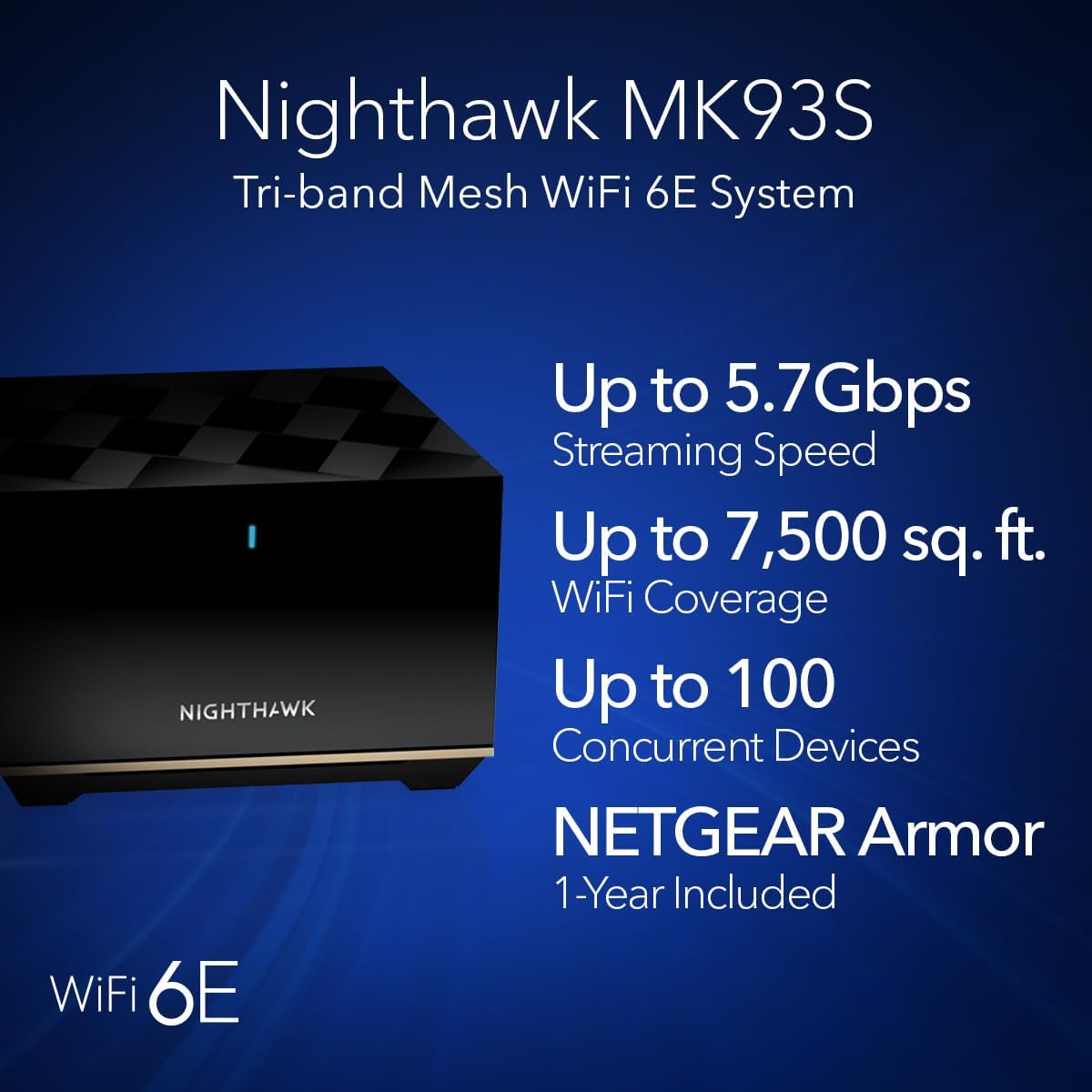
This image summarizes the high-performance capabilities of the MK93S system, including its speed, coverage area, device capacity, and integrated security features.
2. Package Contents
Verify that your package contains the following items:
- One (1) Tri-band Mesh WiFi 6E Router (MR90)
- Two (2) Tri-band Mesh WiFi 6E Satellites (MS90)
- One (1) 2m/6ft Ethernet cable
- Three (3) 12V/2.5A power adapters
- Quick start guide
3. Setup Instructions
Follow these steps to set up your NETGEAR Nighthawk Mesh WiFi 6E System:
- Prepare Your Network: Disconnect your existing router and modem from power. If you are replacing an existing WiFi router, ensure it is powered off and disconnected.
- Connect the Router: Connect your internet modem to the Internet port (yellow) on the back of the Nighthawk MR90 Router using the provided Ethernet cable.
- Power On: Connect the power adapter to the router and plug it into a power outlet. Wait for the router's LED indicator to turn solid white, indicating it is ready.
- Place Satellites: Position the two MS90 Satellites in locations that provide optimal coverage throughout your home. Ensure they are within range of the router and each other. Plug in their respective power adapters.
- Install the Nighthawk App: Download the NETGEAR Nighthawk app on your mobile device from the Apple App Store or Google Play Store.
- Follow App Instructions: Open the Nighthawk app and follow the on-screen instructions to complete the setup process. The app will guide you through connecting to your new WiFi network, configuring settings, and adding the satellites to your mesh system.
- Verify Connection: Once setup is complete, ensure all devices are connected to the new Nighthawk WiFi network and have internet access.
For advanced configuration or if you encounter issues with the app, you can access the router's web interface by connecting a computer directly to the router via Ethernet and navigating to routerlogin.net.

This image displays the physical ports on the back of the router and satellite units, indicating multiple Gigabit Ethernet ports for wired devices and a 2.5Gbps multi-gig WAN port on the router.
4. Operating Instructions
4.1. Understanding Tri-Band WiFi 6E
The Nighthawk MK93S system operates on three distinct WiFi bands:
- 2.4 GHz Band: Provides wider coverage and better penetration through walls, ideal for older devices and smart home gadgets that do not require high speeds.
- 5 GHz Band: Offers faster speeds and lower latency, suitable for streaming high-definition video, online gaming, and general internet browsing on modern devices.
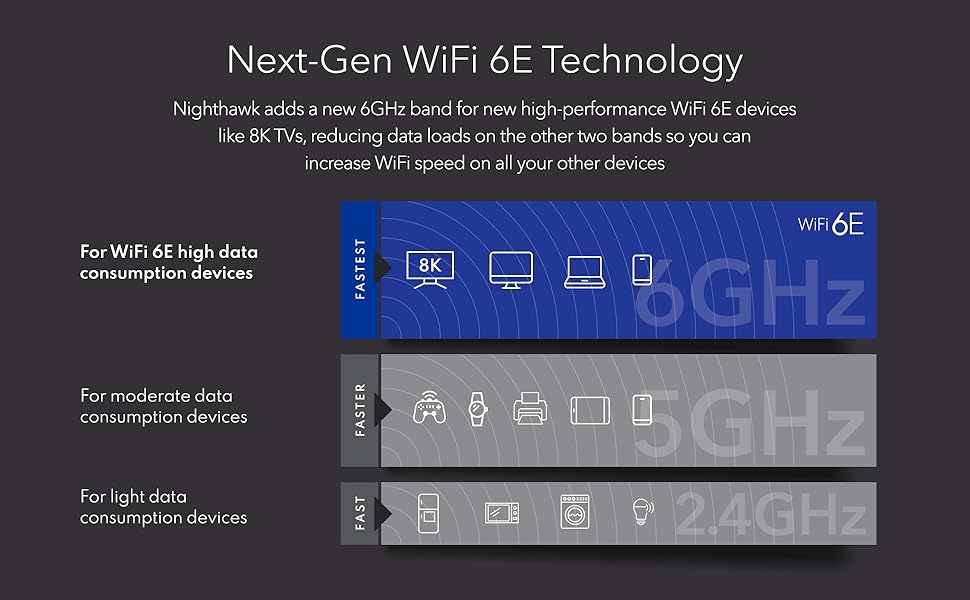
- 6 GHz Band (WiFi 6E): This new band provides the fastest speeds and lowest latency, dedicated to the latest WiFi 6E-compatible devices. It reduces congestion and offers more bandwidth for demanding applications like 8K video streaming and virtual reality.

WiFi 6E introduces a new 6GHz band for high-data-consumption devices, alongside the 5GHz and 2.4GHz bands, optimizing network performance for various device types.
4.2. Mesh Network Operation
The router and satellites create a single, unified WiFi network. Your devices will automatically connect to the strongest available signal as you move around your home, ensuring a seamless connection without manual switching between networks.
The diagram demonstrates how the Nighthawk mesh system distributes WiFi signals throughout a large home, ensuring consistent connectivity across multiple floors and rooms.
4.3. NETGEAR Armor Security
The system includes a 1-year subscription to NETGEAR Armor, powered by Bitdefender. This provides advanced cybersecurity features to protect all connected devices from online threats, including malware, phishing, and ransomware. It also includes a VPN for secure browsing and parental controls to manage internet access for children.
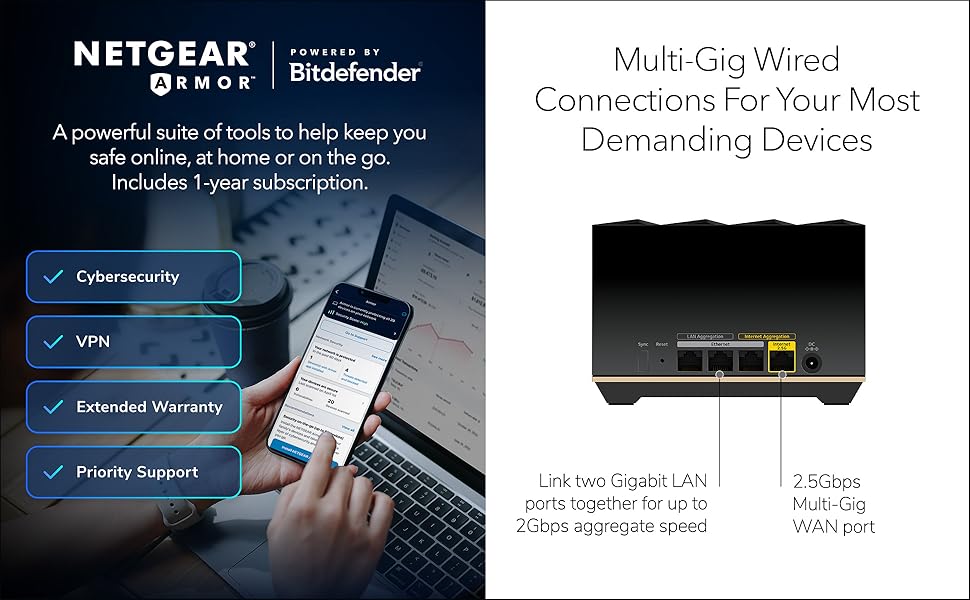
NETGEAR Armor provides comprehensive online security, including protection against cyber threats, VPN services, and enhanced support options, managed through a dedicated application.
5. Maintenance
- Firmware Updates: The system is designed to receive automatic firmware updates to ensure optimal performance, security, and access to new features. Ensure your system is connected to the internet for these updates.
- Optimal Placement: For best WiFi coverage and performance, place the router and satellites in open areas, away from large metal objects, concrete walls, and other electronic devices that may cause interference. Avoid placing units in enclosed cabinets.
- Cleaning: To clean the units, use a soft, dry cloth. Avoid abrasive cleaners or solvents. The glossy finish may show fingerprints and dust, so regular gentle cleaning is recommended.
- Power Cycle: If you experience network issues, a simple power cycle (unplugging the power adapters for 10 seconds and plugging them back in) can often resolve minor connectivity problems.
6. Troubleshooting
If you encounter issues with your Nighthawk Mesh WiFi 6E System, consider the following:
- No Internet Connection:
- Ensure your modem is working correctly and its internet indicator is active.
- Verify the Ethernet cable from your modem is securely connected to the yellow Internet port on the router.
- Power cycle your modem, then your router, and then your satellites.
- Satellites Not Connecting:
- Ensure satellites are powered on and within range of the router or another satellite.
- Use the Nighthawk app to check the status of your satellites and re-sync if necessary.
- Relocate satellites closer to the router temporarily to establish a connection, then move them back to desired locations.
- Slow WiFi Speeds:
- Check for interference from other electronic devices or physical obstructions.
- Ensure your devices are connecting to the appropriate WiFi band (e.g., 6GHz for WiFi 6E compatible devices).
- Run a speed test to confirm your internet service provider's speed.
- Nighthawk App Issues:
- Ensure your mobile device is connected to the Nighthawk WiFi network.
- Update the app to the latest version.
- Restart the app or your mobile device.
For further assistance, refer to the NETGEAR support website or the detailed troubleshooting section within the Nighthawk app.
7. Specifications

This image provides a comprehensive overview of the MK93S system's technical capabilities, including physical dimensions, port configurations, and performance metrics.
| Feature | Description |
|---|---|
| Model Name | MK93S |
| Wireless Type | 802.11ax (WiFi 6E) |
| Frequency Band Class | Tri-Band (2.4GHz, 5GHz, 6GHz) |
| WiFi Speed | Up to 5.7Gbps (AXE5700) |
| WiFi Coverage | Up to 7,500 sq. ft. |
| Connected Devices | Up to 100 devices |
| Internet Plans Supported | Up to 2.5Gbps |
| Wired Connectivity (Router) | 1 x 2.5G Ethernet WAN port, 3 x 1G Ethernet LAN ports (supports port aggregation) |
| Wired Connectivity (Satellites) | 2 x 1G Ethernet LAN ports per satellite |
| Processor | Quad-core 1.7GHz processor |
| Security Features | NETGEAR Armor (1-year subscription included), NETGEAR Smart Parental Controls |
| Item Weight | 7.19 pounds |
| Product Dimensions | 14.53 x 8.74 x 7.17 inches |
| Operating System | ZyNOS |
| Voltage | 12 Volts |
8. Warranty and Support
Your NETGEAR Nighthawk Tri-Band Whole Home Mesh WiFi 6E System (MK93S) comes with a limited hardware warranty. For specific warranty terms and conditions, please refer to the documentation included with your product or visit the official NETGEAR support website.
The system includes a 1-year subscription to NETGEAR Armor, which provides advanced online security and may include priority support options. Additionally, NETGEAR Smart Parental Controls are available to help manage internet access for family members.
For technical assistance, product registration, and access to the latest software and firmware updates, please visit the official NETGEAR support portal:
It is recommended to register your product to receive timely updates and support notifications.