
HUAWEI H155-381
Huawei H155-381 5G CPE 5 Router User Manual
Model: H155-381
1. Introduction
This manual provides essential information for the safe and efficient use of your Huawei H155-381 5G CPE 5 Router. Please read this manual thoroughly before using the device and keep it for future reference.
1.1 Product Overview
The Huawei H155-381 is a high-performance 5G CPE (Customer Premises Equipment) router designed to provide fast and reliable internet connectivity using 5G cellular networks. It features Wi-Fi 6 technology for enhanced wireless performance and multiple RJ45 ports for wired connections, along with a NanoSIM slot for cellular network access.
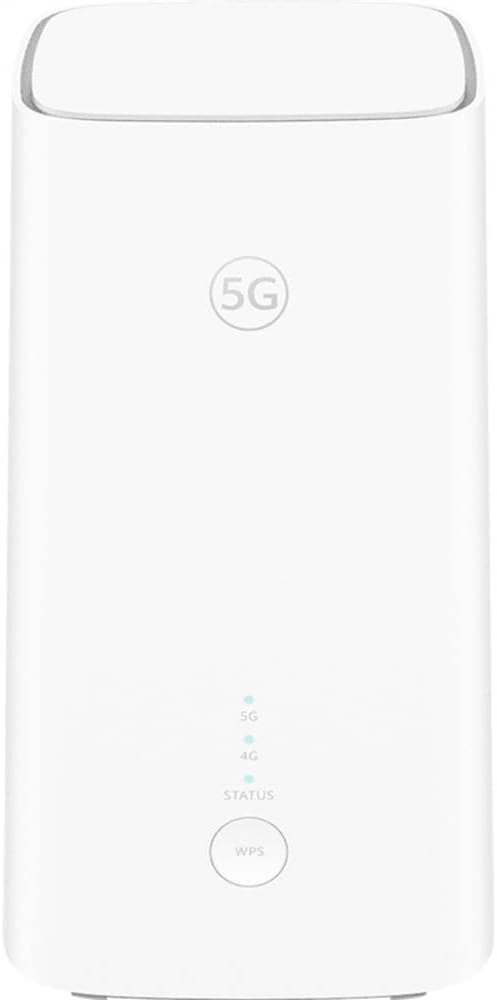
Figure 1: Front view of the Huawei H155-381 5G CPE 5 Router. The device is white, rectangular, and features a 5G logo at the top, followed by indicator lights for 5G, 4G, and Status, and a WPS button at the bottom.
1.2 Package Contents
Ensure all items are present in the package:
- Huawei H155-381 5G CPE 5 Router
- Power Adapter
- Ethernet Cable
- Quick Start Guide
- Warranty Card
2. Safety Information
Please observe the following safety precautions to prevent injury or damage to the device:
- Do not expose the device to extreme temperatures, humidity, or direct sunlight.
- Use only the original power adapter provided with the device.
- Avoid placing the device near sources of interference, such as microwave ovens or cordless phones.
- Do not open or attempt to repair the device yourself. Contact authorized service personnel for assistance.
- Keep the device away from children and pets.
3. Setup
3.1 Hardware Connection
- Insert NanoSIM Card: Locate the NanoSIM card slot, usually on the bottom or side of the device. Insert a standard NanoSIM card into the slot with the gold contacts facing down and the notched corner aligned correctly. Ensure it clicks into place.
- Connect Power: Connect the power adapter to the router's power port and then plug the adapter into a power outlet.
- Power On: Press the power button (if available) or wait for the device to automatically power on. The indicator lights will illuminate.
- Optional Ethernet Connection: If connecting a device via Ethernet, plug one end of the Ethernet cable into an RJ45 port on the router and the other end into your computer or network device.
3.2 Initial Configuration
After powering on, the router will attempt to connect to the 5G network. You can configure Wi-Fi settings and other advanced options via the web management interface or the Huawei AI Life app.
- Connect to Wi-Fi: On your computer or mobile device, search for the Wi-Fi network name (SSID) printed on the label at the bottom of the router. Connect using the default Wi-Fi password (Key) provided on the same label.
- Access Web Interface: Open a web browser and enter the default IP address (e.g., 192.168.8.1) into the address bar. Log in using the default username and password (usually 'admin' for both, or as specified on the router label).
- Follow Setup Wizard: The first time you log in, a setup wizard may guide you through changing the default Wi-Fi name and password, and setting up administrator credentials.
4. Operation
4.1 Indicator Lights
The indicator lights on the front of the Huawei H155-381 provide information about the device's status:
| Indicator | Status | Description |
|---|---|---|
| 5G | Solid Blue | Connected to 5G network. |
| Solid Green | Connected to 4G network. | |
| Red | No SIM card, no network, or network error. | |
| 4G | Solid Blue | Connected to 4G network. |
| Red | No SIM card, no network, or network error. | |
| STATUS | Solid Blue | Device is operating normally. |
| Flashing Blue | WPS pairing in progress. | |
| Red | System error or device fault. |
4.2 Wi-Fi Connectivity
The router supports Wi-Fi 6 for high-speed wireless connections. You can manage your Wi-Fi settings, including SSID, password, and security protocols, through the web management interface or the Huawei AI Life app.
- Changing Wi-Fi Settings: Log in to the web interface, navigate to Wi-Fi settings, and modify the SSID and password as desired.
- WPS Function: Press the WPS button on the router (labeled "WPS") and then activate WPS on your Wi-Fi device within two minutes to establish a secure connection without entering a password.
4.3 Ethernet Connectivity
The router is equipped with RJ45 ports for wired network connections. These ports can be used to connect computers, gaming consoles, smart TVs, or other network devices directly to the router for stable and high-speed internet access.
5. Maintenance
5.1 Firmware Updates
Regularly check for and install firmware updates to ensure optimal performance, security, and access to new features. Firmware updates can typically be performed via the web management interface under System or Maintenance settings.
5.2 Cleaning and Care
To maintain the device's condition:
- Wipe the exterior with a soft, dry cloth.
- Do not use liquid cleaners or aerosol sprays.
- Ensure ventilation openings are clear of dust and obstructions.
6. Troubleshooting
If you encounter issues with your Huawei H155-381 router, refer to the following common problems and solutions:
| Problem | Possible Cause | Solution |
|---|---|---|
| No internet connection | SIM card not inserted correctly, no network signal, or incorrect APN settings. | Check SIM card insertion. Relocate the router for better signal. Verify APN settings in the web interface. Restart the router. |
| Slow Wi-Fi speed | Interference, too many connected devices, or router placement. | Move router away from obstacles and other electronic devices. Reduce number of active devices. Consider changing Wi-Fi channel. |
| Cannot access web management interface | Incorrect IP address, network connection issue, or browser cache. | Ensure you are connected to the router's Wi-Fi or via Ethernet. Clear browser cache. Try a different browser. Verify the default IP address. |
| Router lights are red | Network error, SIM card issue, or system fault. | Check SIM card. Restart the router. If the issue persists, contact customer support. |
6.1 Factory Reset
If troubleshooting steps do not resolve the issue, you may perform a factory reset. This will revert all settings to their default values. Locate the reset button (often a small pinhole) on the router, press and hold it for approximately 5-10 seconds using a paperclip until the indicator lights change, then release.
7. Specifications
Key technical specifications for the Huawei H155-381 5G CPE 5 Router:
- Model: H155-381
- Cellular Technology: 5G
- Wi-Fi Standard: Wi-Fi 6
- SIM Card Type: NanoSIM
- Ethernet Ports: RJ45 (number not specified, assuming standard for a router)
- Dimensions (L x W x H): 50 x 50 x 28 cm (19.7 x 19.7 x 11 inches)
- Weight: 900 grams (1.98 lbs)
- Color: White
- Manufacturer: Brovi
8. Warranty and Support
8.1 Warranty Information
The Huawei H155-381 5G CPE 5 Router comes with a standard manufacturer's warranty. Please refer to the warranty card included in your package for detailed terms and conditions, including warranty period and coverage.
8.2 Customer Support
For technical assistance, troubleshooting, or warranty claims, please contact your retailer or the official Huawei customer support. Visit the official Huawei website for the latest support information and contact details.
Note: Product specifications and features are subject to change without prior notice.
Related documentsH155-381


Ask a question about this manual
Ask about setup, troubleshooting, compatibility, parts, safety, or missing instructions. Manuals+ will review the question and use this page’s manual context to help answer it.