
1. Introduction
The JONSBO C6 Handle Mini MATX Mesh PC Case is a compact and versatile chassis designed for building small form factor desktop computers. Its mesh panel design on all sides ensures optimal airflow, while the tool-free disassembly feature simplifies component installation and maintenance. The integrated handle provides convenient portability for users who frequently move their systems.

Figure 1: Front view of the JONSBO C6 Handle Mini MATX Mesh PC Case.
2. Product Features
- Compact Design: Micro ATX mesh chassis with a small footprint, ideal for desktop setups.
- Optimal Airflow: All sides feature a mesh design to promote efficient heat dissipation.
- Tool-Free Access: Upper cover and side panels can be opened without tools for easy assembly and maintenance.
- Motherboard Compatibility: Supports ITX and M-ATX motherboards.
- Versatile Storage: Accommodates one 3.5-inch HDD or two 2.5-inch SSDs.
- Front I/O Ports: Includes 1x Type-C (20PIN), 1x USB 3.0, and 1x Audio+MIC (2-in-1) for convenient connectivity.
- Component Support: Supports ATX PSUs up to 185mm, CPU coolers up to 75mm, and GPUs between 200-255mm.
- Fan Positions: Dedicated fan mounts on the top (120mm/140mm*1), bottom (120mm/140mm*1), and front (120mm*1 or HDD).
- Portable Handle: Equipped with an adjustable carrying handle for easy transportation.

Figure 2: The adjustable handle on the top of the C6 Handle case.
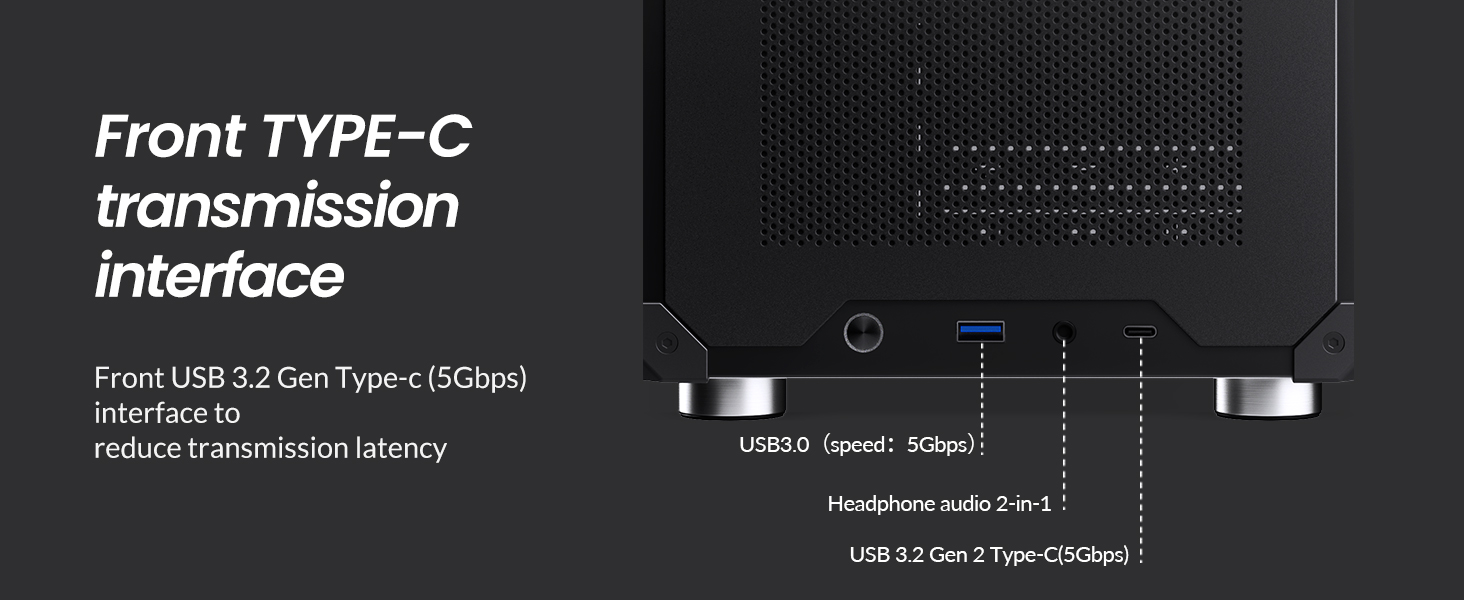
Figure 3: Front I/O panel with USB 3.0, USB Type-C, and audio ports.
3. Specifications
| Specification | Detail |
|---|---|
| Model No. | C6 Handle |
| Dimensions (W x D x H) | 202mm x 266mm x 295.2mm (including footpad) |
| Material | 0.7mm Steel Plate |
| Compatible Motherboard | ITX / M-ATX |
| Drive Bays | 1x 3.5" HDD or 2x 2.5" SSD |
| Front Interface | 1x Type-C (20PIN), 1x USB 3.0, 1x Audio + 1x MIC (2-in-1) |
| Max PSU Length | ATX ≤ 185mm |
| Max CPU Cooler Height | ≤ 75mm |
| Max GPU Length | 200-255mm (Note: If GPU is in 2nd slot and thickness exceeds 48mm, length limit is 200mm) |
| Fan Support | Top: 1x 120mm or 1x 140mm (Optional) Bottom: 1x 120mm or 1x 140mm Front: 1x 120mm or HDD |
| Net Weight | 2.30 kg (5.07 lbs) |
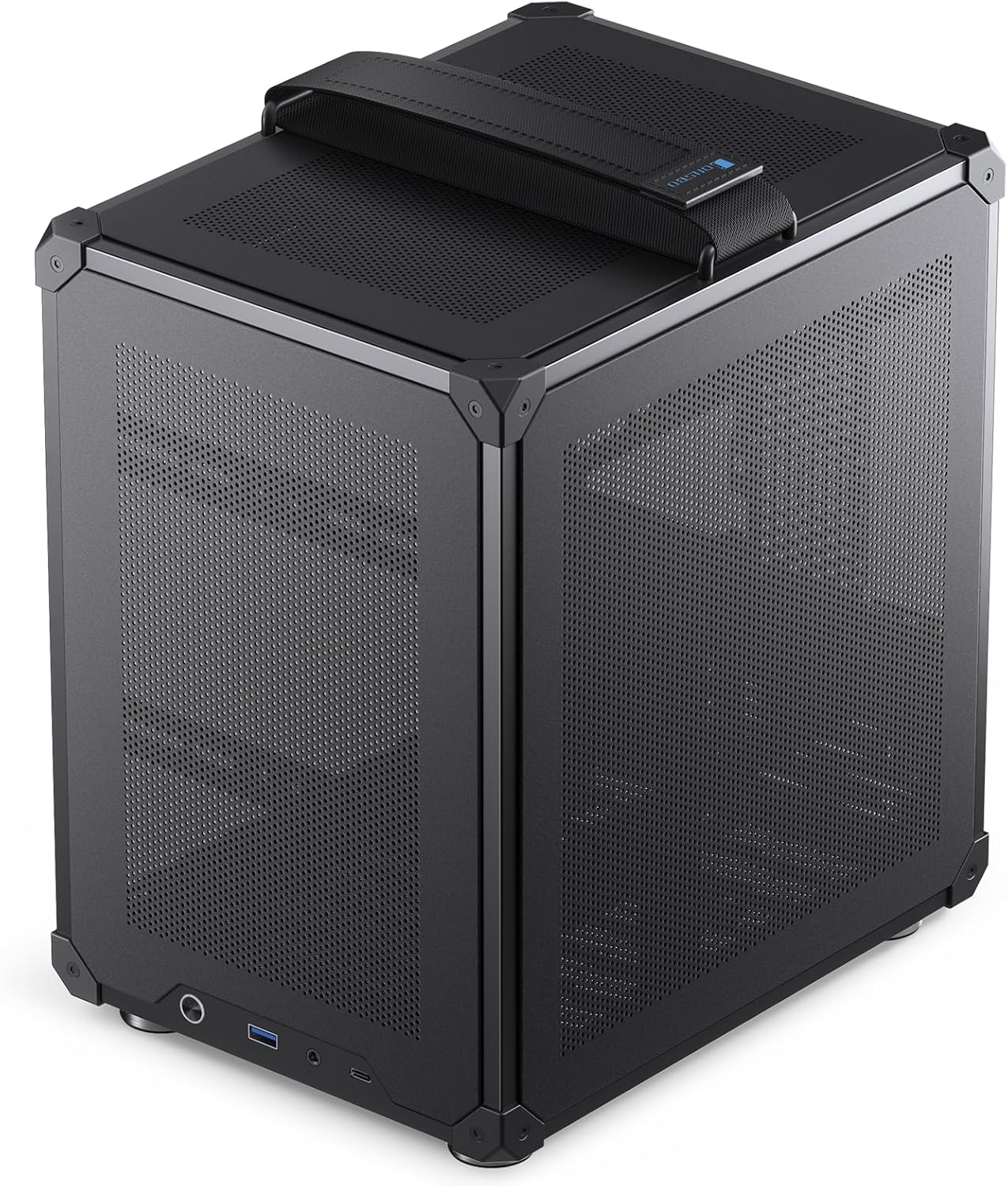
Figure 4: Case dimensions (10.5" W x 8" D x 11.6" H).

Figure 5: Summary of JONSBO C6 Handle specifications.
4. Setup Guide
This section provides instructions for installing components into your JONSBO C6 Handle PC Case. Ensure all power is disconnected before beginning installation.
4.1. Tool-Free Disassembly
The C6 case features a tool-free design for easy access to internal components.
- Remove Top Cover: Press the clip at the rear of the top cover to automatically pop it up.
- Remove Side Panels: Once the top cover is removed, the front panel and left/right side panels can be easily detached from the inside of the case.

Figure 6: Exploded view demonstrating tool-free panel removal.

Figure 7: Instructions for opening the upper cover and side panels, and accessing the bottom air filter.
4.2. Motherboard Installation
The C6 case supports both ITX and M-ATX motherboards.
- Align your ITX (170x170mm) or M-ATX (245x245mm) motherboard with the standoffs inside the chassis.
- Secure the motherboard using appropriate screws.
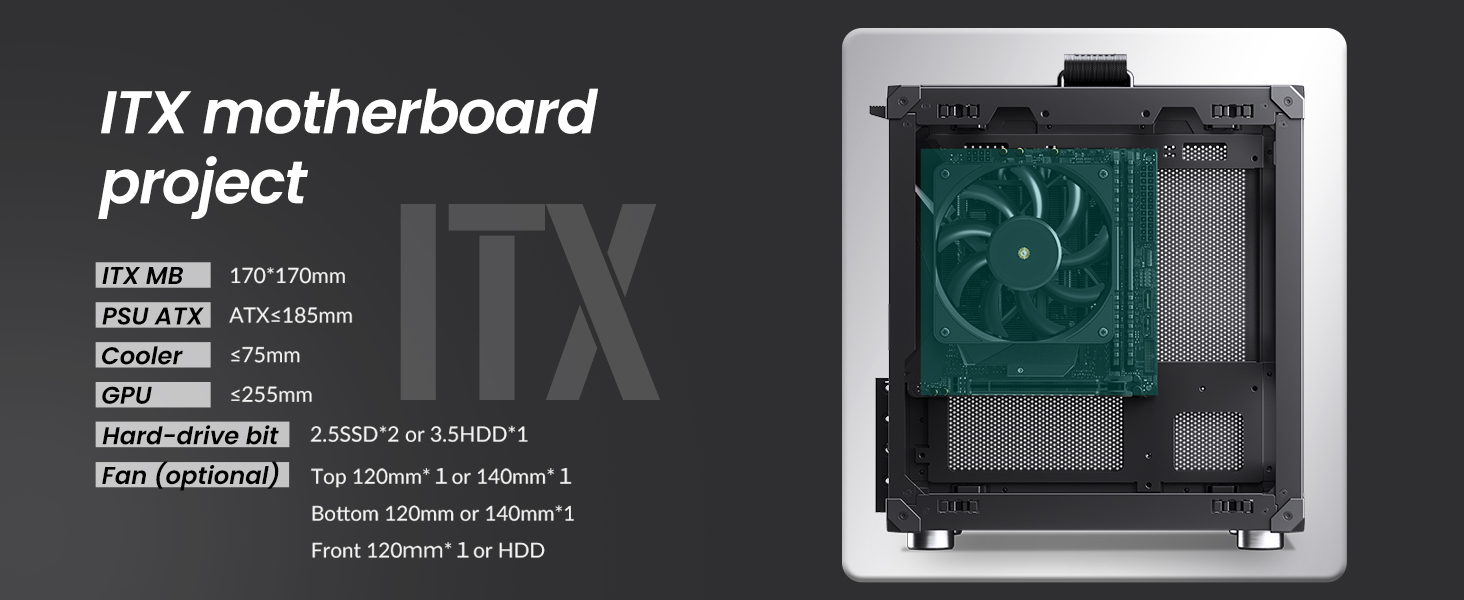
Figure 8: ITX motherboard installation reference.
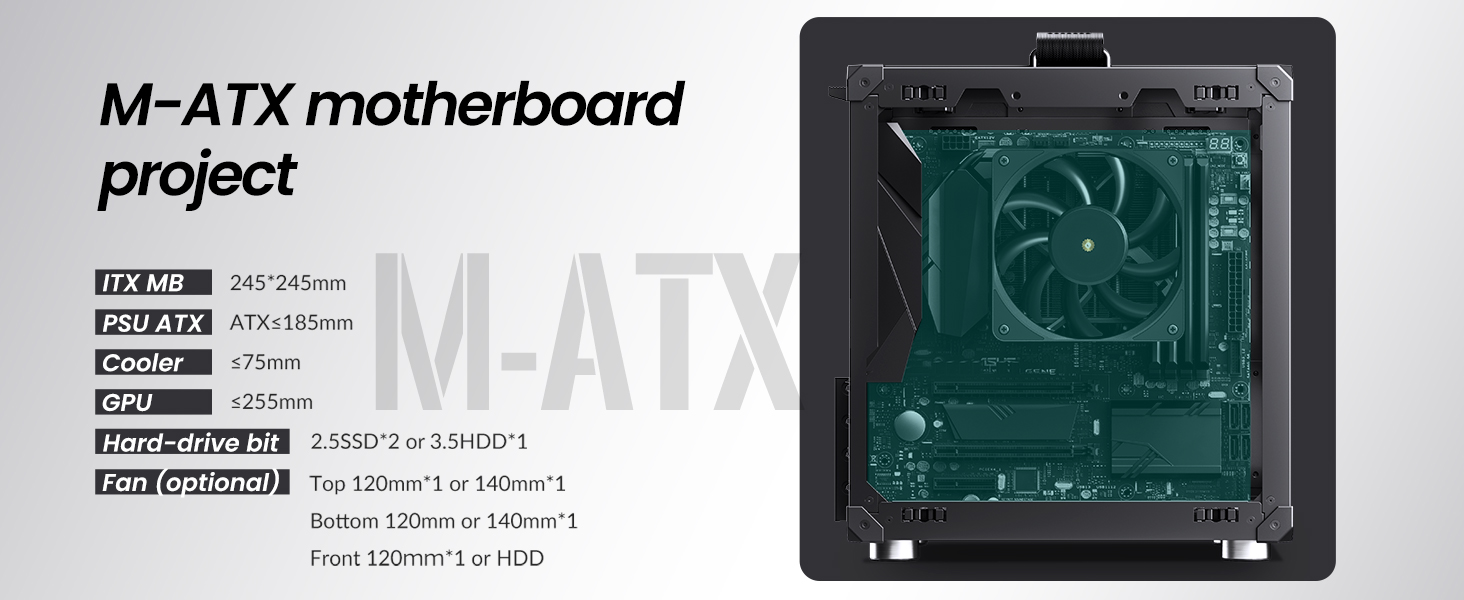
Figure 9: M-ATX motherboard installation reference.
4.3. Power Supply Unit (PSU) Installation
The case supports standard ATX PSUs with a maximum length of 185mm.
- Slide the ATX PSU into its designated bay at the top-front of the chassis.
- Secure the PSU with screws from the rear of the case.
4.4. Graphics Card (GPU) Installation
Install your graphics card into the PCI-E slot. The case supports GPUs with lengths between 200mm and 255mm. Note that if the GPU is installed in the second PCI-E slot and its thickness exceeds 48mm, the maximum supported length is 200mm.
4.5. CPU Cooler Installation
Ensure your CPU cooler has a maximum height of 75mm to fit within the chassis.
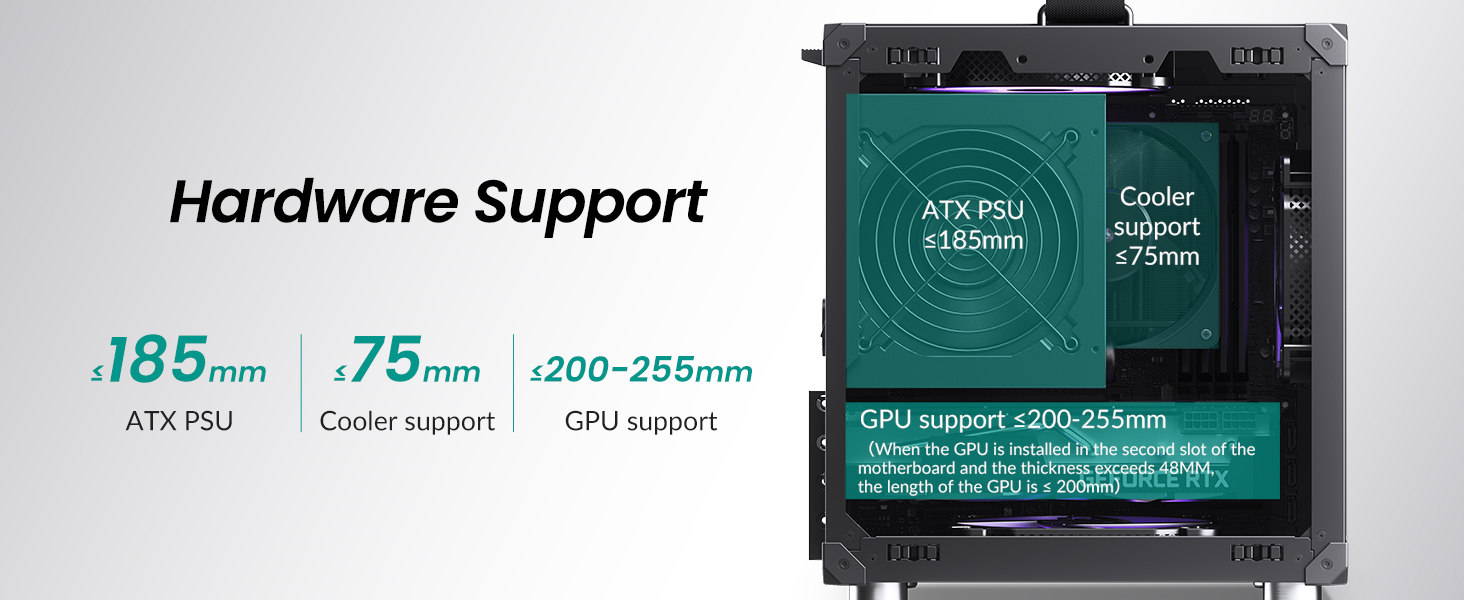
Figure 10: Hardware support limits for PSU, CPU cooler, and GPU.
4.6. Storage Drive Installation
The case supports either one 3.5-inch HDD or two 2.5-inch SSDs.
- For 3.5" HDD: Install the drive in the designated front position.
- For 2.5" SSDs: Mount up to two SSDs in the designated locations.

Figure 11: Hard drive installation options.
4.7. Fan Installation
Install cooling fans in the following positions:
- Top: 1x 120mm or 1x 140mm fan (optional).
- Bottom: 1x 120mm or 1x 140mm fan.
- Front: 1x 120mm fan or a 3.5" HDD.
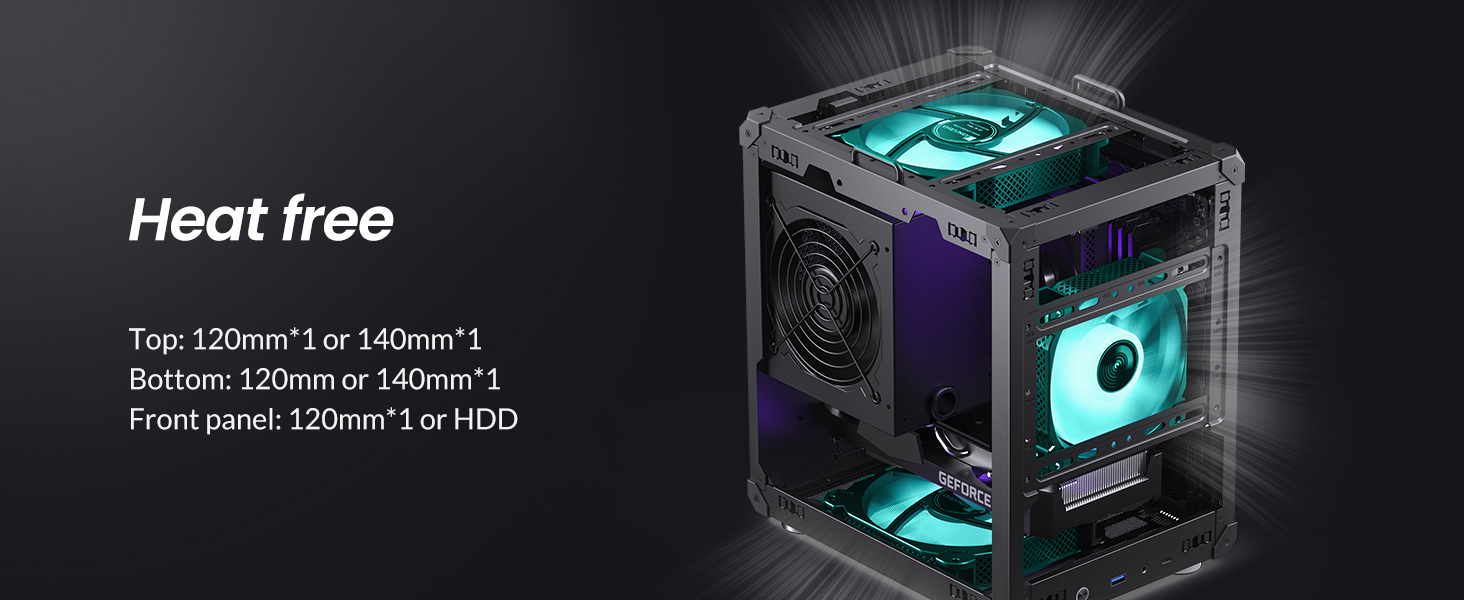
Figure 12: Recommended fan positions for effective cooling.
4.8. Assembly Video Guide
Video 1: An official JONSBO video demonstrating the features and assembly process of the C6 mini MATX mesh case, including tool-free panel removal and component installation.
5. Operating Instructions
After successfully assembling your PC within the JONSBO C6 Handle case, connect all necessary peripherals (monitor, keyboard, mouse, power cable). Press the power button on the front I/O panel to start your system. The mesh design ensures continuous airflow during operation, contributing to stable component temperatures.
6. Maintenance
Regular maintenance helps ensure the longevity and performance of your PC. The C6 case is designed for easy cleaning.
- Dust Removal: Periodically remove the top and side panels (refer to Section 4.1) to clean accumulated dust from internal components and fan filters. A soft brush or compressed air is recommended.
- Bottom Air Filter: The bottom panel includes a convenient air filter that can be disassembled and cleaned to maintain optimal intake airflow.
7. Troubleshooting
If you encounter issues with your PC build, consider the following general troubleshooting steps:
- No Power: Ensure the PSU is properly connected to the wall outlet and the motherboard. Check the power switch on the PSU.
- No Display: Verify that the monitor is connected to the graphics card (not the motherboard's integrated graphics, unless intended) and that the GPU is seated correctly.
- Component Not Detected: Re-seat the component (RAM, GPU, storage drives) and check all power and data cables.
- Overheating: Confirm all fans are spinning correctly and are oriented for proper airflow. Ensure the CPU cooler is securely mounted.
- Loose Connections: Double-check all internal cables, including front panel connectors, for secure connections.
8. Warranty and Support
For warranty information and technical support, please refer to the official JONSBO website or contact your local retailer. Keep your proof of purchase for warranty claims.


