
DEPSTECH NTC55-US
DEPSTECH Endoscope Camera User Manual
Model: NTC55-US
1. Introduction
This user manual provides comprehensive instructions for the safe and effective operation of your DEPSTECH Endoscope Camera. Designed for detailed visual inspection in hard-to-reach areas, this device offers high-definition imaging and robust connectivity for various applications, including automotive, plumbing, and home inspections.

Figure 1.1: DEPSTECH Endoscope Camera Overview
This image displays the DEPSTECH Endoscope Camera, featuring its flexible cable, the camera probe with LED lights, and the control unit connected to an iPhone. The iPhone screen shows an inspection view, highlighting the product's primary function.
2. Safety Information
- Do not use the endoscope in environments with flammable or explosive gases.
- Ensure the device is disconnected from your phone before cleaning.
- The camera probe is IP67 waterproof, but the main control unit and USB connector are not. Avoid submerging these parts in liquid.
- Keep out of reach of children.
- Do not attempt to disassemble or modify the device. This will void the warranty.
- Use only with compatible iOS devices (iOS 12.0+).
3. Package Contents
Verify that all items are present in your package:
- DEPSTECH Endoscope Camera (Model NTC55-US)
- User Manual
- Hook Attachment
- Magnet Attachment

Figure 3.1: Included Accessories and Packaging
This image shows the DEPSTECH Endoscope Camera, its packaging box, the user manual, and the included hook and magnet accessories, laid out on a dark surface.
4. Product Overview
Familiarize yourself with the components of your endoscope camera:
- Lightning Port: Connects to your iOS device.
- Soft Cable: The initial flexible section of the cable.
- Brightness Adjustment: Control unit with LED+ and LED- buttons to adjust camera light intensity.
- Semi-Rigid Cable: The main 16.4ft (5m) cable that retains its shape for easier navigation.
- Dia 7mm Probe: The camera head with integrated LED lights.

Figure 4.1: Endoscope Component Diagram
This diagram illustrates the various parts of the DEPSTECH endoscope, including the Lightning connector, soft cable, brightness adjustment unit, semi-rigid cable, and the 7mm diameter camera probe, each clearly numbered for identification.
5. Setup
5.1. Compatibility
This endoscope camera is designed exclusively for iOS devices running iOS 12.0 or higher, including iPhones and iPads. It is not compatible with Android phones, even with adapters, and specifically not compatible with the iPhone 15 series.

Figure 5.1: iOS Device Compatibility
This image visually confirms the endoscope's compatibility with iPhone and iPad devices running iOS 12.0 or later, explicitly stating its incompatibility with Android phones and the iPhone 15 series.
5.2. App Installation
To use the endoscope, you must download and install the "DEPSTECHCAM" application from the Apple App Store.
- Step 1: Download "DEPSTECHCAM" APP. Scan the QR code provided in the product packaging or search for "DEPSTECHCAM" directly in the Apple App Store.
- Step 2: Connect to your iOS 12.0+ iPhone/iPad. Plug the endoscope's Lightning connector into your device.
- Step 3: Allow access to all photos, get started. Grant the app necessary permissions when prompted to enable full functionality.

Figure 5.2: Quick Setup Guide
This image illustrates the three essential steps for setting up the endoscope: downloading the "DEPSTECHCAM" app from the App Store (with a QR code), connecting the endoscope to an iOS device, and granting the app access to photos for operation.
For direct app download, visit: DEPSTECHCAM App Download
6. Operating Instructions
6.1. App User Interface
The DEPSTECHCAM app features a clear and intuitive interface for easy operation:
- Connection Status: Indicates if the endoscope is properly connected.
- Allow access to all photos: Prompt for necessary permissions.
- View photos/videos: Access your captured media.
- Noir/Color: Toggle between black & white and color modes.
- Setting: Access app settings.
- Screen rotation 90°: Rotate the live view.
- File: Manage files.
- Zoom 1X / 1.5X / 2X: Adjust digital zoom.
- Take photos/record videos: Capture images or start/stop video recording.
- Select: Select multiple files.
- Photos / Videos files: Browse captured media.
- Files information: View details about selected files.
- Share files: Share captured media.
- Delete files: Remove unwanted media.

Figure 6.1: DEPSTECHCAM App Interface
This image displays three screenshots of the DEPSTECHCAM application, highlighting key features such as connection status, photo/video viewing, live view controls (zoom, photo/video capture, color mode, screen rotation), and file management options.
6.2. Adjusting Illumination (Bluart 3.0 Tech)
The endoscope features six adjustable LED lights with Bluart 3.0 technology for optimal visibility. Use the "LED+" and "LED-" buttons on the control unit to increase or decrease brightness. The optimal focus range is 0.79-3.93 inches (2-10cm).
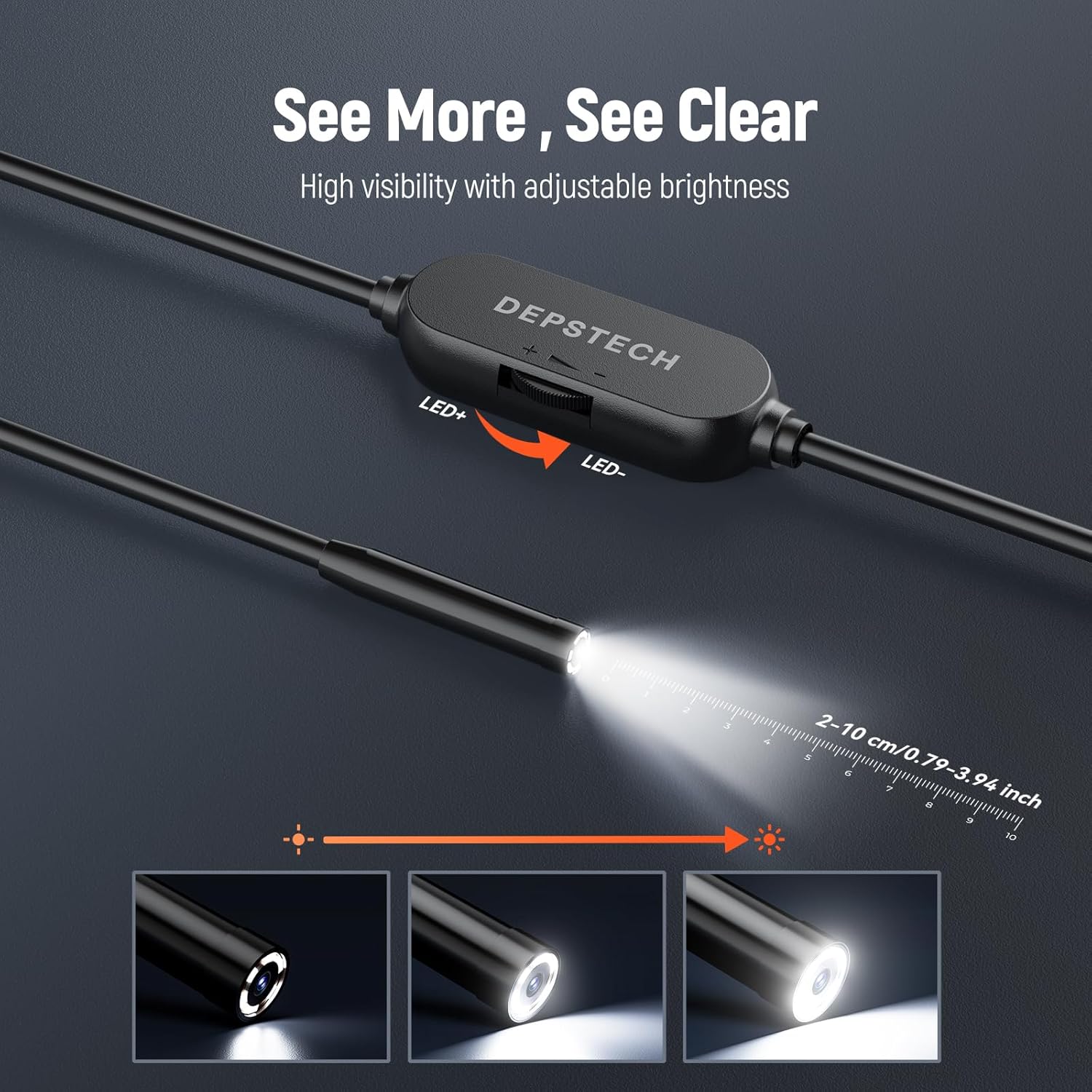
Figure 6.2: Adjustable LED Brightness
This image shows the control unit of the DEPSTECH endoscope with "LED+" and "LED-" buttons, illustrating how to adjust the brightness of the camera's integrated LED lights for improved visibility during inspections.

Figure 6.3: Bluart 3.0 Technology
This diagram highlights DEPSTECH's Bluart 3.0 technology, which enhances image clarity and true-to-reality video quality through the camera's blue LED system, showing different illumination patterns.
6.3. Practical Applications
The DEPSTECH Endoscope Camera is versatile for various inspection needs:
- Automotive Inspection: Examine engine components, spark plug holes, or other confined spaces in vehicles.
- Plumbing Inspection: Inspect pipes, drains, and sewer lines for clogs, leaks, or damage.
- Home Inspection: Look inside walls, behind appliances, or in ventilation systems to identify issues.
- Industrial Use: Ideal for machinery inspection, HVAC systems, and construction.

Figure 6.4: Engine Inspection
This image shows a user holding the DEPSTECH endoscope cable while viewing the live feed on an iPhone, inspecting the internal components of a car engine.

Figure 6.5: Wall Cavity Inspection
A user is shown inserting the endoscope camera into an opening in a wall, with the iPhone displaying the live view of electrical wiring and internal structures.

Figure 6.6: Sink Drain Inspection
This image depicts the endoscope probe being inserted into a kitchen sink drain, with the user observing the internal view on a connected iPhone, demonstrating its use for plumbing inspections.

Figure 6.7: Appliance Inspection
A user is shown inspecting the interior of an appliance, possibly a washing machine or dryer, by inserting the endoscope and viewing the live feed on their iPhone.

Figure 6.8: Floor Drain Inspection
This image shows the endoscope being used to inspect a floor drain, with the camera's view displayed on the connected iPhone, demonstrating its utility for examining plumbing systems.
7. Maintenance
- Cleaning the Lens: Gently wipe the camera lens with a soft, dry cloth. For stubborn dirt, use a lens cleaning solution on the cloth, not directly on the lens.
- Cable Care: Avoid sharp bends or kinks in the cable to prevent internal damage. Coil the cable loosely for storage.
- Storage: Store the endoscope in a cool, dry place, away from direct sunlight and extreme temperatures.
- Water Exposure: While the probe is waterproof (IP67), ensure the USB connector and control unit remain dry. If they get wet, dry them thoroughly before use.
8. Troubleshooting
| Problem | Possible Cause | Solution |
|---|---|---|
| No image on screen / "Not Connected" error |
|
|
| Poor image quality / Blurry image |
|
|
| App crashes or freezes |
|
|
9. Specifications
| Feature | Detail |
|---|---|
| Model Name | Depstech Caméra endoscopique HD (NTC55-US) |
| Camera Diameter | 7mm (0.28in) |
| Cable Length | 16.4ft (5m) |
| Water Resistance | IP67 (Camera Probe Only) |
| Connectivity | Lightning (for iOS devices) |
| Field of View (FOV) | 80° |
| Focus Type | Manual Focus |
| Optimal Focus Distance | 0.79-3.93 inches (2-10cm) |
| Illumination | 6 Adjustable LED Lights (Bluart 3.0 Tech) |
| Product Dimensions | 1.72 x 1.49 x 0.38 cm (Control Unit); 231 g (Total Weight) |
| Manufacturer | DEPSTECH |
10. Warranty and Support
DEPSTECH products are designed for durability and performance. For warranty information, technical support, or customer service inquiries, please refer to the contact details provided on the official DEPSTECH website or your purchase documentation. Our support team is available to assist with any questions or issues you may encounter.
Visit the official DEPSTECH Store: DEPSTECH Store on Amazon.ca
Related documentsNTC55-US


Ask a question about this manual
Ask about setup, troubleshooting, compatibility, parts, safety, or missing instructions. Manuals+ will review the question and use this page’s manual context to help answer it.