
EasySMX PSD-9101
EasySMX Wireless Gamepad Joystick Controller User Manual
Model: PSD-9101
Introduction
This manual provides comprehensive instructions for the setup, operation, maintenance, and troubleshooting of your EasySMX Wireless Gamepad Joystick Controller. Please read this manual thoroughly before using the product to ensure proper functionality and to maximize your gaming experience.
Product Overview
The EasySMX Wireless Gamepad is designed for a wide range of gaming platforms, offering a comfortable grip and responsive controls. Key features include 2.4G wireless connectivity, dual vibration feedback, and broad compatibility.

Figure 1: EasySMX Wireless Gamepad Joystick Controller with USB receiver.
Key Features:
- Wide Compatibility: Works with Android 5.0+ smartphones/tablets (with OTG), PS3, smart TVs, TV boxes, and PCs. Wired support for Nintendo Switch/Switch Lite.
- Wireless Connectivity: Utilizes 2.4G wireless technology for a stable connection.
- Dual Vibration: Built-in asymmetrical motors provide immersive haptic feedback.
- Enhanced Grip: Features large textured non-slip grips for comfortable extended play.
- Long Battery Life: Integrated 600mAh battery offers up to 12 hours of playtime on a single charge.
- Plug and Play: Simple setup for immediate gaming.
Controller Layout:

Figure 2: Detailed view of the EasySMX Wireless Gamepad with labeled buttons and components.
- Left Joystick (L3): For directional control and pressing for L3 function.
- Directional-Pad (D-Pad): For precise directional input.
- Right Joystick (R3): For camera control or other functions, pressing for R3 function.
- Back Button: Typically used for menu navigation or specific in-game functions.
- Turbo Button: Activates or deactivates turbo function for assigned buttons.
- Start Button: Typically used to pause games or access menus.
- Function Keys (A, B, X, Y): Standard action buttons.
- Charging Port: USB port for charging the controller.
- LB Button: Left Bumper button.
- LT Button: Left Trigger button.
- RB Button: Right Bumper button.
- RT Button: Right Trigger button.
- LED Indicators (LED 1, 2, 3, 4): Indicate connection status, player number, and charging status.
Package Contents
Please check the package contents upon unboxing. The standard package should include:
- 1 x EasySMX Wireless Gamepad Joystick Controller
- 1 x 2.4G USB Receiver
- 1 x USB Charging Cable
- 1 x User Manual
Setup
1. Charging the Controller
Before first use, it is recommended to fully charge the controller. Connect the supplied USB charging cable to the controller's charging port and the other end to a USB power source (e.g., PC USB port, USB wall adapter). The LED indicators will show charging status and turn off or change color when fully charged.
A full charge provides approximately 12 hours of playtime. If the battery is low during use, you can connect the USB cable to continue playing in wired mode.
2. Connecting to Devices
The EasySMX Wireless Gamepad supports both wireless (2.4G USB receiver) and wired connections.
Wireless Connection (2.4G USB Receiver)
- Insert the 2.4G USB receiver into an available USB port on your device (PC, PS3, Android TV Box, etc.).
- Turn on the EasySMX controller. The controller will automatically attempt to connect to the receiver.
- Once connected, the LED indicator(s) on the controller will stabilize, indicating a successful connection.

Figure 3: Illustration of wireless connection using the 2.4G USB receiver.
Wired Connection
For devices that support wired input or when the controller battery is low:
- Connect the USB charging cable to the controller's charging port.
- Connect the other end of the USB cable to an available USB port on your device (PC, Nintendo Switch, etc.).
- The controller will automatically switch to wired mode and be recognized by your device.
Compatibility Overview:

Figure 4: Compatibility table showing supported platforms for Bluetooth and Wired connections.
Note on Android/HarmonyOS/Nintendo Switch: These devices may require an OTG (On-The-Go) adapter for connection, which is not included with the controller.
Incompatible Systems: This controller is not compatible with Xbox 360, Xbox One, Mac, iOS, PlayStation 4, Amazon Fire TV, or Amazon Fire Stick.
Operating Instructions
Basic Operation
- Power On/Off: Press the central logo button to power on the controller. Hold the central logo button for a few seconds to power off.
- Button Functions: Refer to Figure 2 for the layout and names of all buttons (A, B, X, Y, LB, LT, RB, RT, Start, Back, D-Pad, Left/Right Joysticks).
- Joystick Calibration: If joysticks exhibit drift, some systems may require recalibration through their respective settings.
Turbo Function
The Turbo function allows a button to be pressed repeatedly as long as it is held down, which can be useful in certain games.
- Press and hold the button you wish to set to Turbo (e.g., A button).
- While holding the button, press the Turbo button once. The button is now set to Turbo.
- To clear the Turbo function for a button, press and hold the Turbo-enabled button, then press the Turbo button again.
Dual Vibration Feedback
The controller features dual asymmetrical motors that provide varying levels of vibration feedback based on in-game events (e.g., impacts, explosions, gunshots). This enhances immersion during gameplay.
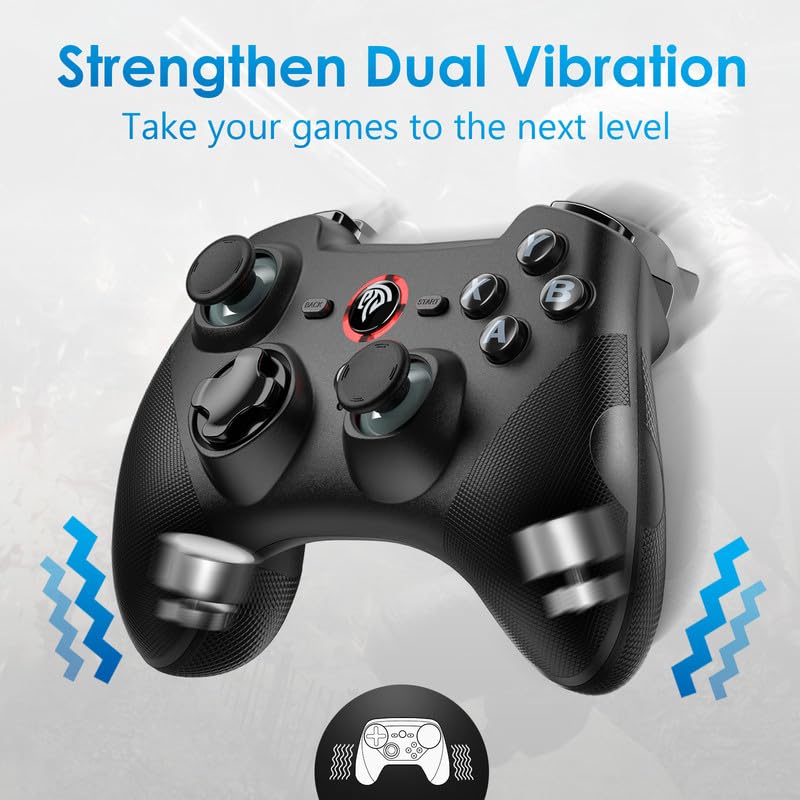
Figure 5: Illustration of the dual vibration motors within the controller.
Maintenance
- Cleaning: Use a soft, dry cloth to clean the surface of the controller. For stubborn dirt, a slightly damp cloth can be used, but ensure no liquid enters the controller. Do not use harsh chemicals or abrasive cleaners.
- Storage: Store the controller in a cool, dry place away from direct sunlight, extreme temperatures, and high humidity.
- Battery Care: To prolong battery life, avoid fully discharging the controller frequently. If storing for an extended period, charge the controller to about 50% and recharge every few months.
- Handling: Avoid dropping the controller or subjecting it to strong impacts, as this can damage internal components.
Troubleshooting
| Problem | Possible Cause | Solution |
|---|---|---|
| Controller does not power on. | Low battery. | Charge the controller using the supplied USB cable. |
| Controller does not connect wirelessly. | USB receiver not properly inserted or not recognized; interference; out of range. | Ensure the USB receiver is fully inserted. Try a different USB port. Move closer to the receiver. Restart the controller and the device. |
| Buttons or joysticks are unresponsive. | Connection issue; software glitch; physical damage. | Reconnect the controller. Restart the game/device. Check for physical obstructions or damage. |
| Vibration function is not working. | Game does not support vibration; vibration setting is off; driver issue. | Verify the game supports vibration. Check in-game or system settings for vibration options. Ensure correct drivers are installed on PC. |
| Controller disconnects frequently. | Low battery; signal interference; distance from receiver. | Charge the controller. Reduce interference from other wireless devices. Stay within optimal range of the receiver. |
Specifications
- Model: PSD-9101
- Connectivity: 2.4G Wireless, Wired (USB)
- Battery Capacity: 600mAh
- Approximate Playtime: Up to 12 hours
- Vibration: Dual Asymmetrical Motors
- Dimensions: 6.69 x 5.2 x 3.03 inches (Package Dimensions)
- Weight: 11.4 ounces (Item Weight)
- Compatibility: Android 5.0+ (with OTG), PS3, Smart TV, TV Box, PC (Windows), Nintendo Switch/Switch Lite (wired).
- Incompatible Systems: Xbox 360, Xbox One, Mac, iOS, PlayStation 4, Amazon Fire TV, Amazon Fire Stick.
Warranty and Support
The EasySMX Wireless Gamepad Joystick Controller comes with an 18-month warranty from the date of purchase. This warranty covers manufacturing defects and issues arising from normal use.
For technical support, warranty claims, or any questions regarding your product, please contact EasySMX customer service through their official website or the retailer where you purchased the product. Please have your purchase receipt and product model number (PSD-9101) ready when contacting support.
For more information, visit the EasySMX Store on Amazon.
Related documentsPSD-9101


Ask a question about this manual
Ask about setup, troubleshooting, compatibility, parts, safety, or missing instructions. Manuals+ will review the question and use this page’s manual context to help answer it.