
DinoFire X17
DinoFire Rechargeable Presentation Clicker X17 User Manual
Model: X17
Introduction
Thank you for choosing the DinoFire Rechargeable Presentation Clicker, Model X17. This device is designed to enhance your presentations with its wireless control, integrated laser pointer, and user-friendly features. This manual provides detailed instructions for setup, operation, maintenance, and troubleshooting to ensure optimal performance.
Package Contents
Please verify that all items are present in your package:
- DinoFire Rechargeable Presentation Clicker (X17)
- USB Receiver (stored inside the clicker)
- Micro USB Charging Cable
- User Manual (this document)
Product Overview
The DinoFire X17 Presentation Clicker features an ergonomic design with intuitive controls for seamless presentation delivery. Familiarize yourself with the device's components and button functions.
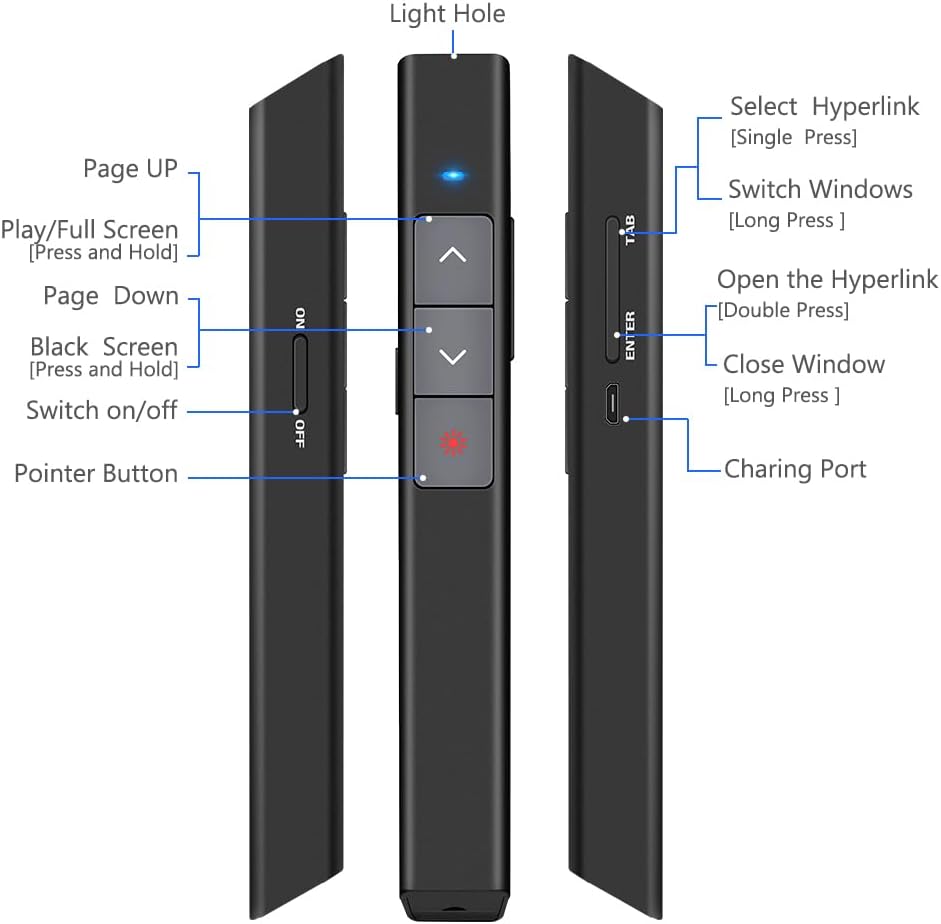
Figure 1: Detailed view of the DinoFire X17 Presentation Clicker showing button functions and port locations.
Button Functions:
- Page Up (▲): Advances to the previous slide.
- Page Down (▼): Advances to the next slide.
- Pointer Button: Activates the red laser pointer.
- Play/Full Screen (Press and Hold): Initiates or exits full-screen presentation mode.
- Black Screen (Press and Hold): Toggles a black screen during presentation.
- Switch on/off: Power switch for the device.
- Select Hyperlink (Single Press): Selects a hyperlink on the slide.
- Open the Hyperlink (Double Press): Opens the selected hyperlink.
- Switch Windows (Long Press): Cycles through open application windows.
- Close Window (Long Press): Closes the active window.
- Charging Port: Micro USB port for recharging the device.
- Light Hole: Location of the laser emitter.
Setup Guide
1. Charging the Presenter
Before initial use, fully charge the presentation clicker. A full charge typically takes approximately one hour and provides power for over one week of use.
- Connect the provided Micro USB charging cable to the charging port on the side of the presenter.
- Connect the other end of the cable to a USB power source (e.g., computer USB port, USB wall adapter).
- The charging indicator light will illuminate (refer to "Low Power Indicator" section for details).
- Once fully charged, disconnect the cable.

Figure 2: The presentation clicker being charged via its Micro USB port, connected to a laptop.
2. Connecting the USB Receiver
The USB receiver is stored magnetically within the presentation clicker for convenience and to prevent loss.
- Gently pull out the USB receiver from the bottom end of the presentation clicker.
- Insert the USB receiver into an available USB port on your computer (laptop or desktop).
- The system will automatically detect and install the necessary drivers. No manual driver installation is required.

Figure 3: The magnetic storage for the USB receiver, demonstrating its removal and insertion into a computer's USB port.
3. Powering On/Off
- Locate the "Switch on/off" button on the side of the clicker.
- Slide the switch to the "ON" position to power on the device.
- Slide the switch to the "OFF" position when not in use to conserve battery life.
4. System and Software Compatibility
The DinoFire X17 is widely compatible with various operating systems and presentation software.
- Supported Systems: Windows 2003, XP, Windows Vista, Windows 7, 8, 10, Linux, Android, Mac OS.
- Supported Software: Keynote, Prezi, MS Word, Excel, PowerPoint, ACD See, website browsers, iWork, Google Slides, etc.
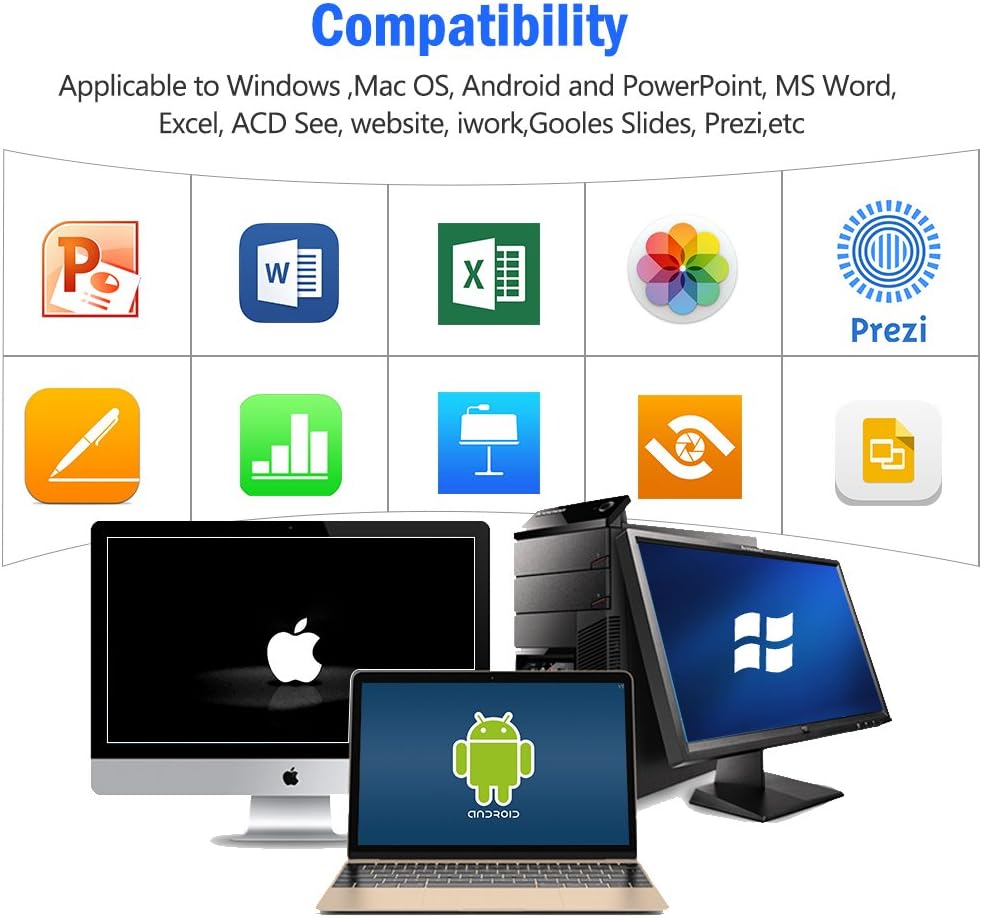
Figure 4: Visual representation of the broad compatibility of the presentation clicker with different operating systems and presentation applications.
Operating Instructions
Basic Presentation Control
- Next Slide: Press the "Page Down" (▼) button.
- Previous Slide: Press the "Page Up" (▲) button.
- Start/Exit Full Screen: Press and hold the "Page Up" (▲) button.
- Black Screen: Press and hold the "Page Down" (▼) button to toggle a black screen.
Using the Laser Pointer
The integrated red laser pointer allows you to highlight specific content on your screen or projection.
- Press and hold the "Pointer Button" (red dot icon) to activate the laser.
- Release the button to turn off the laser.
- The laser has a range of up to 300 feet (91 meters).
- Caution: Do not point the laser directly at people's eyes or at highly reflective surfaces.

Figure 5: The red laser pointer in operation, highlighting its visibility and including a safety warning.
Advanced Functions
- Select Hyperlink: Single press the "ENTER" button.
- Open Hyperlink: Double press the "ENTER" button.
- Switch Windows: Long press the "TAB" button to cycle through open applications.
- Close Window: Long press the "ENTER" button to close the active window.
Wireless Control Range
The DinoFire X17 offers a wireless control range of up to 100 feet (30 meters), allowing you freedom of movement during your presentation.

Figure 6: Illustration of the presentation clicker's effective long control range in a presentation setting.
Maintenance
Charging Guidelines
- Charge the device when the low power indicator flashes continuously.
- Avoid overcharging by disconnecting the cable once fully charged.
- Use the provided Micro USB cable or a certified equivalent for charging.
USB Receiver Storage
Always store the USB receiver inside the magnetic compartment of the clicker when not in use to prevent loss and damage.
Cleaning
Wipe the device with a soft, dry cloth. Do not use liquid cleaners or abrasive materials.
Troubleshooting
| Problem | Possible Cause | Solution |
|---|---|---|
| Device not responding. | Low battery; USB receiver not connected; Device is off. | Charge the device; Ensure USB receiver is securely plugged in; Turn on the device. |
| Laser pointer not working. | Low battery; Laser button not pressed correctly. | Charge the device; Press and hold the laser button firmly. |
| Short control range. | Obstructions; Interference; Low battery. | Ensure clear line of sight to the receiver; Move away from sources of interference; Charge the device. |
| Hyperlink function not working. | Software specific issue; Hyperlink not properly selected. | Ensure the hyperlink is active and selected (single press ENTER) before attempting to open (double press ENTER). Check software settings. |
Low Power Indicator
The device features a low power indicator to alert you when charging is needed. When the indicator flashes continuously, please charge the device. The device will enter auto-sleep mode after approximately 5 minutes of inactivity to save energy.

Figure 7: Explanation of the indicator light states for working, charging, and fully charged conditions.
Specifications
- Model: X17
- Brand: DinoFire
- Wireless Technology: 2.4GHz RF
- Control Range: Up to 100 feet (30 meters)
- Laser Type: Red laser
- Laser Range: Up to 300 feet (91 meters)
- Battery Type: 1 Lithium Polymer battery (included)
- Charging Time: Approximately 1 hour
- Usage Time: Over one week (on a single charge)
- Dimensions: 6.42 x 1.61 x 1.14 inches (16.3 x 4.1 x 2.9 cm)
- Item Weight: 1.6 ounces (45 grams)
- Compatible Systems: Windows 2003/XP/Vista/7/8/10, Linux, Android, Mac OS
- Compatible Software: Keynote, Prezi, MS Word, Excel, PowerPoint, ACD See, web browsers, iWork, Google Slides
Warranty and Support
Warranty Information
The DinoFire Rechargeable Presentation Clicker X17 typically comes with a 3-year warranty. Please refer to your purchase documentation or the manufacturer's official website for specific warranty terms and conditions.
Customer Support
For technical assistance, troubleshooting beyond this manual, or warranty claims, please contact DinoFire customer support through their official website or the retailer where the product was purchased. Keep your purchase receipt or order number handy for faster service.
Related documentsX17

Ask a question about this manual
Ask about setup, troubleshooting, compatibility, parts, safety, or missing instructions. Manuals+ will review the question and use this page’s manual context to help answer it.