Navitel AR202NV

NAVITEL AR202NV Dash Cam

User Manual

Introduction

This manual provides comprehensive instructions for the installation, operation, maintenance, and troubleshooting of your NAVITEL AR202NV Front Facing Dash Cam. Designed to record your journeys in Full HD, this device features a 140-degree wide viewing angle, advanced night vision capabilities, parking mode, and a G-Sensor for enhanced security.

Front view of the NAVITEL AR202NV Dash Cam

Figure 1: Front view of the NAVITEL AR202NV Dash Cam, showing the lens and compact design.

Package Contents

Ensure all items are present in the package:

Note: A microSD card (up to 64GB) is required for recording and is not included in the package.

Setup

  1. Insert MicroSD Card: Locate the microSD card slot on the dash cam. Gently insert a Class 10 or higher microSD card (up to 64GB) with the contacts facing the correct direction until it clicks into place.
    Top view of the NAVITEL AR202NV Dash Cam showing ports

    Figure 2: Top view of the dash cam, highlighting the USB port and indicating the location for the microSD card slot.

  2. Mounting the Dash Cam:
    • Clean the windshield surface where you intend to mount the dash cam.
    • Attach the car mount to the dash cam.
    • Securely affix the mount to the windshield, ensuring it does not obstruct your view. Position the camera centrally for optimal recording.
  3. Power Connection: Connect the car charger to the dash cam's USB port and plug the other end into your vehicle's 12V power outlet (cigarette lighter socket).

    The device will automatically power on and begin recording when the vehicle's ignition is turned on, provided it is connected to the power supply.

  4. Initial Setup: Upon first power-on, you may need to set the date, time, and language. Follow the on-screen prompts using the device's buttons.

Operating Instructions

Basic Recording

Once powered on and connected to the vehicle's ignition, the NAVITEL AR202NV will automatically start recording in a continuous loop. Older files will be overwritten by new recordings when the microSD card is full. Video is recorded in Full HD (1920x1080) at 30 frames per second using H.264 compression for efficient storage.

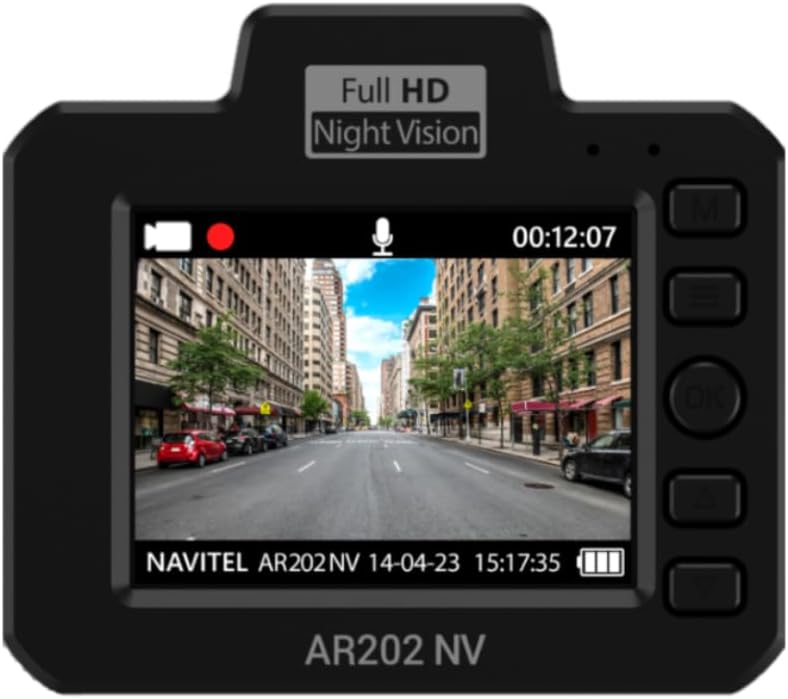
Rear view of the NAVITEL AR202NV Dash Cam showing the screen displaying live footage

Figure 3: Rear view of the dash cam, showing the display screen with live video feed and control buttons.

Illustration of the 140-degree wide camera angle of the NAVITEL AR202NV Dash Cam

Figure 4: Visual representation of the 140-degree wide viewing angle, capturing a broad perspective of the road.

Night Vision

The dash cam is equipped with an advanced GC2053 sensor and a 4-layer glass lens, ensuring high-quality video recordings even in low-light conditions or at night.

Image illustrating the night vision capability of the NAVITEL AR202NV Dash Cam

Figure 5: Depiction of the dash cam's enhanced night vision performance in dark environments.

Parking Mode and G-Sensor

The Parking Mode feature allows the dash cam to detect vibrations and automatically begin recording even when the vehicle is parked and the ignition is off. This is enabled by the built-in G-Sensor, which detects sudden impacts or movements. These event-triggered recordings are typically protected from being overwritten.

Illustration of the G-sensor detecting an impact while parked

Figure 6: Visual explanation of the G-sensor's function in detecting impacts during parking mode.

File Management

All video files are recorded in loop mode and stored on the microSD card. The H.264 compression standard ensures high quality while minimizing file size. Important files triggered by the G-Sensor or manually locked will be protected from loop recording overwrites.

To view or edit video files on a Windows computer, you can use the Navitel DVR Player program.

Illustration of files under protection with H.264 codec

Figure 7: Diagram showing how video files are protected and stored using H.264 compression.

Screenshot of Navitel DVR Player software on a laptop

Figure 8: Screenshot demonstrating the Navitel DVR Player interface for viewing and managing dash cam footage on a computer.

Maintenance

Troubleshooting

ProblemPossible CauseSolution
Dash cam does not power on.No power supply; faulty cable/charger; vehicle's 12V outlet is off.Check power connection; ensure vehicle ignition is on; try a different power outlet or charger.
Recording stops or freezes.MicroSD card error; card full; incompatible card; faulty card.Format the microSD card; replace with a new Class 10 (or higher) microSD card (up to 64GB).
Poor video quality.Dirty lens; low light conditions; incorrect settings.Clean the lens; ensure proper lighting (Night Vision is automatic); check video resolution settings.
Parking mode not activating.G-Sensor sensitivity too low; no power supply when parked.Adjust G-Sensor sensitivity in settings; ensure continuous power supply for parking mode if required.
Files are being overwritten.Normal loop recording; G-Sensor not triggered for protected files.This is normal for loop recording. Ensure G-Sensor is active for impact protection. Manually lock important files if needed.

Specifications

FeatureDetail
Model NameAR202NV
Video Capture Resolution1080p (Full HD 1920x1080) at 30 FPS
Viewing Angle140 degrees
Special FeaturesNight Vision, Parking Mode, G-Sensor
SensorGC2053
Lens4-layer glass lens
Video CompressionH.264
StorageMicroSD card up to 64GB (Class 10 or higher recommended)
Connectivity TechnologyUSB
Mounting TypeWindshield Mount
ColourBlack
ManufacturerNavitel

Warranty and Support

For detailed warranty information, please refer to the warranty card included with your product or visit the official Navitel website. Warranty terms and conditions may vary by region.

Should you encounter any issues not covered in the troubleshooting section or require further assistance, please contact Navitel customer support. Contact details can typically be found on the official Navitel website or on your product packaging.

Navitel brand logo

Figure 9: The official Navitel brand logo.

Related Documents - AR202NV

Preview NAVITEL R3 User Manual: Installation, Features, and Specifications
Comprehensive user manual for the NAVITEL R3 dash cam, covering installation, device layout, specifications, button functions, and operational features.
Preview NAVITEL R260 NV User Manual - Portable Video Recorder Guide
Comprehensive user manual for the NAVITEL R260 NV portable video recorder. Covers installation, features, functions, specifications, and safety precautions for this high-definition dashcam.
Preview NAVITEL R10 Dash Cam User Manual
Comprehensive user manual for the NAVITEL R10 dash cam, covering installation, device layout, specifications, button functions, app integration, and digital speed features. Learn how to operate and maximize your dash cam's capabilities.
Preview NAVITEL R250 DUAL User Manual: Installation, Features, and Operation
Comprehensive user manual for the NAVITEL R250 DUAL dash cam, covering installation guides, device features, button functions, and operational details for optimal use.
Preview NAVITEL MR450 GPS User Manual - Comprehensive Guide
Official user manual for the NAVITEL MR450 GPS digital video recorder. Learn about installation, features, specifications, GPS, parking mode, and app connectivity.
Preview NAVITEL R66 2K User Manual - High-Definition Dashcam
Comprehensive user manual for the NAVITEL R66 2K portable video recorder. Learn about its high-definition recording, night vision, G-sensor, parking mode, installation, and operation.