Introduction
This manual provides detailed instructions for the setup, operation, maintenance, and troubleshooting of your BOXPUT M8 Pro Mini Game TV Box. This device features a dual system, combining an Android TV Box with a retro game console, offering both entertainment and gaming functionalities.
1. Setup
1.1 Package Contents
Before proceeding, please verify that all items listed below are present in your package:
- BOXPUT M8 Pro Mini Console
- 2x Wireless Game Controllers
- Remote Control
- HDMI Cable
- Power Adapter
- USB Wireless Receiver
- User Manual

This image displays all components included in the BOXPUT M8 Pro Mini package: the main console unit, two wireless game controllers, a remote control, an HDMI cable, a power adapter, a USB wireless receiver, and a user manual.
1.2 Connecting the Console
- Connect to TV: Insert one end of the HDMI cable into the 'HD' port on the BOXPUT M8 Pro Mini console and the other end into an available HDMI input on your television.
- Connect Power: Plug the power adapter into the 'DC' port on the console and then into a wall outlet.
- Connect Wireless Receiver: Insert the USB wireless receiver into one of the USB ports on the console. This receiver enables communication with the wireless controllers.
- Power On: Turn on your television and select the correct HDMI input source. The BOXPUT M8 Pro Mini should automatically power on and display the boot screen.
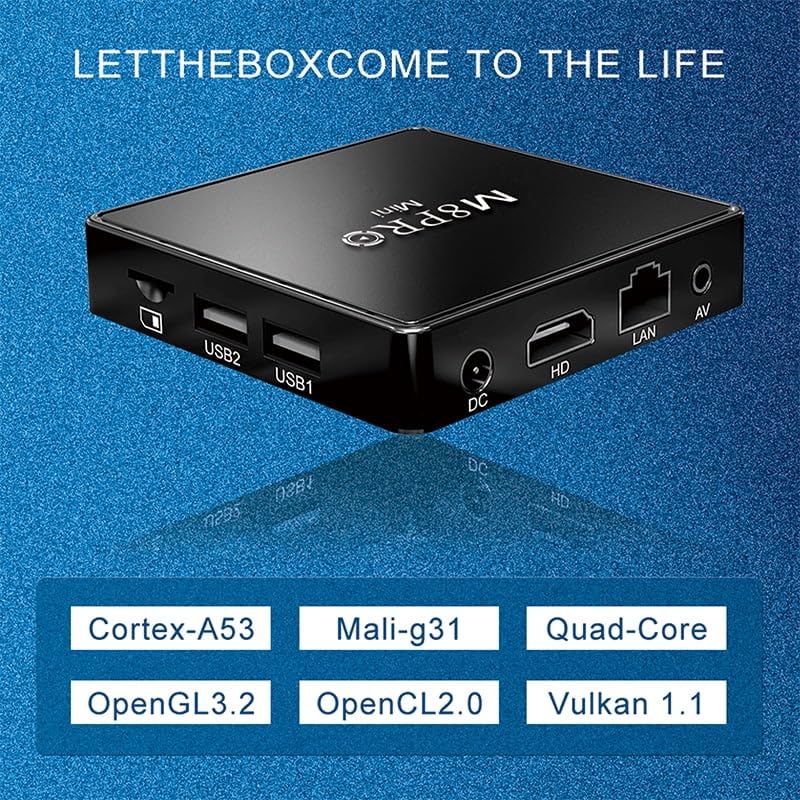
A close-up view of the BOXPUT M8 Pro Mini console's ports, including DC power input, HDMI output, LAN port, AV output, and two USB ports.
1.3 Initial Setup and Network Connection
Upon first boot, you may be guided through an initial setup process for the Android system. Follow the on-screen prompts to configure language, time zone, and network settings.
- Wi-Fi Connection: Navigate to 'Settings' > 'Network' > 'Wi-Fi', select your network, and enter the password.
- Ethernet Connection: If using a wired connection, connect an Ethernet cable to the 'LAN' port on the console. The connection should be established automatically.
This video provides an overview of the BOXPUT M8 Pro Mini Game TV Box, showcasing its components and initial setup process, including connecting to a TV and navigating the interface.
2. Operating Instructions
2.1 Navigating the Android TV Interface
Use the included remote control to navigate the Android TV interface. The remote allows you to select applications, adjust settings, and control media playback.
- Directional Pad: Use the arrow buttons to move between options.
- OK Button: Press to select an item.
- Back Button: Returns to the previous screen.
- Home Button: Returns to the main home screen.
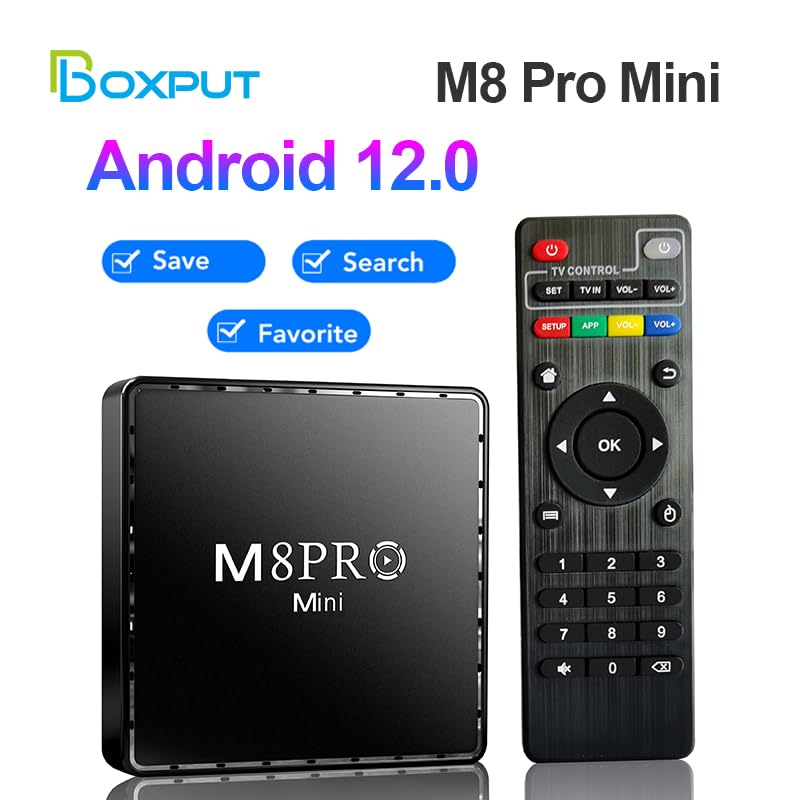
The BOXPUT M8 Pro Mini console is displayed next to its remote control, highlighting its Android 12.0 system and features like save, search, and favorite.
2.2 Accessing the Game System
The BOXPUT M8 Pro Mini features a dual system. To switch to the game system, locate the 'Game Box' or similar icon on the Android home screen and select it. This will launch the retro gaming interface.

This graphic highlights the core features of the BOXPUT M8 Pro Mini, including its Android 12 operating system, support for 10K HD and 10-bit HDR, 2.4G WiFi connectivity, and MaliG31 GPU.
2.3 Playing Games
Once in the game system, use the wireless game controllers to navigate through the game library. The console comes pre-loaded with over 10,000 retro games.
- Selecting Games: Use the directional pad and action buttons on the controller to browse and select games.
- In-Game Controls: Controller button mappings are typically standard for retro games. Refer to individual game instructions if specific controls are unclear.
- Saving Progress: The game system supports saving game progress. Look for 'Save' options within the game or the system menu.
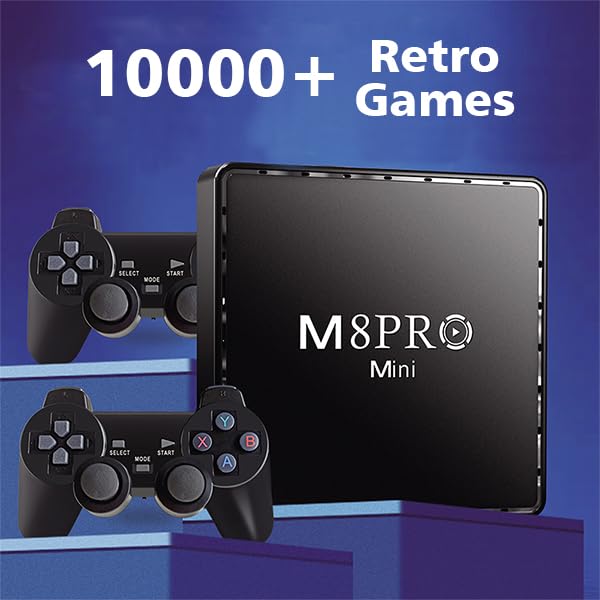
The console and controllers are shown alongside text indicating the inclusion of over 10,000 retro games.
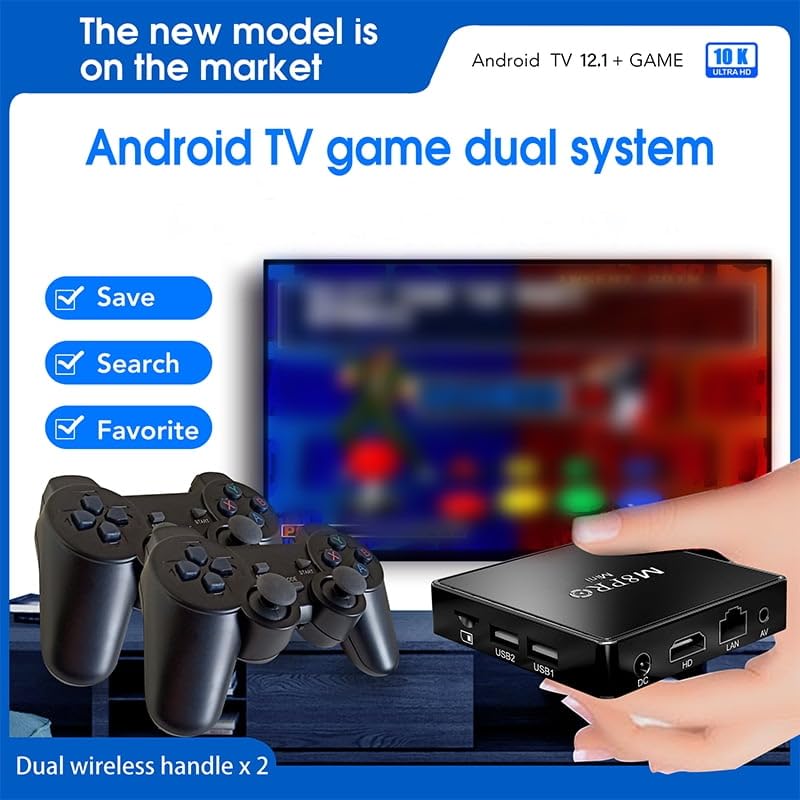
This image illustrates the gaming interface with options to save game progress, search for titles, and mark favorites, displayed on a TV screen with the console and controllers.
2.4 Using Android Applications
The Android 12.0 smart system allows access to various applications. You can download and install apps from the Google Play Store.
- Streaming Video: Access popular streaming services like YouTube, Netflix, and Prime Video (subscriptions may be required).
- App Installation: Navigate to the Google Play Store icon, search for desired applications, and follow the on-screen instructions to install them.
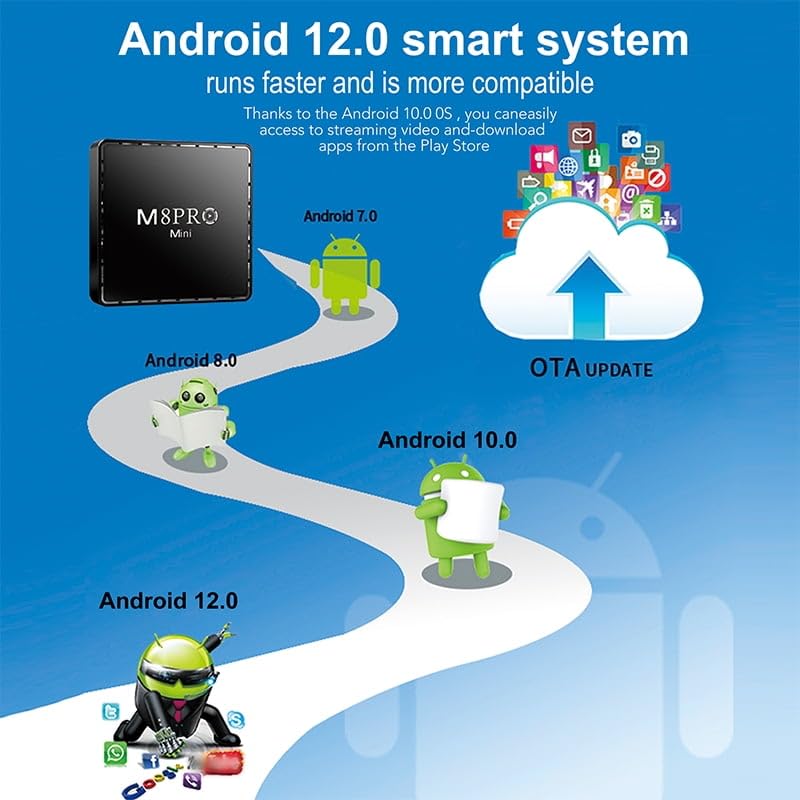
An illustration showing the evolution of Android versions, emphasizing the BOXPUT M8 Pro Mini's Android 12.0 system for faster performance and improved compatibility, allowing access to streaming video and app downloads from the Play Store.
3. Maintenance
3.1 Cleaning
To maintain optimal performance and appearance, regularly clean the console and accessories.
- Use a soft, dry cloth to wipe down the console and controllers.
- Avoid using liquid cleaners, aerosols, or abrasive materials, as these can damage the device.
- Ensure ventilation openings are free from dust and obstructions to prevent overheating.

A diagram illustrating the convection cooling design of the BOXPUT M8 Pro Mini, showing airflow for heat dissipation from both the top and bottom surfaces of the device.
3.2 Software Updates
The BOXPUT M8 Pro Mini supports Over-The-Air (OTA) updates for its Android system. Regularly check for and install updates to ensure you have the latest features and security patches.
- Navigate to 'Settings' > 'About' > 'System Update' (or similar path) to check for available updates.
- Ensure the device is connected to a stable internet connection during updates.
4. Troubleshooting
If you encounter issues with your BOXPUT M8 Pro Mini, refer to the following common solutions:
| Problem | Possible Solution |
|---|---|
| No power/Device not turning on | Ensure the power adapter is securely connected to both the console and a working power outlet. Try a different outlet. |
| No signal on TV | Verify the HDMI cable is properly connected to both the console and the TV. Ensure your TV is set to the correct HDMI input source. Try a different HDMI port or cable. |
| Wireless controllers not responding | Check if the USB wireless receiver is securely plugged into the console. Ensure the controllers have fresh batteries. Re-pair the controllers if necessary (refer to controller-specific instructions). |
| Cannot connect to Wi-Fi | Verify your Wi-Fi password. Ensure the console is within range of your Wi-Fi router. Restart your router and the console. |
| Applications crashing or freezing | Close and restart the application. Clear the app's cache in 'Settings' > 'Apps'. Ensure the system software is up to date. |
5. Specifications
- Model: M8 Pro Mini
- Operating System: Android 12.1
- Processor: Allwinner H313 Quad-Core Cortex-A53
- GPU: Mali-G31
- Video Output: Up to 10K HD, 10-bit HDR
- Connectivity: 2.4G Wi-Fi, Ethernet (LAN), HDMI, AV, USB (2 ports)
- Gaming: Built-in 10000+ Retro Games
- Features: Dual System (Android TV + Game Console), Wireless Controllers, OTA Update Support
6. Warranty Information
The BOXPUT M8 Pro Mini Game TV Box comes with a standard manufacturer's warranty. Please refer to the warranty card included in your product packaging for specific terms, conditions, and duration. Keep your proof of purchase for warranty claims.
7. Support
For further assistance, technical support, or inquiries regarding your BOXPUT M8 Pro Mini, please contact BOXPUT customer service through the contact information provided in your product documentation or visit the official BOXPUT website.


