1. Introduction
This manual provides detailed instructions for the setup, operation, and maintenance of your BOXPUT X88 PRO 13 Smart TV Box. Please read this manual thoroughly before using the device to ensure proper functionality and to maximize your user experience. Keep this manual for future reference.
2. Package Contents
Verify that all items listed below are included in your product package. If any items are missing or damaged, please contact your retailer.
- BOXPUT X88 PRO 13 Smart TV Box
- Remote Control
- HDMI Cable
- Power Adapter (DC 5V/2A)
- User Manual
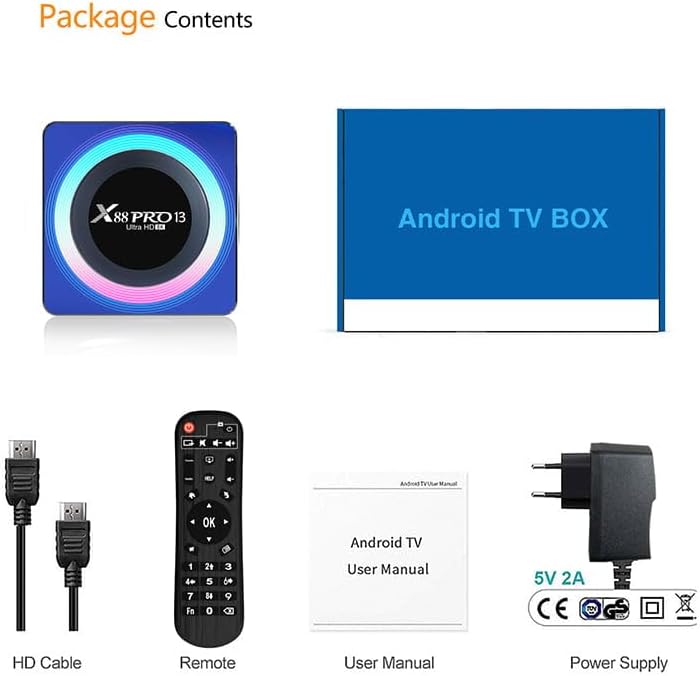
Image: Contents of the product package, including the TV box, HDMI cable, remote control, user manual, and power adapter.
3. Product Overview
The BOXPUT X88 PRO 13 is a high-performance Smart TV Box designed to deliver an enhanced media experience. It features the Android 13.0 operating system and a powerful RK3528 Quad-Core processor.

Image: The BOXPUT X88 PRO 13 Smart TV Box and its accompanying remote control.
Key Features
- Android 13.0 Operating System
- RK3528 Quad-Core 64bit Cortex-A53 Chipset
- Mali 450 MP2 GPU
- Support for 8K HD Video Decoding
- Dual-band Wi-Fi (2.4G/5G) with Wi-Fi 6
- Bluetooth V5.0
- Screen Cast Functionality

Image: Visual representation of key features including Android 13.0, 8K video support, RK3528 processor, WiFi 6, and Screen Cast.
4. Setup Guide
Follow these steps to set up your BOXPUT X88 PRO 13 Smart TV Box.
- Connect to TV: Connect one end of the HDMI cable to the HDMI port on the TV Box and the other end to an available HDMI input on your television.
- Connect Power: Plug the power adapter into the DC 5V/2A port on the TV Box, then plug the adapter into a wall outlet.
- Power On: The device should power on automatically or can be turned on using the power button on the remote control.
- Select Input: On your television, select the correct HDMI input source using your TV's remote control.
- Initial Setup: Follow the on-screen instructions to complete the initial setup, including language selection and network configuration.
5. Operating Instructions
5.1 Basic Navigation
Use the provided remote control to navigate the Android interface. The directional buttons (up, down, left, right) are used to move the cursor, and the 'OK' button confirms selections. The 'Back' button returns to the previous screen, and the 'Home' button returns to the main menu.
5.2 Network Connectivity
The TV Box supports both wired and wireless network connections.
- Wired Connection (Ethernet): Connect an Ethernet cable from your router to the LAN port on the TV Box.
- Wireless Connection (Wi-Fi): Go to Settings > Network & Internet > Wi-Fi, select your network, and enter the password. The device supports 2.4GHz and 5GHz dual-band Wi-Fi 6 for faster and more stable connections.

Image: An illustration demonstrating the improved speed and stability offered by WiFi 6 technology.
5.3 Bluetooth Connectivity
The TV Box features Bluetooth V5.0, allowing connection to various external devices.
- Go to Settings > Connected Devices > Pair new device.
- Put your Bluetooth device (e.g., speaker, headphones, game controller) into pairing mode.
- Select the device from the list on your TV screen to pair.

Image: The TV box demonstrating Bluetooth 5.0 connectivity with a speaker, headphones, and a game controller.
5.4 Media Playback
The BOXPUT X88 PRO 13 supports advanced media formats, including 8K H.265 ultra-high-definition content and 3D video playback.
- 8K Video Decoding: Enjoy crystal-clear visuals with support for 8K resolution.
- 3D Support: Experience immersive 3D content when connected to a compatible 3D television.

Image: A television screen showcasing a high-resolution winter scene, illustrating the 8K video decoding capability of the device.
5.5 Multi-screen Interaction
The device supports various multi-screen interaction protocols, allowing you to cast content from your mobile devices to your TV.
- Airplay: For Apple devices.
- DLNA: For compatible devices across various platforms.
- Miracast: For Android devices.
To use these features, ensure your mobile device and the TV Box are connected to the same Wi-Fi network. Activate the casting feature on your mobile device and select the TV Box from the available devices.

Image: A television screen displaying a racing car, demonstrating multi-screen interaction capabilities such as Airplay, DLNA, and Miracast.
6. Maintenance
To ensure the longevity and optimal performance of your TV Box, follow these maintenance guidelines:
- Cleaning: Use a soft, dry cloth to clean the device. Do not use liquid cleaners or aerosols.
- Ventilation: Ensure the device is placed in a well-ventilated area to prevent overheating. Do not block ventilation openings.
- Software Updates: Periodically check for system updates via Settings > About > System update to ensure you have the latest features and security patches.
- Storage: Avoid placing heavy objects on the device. Store in a cool, dry place away from direct sunlight and extreme temperatures.
7. Troubleshooting
If you encounter issues with your BOXPUT X88 PRO 13, refer to the following common problems and solutions:
- No Power:
- Ensure the power adapter is securely connected to the device and a working power outlet.
- Verify the power outlet is functional.
- No Signal on TV:
- Check that the HDMI cable is properly connected to both the TV Box and the TV.
- Ensure your TV is set to the correct HDMI input source.
- Try a different HDMI cable or HDMI port on your TV.
- No Wi-Fi Connection:
- Confirm your Wi-Fi router is powered on and functioning.
- Check Wi-Fi settings on the TV Box (Settings > Network & Internet > Wi-Fi) and ensure the correct network is selected and password entered.
- Restart the TV Box and your Wi-Fi router.
- Remote Control Not Responding:
- Replace the batteries in the remote control.
- Ensure there are no obstructions between the remote and the TV Box.
- Applications Crashing or Freezing:
- Close and restart the application.
- Clear the cache of the problematic application via Settings > Apps > [App Name] > Storage & cache > Clear cache.
- Ensure the device has sufficient free storage space.
- Perform a system update if available.
8. Specifications
| Feature | Specification |
|---|---|
| Model | X88 PRO 13 |
| Operating System | Android 13.0 |
| Chipset | RK3528 Quad-Core 64bit Cortex-A53 |
| GPU | Mali 450 MP2 |
| RAM | 4GB |
| ROM (Internal Storage) | 64GB EMMC |
| USB Host | 1 * USB 3.0; 1 * USB 2.0 |
| LAN/Ethernet | 10/100M Standard RJ-45 |
| Wireless/Wi-Fi | 2.4G / 5G Dual-band Wi-Fi 802.11 a/b/g/n/ac/ax (Wi-Fi 6) |
| Bluetooth | V5.0 |
| Power Supply | DC 5V/2A |
| Video Decoding | 8K H.265, 3D Support |
| Product Dimensions | 107 x 107 x 21 mm |
9. Warranty and Support
For warranty information and technical support, please refer to the documentation provided with your purchase or contact your retailer. Keep your proof of purchase for warranty claims.


