
Introduction
This manual provides comprehensive instructions for the setup, operation, and maintenance of your BOXPUT X96 MAX Ultra Smart TV Box. Please read this manual carefully before using the device to ensure optimal performance and longevity.
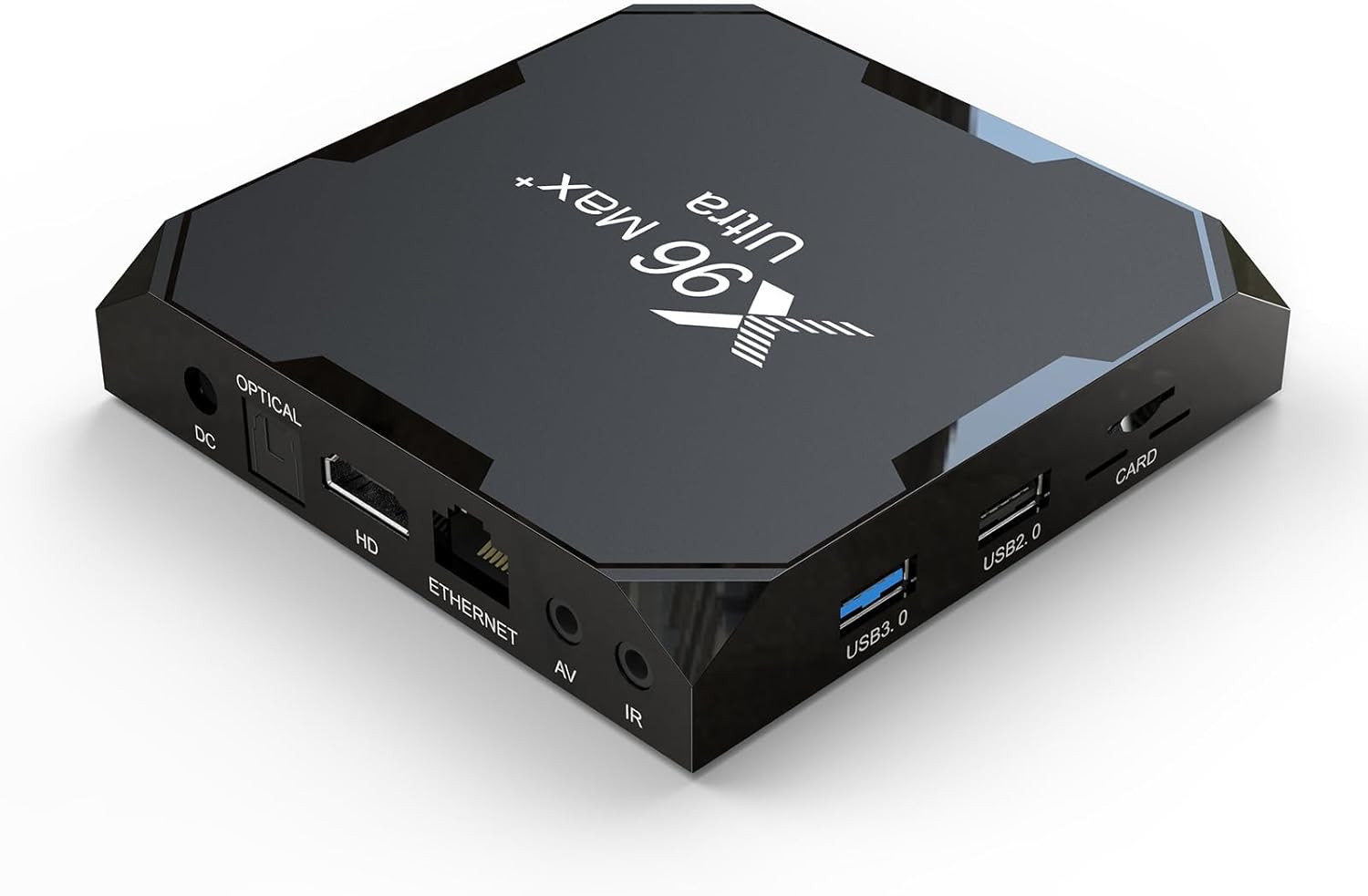
Image: Front view of the X96 MAX Ultra Smart TV Box, showcasing its sleek black design and various ports on the side.
Package Contents
Before proceeding, ensure all items are present in the package:
- X96 MAX Ultra Smart TV Box
- Remote Control
- HDMI External Cable
- Power Adapter
- User Manual (this document)

Image: The X96 MAX Ultra TV Box, its remote control, power adapter, and HDMI cable, illustrating the complete package contents.
Setup Guide
1. Connecting the Device
- Power Connection: Connect the power adapter to the "DC IN" port on the TV Box and then plug it into a wall outlet.
- HDMI Connection: Use the provided HDMI cable to connect the "HD" port on the TV Box to an HDMI input port on your television or monitor.
- Network Connection (Optional): For a wired internet connection, connect an Ethernet cable from your router to the "ETHERNET" port on the TV Box. Alternatively, you can use Wi-Fi after initial setup.
- Audio/Video Connection (Optional): If connecting to an older TV, use an AV cable (not included) to connect the "AV" port on the TV Box to your TV's AV input.
- IR Extension (Optional): If using an external IR receiver, connect it to the "IR" port.

Image: Diagram illustrating the various input and output ports on the X96 MAX Ultra TV Box, including DC IN, Optical, HD (HDMI), Ethernet, AV, IR, USB 3.0, USB 2.0, and Card slot.
2. Initial Power On and Setup
Once all connections are made, the device should power on automatically or can be powered on using the remote control. Follow the on-screen prompts for initial setup, including language selection, display resolution, and Wi-Fi network configuration.
Operating Instructions
Remote Control Overview
The included remote control allows you to navigate the Android TV interface and control media playback.

Image: The X96 MAX Ultra TV Box alongside its dedicated remote control, highlighting the device's compact size and the remote's button layout.
Navigating the Android 11.0 OS
The X96 MAX Ultra runs on Android 11.0, offering a user-friendly interface. Use the directional buttons on the remote to move between apps and settings. The "OK" button selects items, and the "Back" button returns to the previous screen.
Connecting to Networks
- Wi-Fi: Go to Settings > Network & Internet > Wi-Fi, select your network, and enter the password. The device supports 2.4G and 5G Wi-Fi for stable connections.
- Ethernet: If an Ethernet cable is connected, the device will automatically detect and use the wired connection.
Using USB and Card Slots
The device features one USB 3.0 port, one USB 2.0 port, and a TF card slot. These can be used to connect external storage devices (USB drives, hard drives) or memory cards for media playback or file management.

Image: A visual comparison of data transfer speeds between USB 2.0 and USB 3.0, demonstrating the faster read speed of USB 3.0 for smooth playback of local videos and sharing content.
Bluetooth Connectivity
The X96 MAX Ultra supports BT4.X, allowing you to connect various Bluetooth devices such as headphones, speakers, or a mouse for enhanced usability.

Image: An illustration showing the X96 MAX Ultra TV Box wirelessly connected via Bluetooth to a headset, speaker, and mouse, demonstrating its multi-device connection capability.
Advanced Features
8K HDR Media Playback
The X96 MAX Ultra supports multi-video decoder up to 8K resolution and features HDR (High Dynamic Range) for superior image quality. It also supports AV1 decoding, ensuring compatibility with modern video formats and efficient streaming.

Image: A split screen showing the difference between 4K SDR and 8K HDR, with the X96 MAX Ultra TV Box in the foreground, emphasizing its ultra-high quality video decoding capabilities.
Powerful Hardware
Equipped with an Amlogic S905X4 Quad Core ARM Cortex A55 chipset and ARM Mali-G31 MP2 GPU, the device delivers fast performance and excellent graphics processing. The 4GB RAM ensures smooth multitasking, while the 64GB ROM provides ample space for applications and media.
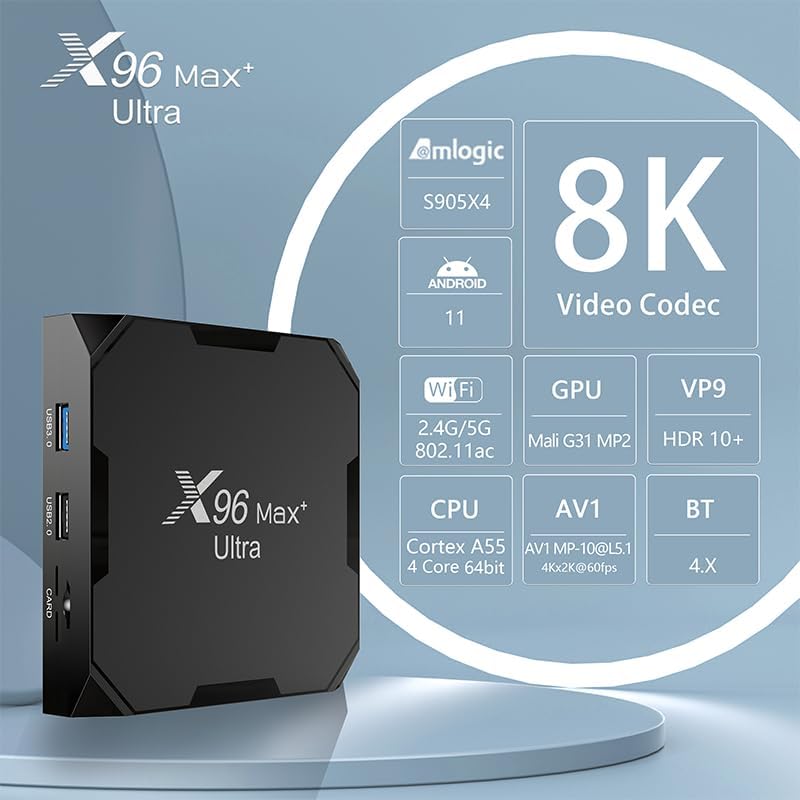
Image: An infographic detailing the core specifications of the X96 MAX Ultra TV Box, including Amlogic S905X4 chipset, Android 11, 8K video codec, 2.4G/5G WiFi, Mali G31 MP2 GPU, VP9, HDR10+, Cortex A55 CPU, AV1 decoding, and BT 4.X.
Maintenance
- Cleaning: Use a soft, dry cloth to clean the exterior of the device. Do not use liquid cleaners or aerosols.
- Ventilation: Ensure the device is placed in a well-ventilated area to prevent overheating. Do not block ventilation openings.
- Power Off: When not in use for extended periods, it is recommended to unplug the power adapter.
- Software Updates: Periodically check for system updates in the device settings to ensure optimal performance and security.
Troubleshooting
| Problem | Possible Cause | Solution |
|---|---|---|
| No power | Power adapter not connected or faulty. | Ensure power adapter is securely connected to the device and a working power outlet. |
| No display on TV | HDMI cable loose or connected to wrong input. TV input not set correctly. | Check HDMI cable connection. Ensure TV input source matches the HDMI port used. Try a different HDMI port or cable. |
| Wi-Fi connection issues | Incorrect password. Router too far or signal interference. | Verify Wi-Fi password. Move device closer to router or reduce interference. Restart router and TV Box. |
| Remote control not working | Batteries low or inserted incorrectly. Obstruction between remote and device. | Replace batteries. Ensure clear line of sight to the TV Box's IR receiver. |
| Apps crashing or slow performance | Too many apps running in background. Insufficient storage. | Close unused applications. Clear app caches. Consider uninstalling unnecessary apps. Restart the device. |
Specifications
| Feature | Detail |
|---|---|
| Model | X96 MAX Ultra |
| Operating System | Android 11.0 |
| Chipset | Amlogic S905X4 Quad Core ARM Cortex A55 |
| GPU | ARM Mali-G31 MP2 |
| RAM | 4GB |
| ROM | 64GB |
| Wi-Fi | 2.4G & 5G Dual Band |
| Ethernet | 100M |
| Bluetooth | BT4.X |
| USB Ports | 1x USB 3.0, 1x USB 2.0 |
| Video Decoding | Up to 8K, AV1 decoding, HDR |
| Power Supply | DC 5V/2A |
| Dimensions | 105x105x19 mm (Product Size) |
| Weight | 0.394 Kg (Unit packing Weight) |
Warranty and Support
For specific warranty information, please refer to the documentation provided at the time of purchase or contact your retailer. BOXPUT products are designed for reliability and performance.
If you encounter any issues not covered in the troubleshooting section, or require further assistance, please contact BOXPUT customer support through their official channels or the retailer from whom you purchased the product. You can often find support contact information on the product packaging or the brand's official website.