
Bewinner Bewinnerq7pe1w2o5t
Bewinner Wearable Body Camera User Manual
Model: Bewinnerq7pe1w2o5t
1. Introduction
This manual provides detailed instructions for the proper use and maintenance of your Bewinner Wearable Body Camera. Please read this manual thoroughly before operating the device to ensure optimal performance and longevity.
The Bewinner Wearable Body Camera is a compact and versatile video recorder designed for various applications, including personal security, outdoor activities, and home monitoring. It features 1080P video recording, 180° rotatable lens, night vision capabilities, and a portable back clip design.
2. Product Overview
Key Features
- 1080P High-Definition Recording: Equipped with a high-definition image sensor and 4 night vision lights for clear video capture in various lighting conditions.
- 180° Rotatable Lens: The lens can be manually rotated 180 degrees to capture footage from different angles.
- Multi-Functionality: Supports video recording, audio recording, and photo capture.
- Expandable Storage: Supports Micro SD cards up to 256GB (not included) for extensive recording.
- Automatic File Save: Automatically saves files when the battery is low to prevent data loss.
- Portable Back Clip Design: Allows for easy attachment to clothing, backpacks, or other surfaces for hands-free recording.
Product Components
Familiarize yourself with the different parts of your camera:
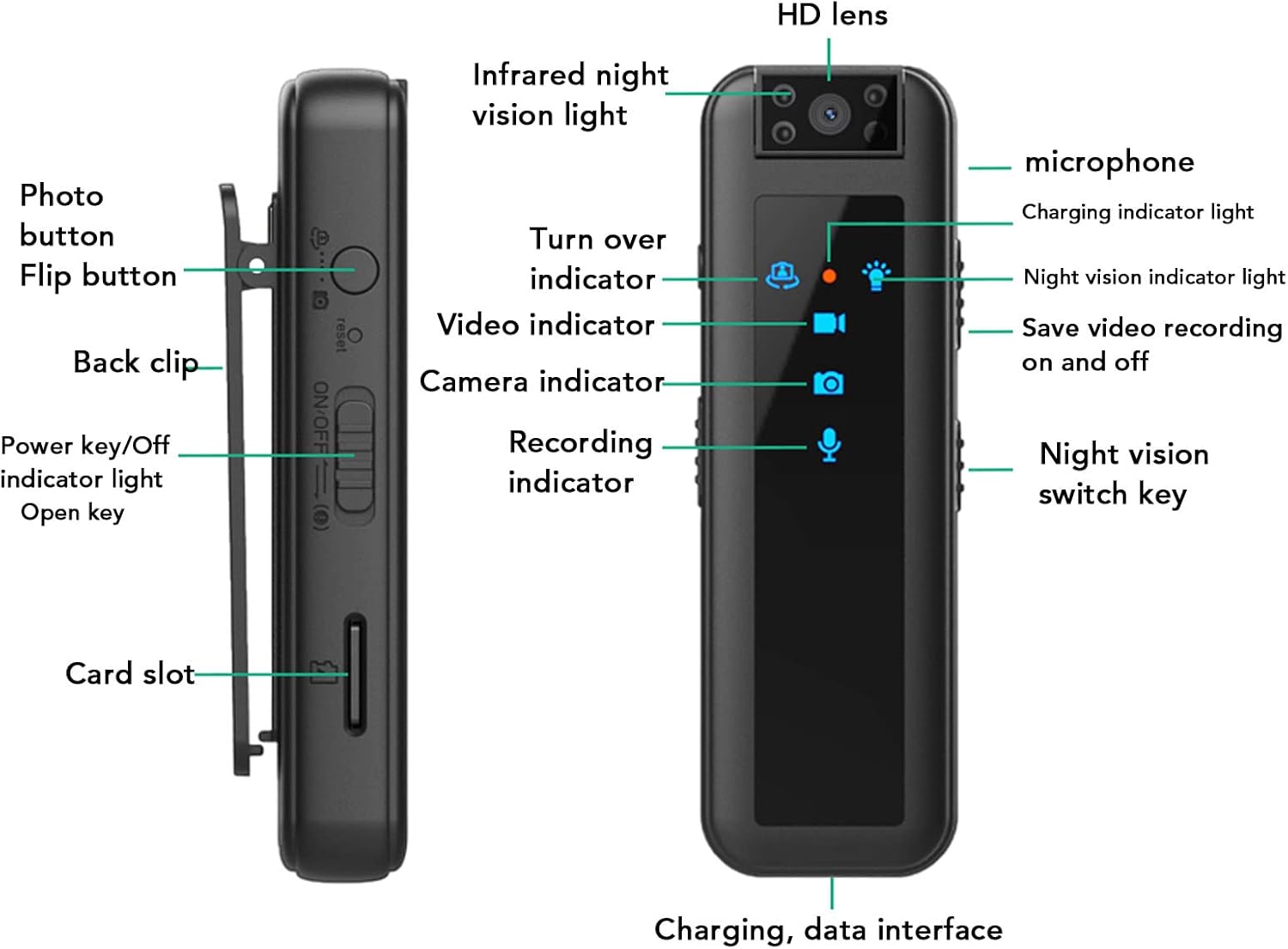
Image: Detailed diagram of the Bewinner Wearable Body Camera, highlighting the camera lens, night vision lights, indicator lights, audio/save key, video/save key, ON/OFF key, back clip, USB charging port, audio input hole, night vision key, reset hole, and TF card slot.
Package Contents
- Bewinner Wearable Body Camera
- USB Charging Cable
- User Manual
- Card Reader (USB adapter for Micro SD card)
- Reset Pin

Image: The Bewinner Wearable Body Camera shown alongside its accessories, including the USB charging cable and a USB adapter for the Micro SD card.
3. Important Cautions
- Fully charge the camera before first use. A full charge typically takes 2 hours.
- The camera requires a Micro SD card (up to 256GB, not included) to function. Format the Micro SD card to FAT32 before use.
- Always install the Micro SD card before powering on the camera.
- Video files are saved in AVI format. It is recommended to use VLC Media Player or a compatible player for playback.
- If the lens is flipped to the side without the back clip, you may need to modify the video direction in the 'TIME.TXT' file for correct orientation.
4. Setup Guide
4.1. Charging the Device
Connect the camera to a USB power source using the provided USB cable. The indicator light will show charging status and turn off when fully charged.
4.2. Inserting the Micro SD Card
Ensure the camera is powered off before inserting the Micro SD card. Carefully align the card and push it into the TF card slot until it clicks into place. Use the reset pin if necessary to fully insert the card.

Image: A Micro SD card being inserted into the camera's dedicated slot, illustrating the correct orientation.
Video: Demonstrates the process of inserting the Micro SD card into the camera.
5. Operating Instructions
5.1. Power On/Off
To power on the camera, slide the ON/OFF key upwards. The blue indicator light will illuminate, indicating standby mode. To power off, slide the ON/OFF key downwards. If recording, ensure you save the file before powering off to prevent data loss.
5.2. Video Recording Mode
From standby mode (blue indicator light on), slide the Video/Save Key upwards to the video icon. The blue light will flash 5 times and then turn off, indicating that video recording has started. To stop recording and save the file, slide the Video/Save Key downwards to the file icon. The camera will return to standby mode.
Video: Illustrates how to activate and stop video recording on the camera.
5.3. Audio Recording Mode
From standby mode, slide the Audio/Save Key upwards to the audio icon. The blue indicator light will stay on, and the red indicator light will flash 5 times before turning off, signifying that audio recording has begun. To stop recording and save the audio file, slide the Audio/Save Key downwards to the file icon. The camera will return to standby mode.
5.4. Night Vision Mode
While in video recording mode, slide the Night Vision Key upwards to activate the infrared night vision lights. To turn off the infrared lights, slide the Night Vision Key downwards.
5.5. Taking Photos
Specific instructions for taking photos are typically found in the detailed manual. Generally, a dedicated photo button or a mode switch is used to enter photo mode and capture images.
5.6. Adjusting Lens Orientation
The camera features a 180° rotatable lens, allowing you to adjust the recording angle as needed.

Image: The camera's lens is shown rotating 180 degrees, demonstrating its flexibility for capturing different angles.
6. Viewing and Managing Files
To view recorded files, connect the camera to your computer using the provided USB cable or by inserting the Micro SD card into the card reader and then into your computer's USB port. The camera or card will appear as a removable disk.
Open the drive to access the AUDIO and VIDEO folders, which contain your recorded sound and video files, respectively. The 'TIME.TXT' file is used for setting the recording time, time stamp, and lens direction.
6.1. Setting Time, Date Stamp, and Lens Direction
The 'TIME.TXT' file allows you to customize the timestamp and lens orientation. Open the file with a text editor and modify the settings in the format YYYY-MM-DD HH:MM:SS N 1 (or Y). 'N' hides the timestamp, 'Y' displays it. '1' is for normal lens orientation when facing the back clip, '0' is for normal orientation when facing the side without the back clip.
7. Maintenance
7.1. Cleaning
Use a soft, dry cloth to clean the camera body. For the lens, use a specialized lens cleaning cloth and solution to avoid scratches. Do not use harsh chemicals or abrasive materials.
7.2. Storage
Store the camera in a cool, dry place away from direct sunlight and extreme temperatures. If storing for an extended period, ensure the battery is partially charged (around 50%) to maintain battery health.
8. Troubleshooting
8.1. Common Issues and Solutions
| Issue | Possible Cause | Solution |
|---|---|---|
| Camera does not power on. | Low battery; SD card not inserted. | Charge the camera; Insert a formatted Micro SD card. |
| Recording stops unexpectedly. | SD card full; Low battery. | Delete old files or replace SD card; Recharge the camera. |
| Video orientation is incorrect. | Incorrect lens direction setting. | Modify the 'TIME.TXT' file to adjust lens direction. |
| Camera freezes or becomes unresponsive. | System error. | Use the reset pin to short click the reset hole to restore factory settings. |
8.2. Resetting the Camera
If the camera crashes or fails to work correctly, you can perform a reset. Use the provided reset pin to gently press the reset hole until you feel a slight click. This will restore the camera to its factory settings.
9. Product Specifications
| Feature | Specification |
|---|---|
| Item Weight | 3.17 ounces |
| Item Model Number | Bewinnerq7pe1w2o5t |
| Manufacturer | Bewinner |
| Video Capture Resolution | 1080p |
| Media Type | Micro SD Card (up to 256GB) |
| Shooting Modes | Night |
| Exposure Control Type | Automatic |
| Color | Black |
10. Warranty and Support
10.1. Warranty Information
This product is covered by a standard manufacturer's warranty. Please refer to the product packaging or contact customer support for specific warranty terms and conditions.
10.2. Customer Support
For any questions, technical assistance, or support needs, please contact Bewinner customer service. Contact details can typically be found on the product packaging or the official Bewinner website.
Ask a question about this manual
Ask about setup, troubleshooting, compatibility, parts, safety, or missing instructions. Manuals+ will review the question and use this page’s manual context to help answer it.