
Introduction
The Annadue 7260AC Pro is a high-performance PCIe WiFi and Bluetooth card designed to enhance your desktop computer's wireless capabilities. It offers dual-band 1200Mbps Wi-Fi connectivity (300Mbps on 2.4GHz and 867Mbps on 5GHz) using advanced 802.11ac technology, ensuring stable and fast internet access for streaming, gaming, and large file transfers. Additionally, it features integrated Bluetooth 4.0, allowing seamless connection to various Bluetooth peripherals such as keyboards, mice, headsets, and speakers without requiring extra adapters. This card is compatible with Windows 7, 8, 10, and 11 (32/64-bit) and supports advanced wireless security protocols like WPA/WPA2 and MU-MIMO for protected and efficient network performance.
Setup and Installation
Follow these steps to properly install your Annadue 7260AC Pro PCIe WiFi Bluetooth Card into your desktop computer.
1. Physical Installation
- Power Off and Disconnect: Before starting, ensure your computer is completely powered off and unplugged from the power outlet.
- Open Computer Case: Carefully open your computer's side panel to access the motherboard.
- Locate a PCIe Slot: Identify an available PCIe x1, x4, x8, or x16 slot on your motherboard. The card is designed for PCIe x1 but is compatible with larger slots.
- Remove Slot Cover: Remove the metal slot cover corresponding to the chosen PCIe slot from the back of your computer case.
- Insert the WiFi Card: Align the Annadue 7260AC Pro card with the chosen PCIe slot and gently press it down until it is firmly seated. Ensure the bracket is secured to the case with a screw.
- Connect Bluetooth USB Cable: Locate the small USB cable included with the card. Connect one end to the 4-pin header on the WiFi card and the other end to an available USB 2.0 header on your motherboard. This connection is essential for Bluetooth functionality.
- Attach Antennas: Screw the two included antennas onto the connectors at the back of the WiFi card. Adjust their orientation for optimal signal reception.

Image: The Annadue 7260AC Pro card showing the main board, two antennas, and the essential USB cable for Bluetooth connectivity.
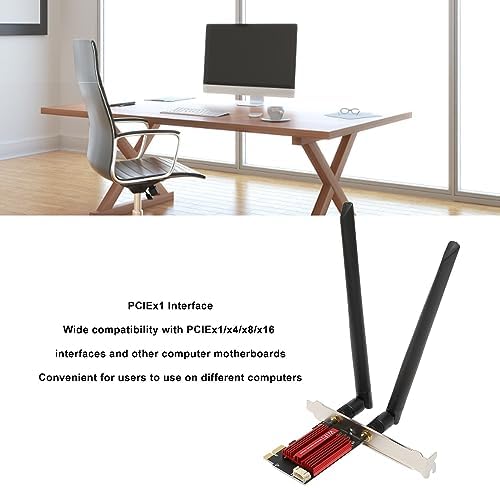
Image: The Annadue 7260AC Pro card illustrating its PCIeX1 interface and compatibility with various PCIe slots on computer motherboards.
2. Driver Installation
While the card may offer plug-and-play functionality for basic Wi-Fi on some Windows versions, it is highly recommended to install the latest drivers for optimal performance and full Bluetooth functionality. The card uses an Intel AC 7260 chipset.
- Close Computer Case: Once the card and antennas are installed, close your computer case and reconnect the power.
- Power On: Turn on your computer.
- Download Drivers:
- For Windows 10/11: The system may automatically detect and install basic drivers. However, for the best experience, visit the official Intel support website and search for "Intel Wireless-AC 7260" and "Intel Bluetooth for Wireless-AC 7260" drivers. Download the latest versions compatible with your Windows operating system (32-bit or 64-bit).
- For Windows 7/8: Manual driver installation is typically required. Download the appropriate drivers from the Intel support website.
- Install Drivers: Run the downloaded driver executables and follow the on-screen instructions. You may need to restart your computer after installation.
- Verify Installation: After restarting, check Device Manager (right-click Start, select Device Manager) under "Network adapters" and "Bluetooth" to ensure the Intel Wireless-AC 7260 and Intel Bluetooth devices are recognized and functioning correctly.
Operating Instructions
1. Connecting to Wi-Fi
- Access Network Settings: In Windows, click the Wi-Fi icon in the system tray (usually bottom-right corner).
- Select Network: A list of available Wi-Fi networks will appear. Select your desired network (SSID).
- Enter Password: If prompted, enter the network security key (password) and click "Connect".
- Verify Connection: Once connected, the Wi-Fi icon will indicate an active connection, and you should have internet access.

Image: The Annadue 7260AC Pro card, emphasizing its dual-band functionality for 2.4GHz and 5GHz networks, providing stable and extended wireless coverage.
2. Connecting to Bluetooth Devices
- Enable Bluetooth: In Windows, go to "Settings" > "Devices" > "Bluetooth & other devices" and ensure Bluetooth is turned "On".
- Pair Device: Put your Bluetooth device (e.g., headphones, mouse) into pairing mode.
- Add Device: On your computer, click "Add Bluetooth or other device" and select "Bluetooth".
- Select and Connect: Select your device from the list and follow any on-screen prompts to complete the pairing process.
Maintenance
- Keep Drivers Updated: Regularly check the Intel support website for updated Wi-Fi and Bluetooth drivers for the AC 7260 chipset to ensure optimal performance and security.
- Clean Dust: Periodically open your computer case and gently clean any dust accumulation on the WiFi card and surrounding components using compressed air. Ensure the computer is powered off and unplugged before cleaning.
- Antenna Placement: Ensure the antennas are positioned optimally for the best signal strength. Avoid placing them directly against metal surfaces or other electronic devices that might cause interference.
- Software Updates: Keep your operating system updated to benefit from the latest network and Bluetooth stack improvements.
Troubleshooting
1. Wi-Fi Not Detected or Poor Performance
- Check Physical Installation: Ensure the card is securely seated in the PCIe slot and the antennas are properly attached.
- Driver Issues: Verify that the correct Wi-Fi drivers for the Intel AC 7260 are installed. If issues persist, try uninstalling and reinstalling the drivers. Avoid using generic Windows drivers if specific Intel drivers are available.
- Antenna Orientation: Adjust the angle and position of the antennas to improve signal reception.
- Router Distance/Interference: Ensure your computer is within range of your Wi-Fi router. Reduce interference from other electronic devices.
- Router Settings: Check your router's settings to ensure it's broadcasting on 2.4GHz and 5GHz bands and that the network name (SSID) is visible.
2. Bluetooth Not Working
- USB Cable Connection: The most common issue for Bluetooth not working is the USB cable not being connected or connected incorrectly. Ensure the small 4-pin USB cable is securely connected between the WiFi card and an available USB 2.0 header on your motherboard.
- Bluetooth Drivers: Confirm that the correct Bluetooth drivers for the Intel AC 7260 are installed. As with Wi-Fi, specific Intel drivers are crucial.
- Windows Bluetooth Service: Ensure the Bluetooth Support Service is running in Windows Services.
- Device Pairing: Make sure the Bluetooth device you are trying to connect is in pairing mode and within range.
3. Slow Speeds or Disconnections
- Driver Update: Always ensure you have the latest drivers from Intel.
- Channel Interference: Use a Wi-Fi analyzer tool to check for crowded Wi-Fi channels in your area and adjust your router's channel settings if necessary.
- Network Congestion: If many devices are using your network, consider upgrading your router or optimizing its settings.
- Firmware Update: Check if your router has a firmware update available.
Technical Specifications
| Brand | Annadue |
| Model Number | 7260AC Pro |
| Hardware Interface | PCIe x1 (compatible with x4, x8, x16 slots), Bluetooth 4.0 |
| Data Link Protocol | Bluetooth, 802.11ac Wi-Fi |
| Data Transfer Rate | Up to 1200 Mbps (300Mbps 2.4GHz, 867Mbps 5GHz) |
| Compatible Devices | Desktop Computers |
| Operating System Compatibility | Windows 7, 8, 10, 11 (32/64-bit) |
| Weight | 140 Grams |
| Security Protocols | WPA/WPA2, MU-MIMO |
Warranty Information
Please refer to the retailer or your purchase documentation for specific warranty terms and conditions. Annadue products typically come with a standard manufacturer's warranty covering defects in materials and workmanship. Keep your proof of purchase for any warranty claims.
Customer Support
For technical assistance, driver downloads, or further inquiries, please visit the Annadue official website or contact their customer support. You may also find helpful resources and community forums related to the Intel Wireless-AC 7260 chipset online.
- Online Resources: Search for "Intel Wireless-AC 7260 drivers" or "Annadue support" for the latest information.
- Retailer Support: For purchase-related issues, contact the retailer where you bought the product.