1. Introduction
Welcome to the user manual for your new Lenovo ThinkPad P16 Gen 2 mobile workstation. This powerful laptop is designed for demanding professional tasks, featuring an Intel Core i9-13980HX processor, NVIDIA RTX 4000 Ada graphics, and a stunning 16-inch WQUXGA display. This manual provides essential information for setting up, operating, maintaining, and troubleshooting your device to ensure optimal performance and longevity.

Figure 1: Lenovo ThinkPad P16 Gen 2, an open view showcasing its display and keyboard.
2. Setup
2.1 Unboxing and Initial Inspection
Carefully remove your ThinkPad P16 Gen 2 and its accessories from the packaging. The box should contain the following items:
- Lenovo ThinkPad P16 Gen 2 Laptop
- Integrated Battery (pre-installed)
- 230W Slim Tip Power Adapter
Inspect the laptop for any visible damage. If you find any, contact your vendor immediately.
2.2 Connecting Power
Before first use, connect the laptop to a power source using the provided 230W Slim Tip Power Adapter.
- Plug the power adapter into the power connector on your laptop.
- Plug the power cord into an electrical outlet.
The battery will begin charging automatically.
2.3 Initial Boot and Windows Setup
Press the power button to turn on your laptop. Follow the on-screen instructions to complete the Windows 11 Pro setup process. This includes setting up your region, language, network connection, and user account.
2.4 Fingerprint Reader Setup
For enhanced security, configure the integrated fingerprint reader during the Windows setup or later via Windows Settings. This allows for quick and secure login.
3. Operating Your ThinkPad P16 Gen 2
3.1 Keyboard and Touchpad
Your ThinkPad P16 Gen 2 features a full-sized, backlit QWERTY keyboard for comfortable typing. The integrated TrackPoint pointing device and large multi-touch touchpad provide precise navigation.
- Backlight Control: Adjust keyboard backlight brightness using the Fn + Spacebar keys.
- Function Keys: Utilize the Fn keys (F1-F12) for quick access to system functions like volume, brightness, and external display control.
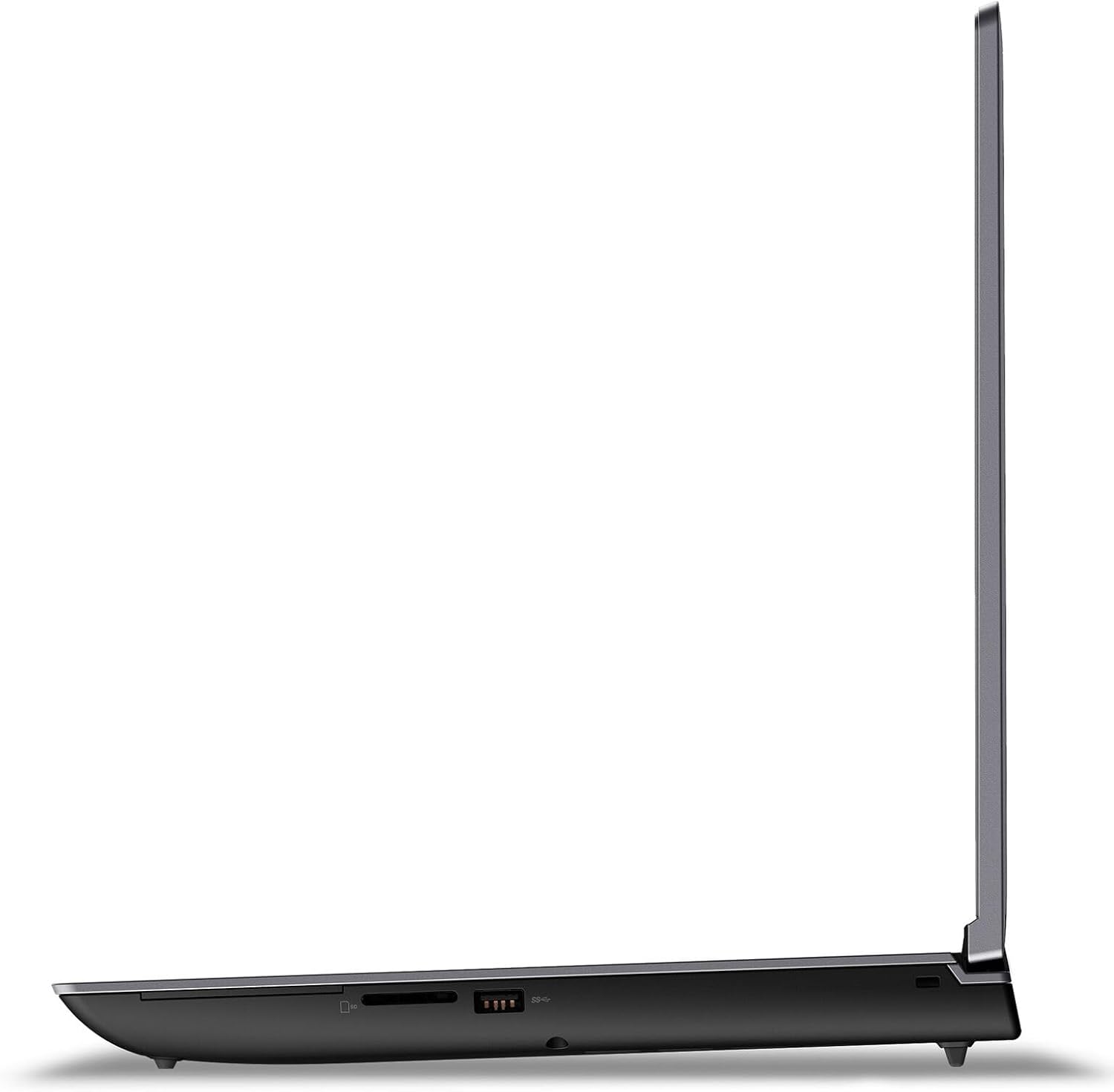
Figure 2: Close-up view of the keyboard, TrackPoint, and touchpad.
3.2 Display
The 16-inch WQUXGA (3840 x 2400) IPS display offers exceptional clarity and color accuracy, with 800 nits brightness and 100% DCI-P3 color gamut. It is ideal for professional content creation and detailed work.
- Brightness Adjustment: Use the F5 and F6 keys to adjust screen brightness.
- External Displays: Connect external monitors via the HDMI or DisplayPort outputs for extended workspace.
3.3 Ports and Connectivity
The ThinkPad P16 Gen 2 provides a variety of ports for connecting peripherals and external devices.
- USB Ports: Connect USB devices such as external drives, keyboards, and mice.
- HDMI/DisplayPort: For connecting external displays.
- SD Card Reader: For transferring data from SD cards.
- Wi-Fi: Connect to wireless networks for internet access.

Figure 3: Left side ports of the ThinkPad P16 Gen 2.

Figure 4: Right side ports of the ThinkPad P16 Gen 2.
3.4 Camera and Audio
The laptop features a 1080P FHD IR/RGB Hybrid camera with a privacy shutter, along with dual array microphones for clear communication. Stereo speakers with Dolby Atmos provide immersive audio.
- Privacy Shutter: Slide the shutter to cover the camera lens when not in use for privacy.
- Audio Controls: Adjust volume using the dedicated function keys (F1-F4).
4. Maintenance
4.1 Cleaning Your Laptop
Regular cleaning helps maintain the appearance and functionality of your ThinkPad P16 Gen 2.
- Screen: Use a soft, lint-free cloth lightly dampened with water or a screen cleaner. Do not spray liquid directly onto the screen.
- Keyboard and Chassis: Use a soft cloth to wipe surfaces. For stubborn dirt, a slightly damp cloth can be used. Avoid harsh chemicals.
4.2 Battery Care
The integrated 94Wh battery is designed for long-lasting performance. To optimize battery life:
- Avoid extreme temperatures.
- Do not fully discharge the battery frequently.
- Adjust power settings in Windows to 'Balanced' or 'Power Saver' when not performing intensive tasks.
4.3 Software Updates
Keep your operating system and drivers updated to ensure optimal performance, security, and compatibility.
- Windows Updates: Regularly check for and install updates via Windows Settings > Update & Security.
- Driver Updates: Visit the official Lenovo support website to download the latest drivers for your specific model.
5. Troubleshooting
This section addresses common issues you might encounter with your ThinkPad P16 Gen 2.
| Problem | Possible Solution |
|---|
| Laptop does not power on. | Ensure the power adapter is securely connected to both the laptop and a working electrical outlet. Check the power adapter's indicator light. Try a different outlet. |
| Display is blank or flickering. | Adjust screen brightness (Fn + F6). Connect an external monitor to check if the issue is with the laptop's display or graphics card. Update graphics drivers. |
| Wi-Fi connection issues. | Ensure Wi-Fi is enabled (check Windows settings). Restart your router and modem. Update wireless network drivers. |
| System is slow or unresponsive. | Close unnecessary applications. Check Task Manager for processes consuming high CPU/RAM. Run a virus scan. Ensure sufficient free storage space. |
If you are unable to resolve an issue using these steps, please refer to the Warranty and Support section for further assistance.


