
1. Overview
This manual provides detailed instructions for the installation, configuration, and operation of the TRENDnet AX3000 Dual Band WiFi 6 PoE+ Access Point, model TEW-923DAP. This device is designed to enhance wireless network performance with WiFi 6 technology, offering high-speed connectivity across two concurrent bands.
Key features include:
- AX3000 WiFi 6: Delivers up to 2402Mbps on the 5GHz band and 573Mbps on the 2.4GHz band.
- 2.5GBASE-T PoE+ Port: Single port for both data and power, simplifying installation.
- MU-MIMO and OFDMA: Technologies that improve efficiency and performance in environments with multiple connected devices.
- WPA3 Encryption: Enhanced wireless security protocol.
- Operating Modes: Supports Access Point (AP) and Repeater modes.
- Band Steering: Automatically directs devices to the less congested 5GHz band.
- Low-Profile Design: Blends into various environments with included wall/ceiling mounting options.

Image 1.1: Front view of the TRENDnet AX3000 Dual Band WiFi 6 PoE+ Access Point.

Image 1.2: Diagram illustrating the AX3000 dual-band WiFi 6 speeds (2.4GHz at 573Mbps and 5GHz at 2402Mbps).

Image 1.3: Illustration of MU-MIMO and OFDMA technology improving performance for multiple devices.
2. Package Contents
Verify that your package contains the following items:
- TRENDnet AX3000 Dual Band WiFi 6 PoE+ Access Point (TEW-923DAP)
- Quick Installation Guide
- Network cable (0.5m / 1.64 ft.)
- Mounting plates and hardware
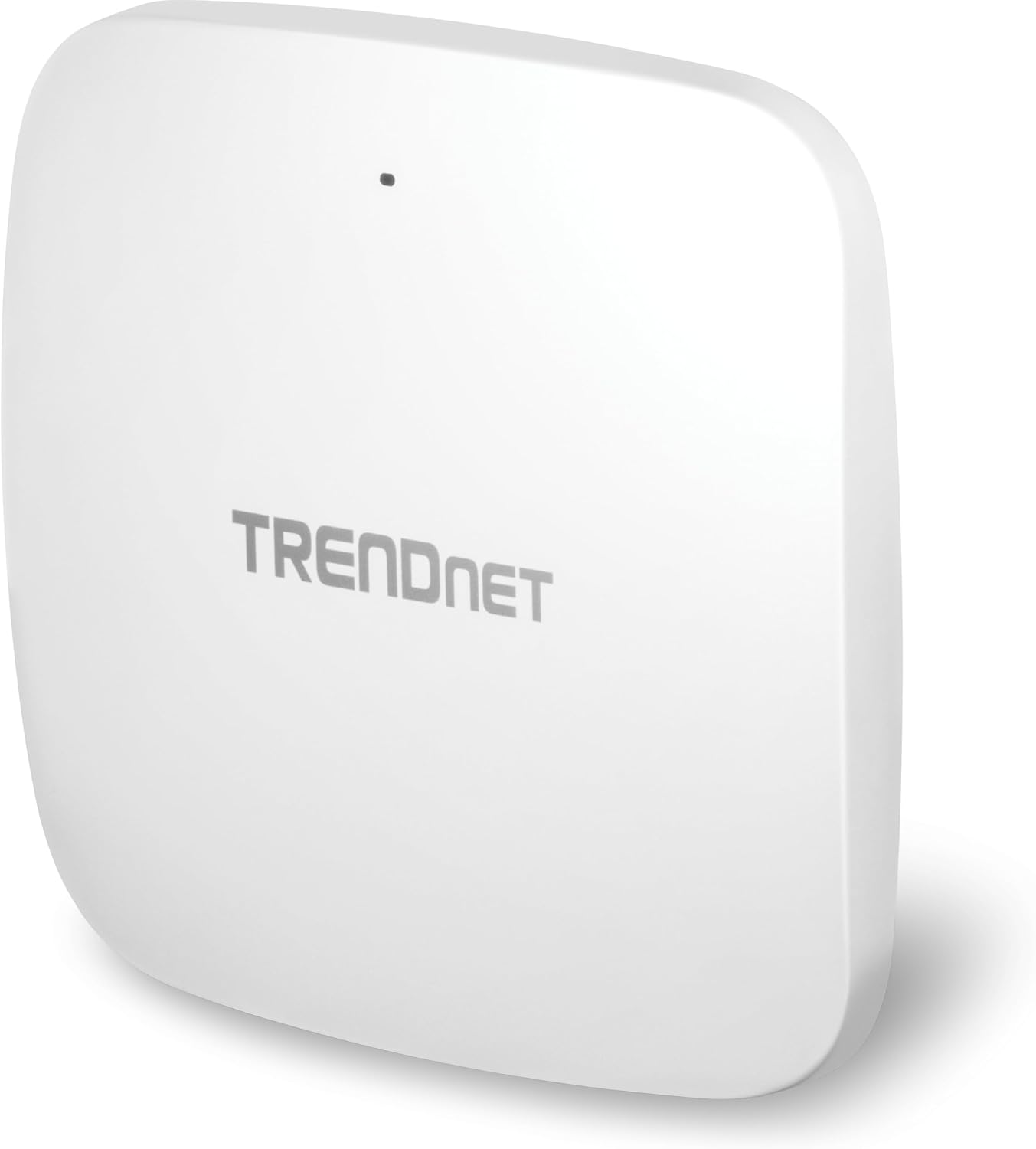
Image 2.1: The TEW-923DAP Access Point shown with its included mounting plates, network cable, and installation hardware.
3. Physical Description
The TEW-923DAP features a compact, low-profile design. Key interfaces are located on the underside of the device.
3.1 Device Interfaces
- 2.5GBASE-T PoE+ LAN Port: This port supports 802.3at PoE+ for both power input and data connection.
- Power Port: For optional 12V DC, 1A external power adapter (not included).
- LED Indicator: Provides status information.
- Reset Button: Used for factory reset or reboot.
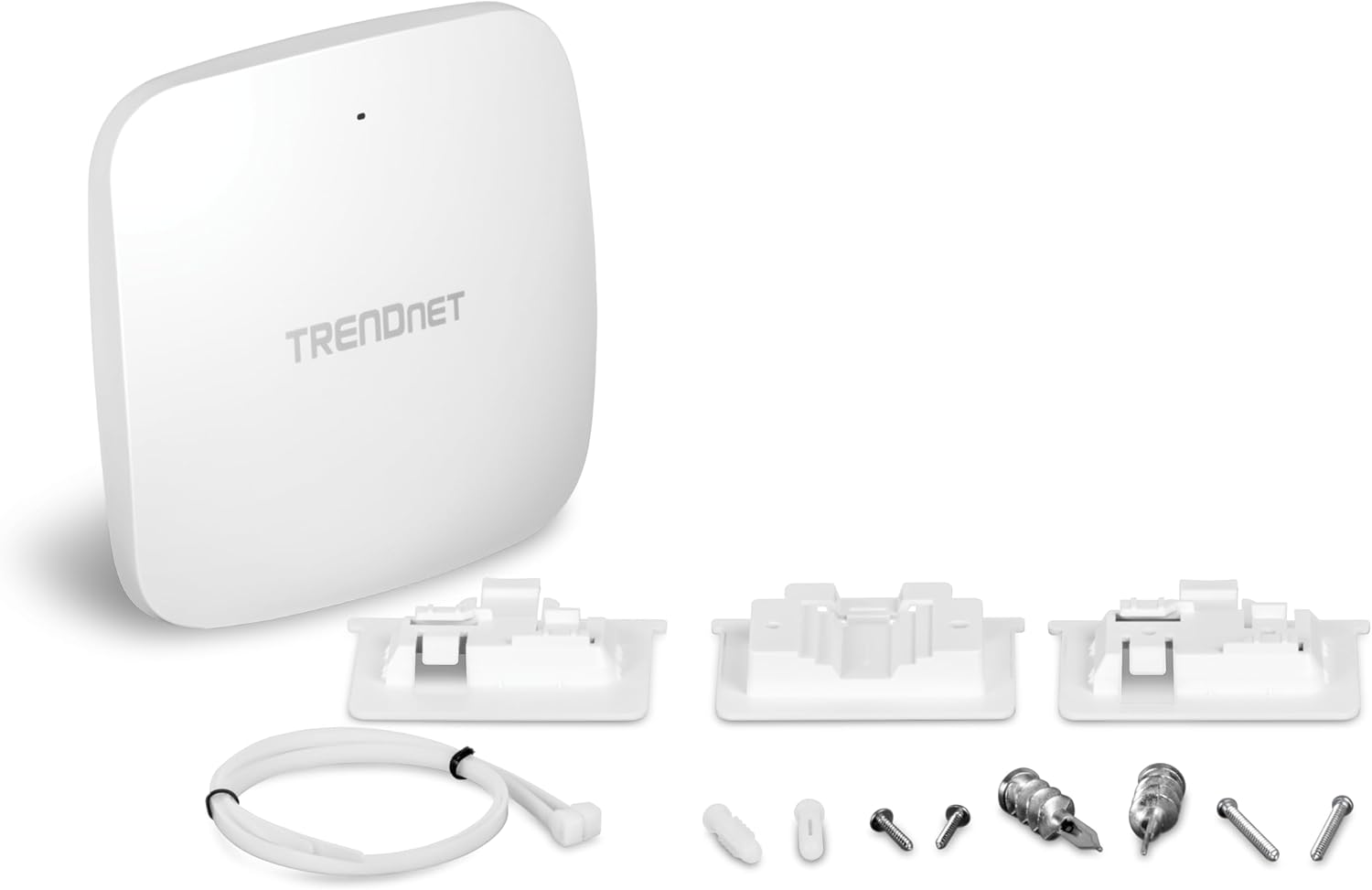
Image 3.1: Labeled view of the TEW-923DAP's LED indicator, power port, 2.5GBASE-T PoE+ LAN port, and reset button.
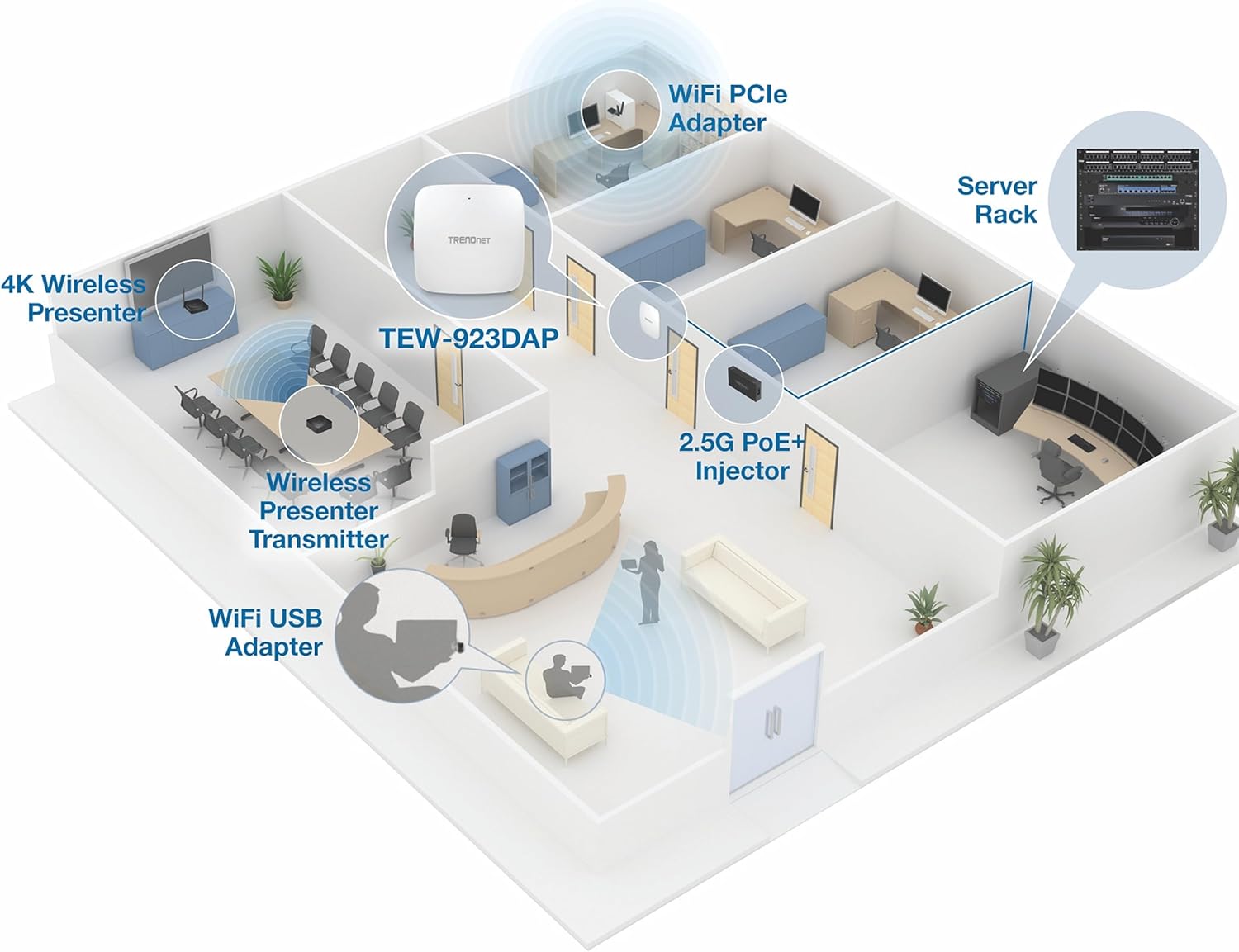
Image 3.2: Close-up view of the 2.5G PoE+ port on the TEW-923DAP.
4. Setup and Installation
Follow these steps to install and set up your TRENDnet AX3000 Access Point.
4.1 Mounting the Access Point
The TEW-923DAP can be mounted on a wall or ceiling using the provided mounting plates.
- Select a central location for optimal WiFi coverage.
- Use the mounting plate as a template to mark drilling points on the wall or ceiling.
- Drill holes and insert the appropriate anchors if necessary.
- Secure the mounting plate to the surface.
- Attach the TEW-923DAP to the mounting plate by aligning and twisting until it locks into place.
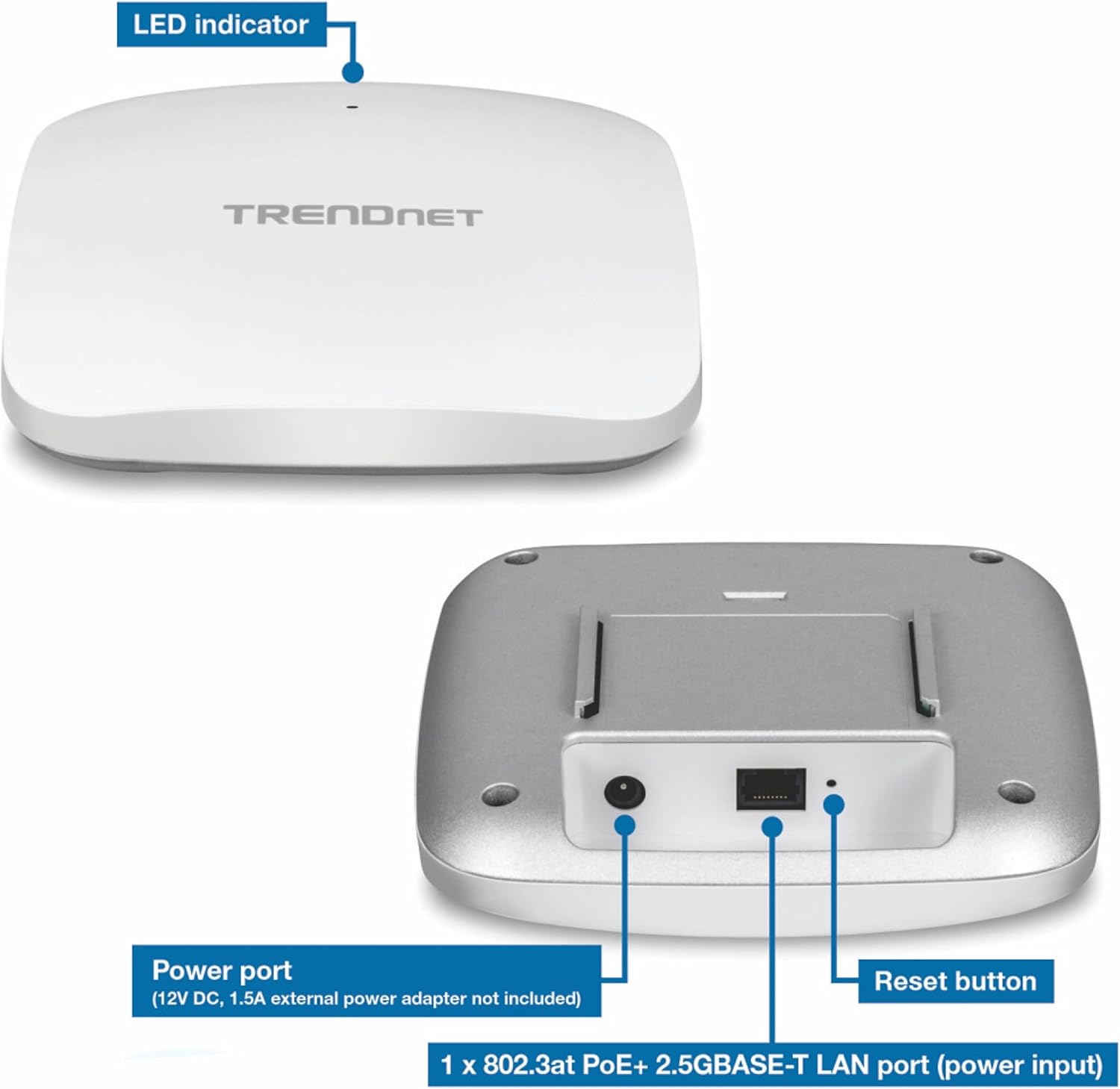
Image 4.1: Examples of the TEW-923DAP mounted on a wall and a ceiling, demonstrating installation flexibility.
4.2 Powering the Device
The TEW-923DAP supports Power over Ethernet Plus (PoE+).
- Using PoE+: Connect an Ethernet cable from a PoE+ switch or PoE+ injector (e.g., TRENDnet 2.5G PoE+ Injector) to the 2.5GBASE-T PoE+ LAN port on the access point. This provides both power and data connectivity.
- Using an AC Adapter (Optional): If PoE+ is not available, connect a 12V DC, 1A external power adapter (not included) to the power port.
4.3 Network Connection and Initial Configuration
- Connect the 2.5GBASE-T PoE+ LAN port to your network infrastructure (e.g., router or switch).
- Power on the device. The LED indicator will show the device status.
- Refer to the Quick Installation Guide for initial access credentials and instructions to log into the web-based management interface.
- Configure your desired WiFi network settings, including SSID, security type (WPA3 recommended), and passwords.
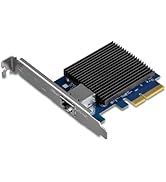
Image 4.2: Example network setup showing the TEW-923DAP in an office environment, connected via a 2.5G PoE+ Injector to a server rack.
5. Operating Modes and Features
The TEW-923DAP offers flexible operating modes and advanced features to optimize your wireless network.
5.1 Access Point (AP) Mode
In AP mode, the device creates a wireless local area network (WLAN) that allows wireless clients to connect to your wired network. This is the primary function for extending WiFi coverage.
5.2 Repeater Mode
In Repeater mode, the device extends the range of an existing wireless network by receiving wireless signals and re-transmitting them. This mode is useful for covering areas where the primary WiFi signal is weak.
5.3 Band Steering
Band Steering automatically detects dual-band capable client devices and encourages them to connect to the 5GHz band. This helps to balance network load and improve overall performance by moving devices to the faster, less congested 5GHz frequency.
5.4 Wireless Security (WPA3)
The access point supports WPA3 encryption, providing robust security for your wireless network. It is recommended to use WPA3 for maximum protection against unauthorized access.
5.5 MU-MIMO and OFDMA
These WiFi 6 technologies enhance network efficiency:
- MU-MIMO (Multi-User, Multiple-Input, Multiple-Output): Allows the access point to communicate with multiple devices simultaneously, rather than sequentially, improving throughput for all connected clients.
- OFDMA (Orthogonal Frequency-Division Multiple Access): Divides WiFi channels into smaller sub-channels, enabling the access point to transmit data to multiple devices at once within a single transmission, reducing latency and improving efficiency.
6. Maintenance
Regular maintenance ensures optimal performance and longevity of your access point.
- Firmware Updates: Periodically check the TRENDnet website for firmware updates. Keeping the firmware current can improve performance, add new features, and address security vulnerabilities.
- Physical Environment: Ensure the access point is installed in a well-ventilated area, away from direct sunlight, heat sources, and moisture. Avoid placing it near large metal objects or other devices that may cause interference.
- Cleaning: Gently clean the exterior of the device with a soft, dry cloth. Do not use liquid or aerosol cleaners.
- Network Security: Regularly review your WiFi security settings and change passwords periodically to maintain network integrity.
7. Troubleshooting
If you encounter issues with your TEW-923DAP, refer to the following common troubleshooting steps.
7.1 No Power/LED Indicator Off
- Verify that the Ethernet cable is securely connected to a PoE+ source.
- If using an optional power adapter, ensure it is correctly plugged into the device and a working power outlet.
- Check the PoE+ source (switch or injector) to ensure it is providing power.
7.2 No Internet Access
- Confirm that the access point is properly connected to your main network (router/modem).
- Check the status of your internet service provider's connection.
- Reboot the access point and your main network router.
- Ensure your client devices are connected to the correct WiFi network (SSID) and have the correct password.
7.3 Slow WiFi Speed or Intermittent Connection
- Relocate the access point to a more central position, away from obstructions and potential interference sources (e.g., microwaves, cordless phones).
- Ensure your client devices support WiFi 6 for optimal performance.
- Check for firmware updates for the access point.
- Verify that Band Steering is enabled to optimize client connections.
7.4 Factory Reset
If issues persist, you may need to perform a factory reset. This will revert all settings to their default values.
- With the device powered on, use a paperclip or similar pointed object to press and hold the Reset button for approximately 10-15 seconds until the LED indicator changes behavior (e.g., flashes rapidly).
- Release the button and allow the device to reboot.
- After a factory reset, you will need to reconfigure the access point.
8. Specifications
| Feature | Detail |
|---|---|
| Model Number | TEW-923DAP |
| Wireless Type | 802.11ax (WiFi 6) |
| Frequency Band Class | Dual-Band (2.4GHz & 5GHz) |
| 2.4GHz Speed | Up to 573Mbps |
| 5GHz Speed | Up to 2402Mbps |
| LAN Port | 1 x 802.3at PoE+ 2.5GBASE-T |
| Wireless Security | WPA3 |
| Operating System | Linux |
| Item Weight | 13.4 ounces |
| Product Dimensions (LxWxH) | 6.3 x 6.3 x 1.18 inches |
| Color | White |
| Voltage | 56 Volts (DC) |
| Special Features | Access Point Mode, Repeater Mode, LED Indicator, Band Steering, MU-MIMO, OFDMA |
| Compliance | NDAA & TAA Compliant |
9. Warranty and Support
For warranty information, technical support, and additional resources, please visit the official TRENDnet website or refer to the documentation included with your product.
You can also visit the TRENDnet Store on Amazon for more products and information.


