
1. Introduction
The Lenovo ThinkPad P16 Gen 2 is a high-performance mobile workstation designed for demanding professional applications. It combines the portability of a laptop with the robust processing and graphics capabilities required for compute-intensive tasks, making it suitable for engineering, design, and content creation workflows.

Figure 1.1: Lenovo ThinkPad P16 Gen 2 Mobile Workstation displaying 3D animation software.
2. Setup
2.1 Unboxing and Initial Inspection
Carefully remove all components from the packaging. Verify that the following items are present:
- ThinkPad P16 Gen 2 21FA0032US Mobile Workstation
- AC Adapter
Inspect the workstation for any physical damage. If any components are missing or damaged, contact your vendor immediately.
2.2 Connecting the Power Adapter
Connect the AC adapter to the power connector on your workstation. Plug the power cord into an electrical outlet. The battery will begin charging automatically.

Figure 2.1: Side view of the ThinkPad P16 Gen 2, illustrating port locations including the power connector.
2.3 Initial Power On
Press the power button located on the keyboard deck to turn on the workstation. Follow the on-screen instructions to complete the initial setup of the Windows 11 Pro operating system.
3. Operating the Workstation
3.1 Power Management
- Power On: Press the power button.
- Sleep Mode: Close the lid or press the power button briefly.
- Shut Down: Click the Start button, then Power > Shut down.
- Restart: Click the Start button, then Power > Restart.
3.2 Keyboard and Input Devices
The ThinkPad P16 Gen 2 features a full-sized keyboard with a numeric keypad, a TrackPoint pointing device, and a multi-touch touchpad.
- TrackPoint: Use the red TrackPoint cap in the center of the keyboard for precise cursor control. The three buttons below the spacebar function as left-click, scroll, and right-click for the TrackPoint.
- Touchpad: The large multi-touch touchpad supports various gestures for navigation and control. Refer to Windows settings for customization.
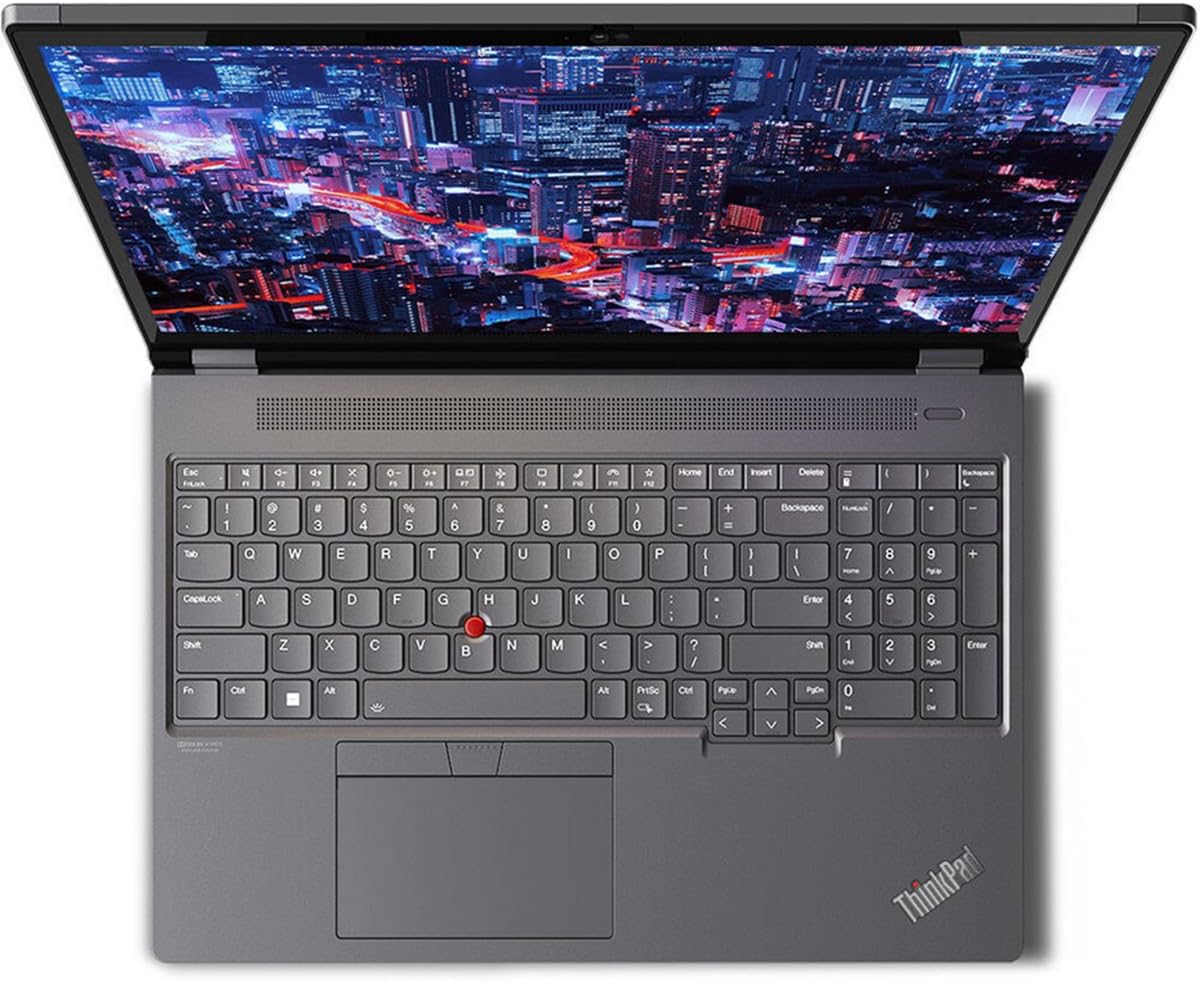
Figure 3.1: Top-down view of the ThinkPad P16 Gen 2, highlighting the keyboard, TrackPoint, and touchpad.
3.3 Display Features
The 16-inch WQXGA display offers a resolution of 2560 x 1600 pixels, providing clear and detailed visuals for professional tasks and multimedia consumption.
4. Maintenance
4.1 Cleaning the Workstation
- Screen: Use a soft, lint-free cloth lightly dampened with water or a screen-cleaning solution. Do not spray liquid directly onto the screen.
- Keyboard and Chassis: Use a soft, dry cloth. For stubborn dirt, a cloth lightly dampened with isopropyl alcohol can be used. Avoid excessive moisture.
4.2 Battery Care
To maximize battery lifespan, avoid extreme temperatures and prolonged storage at full or empty charge. Periodically allow the battery to discharge partially before recharging.
4.3 Software Updates
Regularly check for and install operating system updates (Windows Update) and driver updates (Lenovo Vantage or Lenovo Support website) to ensure optimal performance and security.
5. Troubleshooting
5.1 Common Issues and Solutions
- Workstation does not power on: Ensure the AC adapter is securely connected and the power outlet is functional. Try a different outlet.
- Display issues (no image, flickering): Connect an external monitor to verify if the issue is with the internal display. Restart the workstation.
- Slow performance: Close unnecessary applications. Check for background processes. Ensure sufficient free storage space. Run a system diagnostic.
- Wireless connectivity problems: Ensure Wi-Fi is enabled. Restart the workstation and the wireless router. Update wireless drivers.
5.2 When to Contact Support
If you encounter persistent issues that cannot be resolved with the above steps, or if you suspect a hardware malfunction, contact Lenovo technical support for assistance.
6. Specifications
| Feature | Specification |
|---|---|
| Model | 21FA0032US |
| Processor | Intel Core i7-13700HX Hexadeca-core (16 Core) |
| RAM | 16 GB DDR5 SDRAM |
| Storage | 512 GB SSD |
| Display | 16-inch WQXGA (2560 x 1600 pixels) |
| Graphics Coprocessor | NVIDIA RTX A1000 |
| Operating System | Windows 11 Pro |
| Wireless Type | 802.11ac |
| Item Weight | 6.5 pounds |
| Product Dimensions (LxWxH) | 10.5 x 14.3 x 1.19 inches |
| Color | Villi Black |
7. Warranty and Support
Your Lenovo ThinkPad P16 Gen 2 Mobile Workstation comes with a standard manufacturer's warranty. For detailed information regarding warranty terms, coverage, and duration, please refer to the warranty documentation included with your product or visit the official Lenovo support website.
For technical support, driver downloads, service requests, or to find authorized service centers, please visit the Lenovo support portal at support.lenovo.com. Have your product's serial number ready when contacting support.