
1. Introduction
The Bisofice L8 Mini Pocket Wireless Bluetooth Thermal Printer is a compact and portable device designed for convenient printing of various content types without the need for ink cartridges. This manual provides essential information for setting up, operating, maintaining, and troubleshooting your printer to ensure optimal performance and longevity.
2. Product Overview
2.1 Key Features
- Portable Design: Small and lightweight, designed for easy transport in a pocket or bag.
- Versatile Printing: Supports printing of photos, messages, lists, barcodes, hand drawings, OCR text, study notes, banners, files, and web content.
- Inkless Thermal Printing: Utilizes thermal printing technology, eliminating the need for ink cartridges and reducing running costs.
- Wireless Connectivity: Connects to smartphones via Bluetooth 4.0 for convenient printing from iOS and Android devices.
- High Resolution: Features a 203 DPI print resolution for clear printing effects.
- Rechargeable Battery: Equipped with a built-in 1000mAh rechargeable lithium battery.
2.2 What's in the Box
Verify that all items listed below are included in your package:
- 1 x Bisofice L8 Thermal Printer
- 1 x Thermal Paper Roll
- 1 x USB Cable
- 1 x Quick Start Guide
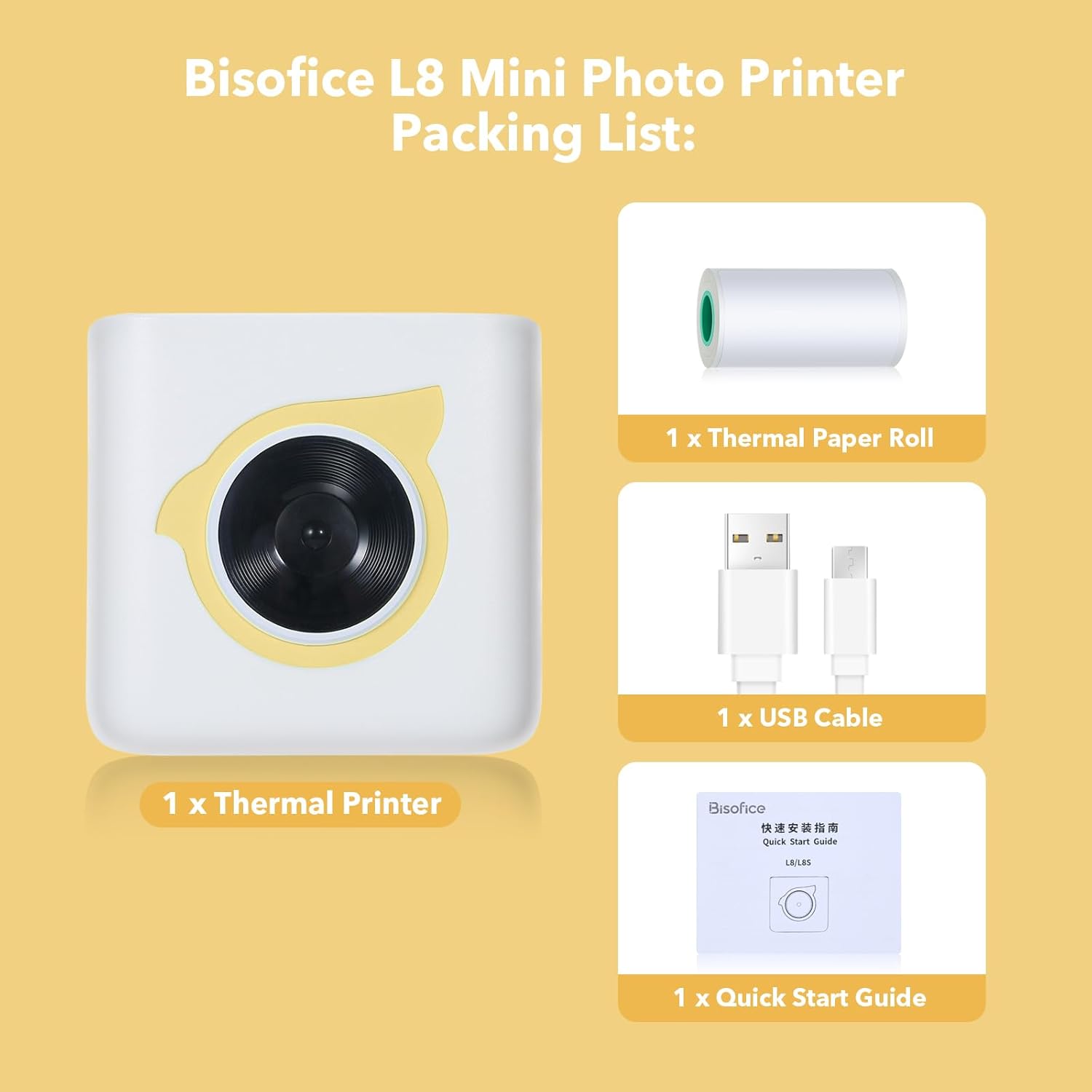
Figure 1: Contents of the Bisofice L8 Printer package.
3. Setup
3.1 Charging the Printer
Before initial use, fully charge the printer. Connect the provided USB cable to the printer's charging port and a standard USB power adapter (not included). The charging indicator light will typically show the charging status and turn off or change color when fully charged.
3.2 Loading Thermal Paper
- Open the printer cover by gently sliding or pressing the designated release button.
- Insert the thermal paper roll into the paper compartment, ensuring the printing side of the paper faces the print head. The paper should feed smoothly.
- Pull a small length of paper out beyond the cutting edge.
- Close the printer cover firmly until it clicks into place.
3.3 App Download and Installation
The Bisofice L8 printer requires the "HerePrint" application for operation. Download the app using one of the following methods:
- Search: Search for "HerePrint" in the Apple App Store (for iOS devices) or Google Play Store (for Android devices).
- QR Code: Scan the QR code provided in the quick start guide or on the product packaging to directly access the download link.
- Direct Link: Visit http://hereprint.hprt.com/app/hereprint to download the application.

Figure 2: HerePrint App download instructions.
3.4 Bluetooth Connection
- Ensure your Bisofice L8 printer is powered on.
- Enable Bluetooth on your smartphone.
- Open the "HerePrint" application.
- Within the app, navigate to the device connection section (often indicated by a Bluetooth icon or a 'Connect Device' option).
- Select your printer (e.g., "L8" or a similar identifier) from the list of available Bluetooth devices.
- Once connected, the app will indicate a successful connection, and the printer's status light may change.
4. Operating Instructions
The "HerePrint" app provides various functions for printing different types of content. Explore the app's interface to utilize its full capabilities.
4.1 General Printing Functions
- Text Printing: Input text directly into the app or paste from other sources. The app may offer various fonts and formatting options.
- Photo Printing: Select images from your phone's gallery to print. Note that the printer produces monochrome (black and white) thermal prints.
- Label/Sticker Printing: Utilize templates within the app to create custom labels or stickers. Ensure you are using compatible adhesive thermal paper for sticker functionality.
- List Printing: Create shopping lists, to-do lists, or other organized lists using the app's templates.
- Web Printing: Print content directly from web pages through the app's integrated browser or sharing function.
- OCR Text Recognition: Use the app to scan text from images and convert it into editable text for printing.
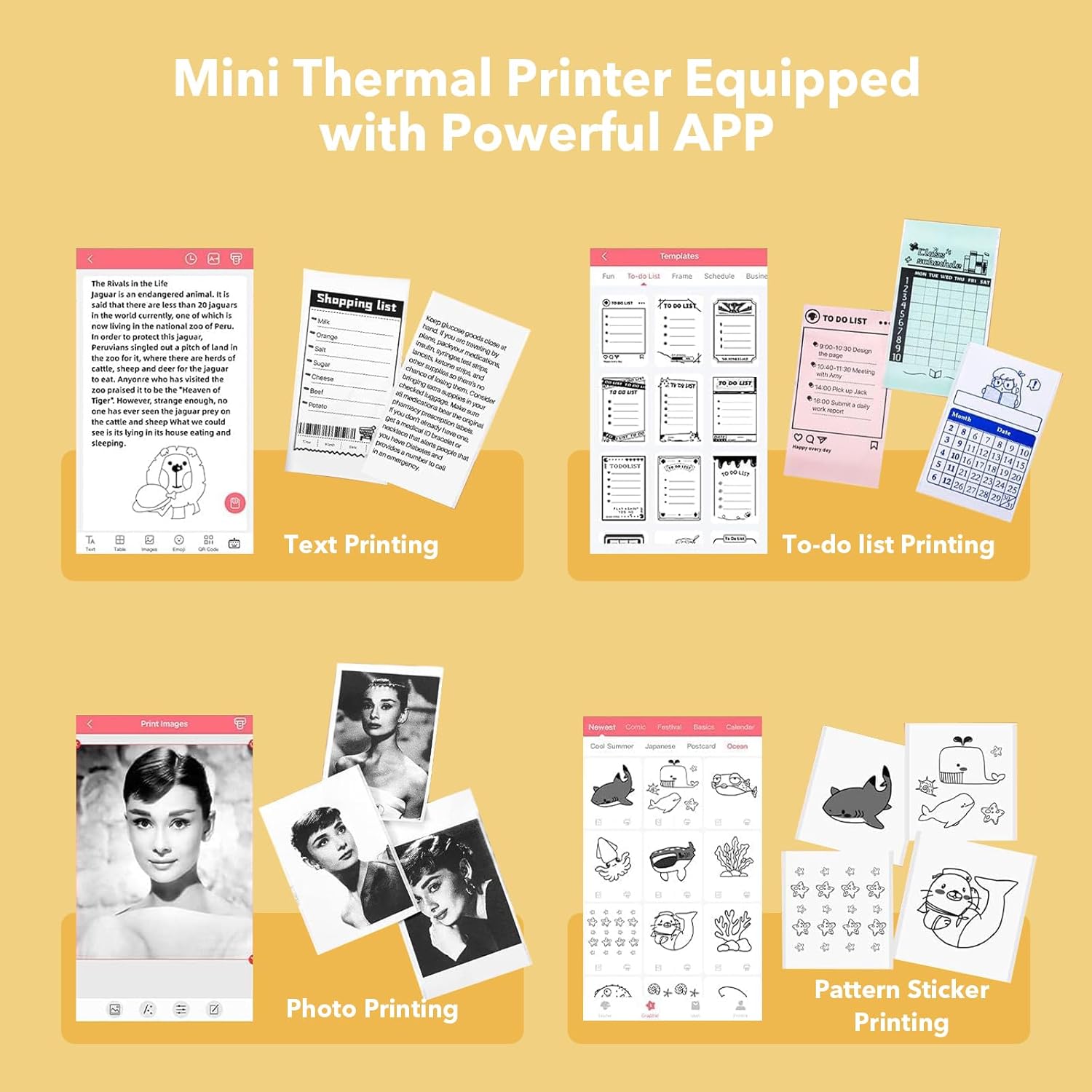
Figure 3: Examples of content printable with the Bisofice L8 and HerePrint app.
4.2 Specific Use Cases
- Study Notes: Print notes, diagrams, or