
1. Introduction
This manual provides comprehensive instructions for the setup, operation, and maintenance of your MOKiN 12-in-1 USB C Docking Station. Please read this manual carefully before use to ensure optimal performance and longevity of your device. This docking station is designed to expand the connectivity of your USB-C enabled laptop, offering multiple display outputs, high-speed data transfer, network connectivity, and power delivery.
2. Product Overview
The MOKiN 12-in-1 USB C Docking Station integrates various ports to enhance your workstation. Below is an illustration of the docking station with its key components and their functions.

Image 2.1: Front and back view of the MOKiN 12-in-1 USB C Docking Station, highlighting all 12 ports including SD/Micro SD, USB 3.0, Audio/Mic, USB-C PD 3.0, USB 2.0, DP, HDMI, VGA, and RJ45 Ethernet.
Key Features:
- Triple Monitor Support: Features HDMI (4K@60Hz), DisplayPort (4K@60Hz), and VGA (1080P@60Hz) for versatile display configurations.
- 12-in-1 Connectivity: Includes 4K HDMI, DP, VGA, 2x 5Gbps USB C 3.0, 1x USB A 3.0, 1x USB 2.0, 100W PD Fast Charging, Gigabit Ethernet, SD/Micro SD card readers, and a 3.5mm Mic/Audio port.
- Power Delivery: Supports up to 100W input and 85W output to your laptop.
- Gigabit Ethernet: Provides stable and efficient network connection up to 1000Mbps.
- High-Speed Data Transfer: 2x USB C 3.0 and 1x USB A 3.0 ports offer up to 5Gbps data transfer.
- Audio/Mic Port: Integrated 3.5mm audio/microphone 2-in-1 interface.
- SD/TF Card Reader: For quick data transfer from memory cards.
3. Setup Instructions
Follow these steps to set up your MOKiN 12-in-1 USB C Docking Station.
- Connect to Host Device: Plug the integrated USB-C cable from the docking station into a compatible USB-C port on your laptop. Ensure your laptop's USB-C port supports video output (DP Alt Mode) or is a Thunderbolt 3/4 or USB4 port.
- Power Connection: For optimal performance and to charge your laptop, connect a 100W (or higher) USB-C power adapter to the PD 3.0 port on the docking station. The docking station supports up to 100W input and provides up to 85W output to your laptop. Using a power supply lower than 65W may result in slow charging or no charging.
- Connect Monitors: Connect your external monitors to the HDMI, DisplayPort (DP), and/or VGA ports on the docking station. Refer to the 'Operating Instructions' section for display configuration details.
- Connect Peripherals: Plug in your USB devices (keyboard, mouse, external drives), Ethernet cable, SD/Micro SD cards, and audio devices as needed.

Image 3.1: Connecting the 100W power adapter to the docking station to charge the laptop.
Important Compatibility Note:

Image 3.2: This docking station is only applicable to laptops with fully functional USB-C ports, Thunderbolt 3/4, and USB4 ports. Ports that are 'Data Transfer Only' or 'Charging Only' are not supported for full functionality.
4. Operating Instructions
4.1. Display Configuration
The docking station supports various display modes depending on your operating system and host device capabilities.
For Windows Devices (with DP1.4):
- Dual Monitor Setup: Supports up to dual 4K@60Hz when using HDMI and DisplayPort simultaneously (DP1.4 source required). Combinations include HDMI+DP, HDMI+VGA, or DP+VGA.
- Triple Monitor Setup: Supports HDMI+DP+VGA for three extended displays, typically at 1080P resolution.
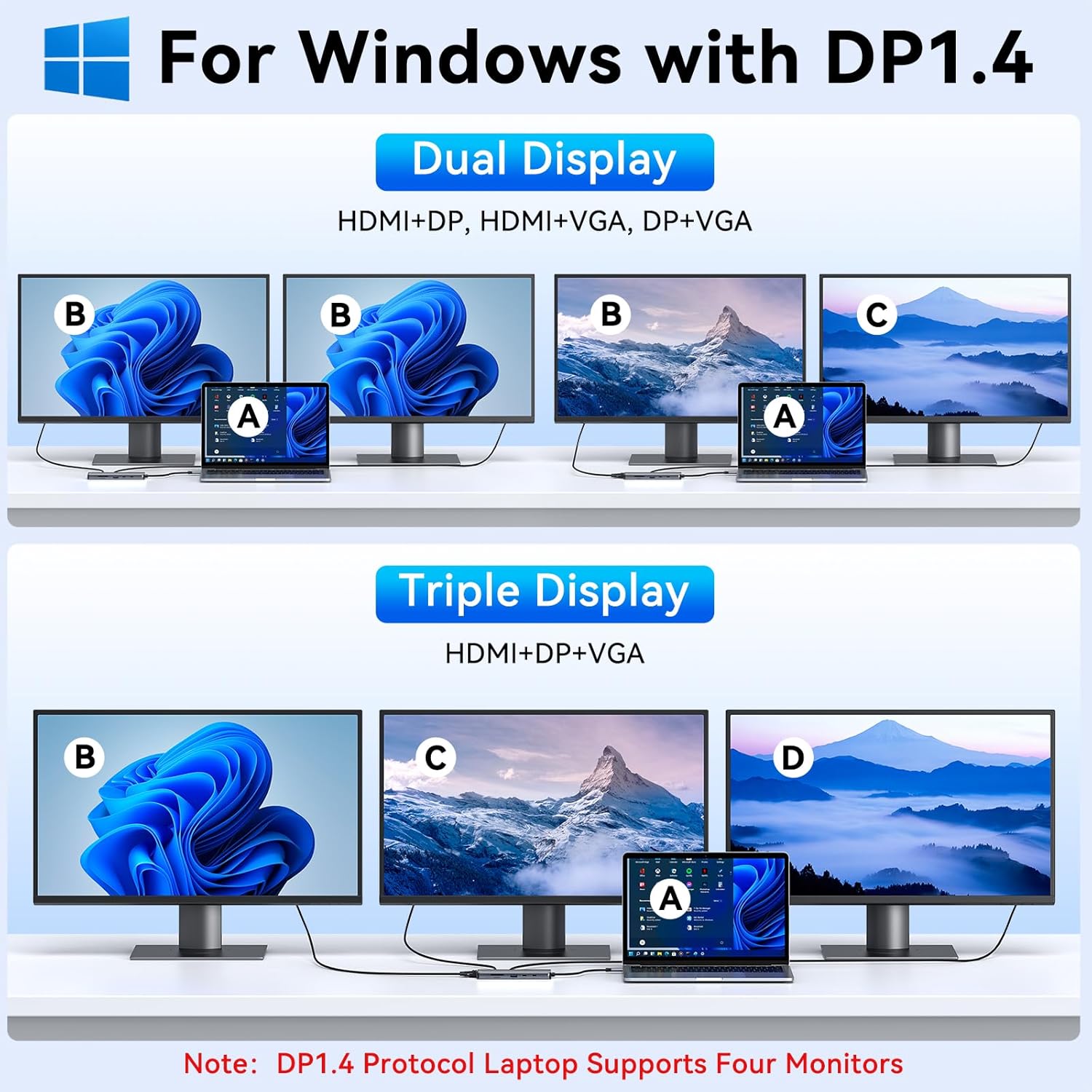
Image 4.1: Windows Display Modes (DP 1.4) showing various dual and triple monitor configurations.
For macOS Devices (with DP1.4):
Due to macOS limitations, the docking station operates in mirror mode for multiple displays. macOS can only extend one monitor (4K@30Hz).
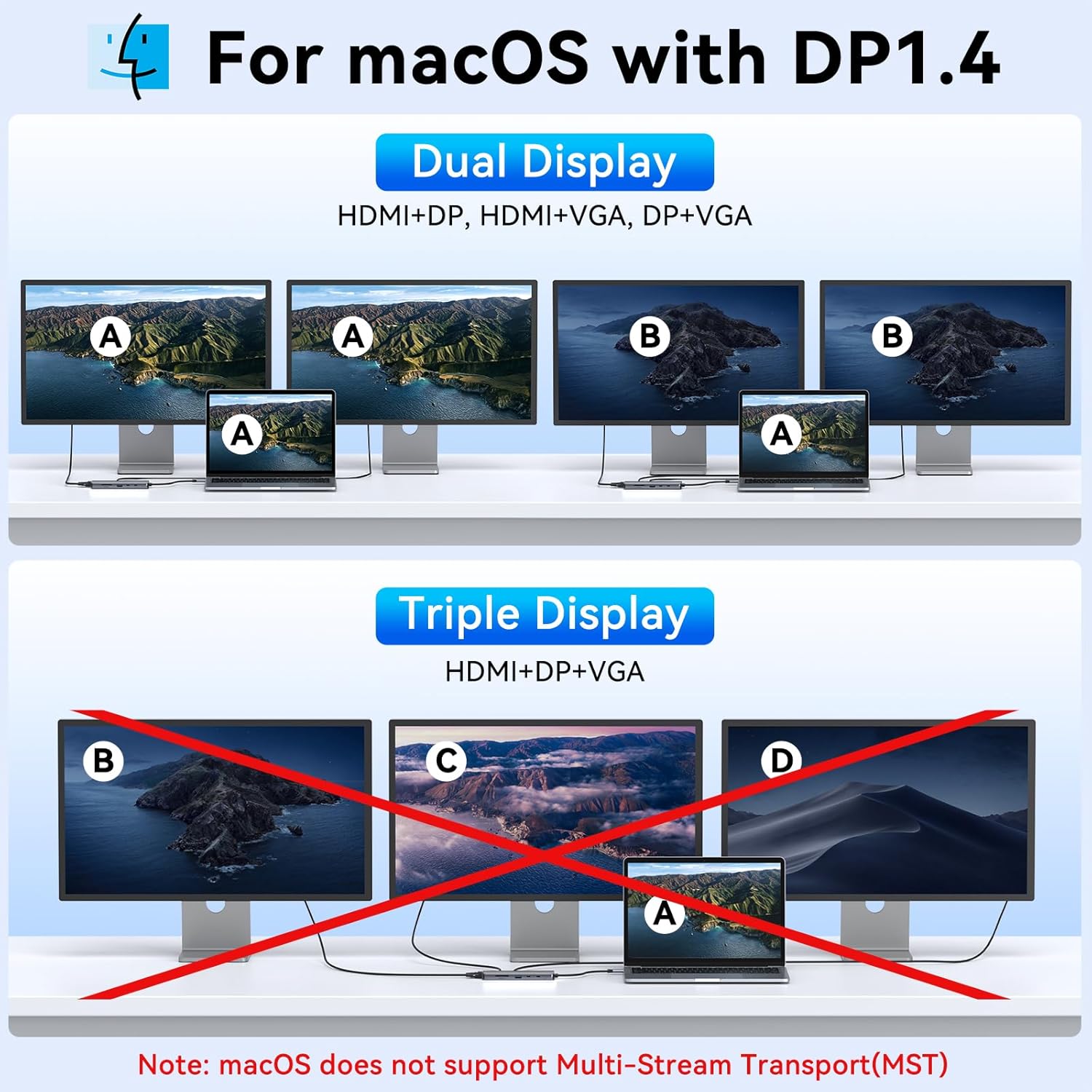
Image 4.2: macOS Display Modes (DP 1.4) illustrating mirror mode and the inability to extend multiple displays.
General Display Notes:
- If the VGA port is connected, the resolution of all displays will be limited to 1080P.
- The dual monitor adapter is compatible only with host devices that support video output or DP alt mode.
4.2. Data Transfer
Utilize the various USB ports and card readers for efficient data management.
- USB 3.0 Ports (2x USB-C, 1x USB-A): Transfer files at speeds up to 5Gbps. Ideal for external hard drives, SSDs, and high-speed peripherals.
- USB 2.0 Port (1x USB-A): Provides 480Mbps data transfer, suitable for connecting keyboards, mice, and other low-bandwidth devices.
- SD/Micro SD Card Readers: Insert your SD or Micro SD cards to transfer photos, videos, and other files.
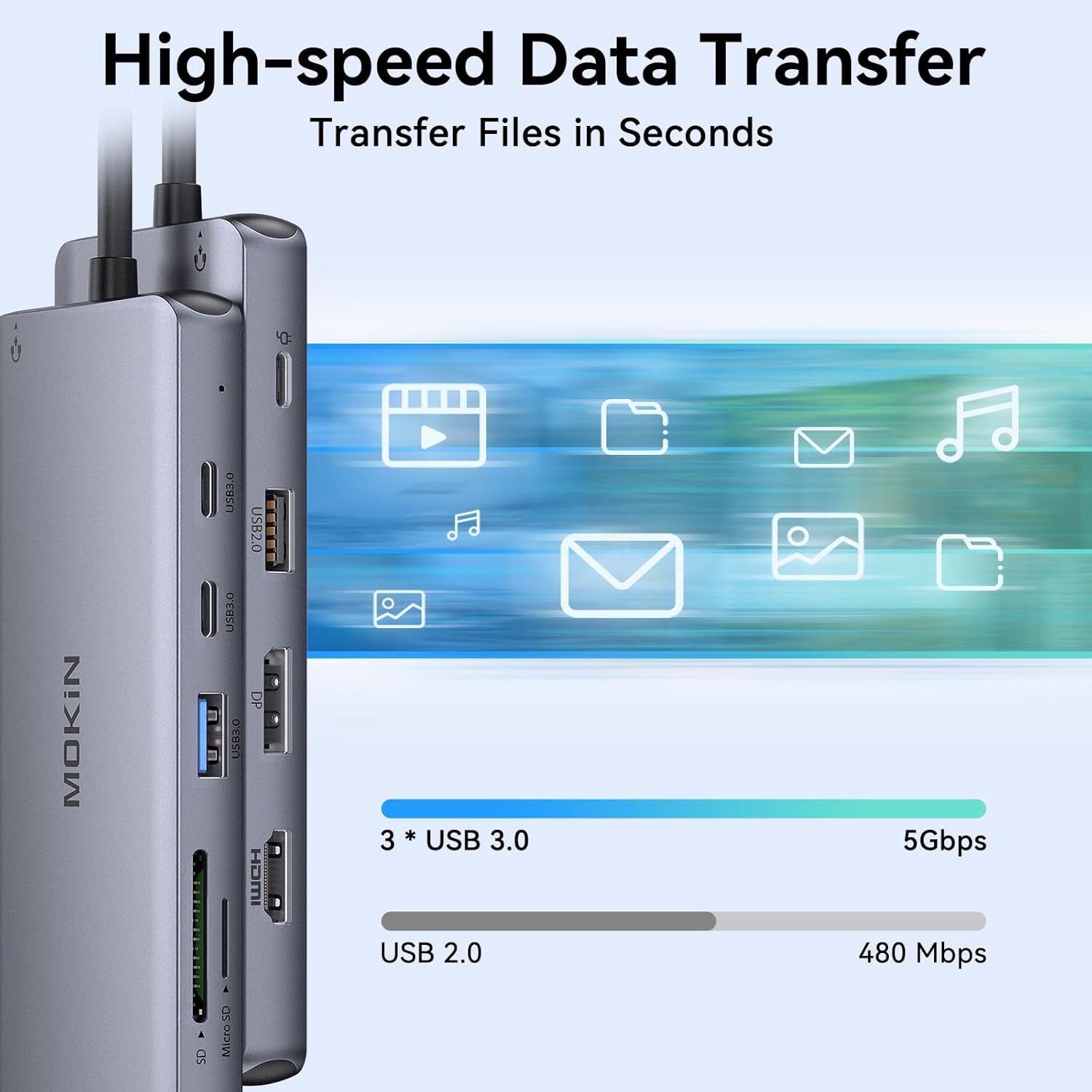
Image 4.3: High-speed data transfer capabilities of the docking station, illustrating 5Gbps for USB 3.0 and 480Mbps for USB 2.0.
4.3. Network Connectivity
Connect to a wired network for stable and fast internet access.
- Gigabit Ethernet (RJ45): Plug in an Ethernet cable for a reliable network connection up to 1000Mbps, ensuring uninterrupted online activities.
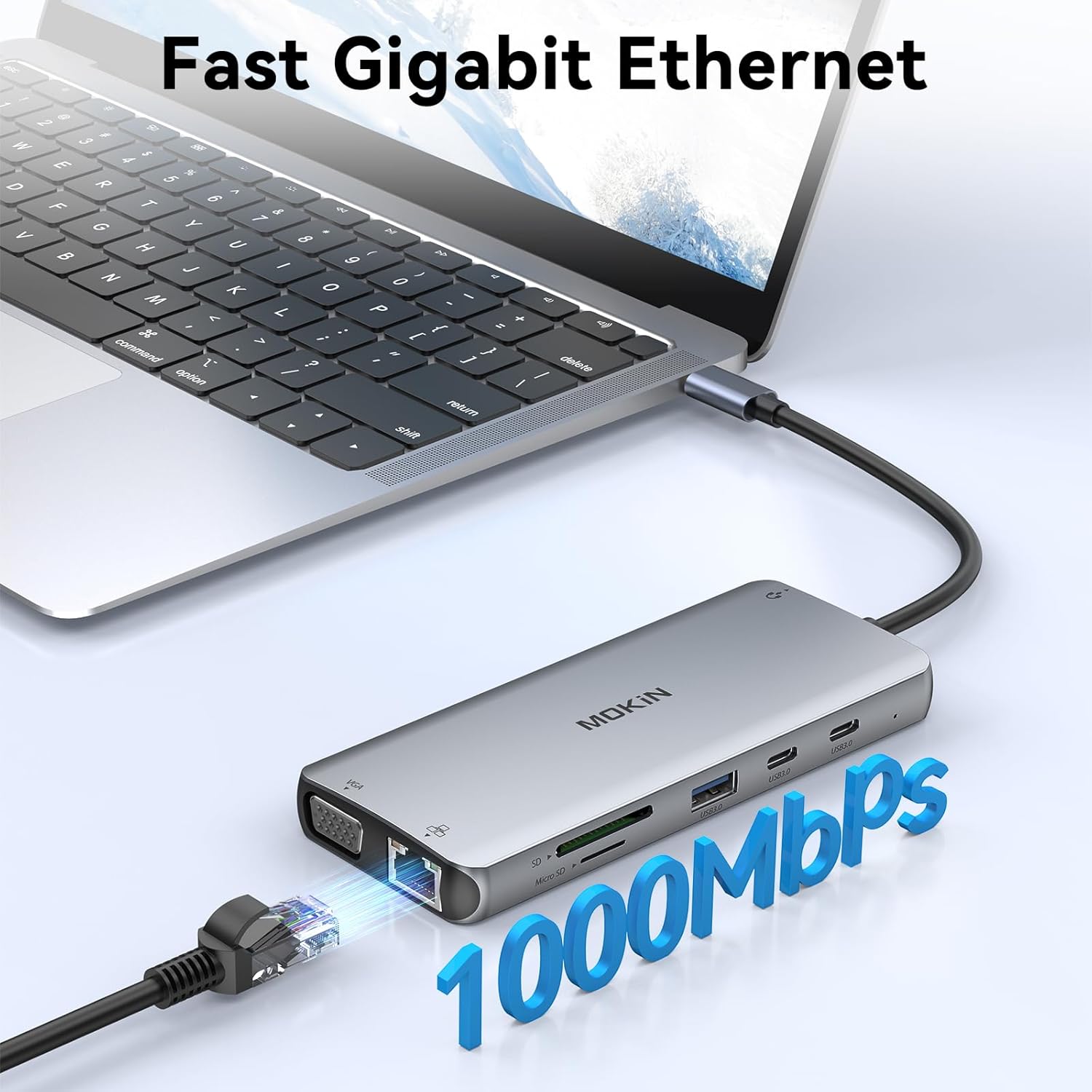
Image 4.4: Fast Gigabit Ethernet connection via the RJ45 port.
4.4. Audio Connection
Connect your audio devices for enhanced sound experience.
- 3.5mm Mic/Audio Port: Connect headphones, speakers, or a microphone for audio input and output.
4.5. Product Video Overview
Watch this video for a visual guide on the MOKiN Docking Station's features and multi-monitor capabilities.
Video 4.5: An official MOKiN video demonstrating the docking station's ability to connect up to three monitors using HDMI, VGA, and DisplayPort, along with other features.
5. Maintenance
To ensure the longevity and proper functioning of your docking station, follow these maintenance guidelines:
- Cleaning: Use a soft, dry cloth to clean the exterior of the docking station. Avoid using liquid cleaners or aerosols, as they may damage the device.
- Storage: Store the docking station in a cool, dry place away from direct sunlight and extreme temperatures.
- Handling: Avoid dropping or subjecting the device to strong impacts. Do not attempt to disassemble the docking station, as this will void the warranty.
- Ventilation: Ensure the docking station has adequate ventilation to prevent overheating, especially during prolonged use with multiple connected devices.
6. Troubleshooting
If you encounter issues with your MOKiN 12-in-1 USB C Docking Station, refer to the following common problems and solutions:
- No Display Output:
- Ensure your laptop's USB-C port supports video output (DP Alt Mode) or is a Thunderbolt 3/4 / USB4 port.
- Verify that all display cables are securely connected to both the docking station and the monitors.
- Check your laptop's display settings to ensure external monitors are detected and configured correctly (e.g., extended or mirrored).
- Low Resolution on Monitors:
- If the VGA port is connected, it will limit the resolution of all displays to 1080P. Disconnect VGA if higher resolutions are desired on HDMI/DP.
- For macOS, extended mode is limited to one monitor at 4K@30Hz. Multiple displays will mirror.
- Laptop Not Charging or Slow Charging:
- Ensure you are using a 100W (or higher) power adapter connected to the PD 3.0 port on the docking station.
- A power supply lower than 65W may not provide sufficient power for charging, especially with multiple peripherals connected.
- Always connect the power supply to the docking station for proper functionality.
- USB Devices Not Working:
- Ensure the docking station is properly connected to your laptop and receiving adequate power.
- Try connecting the USB device directly to your laptop to confirm it is functional.
- Some high-power USB devices may require direct connection to the laptop or an external power source.
- Network Connection Issues:
- Verify the Ethernet cable is securely connected to both the docking station and your router/modem.
- Check your computer's network settings.
- Compatibility with Other Converters:
- It is not recommended to use other converters with this docking station, as compatibility cannot be guaranteed.
7. Specifications
| Feature | Detail |
|---|---|
| Model Number | MOKiN |
| Package Dimensions | 8.31 x 2.56 x 0.67 inches |
| Item Weight | 4.9 ounces |
| Hardware Interface | Ethernet, HDMI, USB, USB Type C, VGA |
| Special Feature | Fast Charging |
| Compatible Devices | Laptops, Desktops, Monitors |
| Power Delivery | 100W Input, 85W Output |
| Display Output | HDMI (4K@60Hz), DP (4K@60Hz), VGA (1080P@60Hz) |
| USB Ports | 2x USB C 3.0 (5Gbps), 1x USB A 3.0 (5Gbps), 1x USB A 2.0 (480Mbps) |
| Card Reader | SD/Micro SD |
| Ethernet | Gigabit (1000Mbps) |
| Audio Port | 3.5mm Mic/Audio 2-in-1 |
8. Warranty and Support
For warranty information or technical support, please contact MOKiN customer service. Details on how to reach support are typically provided with your product packaging or on the official MOKiN website. Please have your product model number and purchase information ready when contacting support.
If you have any questions or operational problems, please contact us. We are here to assist you at any time.


