
1. Product Overview
The CATLINK Self Cleaning Automatic Litter Box is designed to provide a convenient and hygienic solution for cat owners. This intelligent device features automatic cleaning, app control, and health monitoring capabilities for multiple cats.

Image: The CATLINK Self Cleaning Automatic Litter Box in white, featuring a cat inside the globe and a smartphone displaying the CATLINK app interface. Three litter bag rolls are visible in the top left corner.
Key Features:
- Multi-Cat Recognition: Detects and identifies individual cats, recording their toilet usage.
- APP Control & Data Reports: Remote control, 24-hour records, and 7-day/12-month health reports.
- Enhanced Safety: Equipped with radars, infrared sensors, and anti-pinch features to prevent injury.
- Multiple Cleaning Modes: Auto, Manual, Timer, and Empty modes for flexible operation.
- Double Odor Removal: Utilizes a carbon filter and supports an optional rechargeable odor purifier.
- Large Waste Capacity: 13L waste box, reducing the frequency of emptying.
2. Package Contents
Please verify that all items listed below are included in your package:
- Fully Assembled CATLINK Self Cleaning Automatic Litter Box
- 12V 2A Power Cable
- User Manual (this document)
- 2 x Activated Carbon Odor Removal Filters
- 2 x Ball Cabin Filters (1 for bentonite litter, 1 for mixed/clumping/tofu litter)
- 40 x Trash Bag Liners
3. Setup Instructions
3.1 Initial Placement
Place the litter box on a flat, stable surface indoors. Ensure there is sufficient space around the unit for proper ventilation and access for maintenance.
3.2 Power Connection
- Connect the 12V 2A power cable to the litter box.
- Plug the power adapter into a standard electrical outlet.
- The unit will power on and perform a self-test. Wait for the self-test to complete before proceeding.
3.3 Litter Filling
Fill the litter box with an appropriate amount of clumping cat litter. Ensure the litter level is between the minimum and maximum fill lines indicated inside the globe.
3.4 App Installation and WiFi Connection
To unlock the full features of your CATLINK litter box, download the CATLINK App and connect the device to your home WiFi network.

Image: A visual guide illustrating the four steps to connect the CATLINK litter box to WiFi using the mobile application. It shows downloading the app, powering on the device, entering WiFi connection mode, and adding the device in the app.
- Download and Register: Download the CATLINK App from your smartphone's app store. Register and log in to your account.
- Power On: Ensure the litter box is powered on and has completed its self-test.
- Enter WiFi Connection Mode: Long press the 'Mode' button and the 'Clean' button simultaneously on the litter box control panel to enter WiFi connection mode.
- Add Device in App: Open the CATLINK App, click 'Add Device', and follow the on-screen prompts to complete the WiFi connection process.
4. Operating Instructions
The CATLINK litter box offers various operating modes and smart features for optimal convenience.
4.1 Cleaning Modes
The device supports four cleaning modes, accessible via the control panel or the CATLINK App:

Image: A smartphone displaying the CATLINK app, which shows four distinct cleaning modes: Auto Mode, Manual Mode, Timer Mode, and Empty Mode. The litter box is visible in the background.
- Auto Mode: The litter box automatically cleans after a cat uses it, based on a customizable delay setting (e.g., 1, 3, 5, 10, 30 minutes).
- Manual Mode: Initiate a cleaning cycle manually at any time using the app or the control panel.
- Timer Mode: Schedule specific cleaning times throughout the day.
- Empty Mode: Fully empties the litter from the globe into the waste drawer, useful for changing all litter or deep cleaning.
4.2 App Control and Health Monitoring
The CATLINK App provides comprehensive control and insights into your cat's health and litter box usage.

Image: A graphic illustrating the capabilities of the CATLINK App, including activating clean cycles, monitoring litter box usage, monitoring cat health, and viewing waste drawer levels. It shows different health status indicators (Good, Attention needed, Abnormal) based on weight, times, and average duration.
- Activate Clean Cycle: Remotely start any cleaning mode.
- Monitor Litter Box Usage: View 24-hour records of when and how often the litter box is used.
- Monitor Cat Health: Track individual cat weights and receive 7-day/12-month health reports with graphical data. The app can identify each cat after initial recording.
- View Waste Drawer Level: Receive alerts for sand shortage or a full waste bin.

Image: A three-panel graphic explaining how CATLINK helps monitor cat health. The panels are labeled 'Perceives' (sensors gather weight and toilet data), 'Records' (app records timing, frequency of eating, drinking, and excretion), and 'Alerts' (app provides alerts for unusual toilet data, indicating potential health issues).
4.3 Safety Features
The CATLINK litter box prioritizes your cat's safety with multiple integrated features:

Image: A graphic detailing the safety features of the CATLINK litter box, including 3 types of sensors (weight, anti-pinch, infrared), a panel lock to prevent accidental activation, a non-enclosed space design to prevent suffocation, and a pyramid structure to avoid collapsing.
- Radars and Infrared Sensors: Detect a cat's presence and immediately stop operation to prevent injury.
- Anti-Pinch Features: Designed to prevent any pinching during movement.
- Stable, Ventilated Design: Ensures structural integrity and air circulation.
- App Alerts: Notifies users of any detected issues or malfunctions.
- Panel Lock: Prevents accidental activation by pets or children.
- Non-Enclosed Space: Designed to prevent suffocation if a cat gets trapped.
5. Maintenance
Regular maintenance ensures the longevity and optimal performance of your CATLINK litter box.
5.1 Emptying the Waste Box
The 13L waste box can hold waste for up to 21 days for a single cat. The app will notify you when it's full.
- Pull out the waste drawer from the front of the unit.
- Remove the filled trash bag liner and dispose of it.
- Insert a new trash bag liner (40 liners are included).
- Slide the waste drawer back into the unit until it clicks into place.

Image: A cutaway view of the CATLINK litter box highlighting the 13L waste box being pulled out from the front, indicating its large capacity and ease of access.
5.2 Cleaning the Globe and Interior
The litter box is designed for easy disassembly and cleaning without screws.

Image: The CATLINK litter box with its top shell and globe partially disassembled, demonstrating its screw-free design for easy cleaning. Water splashes are depicted in the background.
- Activate 'Empty Mode' to remove all litter from the globe.
- Unplug the power cable.
- Carefully detach the top shell and remove the globe for thorough cleaning.
- Clean the interior surfaces with a pet-safe cleaner and a damp cloth. Avoid submerging electronic components in water.
- Ensure all parts are completely dry before reassembling.
5.3 Odor Removal Filter Replacement
Replace the activated carbon odor removal filters periodically to maintain effective odor control. Two filters are included with the product.
6. Troubleshooting
If you encounter any issues with your CATLINK Self Cleaning Automatic Litter Box, please refer to the following common solutions or check the CATLINK App for specific alerts.
| Problem | Possible Cause | Solution |
|---|---|---|
| Litter box not cleaning automatically. | Auto Mode not activated; cat detected during cycle; litter level incorrect. | Check app settings for Auto Mode. Ensure no cat is near the unit. Adjust litter level. |
| Odor persists after cleaning. | Carbon filter needs replacement; waste drawer full; optional odor purifier not installed/charged. | Replace carbon filter. Empty waste drawer. Consider installing and charging the CATLINK odor purifier. |
| Device not connecting to WiFi. | Incorrect WiFi password; router too far; device not in pairing mode. | Verify WiFi password. Move device closer to router. Re-enter WiFi connection mode as per setup instructions. |
| App not displaying cat data. | Cat not registered; app synchronization issue; device offline. | Ensure cat profiles are set up in the app. Check app and device internet connection. Restart app. |
For further assistance, please contact CATLINK Customer Service.
7. Specifications
| Feature | Detail |
|---|---|
| Model Name | CATLINK-Standard Pro-X |
| Product Dimensions (LxWxH) | 23.62" x 23.62" x 27.95" |
| Item Weight | 32.9 pounds (14.97 Kilograms) |
| Material | Acrylonitrile Butadiene Styrene (ABS) |
| Color | White |
| Litter Box Type | Automated Self-Cleaning Litter Box |
| Target Audience | House Cats (3.3 - 22 lbs) |
| Waste Capacity | 13 Liters (approx. 14 days for one cat) |
| Power | 12V 2A Power Cable |
| Connectivity | WiFi, APP Control |
| Sensors | Gravity Sensor, Anti-pinch Sensor, Infrared Sensor, Radar |

Image: A diagram illustrating the product dimensions of the CATLINK Self Cleaning Automatic Litter Box, showing height, width, and depth measurements.
8. Warranty and Support
8.1 Product Warranty
The CATLINK Self Cleaning Automatic Litter Box comes with a 1-YEAR limited warranty from the date of purchase. This warranty covers manufacturing defects and malfunctions under normal use.
8.2 Customer Support
For any questions, technical support, or warranty claims, please contact CATLINK Customer Service. Our team is available to assist you with any after-sales problems.
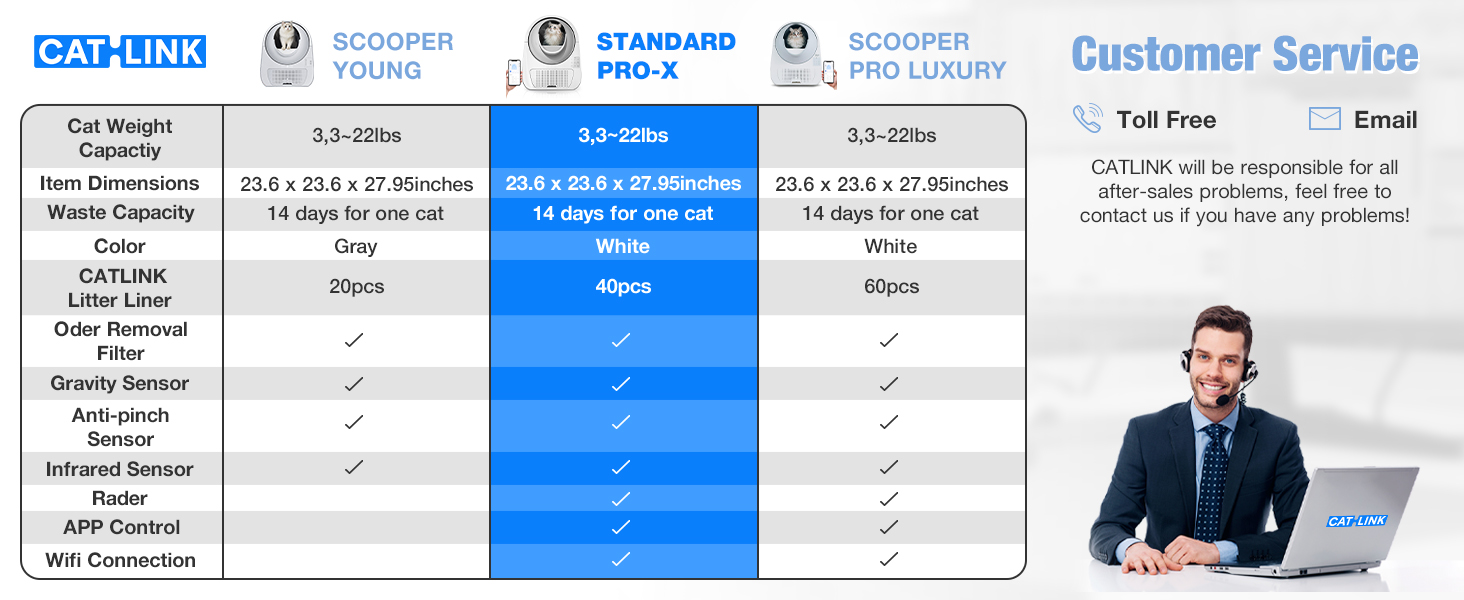
Image: A section of a larger graphic showing CATLINK Customer Service contact options, including 'Toll Free' and 'Email' icons, with a representative smiling.
Contact details can typically be found on the official CATLINK website or within the CATLINK App.


