1. Introduction
This user manual provides detailed instructions for the setup, operation, and maintenance of your FULLJA 10.1-Inch WiFi Digital Photo Frame. Please read this manual thoroughly before using the device to ensure proper functionality and to maximize your experience.
2. Package Contents
Verify that all items are present in the package:
- 1x FULLJA 10.1-Inch Digital Photo Frame
- 1x User Manual
- 1x Power Adapter
- 1x Frame Stand/Bracket
3. Product Overview
The FULLJA 10.1-Inch WiFi Digital Photo Frame is designed to display your cherished memories with ease. It features a high-resolution IPS touch screen and various smart functions.
Key Features:
- 10.1-Inch IPS HD Touch Screen: For clear and vibrant photo display.
- WiFi Connectivity: For easy photo and video sharing via app or email.
- 32GB Internal Memory: Stores thousands of photos and videos.
- Motion Sensor: Automatically turns the frame on/off.
- Auto Rotate: Adjusts display orientation automatically.
- Additional Functions: Alarm clock, weather station, sleep mode.

Figure 1: Overview of the digital photo frame's key features.
4. Setup
4.1 Powering On and Initial Configuration
- Connect the power adapter to the frame and plug it into an electrical outlet. The frame will automatically power on.
- Follow the on-screen prompts to select your preferred language, time zone, and connect to your Wi-Fi network.
4.2 App Installation and Pairing
To share photos and videos remotely, download the VPhoto app on your iOS or Android smartphone.
- Search for "VPhoto" in the App Store (iOS) or Google Play Store (Android) and install the application.
- Open the VPhoto app and create an account or log in.
- On your digital photo frame, navigate to the settings and locate the "Add Friend" or "Connect App" option to generate a unique code.
- In the VPhoto app, select "Add Device" and enter the code displayed on your frame to pair your smartphone with the frame.

Figure 2: Steps to connect your frame using the VPhoto App.
5. Operating the Frame
5.1 Sharing Photos and Videos
You can share photos and videos to your frame using the VPhoto app, email, or external storage devices.
Via VPhoto App:
Once paired, select photos or videos from your smartphone's gallery within the VPhoto app and send them directly to your frame. You can also invite friends and family to share their photos to your frame.
Via Email:
The frame has a unique email address. Send photos and videos as attachments to this email address, and they will appear on your frame.
Via TF Card or USB Drive:
Insert a TF card or USB drive containing your media files into the designated slot on the frame. The frame will detect the storage and allow you to import files.

Figure 3: Sharing photos and videos to the frame.
5.2 Slideshow Settings
Customize your photo display experience:
- Display Interval: Adjust how long each photo is displayed in the slideshow.
- Transition Effects: Choose from various transition styles between photos.
- Display Order: Set photos to display chronologically, randomly, or by date received.
- Captions: Enable or disable captions for your photos.
5.3 Motion Sensor
The built-in motion sensor can automatically turn the frame on when motion is detected and off after a period of inactivity, saving energy.
- To enable/disable: Go to Settings > Display > Motion Sensor.
- Adjust sensitivity and inactivity time as needed.

Figure 4: Motion detection feature in action.
5.4 Auto Rotate
The frame automatically detects its orientation (landscape or portrait) and adjusts the display accordingly. This allows for flexible placement.

Figure 5: Automatic rotation for landscape and portrait display.
5.5 Additional Functions
Explore other useful features in the settings menu:
- Alarm Clock: Set alarms for reminders.
- Weather Station: Display local weather information.
- Sleep Mode: Schedule specific times for the frame to automatically turn off and on.
5.6 How to Send Photos and Videos (Video Guide)
Video 1: This official video demonstrates the process of sending photos and videos to your digital photo frame using the dedicated app. It covers selecting media, adding captions, choosing recipients, and adjusting video length for optimal display.
6. Storage
Your FULLJA Digital Photo Frame comes with 32GB of built-in memory, capable of storing thousands of high-resolution photos and videos.
- Expandable Storage: If you require more space, you can easily expand the storage using TF cards or USB drives.
- Cloud Backup: Enjoy unlimited free cloud backup for all your precious moments, ensuring your memories are safe and accessible.
7. Mounting Options
The frame offers versatile placement options to suit your home or office decor.
- Using the Stand: Attach the included stand to the back of the frame to place it on any flat surface, such as a desk, shelf, or nightstand. The auto-rotate feature will adjust the display.
- Wall Mounting: The frame is equipped with mounting holes on the back, allowing you to securely hang it on a wall. Ensure you use appropriate screws and wall anchors for your wall type.
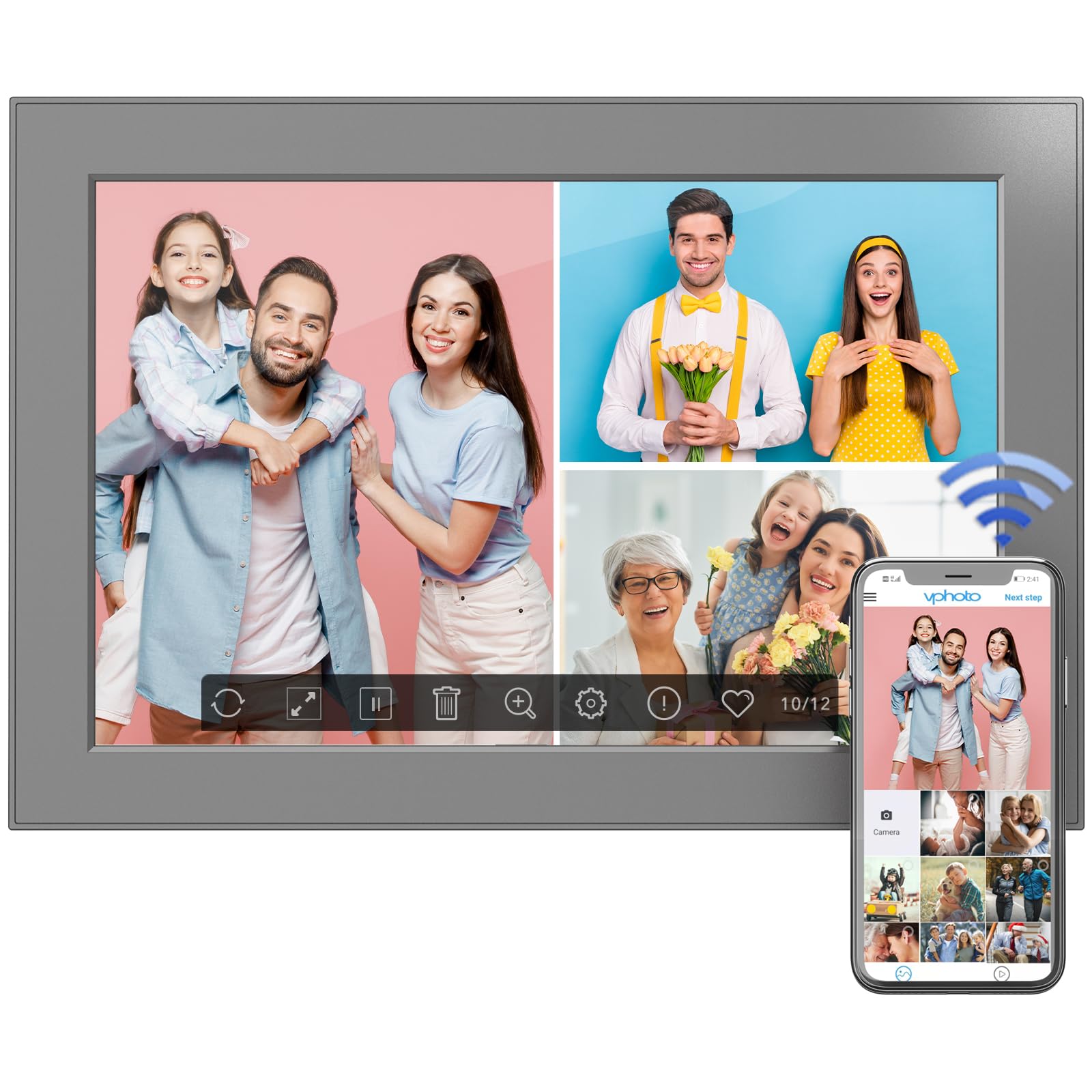
Figure 6: Digital photo frame displayed on a surface using its stand.
8. Maintenance
To ensure the longevity and optimal performance of your digital photo frame, follow these maintenance guidelines:
- Cleaning the Screen: Use a soft, lint-free cloth to gently wipe the screen. For stubborn smudges, slightly dampen the cloth with water or a screen-cleaning solution. Avoid harsh chemicals.
- Cleaning the Frame: Wipe the frame's exterior with a dry, soft cloth.
- Software Updates: Periodically check for software updates in the frame's settings menu to ensure you have the latest features and improvements.
- Power Off: If not in use for an extended period, power off the frame and unplug it from the power source.
9. Troubleshooting
If you encounter any issues with your FULLJA Digital Photo Frame, refer to the following common solutions:
- Frame Not Turning On:
- Ensure the power adapter is securely connected to both the frame and a working power outlet.
- Check if the power outlet is functional by plugging in another device.
- Cannot Connect to Wi-Fi:
- Verify that your Wi-Fi network is active and within range.
- Double-check the Wi-Fi password.
- Restart your Wi-Fi router and the digital photo frame.
- Photos/Videos Not Appearing:
- Ensure the frame is connected to Wi-Fi if sharing via app or email.
- Check your VPhoto app or email client for successful upload confirmation.
- If using a TF card/USB drive, ensure it is properly inserted and the files are in a supported format.
- Screen Not Responding to Touch:
- Gently clean the screen to remove any dirt or debris.
- Restart the frame by unplugging and re-plugging the power adapter.
If the issue persists, please contact customer support for further assistance.
10. Specifications
| Feature | Detail |
|---|---|
| Product Dimensions | 6.97 x 10.2 x 0.99 inches |
| Item Weight | 1.3 pounds |
| Screen Size | 10.1 Inches |
| Resolution | 1280x800 (WXGA) |
| Internal Memory | 32GB |
| Connectivity | WiFi |
| Color | Black |
| Model Number | 101-Z |
11. Warranty and Support
This electronic photo frame comes with a one-year warranty from the date of purchase.
If you experience any issues or have questions regarding your FULLJA Digital Photo Frame, please contact our customer support team. We are committed to ensuring your satisfaction.
- Customer Support: Refer to the contact information provided in your product packaging or on the official FULLJA website.


