
PAWHITS WM86-P
PAWHITS Wireless Xbox 360 Controller WM86-P User Manual
Model: WM86-P
1. Introduction
This manual provides detailed instructions for the PAWHITS Wireless Xbox 360 Controller (Model WM86-P). Please read this manual carefully before use to ensure proper operation and to maximize your gaming experience. This controller is compatible with Microsoft Xbox 360 consoles and PCs running Windows 11, 10, 8, or 7.

Image 1.1: PAWHITS Wireless Xbox 360 Controller and USB Receiver.
2. Product Features
- 2.4GHz Wireless Technology: Provides a stable connection up to 10 meters (32.8 feet) with the included USB receiver.
- Dual Vibration Feedback: Built-in motors deliver immersive haptic feedback for enhanced gaming.
- Customizable LED Lighting: Features a semi-transparent shell with a customizable LED light strip offering steady, breathing, or off modes.
- Ergonomic Design: Lightweight and designed with anti-slip grips for extended comfort during gameplay.
- Battery Powered: Operates on 2 standard AA batteries (not included) for flexible power management.
- 3.5mm Headset Jack: Supports Xbox 360 compatible audio devices.
- Multiplayer Support: Connect up to 4 controllers simultaneously with individual player position indicators.
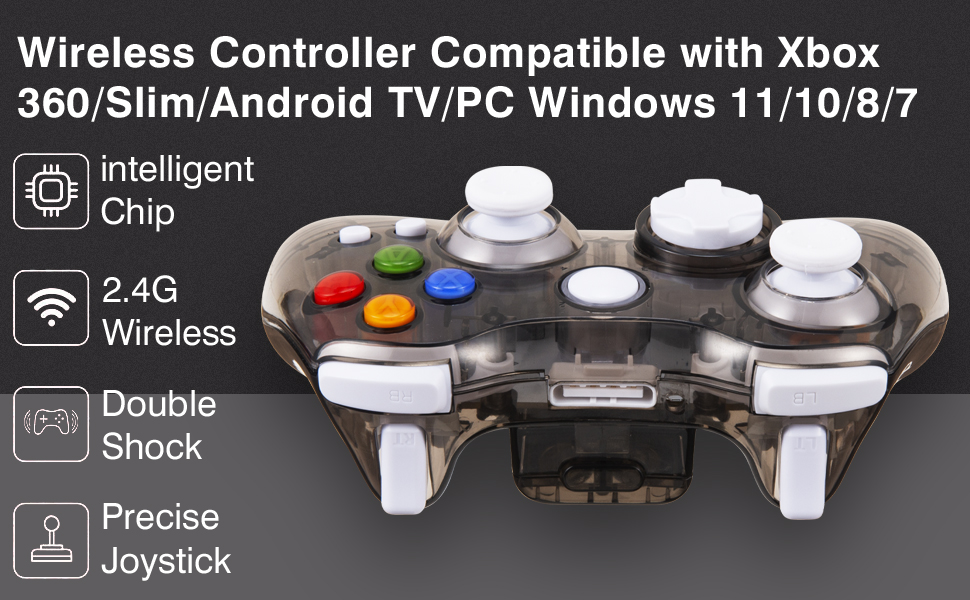
Image 2.1: Key features of the PAWHITS Wireless Controller.
3. Controller Layout
Familiarize yourself with the buttons and controls of your PAWHITS Wireless Xbox 360 Controller:

Image 3.1: Controller button and joystick layout.
- LB Key: Left Bumper
- RB Key: Right Bumper
- LT Key: Left Trigger
- RT Key: Right Trigger
- Left Joystick: Analog stick for movement/control
- Right Joystick: Analog stick for camera/aiming
- D-pad: Directional Pad
- A, B, X, Y Buttons: Action buttons
- START Button: Game start/pause
- BACK Button: Game menu/return
- HOME Button: Xbox Guide button/Controller pairing
4. Setup Instructions
4.1. Battery Installation
- Locate the battery compartment on the back of the controller.
- Open the battery cover.
- Insert two (2) AA batteries (not included) into the compartment, ensuring correct polarity (+/-).
- Close the battery cover securely.

Image 4.1: Battery installation and testing.
4.2. Connecting to Xbox 360 Console
- Ensure the 2 AA batteries are correctly installed in the controller.
- Turn on your Xbox 360 console.
- Plug the wireless USB receiver into an available USB port on your Xbox 360 console. The receiver light will illuminate.
- Press and hold the HOME button on the controller for approximately 3 seconds.
- The indicator light on the upper left corner of the controller's HOME button will turn solid green, indicating a successful pairing.
4.3. Connecting to PC (Windows 11/10/8/7)
- Ensure the 2 AA batteries are correctly installed in the controller.
- Turn on your PC.
- Insert the wireless USB receiver into an available USB port on your PC. The necessary drivers should install automatically.
- Press and hold the HOME button on the controller for approximately 3 seconds to initiate pairing.
- The controller will connect automatically. You may need to configure controller settings within your game or operating system.

Image 4.2: Syncing instructions for Xbox 360 and PC.
4.4. Multiplayer Setup
The PAWHITS Wireless Xbox 360 Controller supports connecting up to four (4) controllers simultaneously to a single console or PC. Each controller requires its own USB receiver.
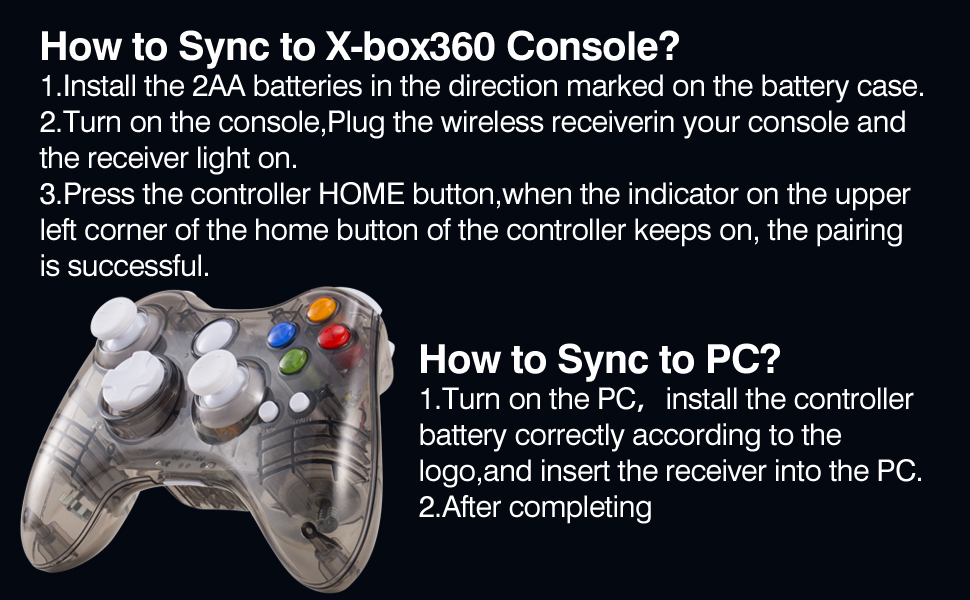
Image 4.3: Information regarding multiple controller connections.
Note: If connecting two or more controllers, a USB Hub may be required if your console or PC does not have enough available USB ports.
5. Operating Instructions
5.1. Wireless Range
The controller operates wirelessly up to a range of 10 meters (approximately 32.8 feet) from the USB receiver. Ensure there are no significant obstructions between the controller and the receiver for optimal performance.

Image 5.1: Wireless connection range.
5.2. LED Light Modes
The controller features a customizable LED light strip. To cycle through the LED modes (steady, breathing, or off), press the dedicated button located on the rear of the controller.
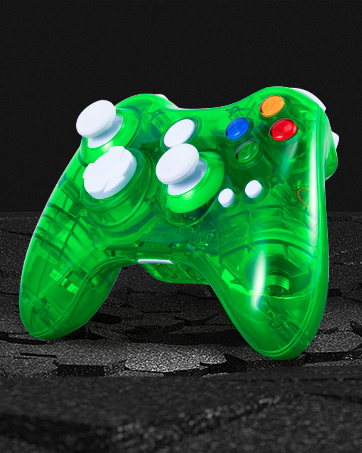
Image 5.2: Illuminated joystick with LED lighting.
5.3. Dual Vibration Feedback
The controller is equipped with dual vibration motors to provide tactile feedback during gameplay. The intensity of the vibration may vary based on the game and in-game events.

Image 5.3: Dual vibration motors.
5.4. 3.5mm Headset Jack
A 3.5mm headset jack is integrated into the controller for connecting compatible audio devices, such as headsets for in-game chat or audio output, when used with an Xbox 360 console.
6. Maintenance
6.1. Cleaning
- Wipe the controller with a soft, dry cloth.
- Do not use liquid cleaners or abrasive materials, as these can damage the controller's surface or internal components.
6.2. Battery Replacement
When the controller's performance degrades or the LED indicators suggest low power, replace the AA batteries. Refer to Section 4.1 for battery installation instructions.
- Always use fresh, high-quality AA batteries.
- Remove batteries if the controller will not be used for an extended period to prevent leakage.
- Dispose of used batteries responsibly according to local regulations.
7. Troubleshooting
7.1. Controller Not Connecting/Pairing
- Check Batteries: Ensure fresh AA batteries are correctly installed.
- Receiver Connection: Verify the USB receiver is securely plugged into an active USB port on your console or PC. The receiver light should be on.
- Pairing Process: Re-attempt the pairing process by holding the HOME button for 3 seconds. Ensure the controller is within the 10-meter wireless range.
- USB Port: Try plugging the USB receiver into a different USB port on your console or PC.
- Interference: Move away from other wireless devices that might cause interference (e.g., Wi-Fi routers, cordless phones).
7.2. Buttons or Joysticks Unresponsive
- Re-sync Controller: Disconnect and re-sync the controller as described in Section 4.2 or 4.3.
- Test on Another Device: If possible, test the controller on another compatible console or PC to determine if the issue is with the controller or the host device.
- Clean Controller: Ensure no debris is obstructing the buttons or joysticks. Refer to Section 6.1 for cleaning instructions.
7.3. No Vibration Feedback
- Game Support: Verify that the game you are playing supports vibration feedback.
- In-Game Settings: Check the game's settings to ensure vibration is enabled.
- Driver Issues (PC): For PC, ensure the correct drivers are installed and updated.
8. Specifications
| Model Number | WM86-P |
| Connectivity | 2.4GHz Wireless (with USB Receiver) |
| Wireless Range | Up to 10 meters (32.8 feet) |
| Power Source | 2 x AA Batteries (not included) |
| Compatibility | Microsoft Xbox 360, PC (Windows 11/10/8/7) |
| Audio Port | 3.5mm Headset Jack |
| Weight | Approximately 9.6 ounces (272 grams) |
| Dimensions | 6.42 x 4.49 x 3.5 inches (approximate package dimensions) |
9. Warranty and Support
PAWHITS products are designed for reliability and performance. For warranty information or technical support, please refer to the contact details provided with your purchase or visit the official PAWHITS website. Keep your purchase receipt as proof of purchase for warranty claims.
For further assistance, please contact PAWHITS customer support.
Ask a question about this manual
Ask about setup, troubleshooting, compatibility, parts, safety, or missing instructions. Manuals+ will review the question and use this page’s manual context to help answer it.