
Introduction
This manual provides comprehensive instructions for the installation, operation, and maintenance of your Dpofirs Computer Monitor Light Bar. Please read this manual thoroughly before use to ensure proper functionality and longevity of the product. Keep this manual for future reference.
Product Overview
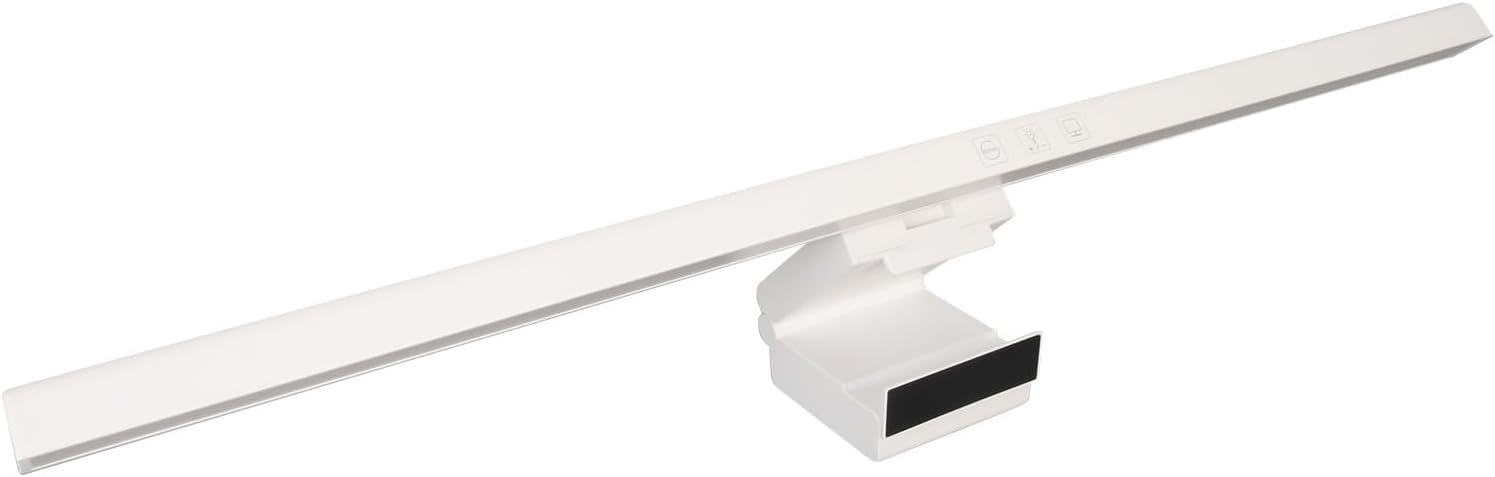
The Dpofirs Computer Monitor Light Bar is designed to provide optimal illumination for your workspace while minimizing eye strain and screen glare. It features an asymmetric light source, touch controls, and adjustable color temperature and brightness.
Key Features:
- Asymmetric Light Source: Illuminates the desktop and keyboard without causing reflected glare on the monitor screen.
- Eye Care System: Blocks blue light and radiation to reduce eye fatigue, suitable for extended use.
- Touch Control: Intuitive touch interface for power, dimming, and color temperature adjustments.
- Infinite Dimming: Allows for precise adjustment of brightness levels.
- Three Color Temperature Adjustment: Offers cool, neutral, and warm light options (e.g., 5000K, 4000K, 2900K) to suit different tasks and environments.
- Easy Installation: Gravity axis fixed device for stable mounting on monitors up to 50mm (2 inches) thick, saving desk space.
- USB Powered: Conveniently powered via a Type-C USB interface from computers, chargers, or power banks.
- 60-Minute Timer Function: Automatically turns off the light after 60 minutes.

Package Contents:
- 1 x Monitor Light Bar
- 1 x Charging Cable (USB Type-C)
- 1 x Instruction Manual

Setup and Installation
- Unpack the Product: Carefully remove the monitor light bar and its accessories from the packaging.
- Position the Light Bar: Place the light bar on top of your computer monitor. The gravity axis fixed device is designed to securely grip the top edge of the screen.
- Adjust for Screen Thickness: The adjustable design accommodates monitor thicknesses from 0.6 inches to 1.6 inches (approximately 1.5 cm to 4 cm). Ensure the clip is adjusted to firmly hold the light bar in place without obstructing the screen.
- Connect Power: Insert the Type-C end of the charging cable into the light bar's Type-C port. Connect the USB-A end to a 5V 1A USB power source, such as a computer's USB port, a wall adapter, or a power bank.
- The light bar is now ready for operation.


Operating Instructions
The Dpofirs Monitor Light Bar features intuitive touch controls located on the top surface of the bar.

- Power On/Off: Lightly touch the power icon (usually a circle with a vertical line) to turn the light bar on or off.
- Adjust Brightness (Infinite Dimming): With the light on, press and hold the power icon or a dedicated dimming icon (if present) to continuously adjust the brightness level. Release when the desired brightness is achieved.
- Change Color Temperature: Tap the color temperature icon (often represented by a sun or temperature gauge) to cycle through the three available color temperature modes:
- White Light (5000K): Clear lighting, suitable for efficient office work.
- Neutral White Light (4000K): Neutral color temperature, ideal for comfortable reading.
- Warm Light (2900K): Mild and comfortable light, suitable for relaxation or low-light environments.
- 60-Minute Timer Function: If your model includes a timer function, tap the timer icon (often a clock) to activate the 60-minute automatic shut-off. The light will turn off after 60 minutes. Tap again to deactivate or reset.

Maintenance
To ensure the longevity and optimal performance of your monitor light bar, follow these simple maintenance guidelines:
- Cleaning: Disconnect the power before cleaning. Use a soft, dry, or slightly damp cloth to wipe the surface of the light bar. Avoid using abrasive cleaners, solvents, or harsh chemicals, as these can damage the finish.
- Storage: If storing the light bar for an extended period, ensure it is clean and dry. Store it in a cool, dry place away from direct sunlight and extreme temperatures.
- Handling: Handle the light bar with care to prevent damage to the LED components or the housing.
Troubleshooting
If you encounter any issues with your Dpofirs Monitor Light Bar, please refer to the following common problems and solutions:
- Light Bar Does Not Turn On:
- Ensure the USB cable is securely connected to both the light bar and the power source.
- Verify that the USB power source (e.g., computer port, wall adapter) is functional and providing power (5V 1A recommended).
- Try using a different USB port or power adapter.
- Light Flickers or is Dim:
- Check the power source. Insufficient power (less than 5V 1A) can cause flickering or dimness.
- Ensure the USB cable is not damaged.
- Clean the touch control area to ensure proper contact.
- Touch Controls Are Unresponsive:
- Ensure your fingers are clean and dry when operating the touch controls.
- Restart the device by unplugging and re-plugging the USB cable.
- Ensure there is no obstruction or debris on the touch control area.
- Light Bar Does Not Stay Securely on Monitor:
- Verify that your monitor's thickness is within the supported range (0.6 to 1.6 inches / 1.5 to 4 cm).
- Ensure the gravity axis fixed device is properly adjusted and seated on the monitor.
Specifications
| Feature | Specification |
|---|---|
| Product Name | Computer Monitor Light Bar |
| Brand | Dpofirs |
| Model Number | Bewinnerr5y4hpkgoq-12 |
| Material | ABS (Acrylonitrile Butadiene Styrene) |
| Rated Voltage | 5V 1A |
| Interface Type | Type-C USB |
| Product Length | Approx. 50cm (19.7in) |
| Supported Monitor Thickness | Less than 50mm (2in), typically 0.6 to 1.6 inches |
| Color Temperature | Three levels (e.g., 5000K, 4000K, 2900K) |
| Dimming | Stepless Dimmable (Infinite Dimming) |
| Special Features | Asymmetric Light Source, Anti-Glare, Eye Caring, Touch Control, 60-Minute Timer Function |
| Item Weight | 0.41 Kilograms |
| Package Dimensions | 52.9 x 13.6 x 4.9 cm |
Warranty and Support
For warranty information and technical support, please refer to the retailer's return policy or contact the manufacturer directly. Keep your purchase receipt as proof of purchase.
Manufacturer: Dpofirs
For further assistance, please visit the official Dpofirs website or contact their customer service department.