
Dpofirs Dpofirsatc2u1i6nd-11
Contents
Dpofirs Digital Camera User Manual
Model: Dpofirsatc2u1i6nd-11
1. Introduction
Thank you for purchasing the Dpofirs Digital Camera. This compact and versatile camera is designed to capture high-quality photos and videos, featuring 4K 1080P video recording, 16X digital zoom, and a 58MP photo sensor. It is an ideal companion for travel, daily photography, and capturing precious moments. Please read this manual thoroughly to understand the camera's functions and ensure optimal performance.
2. Product Overview
Familiarize yourself with the components of your Dpofirs Digital Camera.

Figure 2.1: Front View of Camera
This image displays the front of the Dpofirs Digital Camera, highlighting the lens, flash, and the "58.0 MEGA PIXELS" marking, indicating its high resolution capabilities.

Figure 2.2: Camera and Accessories
The camera is shown alongside its standard accessories, which include a wrist strap for secure handling, a USB cable for data transfer and charging, and a soft carrying pouch for protection.
2.1. What's in the Box
- Dpofirs Digital Camera Body
- Rechargeable Lithium Ion Battery
- USB Cable
- Wrist Strap
- Carrying Pouch
- User Manual (this document)
3. Setup
3.1. Charging the Battery
The camera uses a rechargeable Lithium Ion battery. Before first use, fully charge the battery.
- Open the battery compartment cover located at the bottom of the camera.
- Insert the battery, ensuring the correct orientation as indicated inside the compartment.
- Close the battery compartment cover securely.
- Connect the camera to a USB power adapter (not included) or a computer using the provided USB cable. The charging indicator light will illuminate.
- Once fully charged, the indicator light will change or turn off. Disconnect the camera.
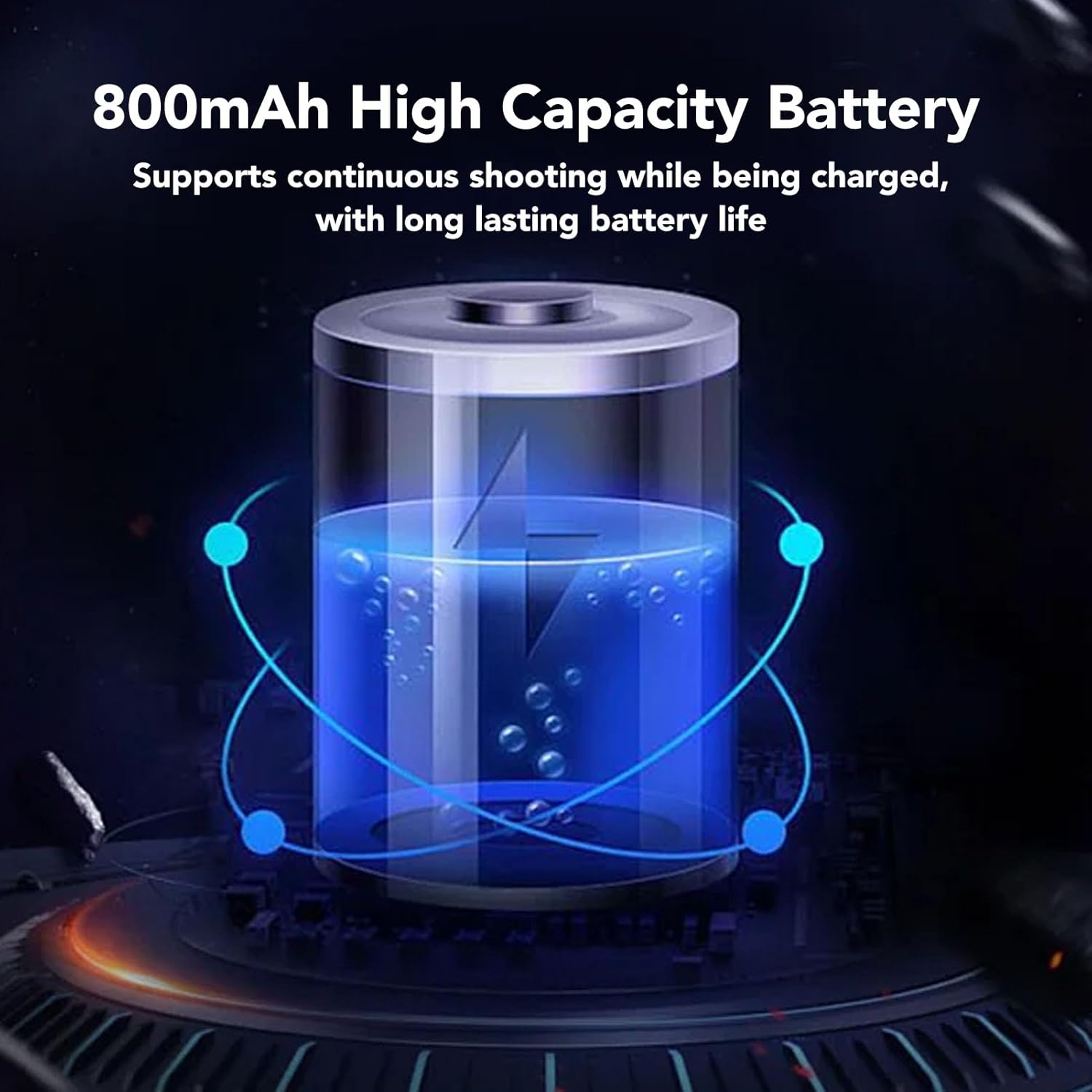
Figure 3.1: High Capacity Battery
The camera is powered by an 800mAh high-capacity battery, designed for extended continuous shooting.
3.2. Inserting a Memory Card
The camera requires an external memory card (not included) to store photos and videos. It supports standard SD cards.
- Locate the memory card slot, usually next to the battery compartment.
- Insert the memory card with the metal contacts facing the correct direction (refer to the diagram near the slot). Push until it clicks into place.
- To remove, push the card in again until it clicks, and it will spring out slightly.
3.3. Attaching a Tripod
For stable shots, especially in low light or when using zoom, the camera features a standard 1/4-20 mounting thread for tripods or selfie sticks.

Figure 3.2: Tripod Screw Port
This image shows the bottom of the camera, highlighting the standard tripod screw port, which allows for stable mounting on tripods or selfie sticks.
4. Operating the Camera
4.1. Powering On/Off
Press and hold the Power button (usually located on the top or side) to turn the camera on or off.
4.2. Basic Photography
The camera operates primarily in automatic shooting mode, simplifying the process for users.
- Shooting Mode: The camera defaults to automatic mode.
- Focus: The camera uses Contrast Detection for autofocus. Point the camera at your subject and half-press the shutter button to focus.
- Shutter Button: Fully press the shutter button to capture a photo.
- Flash: The built-in flash has Automatic, On, and Off modes. Adjust via the camera's menu settings.
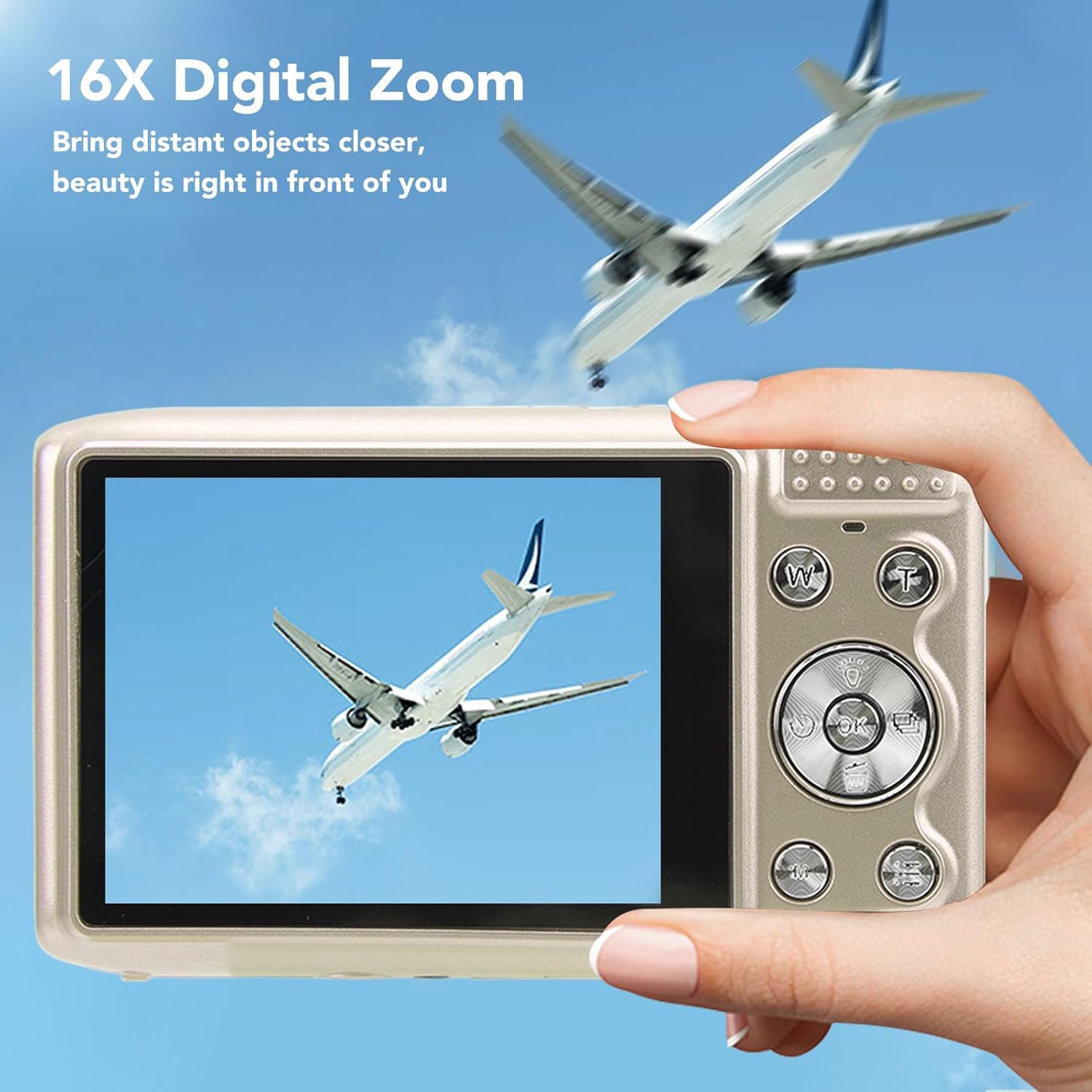
Figure 4.1: 16X Digital Zoom in Use
This image demonstrates the camera's 16X digital zoom capability, bringing distant objects, such as airplanes, closer into view.
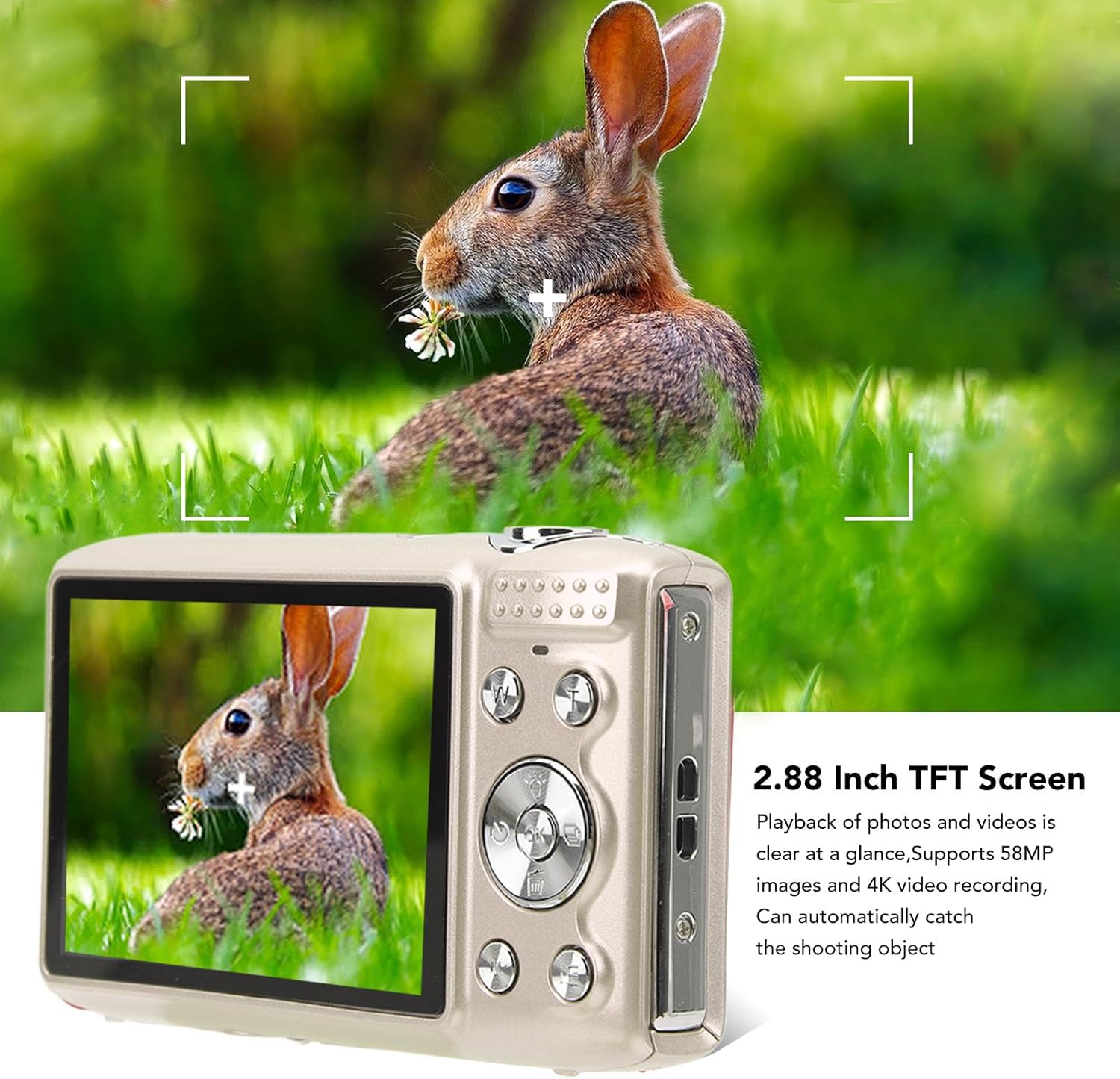
Figure 4.2: 2.88 Inch TFT Screen
The camera features a 2.88-inch TFT screen for clear playback of photos and videos. It supports 58MP images and 4K video recording, aiding in automatic subject detection.
4.3. Zoom Function
The camera features 16X digital zoom. Use the zoom controls (often marked 'W' for Wide and 'T' for Telephoto) to adjust the focal length.
4.4. Video Recording
To record videos:
- Switch the camera to video mode (if applicable, or press the dedicated video record button).
- Press the shutter button to start recording. Press again to stop.
- Videos are recorded in AVI format at 1080p resolution and 30fps.
4.5. Playback Mode
To view your captured photos and videos:
- Enter playback mode (usually a dedicated button or menu option).
- Use the navigation buttons to scroll through your media.
- Press the OK/Enter button to view details or play a video.
4.6. Connecting to a Computer
You can transfer photos and videos to your computer using the provided USB cable.
- Ensure the camera is powered on.
- Connect one end of the USB cable to the camera's USB port and the other end to your computer.
- The camera will appear as a removable disk drive on your computer. You can then copy files.
4.7. Special Features
The Dpofirs Digital Camera includes several special features to enhance your photography experience:
- Self Timer: Set a delay before the photo is taken, useful for self-portraits or group shots.
- Image Stabilization: Digital image stabilization helps reduce blur caused by camera shake.
- Multi Function Modes: Includes features like beauty mode, smiling face recognition, and facial recognition.

Figure 4.3: Multi-Function Modes
This image illustrates the camera's multi-function capabilities, including modes for 'Thin face', 'Beauty', and 'Whitening', designed to enhance portraits.

Figure 4.4: Key Features Overview
An overview of the camera's key features, including 3-shot burst, smile capture, 2.88-inch screen, anti-shake, self-timer, flash, 16X zoom, and webcam functionality.

Figure 4.5: Advanced Shooting Modes
This image highlights advanced shooting modes such as Timer Shooting for delayed captures, Face Recognition for optimized portraits, and Smile Capture to automatically take photos when a smile is detected.

Figure 4.6: Digital Zoom Comparison
A visual comparison demonstrating the effect of 16X digital zoom, showing how it magnifies the subject compared to a 4X zoom.

Figure 4.7: Anti-Shaking Support
This image demonstrates the camera's anti-shaking feature, showing a clear, stable image on the left compared to a blurred image on the right, indicating the effectiveness of digital image stabilization.
5. Maintenance
5.1. Cleaning the Camera
- Use a soft, lint-free cloth to clean the camera body.
- For the lens, use a specialized lens cleaning cloth and solution. Avoid touching the lens with your fingers.
- Do not use organic solvents or strong chemicals to clean the camera.
5.2. Battery Care
- Store the battery in a cool, dry place when not in use.
- Avoid exposing the battery to extreme temperatures.
- If the camera will not be used for an extended period, remove the battery.
5.3. Storage
- Store the camera in its carrying pouch or a camera bag to protect it from dust and scratches.
- Avoid storing the camera in direct sunlight or in areas with high humidity.
6. Troubleshooting
| Problem | Possible Cause | Solution |
|---|---|---|
| Camera does not turn on. | Battery is dead or incorrectly inserted. | Charge the battery. Reinsert the battery correctly. |
| Cannot take photos/videos. | Memory card is full, not inserted, or corrupted. | Insert a memory card. Delete some files. Format the card (this will erase all data). |
| Images are blurry. | Camera shake, subject too close, or lens is dirty. | Hold the camera steady. Use the self-timer or a tripod. Ensure subject is within focus range. Clean the lens. |
| Flash not working. | Flash mode is set to Off. | Change flash mode to Auto or On in settings. |
| Cannot connect to computer. | USB cable issue, camera not in correct mode, or driver issue. | Try a different USB port/cable. Ensure camera is powered on. Restart computer. |
7. Specifications
| Feature | Detail |
|---|---|
| Brand | Dpofirs |
| Model Name | Dpofirs |
| Model Number | Dpofirsatc2u1i6nd-11 |
| Maximum Webcam Image Resolution | 58 MP |
| Photo Sensor Resolution | 58 MP |
| Video Resolution | 1080p (30fps) |
| Digital Zoom | 16x |
| Screen Size | 2.88 Inches (LCD) |
| Image Stabilization | Digital |
| Connectivity Technology | USB, Wi-Fi |
| Supported File Format | JPEG (Images), AVI (Video) |
| Battery Type | Lithium Ion (800mAh) |
| Flash Modes | Automatic, On, Off |
| Special Features | Self Timer, Image Stabilization, Face Recognition, Smile Capture |
| Form Factor | Compact |
| Color | Gold |
| Mounting Thread Type | 1/4-20 |
| Audio Input | Built-in microphone |
8. Warranty and Support
This Dpofirs product is covered by a standard manufacturer's warranty against defects in materials and workmanship. Please refer to the warranty card included with your purchase for specific terms and conditions, including the warranty period and coverage details.
For technical support, troubleshooting assistance, or warranty claims, please contact Dpofirs customer service through the retailer where you purchased the product or visit the official Dpofirs brand store online. Keep your proof of purchase for warranty validation.
Online Resources:
- Dpofirs Brand Store: https://www.amazon.com/stores/Dpofirs/page/1F296CB7-D5F5-4E09-9904-F4D25B34578E
Documents and downloads
Ask a question about this manual
Ask about setup, troubleshooting, compatibility, parts, safety, or missing instructions. Manuals+ will review the question and use this page’s manual context to help answer it.