1. Introduction
This manual provides detailed instructions for the installation, operation, and maintenance of your HAVERN Tuya WiFi IP66 Smart Fingerprint Door Lock, Model 6085. This smart lock offers multiple unlocking methods including fingerprint, password, IC card, mechanical key, and smartphone application control via Tuya or TTLock. Designed for outdoor use, it features IP66 waterproofing and robust aluminum construction for enhanced security and durability.
2. Product Overview
2.1 Key Features
- Multiple Unlocking Methods: Fingerprint, Password, IC Card, Mechanical Key, Tuya/TTLock App.
- High Security: Biometric fingerprint recognition, up to 256 user passwords (6-12 digits), and 256 IC cards.
- Weatherproof Design: IP66 rated for outdoor installation, resistant to water and dust.
- Durable Construction: Made from high-quality aluminum for long-lasting performance.
- Smart Connectivity: WiFi/Bluetooth communication for remote access and management via smartphone application.
- Low Power Alarm: Alerts when battery voltage drops below 4.8V.
2.2 Product Components and Labels
Familiarize yourself with the main components of your smart lock:

Image: Diagram illustrating the various parts of the smart lock, including the light indication, password keypad, IC card reader, fingerprint collector, handle, one-key on/off lock button, invisible keyhole, Type-C emergency power supply port, and trumpet (speaker).
- Light Indication: Status indicator.
- Password Keypad: For numerical password entry.
- Fingerprint Collector: For biometric fingerprint recognition.
- Handle: For manual door operation.
- One Key On/Off Lock: Quick lock/unlock button.
- Invisible Keyhole: For mechanical key override.
- Type-C Emergency Power Supply: For temporary power in case of battery depletion.
- Trumpet: Integrated speaker for audio feedback.
- 4 Battery Compartments: Located on the interior panel.
3. Package Contents
Upon unpacking, please verify that all the following items are included:
- 1x Front Lock Panel
- 1x Rear Lock Panel
- 2x Waterproof Rubbers
- 1x Mortise Lock
- 2x RFID Cards
- 2x Mechanical Keys
- 1x User Manual (this document)
- 1x Screw Kit
4. Setup and Installation
4.1 Mortise Selection and Dimensions
Ensure you select the correct mortise type for your door. The Model 6085 typically uses a 22x240mm mortise. Refer to the diagram for precise measurements.
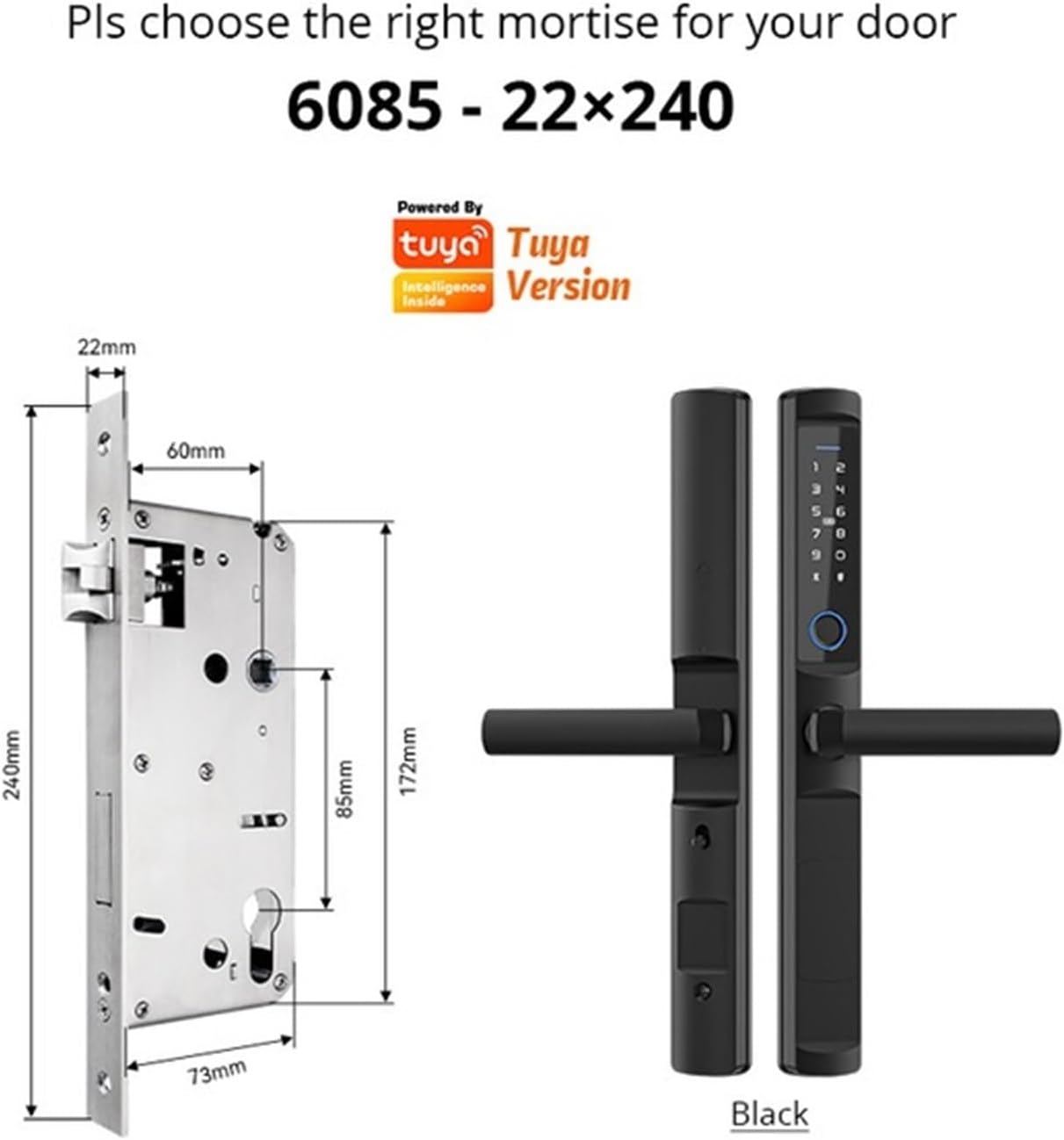
Image: Diagram illustrating the dimensions of the 6085 mortise (22x240mm) and the overall structure of the lock panels, including handle length and spacing.
4.2 Physical Installation
- Prepare the Door: Ensure your door is properly prepared with the correct mortise cutout and drilling for the lock panels.
- Install Mortise: Insert the mortise lock into the door edge and secure it with screws.
- Install Spindle and Cables: Pass the spindle through the mortise and connect the necessary cables between the front and rear panels.
- Attach Panels: Mount the front and rear lock panels, ensuring they are aligned and secured with the provided screws. Use the waterproof rubbers as instructed.
- Insert Batteries: Open the battery compartment on the rear panel and insert 4 AA batteries (not included).
4.3 App Connection (Tuya/TTLock)
The lock supports both Tuya and TTLock applications for smart control. Download your preferred app from your smartphone's app store.

Image: The smart lock is shown with water droplets, emphasizing its IP66 waterproof rating. Screenshots of the Tuya and TTLock applications are displayed, indicating compatibility and smart control features.
- Download App: Search for "Tuya Smart" or "TTLock" in your app store and install it.
- Register/Login: Create an account or log in to the application.
- Add Device: Follow the in-app instructions to add your smart lock. This typically involves putting the lock into pairing mode (refer to the lock's specific audio prompts or light indicators) and connecting via Bluetooth/WiFi.
- Configure Settings: Once connected, you can manage users, add fingerprints, passwords, and IC cards, and set up remote unlocking features.
5. Operating Instructions
5.1 Unlocking Methods
- Fingerprint Unlock:
Place your registered finger on the fingerprint collector. The lock will unlock if the fingerprint is recognized. Up to 100 unique fingerprints can be registered. - Password Unlock:
Enter your registered 6-12 digit password on the keypad, followed by the '#' key. The lock will unlock if the password is correct. Up to 256 passwords can be stored. - IC Card Unlock:
Present a registered IC card to the card reader area on the lock. The lock will unlock if the card is recognized.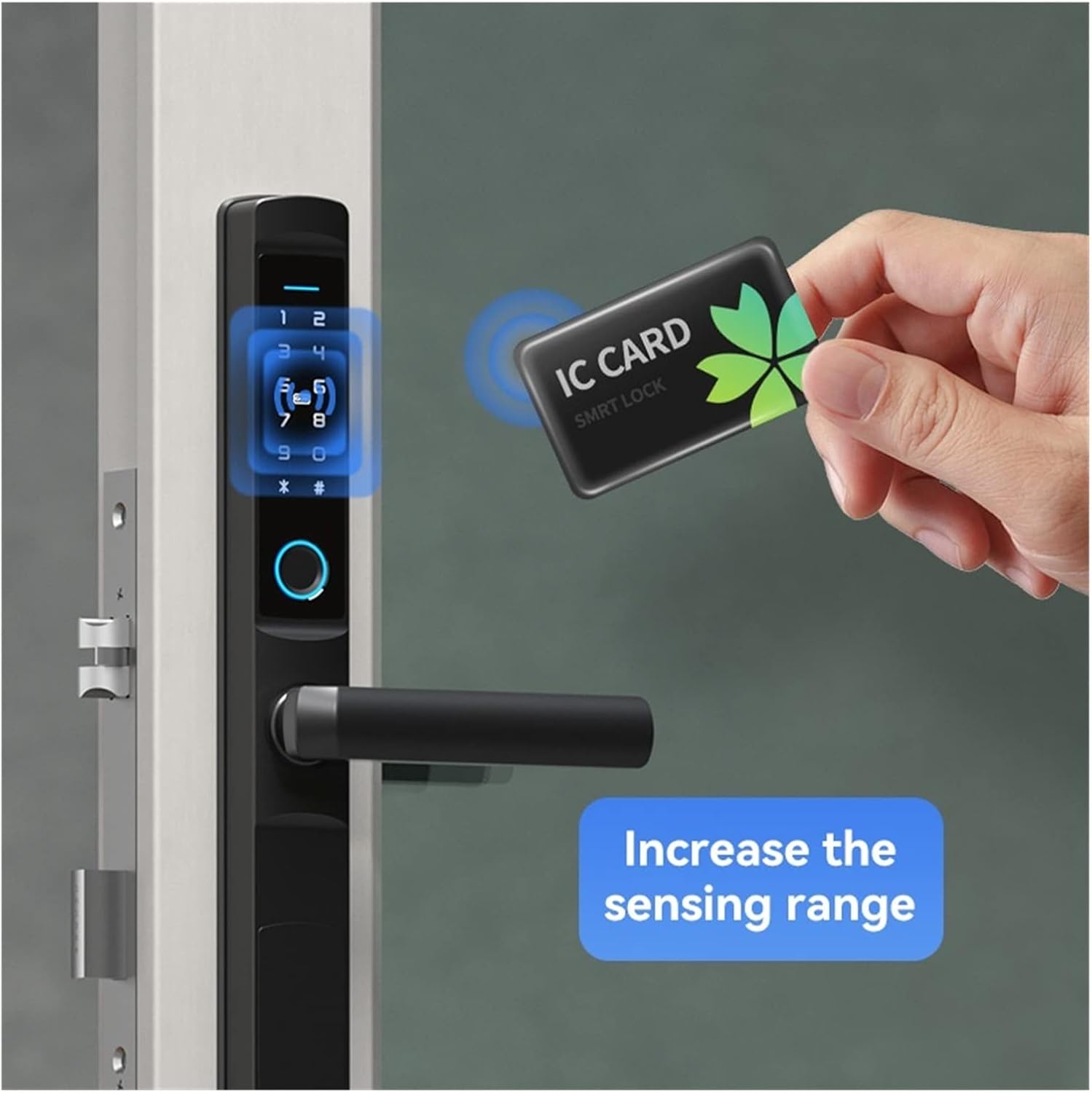
Image: A hand is shown holding an IC card, demonstrating how to use it to unlock the smart door lock by placing it near the sensing area.
Up to 256 IC cards can be registered. - Mechanical Key Unlock:
In case of emergency or battery failure, insert the mechanical key into the invisible keyhole and turn to unlock the door. - App Unlock (Tuya/TTLock):
Open the Tuya Smart or TTLock application on your smartphone. Select your lock and use the in-app unlock function. This can be done remotely if the lock is connected to WiFi.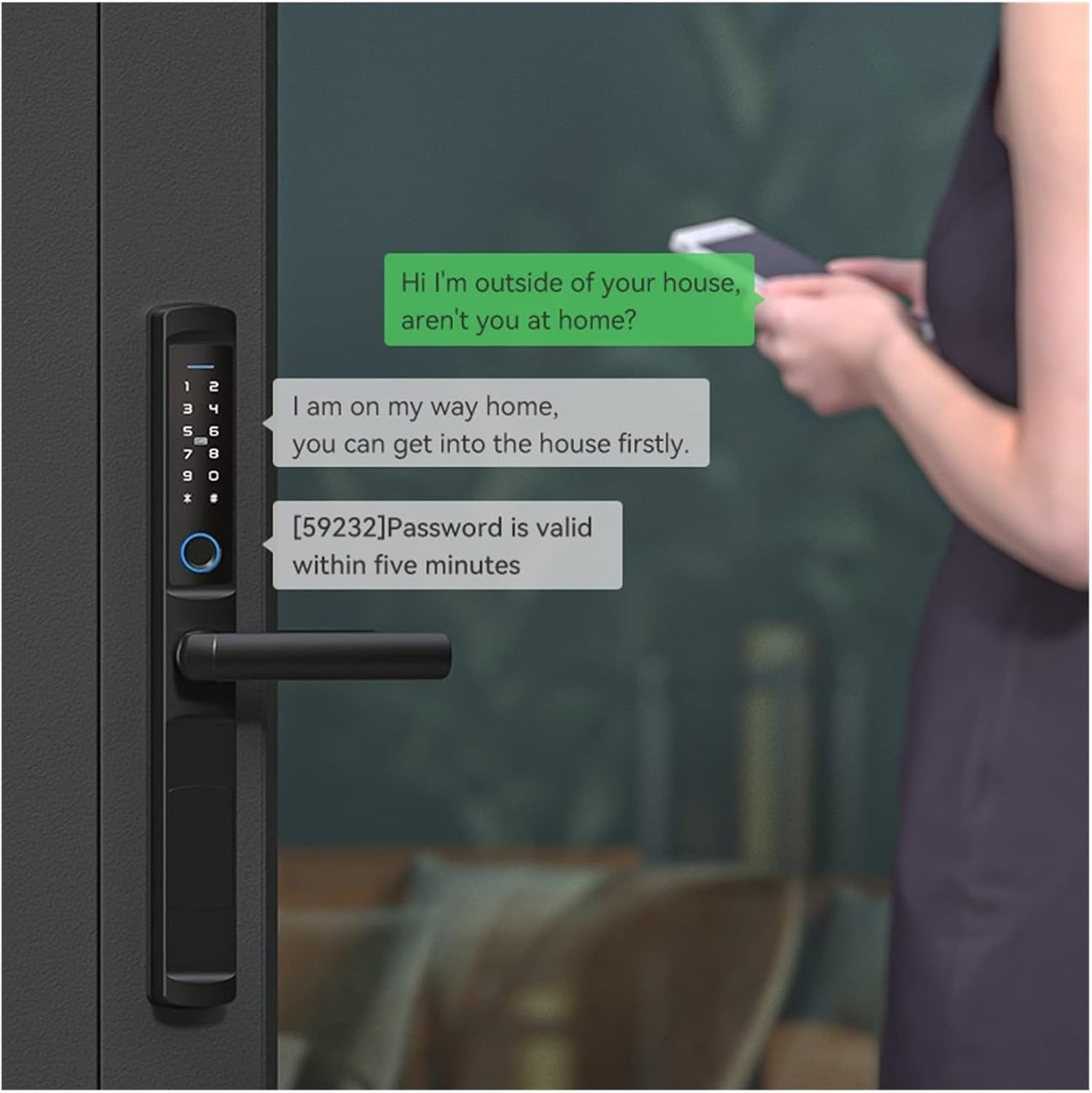
Image: A person is shown interacting with a smartphone, displaying a message related to remote unlocking, indicating the ability to grant temporary access via the app.
5.2 Locking the Door
The door will automatically lock after closing. You can also manually lock it by pressing the one-key lock button on the interior panel or via the smartphone application.
6. Maintenance
- Cleaning: Wipe the lock surface with a soft, dry cloth. Avoid using abrasive cleaners or solvents that could damage the finish or electronic components.
- Battery Replacement: Replace all four AA batteries when the low power alarm sounds (below 4.8V). Do not mix old and new batteries or different types of batteries.
- Fingerprint Sensor: Keep the fingerprint sensor clean and dry for optimal performance.
- Mechanical Key: Store the mechanical keys in a safe, accessible location outside the property for emergency use.
7. Troubleshooting
- Lock not responding:
Check battery level. If the low power alarm has sounded, replace the batteries immediately. If batteries are new, ensure they are inserted correctly. Use the Type-C emergency power supply if needed. - Fingerprint not recognized:
Ensure your finger is clean and dry. Try re-registering your fingerprint if the issue persists. - Password not working:
Verify the password entered is correct. Ensure no dirt or debris is obstructing the keypad. - App connection issues:
Ensure your phone's Bluetooth/WiFi is enabled. Check if the lock is within range. Restart the app and the lock if necessary. Refer to the Tuya/TTLock app's help section for specific connectivity troubleshooting. - Door not locking/unlocking smoothly:
Check for any obstructions in the door frame or mortise. Ensure the lock panels are securely installed and aligned.
8. Specifications
| Fingerprint Capacity | Up to 100 users |
| Password Capacity | Up to 256 users |
| IC Card Capacity | Up to 256 users |
| Password Length | 6-12 digits |
| Power Input | DC 4.4V-8V (4x AA Batteries) |
| Low Power Alarm | Below 4.8V |
| Operating Temperature | -20°C to 65°C |
| Working Humidity | 15% to 95% |
| Communication | Wi-Fi / Bluetooth |
| Application | TUYA / TTLock |
| Waterproof Rating | IP66 |
| Material | Aluminum Alloy |
| Model Number | 6085 |


