
1. Introduction
This manual provides essential information for the installation, operation, maintenance, and troubleshooting of your MSI SPATIUM M480 PRO PCIe 4.0 NVMe M.2 1TB Internal Solid State Drive. Please read this manual thoroughly before using the product to ensure proper functionality and to prevent damage.

Image 1.1: Overview of the MSI SPATIUM M480 PRO 1TB NVMe M.2 SSD.
2. Package Contents
Verify that all items are present in the product packaging:
- MSI SPATIUM M480 PRO PCIe 4.0 NVMe M.2 SSD (1TB)
- Quick Setup Guide
3. Setup and Installation
The MSI SPATIUM M480 PRO is an M.2 2280 form factor SSD designed for PCIe Gen4x4 NVMe interfaces. Ensure your motherboard or device supports this standard before installation.
3.1 Safety Precautions
- Always wear an anti-static wrist strap or discharge static electricity by touching a grounded metal object before handling the SSD.
- Ensure your computer is powered off and unplugged from the wall outlet.
- Refer to your motherboard's manual for specific M.2 slot locations and installation procedures.
3.2 Installation Steps
- Locate an available M.2 slot on your motherboard. These slots are typically labeled and may be covered by a heatsink.
- Remove any screws or standoffs from the M.2 slot. If a standoff is present, ensure it is set for the 2280 form factor.
- Carefully insert the MSI SPATIUM M480 PRO SSD into the M.2 slot at a 30-degree angle. The gold contacts should slide smoothly into the slot.
- Gently push the SSD down until it is parallel with the motherboard.
- Secure the SSD with the screw provided with your motherboard or the M.2 slot. Do not overtighten.
- If your motherboard has an M.2 heatsink, install it over the SSD according to your motherboard's instructions.
- Close your computer case and reconnect all cables.
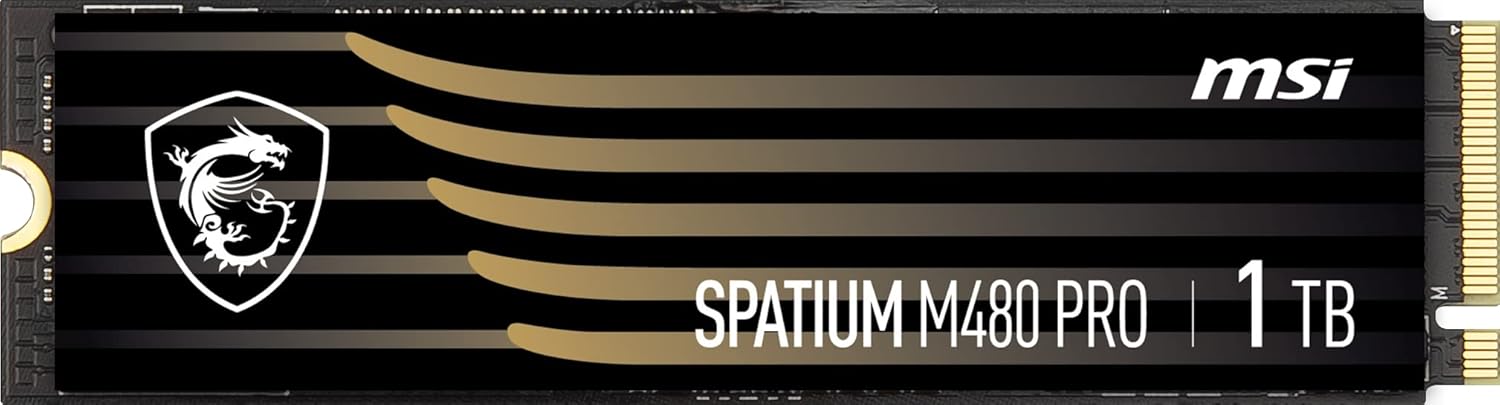
Image 3.1: Close-up view of the MSI SPATIUM M480 PRO SSD, highlighting the M.2 connector.
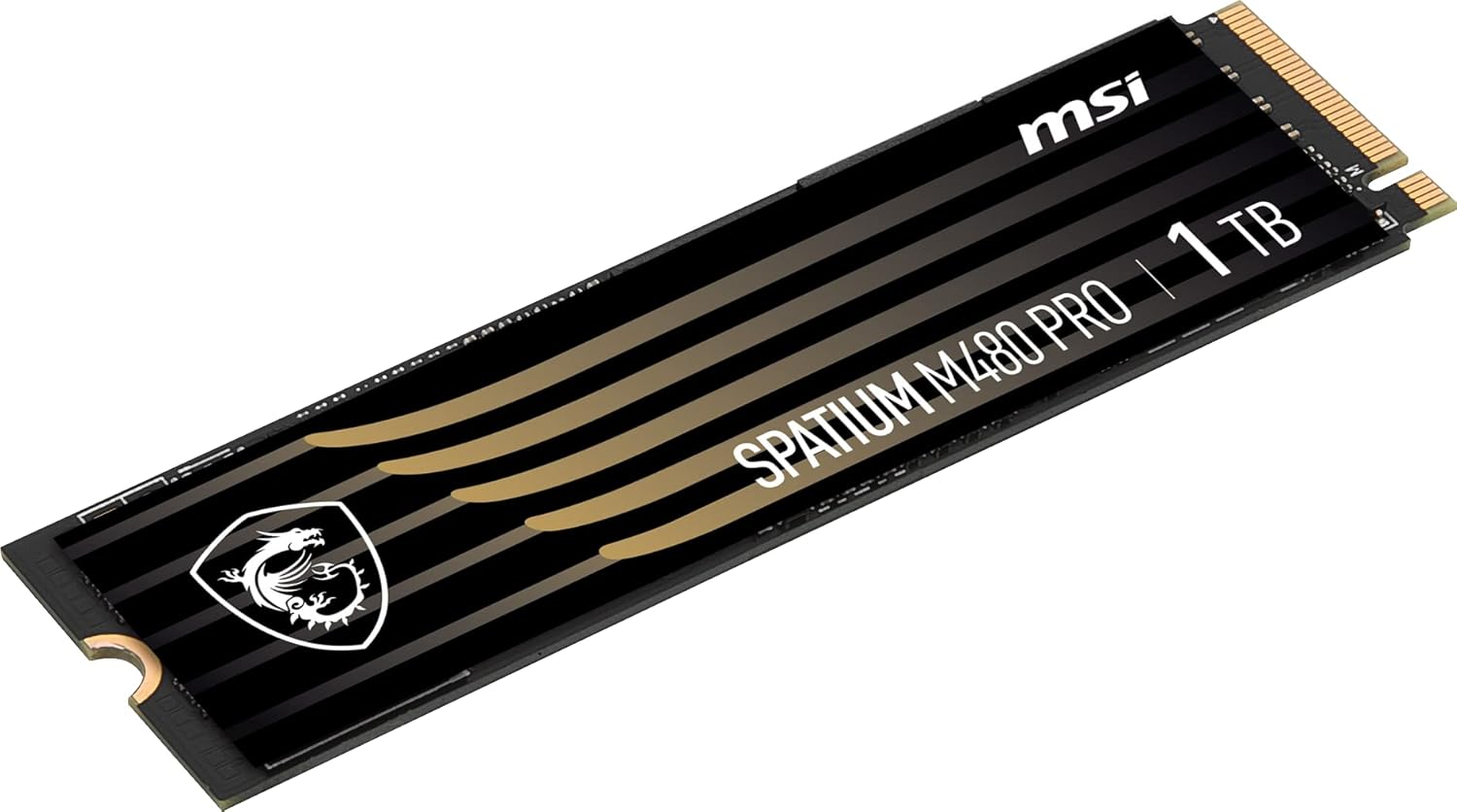
Image 3.2: Angled view of the MSI SPATIUM M480 PRO SSD, illustrating its slim M.2 2280 form factor.
4. Operating Instructions
4.1 Initializing and Formatting the SSD
After physical installation, the SSD needs to be initialized and formatted by your operating system before it can be used.
- Boot your computer.
- For Windows: Right-click on the Start button and select "Disk Management". The new SSD should appear as "Unallocated Space". Right-click on the unallocated space, select "Initialize Disk", choose GPT (GUID Partition Table), then right-click again to create a "New Simple Volume". Follow the wizard to assign a drive letter and format the drive (NTFS is recommended for Windows).
- For Linux: Use disk utility tools like GParted or
fdisk/mkfscommands to partition and format the drive. - For macOS: Open "Disk Utility", select the new SSD, and erase/format it with an appropriate file system (e.g., APFS or HFS+).
4.2 NVMe Driver Installation
Modern operating systems (Windows 10/11, recent Linux distributions, macOS) typically include native NVMe drivers. Manual driver installation is usually not required. However, if you experience issues or wish to optimize performance, check the MSI support website for specific NVMe drivers for your motherboard or the SPATIUM M480 PRO.
5. Maintenance
Proper maintenance ensures the longevity and optimal performance of your SSD.
- TRIM Command: Ensure the TRIM command is enabled in your operating system. This command helps the SSD manage data blocks efficiently, preventing performance degradation over time. Most modern operating systems enable TRIM by default for SSDs.
- Firmware Updates: Periodically check the official MSI website for firmware updates for your SPATIUM M480 PRO SSD. Firmware updates can improve performance, stability, and address potential issues. Follow MSI's instructions carefully when performing firmware updates.
- Avoid Full Capacity: While SSDs perform well even when nearly full, maintaining some free space (e.g., 10-15%) can help sustain optimal write performance and extend drive lifespan.
- Temperature Monitoring: Monitor the SSD's temperature using system monitoring software. Excessive heat can impact performance and lifespan. Ensure adequate airflow in your PC case and consider using a motherboard's M.2 heatsink if available.
6. Troubleshooting
If you encounter issues with your MSI SPATIUM M480 PRO SSD, refer to the following common troubleshooting steps:
6.1 SSD Not Detected
- Check Physical Connection: Ensure the SSD is correctly seated in the M.2 slot and secured.
- BIOS/UEFI Settings: Enter your system's BIOS/UEFI settings. Verify that the M.2 slot is enabled and configured for NVMe mode (if applicable). Some motherboards may require specific PCIe lane configurations.
- Motherboard Compatibility: Confirm your motherboard supports PCIe Gen4 NVMe M.2 SSDs.
- Disk Management (Windows): Check Disk Management to see if the drive appears as uninitialized. If so, initialize and format it as described in Section 4.1.
- Try Another Slot/System: If possible, test the SSD in a different M.2 slot or another compatible system to rule out a motherboard issue.
6.2 Slow Performance
- PCIe Gen4 Compatibility: Ensure your motherboard and CPU fully support PCIe Gen4. If installed in a PCIe Gen3 slot, the SSD will operate at Gen3 speeds.
- TRIM Enabled: Verify that the TRIM command is enabled (see Section 5).
- Firmware: Check for and install the latest firmware updates (see Section 5).
- Temperature: Monitor the SSD's temperature. High temperatures can cause thermal throttling, reducing performance.
- System Resources: Ensure your system has sufficient RAM and CPU resources, as these can impact overall storage performance.
7. Specifications
| Feature | Specification |
|---|---|
| Model Name | SPATIUM M480 PRO |
| Digital Storage Capacity | 1000 GB (1 TB) |
| Hard Disk Interface | NVMe |
| Connectivity Technology | PCIe 4.0 |
| Form Factor | M.2 2280 |
| Read Speed (Sequential) | Up to 7400 MB/s |
| Write Speed (Sequential) | Up to 7000 MB/s |
| NAND Flash | 3D NAND Flash |
| TBW (Terabytes Written) | Up to 3000 TBW |
| Compatible Devices | Desktop, Notebook |
| Model Number | S78-440L1G0-P83 |
| Item Dimensions (L x W x T) | 3.15"L x 0.87"W x 0.08"Th |
8. Warranty Information
The MSI SPATIUM M480 PRO PCIe 4.0 NVMe M.2 1TB Internal SSD comes with a 3-year warranty from the date of purchase. This warranty covers defects in materials and workmanship under normal use. For detailed warranty terms and conditions, please refer to the official MSI website or contact MSI customer support.
9. Support
For further assistance, technical support, or to download the latest drivers and firmware, please visit the official MSI support website:
You may also contact MSI customer service directly through their website for specific inquiries.


