1. Setup Guide
This section provides step-by-step instructions for setting up your ApoloSign 32-Inch Portable Smart Screen. Please follow these guidelines carefully to ensure proper assembly and functionality.
1.1 Unpacking the Device
Carefully open the product packaging. The box contains the display screen, stand, base, remote control, power cord, screwdriver, adapter, foot pads, and user manual. Ensure all components are present before proceeding.

Figure 1: ApoloSign Portable Smart Screen Overview
1.2 Assembling the Stand and Base
The stand and base require assembly before attaching the display. Refer to the video below for a visual guide on the installation process.
Video: How to install ApoloSign Smart Screen
- Prepare the Base: Remove the cover plate from the base.
- Thread the Power Cord: Thread the power cord of the stand through the base.
- Insert the Stand: Align the slot position and insert the stand into the base. Rotate and insert slowly, ensuring the stand is fully inserted without any exposed silver edges.
- Secure the Stand: Check if the positioning column is correctly inserted. Then, use the provided screwdriver to tighten the four (PM3*16) screws on the base.
- Connect Power Cord: After tightening the screws, insert the power cord of the base into the charging board socket. Arrange the power cord neatly inside the base, then cover it with the cover plate.
1.3 Installing the Monitor
Once the stand and base are assembled, attach the display monitor.
- Prepare the Monitor: Hold the screen and open the interface dust cover on the back.
- Align and Attach: Align the two pre-installed screws on the VESA of the screen with the U-shaped holes on the stand and slide the monitor in.
- Secure the Monitor: Lock the remaining two (PWM4*6) screws to firmly secure the monitor to the stand.
- Connect Camera: Remove the camera's cable and plug it into the blue USB3.0 port on the monitor.
2. Operating Instructions
Your ApoloSign Smart Screen is designed for versatile use. This section covers basic operation, screen adjustments, app usage, and screen mirroring.
2.1 Power On/Off and Basic Interaction
To power on the device, locate the power button on the back of the screen. The Incell touch screen allows for intuitive navigation and interaction with the Android OS.
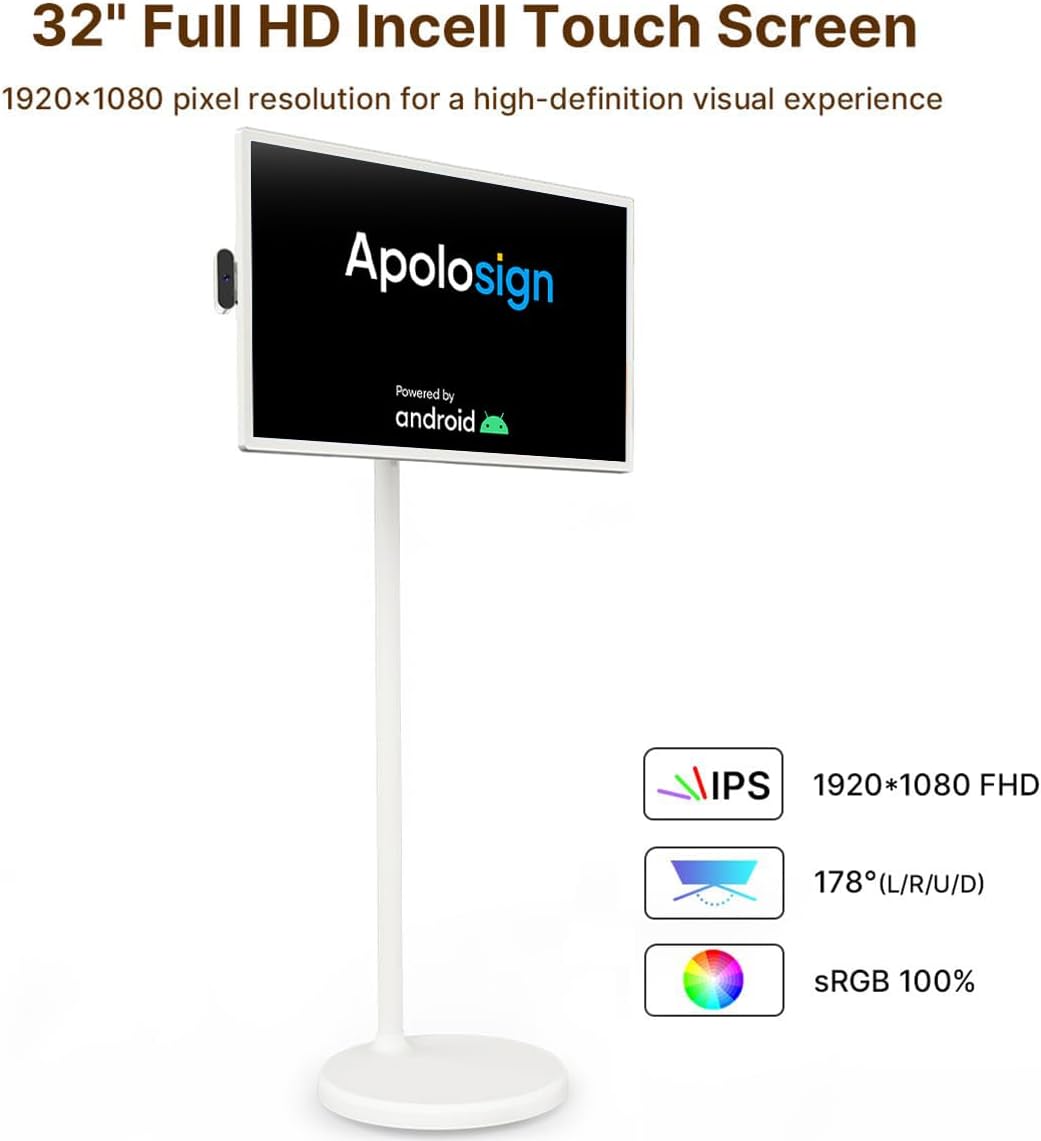
Figure 2: High-Definition Incell Touch Screen
2.2 Screen Rotation and Adjustment
The screen offers full swivel rotation and height adjustment for optimal viewing comfort in various settings.

Figure 3: Multi-angle Rotatable Screen
- Rotation: The screen can be rotated 90 degrees to switch between landscape and portrait modes.
- Tilting: Adjust the screen tilt up to ±20 degrees for comfortable viewing angles.
- Height Adjustment: The built-in stand supports 18cm height adjustment.
2.3 App Management and Usage
With full Google certification, you can download and install any application available on the Google Play Store. The device features 8GB RAM and 128GB internal storage for your favorite apps.

Figure 4: Android 12 OS with Google Play Store Access
2.4 Screen Mirroring
Easily share content from your phone, tablet, or computer using the screen mirroring function. Both wireless and wired options are available.
Video: How to screen mirror a mobile phone/tablet/laptop
2.5 Mobility and Battery Life
The portable design with a built-in 108Wh battery offers up to 5 hours of wireless use, making it a mobile entertainment center. The base is equipped with silent universal wheels for easy movement across different surfaces.

Figure 5: Rollable Charging Stand with Quiet Wheels
3. Maintenance
Proper maintenance ensures the longevity and optimal performance of your ApoloSign Smart Screen.
3.1 Cleaning the Device
- Screen: Use a soft, lint-free cloth slightly dampened with water or a screen-cleaning solution. Avoid harsh chemicals or abrasive materials.
- Body: Wipe the exterior surfaces with a soft, dry cloth. Do not use liquid cleaners directly on the device.
3.2 Battery Care
- To prolong battery life, avoid fully discharging the battery frequently.
- Store the device in a cool, dry place when not in use for extended periods.
- Charge the battery regularly, even if the device is not in frequent use, to prevent deep discharge.
4. Troubleshooting
This section addresses common issues you might encounter with your ApoloSign Smart Screen.
| Problem | Possible Cause | Solution |
|---|---|---|
| Device does not power on | Low battery; Power cable not connected properly. | Connect the power adapter and ensure it's plugged into a working outlet. Allow some time for charging. |
| Touch screen unresponsive | Software glitch; Screen dirty; Hardware issue. | Restart the device. Clean the screen with a soft, lint-free cloth. If the issue persists, contact customer support. |
| Remote control not working | Low remote battery; Remote not paired; Obstruction. | Replace remote batteries. Ensure no obstructions between remote and device. Re-pair the remote if necessary (refer to the full user manual for pairing instructions). |
| Battery not holding charge | Battery degradation; Improper charging. | Ensure you are using the original charger. Avoid extreme temperatures. If the battery life has significantly decreased, it may require service. |
| Cannot connect to Wi-Fi | Incorrect password; Router issue; Device too far from router. | Verify Wi-Fi password. Restart your router. Move the device closer to the Wi-Fi router. |
5. Specifications
Detailed technical specifications for the ApoloSign 32-Inch Portable Smart Screen.
- Product Dimensions: 16.14 x 28.87 x 59.05 inches
- Item Weight: 56.9 pounds
- Item Model Number: SW3295T (Octa-core)
- Batteries: 1 Lithium Ion battery required (included)
- Screen Size: 32 Inches
- Resolution: 1920 x 1080 Pixels (FHD 1080p)
- Aspect Ratio: 16:9
- Total USB Ports: 1
- Manufacturer: ElcSign
6. Warranty and Support
Your ApoloSign Smart Screen comes with a standard manufacturer's warranty. For specific warranty terms and conditions, please refer to the official documentation provided with your product.
6.1 Additional Resources
- User Manual (PDF): Download Here
- Installation Manual (PDF): Download Here
6.2 Customer Support
For any technical assistance, troubleshooting beyond this guide, or warranty claims, please contact ApoloSign customer support through their official channels or the retailer where the product was purchased.