
1. Product Overview
The CANYON Smartband Senior ST-02 is a lightweight activity tracker designed with features tailored for seniors. It offers essential functionalities such as activity monitoring, Bluetooth connectivity for smartphone integration, and an SOS button for emergency situations. This manual provides detailed instructions for setting up, operating, and maintaining your device.
The device is designed for comfort and ease of use, ensuring freedom of movement while providing important safety and tracking capabilities.
2. Setup Guide
2.1. Charging the Device
Before first use, fully charge your Smartband. Connect the charging cable to the designated charging pins on the back of the device and to a standard USB power adapter. A full charge typically takes approximately 2 hours.
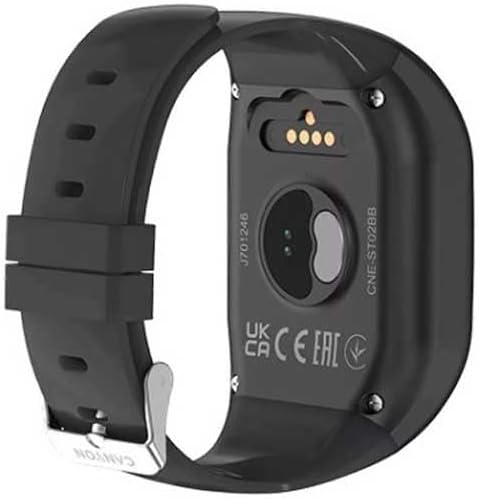
Image: Rear view of the Smartband, highlighting the metallic charging pins and optical sensors for health monitoring.
2.2. Powering On/Off
To power on the device, press and hold the main button (often the SOS button or a dedicated power button, if present) for a few seconds until the screen illuminates or a vibration is felt. To power off, navigate to the power-off option in the device menu or press and hold the main button again, following on-screen prompts.
2.3. App Installation and Pairing
- Download the official CANYON companion application from your smartphone's app store (Google Play Store for Android or Apple App Store for iOS).
- Ensure Bluetooth is enabled on your smartphone.
- Open the CANYON app and follow the on-screen instructions to create an account or log in.
- Select "Add Device" or "Pair New Device" within the app. The app will search for available Smartbands.
- Select "CANYON ST-02" from the list of found devices to initiate pairing. Confirm any pairing requests on both your smartphone and the Smartband.
Successful pairing will be indicated by a notification on both devices.
3. Operating Instructions
3.1. Button Functions

Image: Front view of the Smartband, displaying the '1', '2', and prominent 'SOS' buttons, along with a microphone icon.
- Button 1: Typically used for quick dialing a pre-set contact (e.g., family member 1).
- Button 2: Typically used for quick dialing a pre-set contact (e.g., family member 2).
- SOS Button: Press and hold this button in an emergency. It will initiate a call to pre-programmed emergency contacts and may send location data.
- Microphone Icon: Indicates the built-in microphone for two-way communication during calls initiated via buttons 1, 2, or SOS.
3.2. Activity Tracking
The Smartband continuously tracks your daily activity, including steps taken, distance covered, and calories burned. This data is synchronized with the companion app on your smartphone, where you can view your progress and historical data.
3.3. GPS Functionality
The Smartband utilizes GPS via your connected smartphone to provide location tracking. This feature is particularly useful for emergency situations or for family members to monitor the wearer's location (with consent). Ensure your smartphone's GPS and Bluetooth are active for this feature to function correctly.
3.4. Receiving Notifications
Once paired with your smartphone, the Smartband can display notifications for incoming calls, messages, and other app alerts. Manage notification settings within the CANYON companion app.
4. Maintenance and Care
- Cleaning: Wipe the device regularly with a soft, dry cloth. For stubborn dirt, use a slightly damp cloth and immediately dry the device. Avoid harsh chemicals or abrasive materials.
- Water Resistance: Refer to the product specifications for water resistance ratings. Avoid submerging the device beyond its specified limits.
- Battery Care: To prolong battery life, avoid extreme temperatures. Do not leave the device fully discharged for extended periods.
- Storage: When not in use for a long time, store the Smartband in a cool, dry place.
5. Troubleshooting
| Problem | Possible Solution |
|---|---|
| Device does not power on. | Ensure the device is fully charged. Connect it to the charger for at least 30 minutes. |
| Cannot pair with smartphone. |
|
| SOS function not working. |
|
| Inaccurate activity data. | Ensure the Smartband is worn correctly on the wrist. Calibrate the device through the companion app if available. |
6. Product Specifications
- Brand: CANYON
- Model Name: Senior ST-02
- Color: Black
- Connectivity Technology: Bluetooth
- Special Features: Lightweight, Bluetooth, Senior-oriented features
- Compatible Devices: Smartphone
- Rechargeable Battery: Yes (1 Lithium-polymer included)
- GPS: GPS via smartphone
- Form Factor: Square
- Target Audience: Unisex
7. Warranty and Support
CANYON products are covered by a manufacturer's warranty. Please refer to the warranty card included with your product or visit the official CANYON website for detailed warranty terms and conditions.
For technical assistance, troubleshooting, or further inquiries, please contact CANYON customer support through their official website or the contact information provided in your product packaging.


