
Jeecoo M40
Jeecoo M40 Bluetooth Computer Speakers Instruction Manual
Model: M40 | Brand: Jeecoo
Introduction
Thank you for choosing the Jeecoo M40 Bluetooth Computer Speakers. This manual provides essential information for the proper setup, operation, and maintenance of your speakers. Please read it thoroughly before use to ensure optimal performance and longevity of your product.
What's in the Box
- Jeecoo M40 Speakers (2 units)
- Control Unit (wired)
- User Manual (this document)
Setup Instructions
Follow these steps to set up your Jeecoo M40 speakers:
- Placement: Position the two speaker units on either side of your monitor or laptop for optimal stereo sound. Ensure the control unit is within easy reach.
- Connect Speakers to Control Unit: Connect the cables from each speaker unit to the corresponding ports on the control unit.
- Power Connection: Connect the USB power cable from the control unit to a USB port on your computer, laptop, or a 5V/1A~2A USB power adapter (not included).
- Audio Connection: Choose your preferred audio connection method:
- 3.5mm AUX: Connect the 3.5mm AUX cable from the control unit to the headphone jack of your device (computer, laptop, tablet, smartphone, gaming console).
- Bluetooth: Ensure the speakers are powered on. Switch the mode to Bluetooth using the control unit. On your device, search for "Jeecoo M40" in the Bluetooth settings and pair.
- Power On: Press and hold the power button on the control unit for 3 seconds to turn on the speakers.
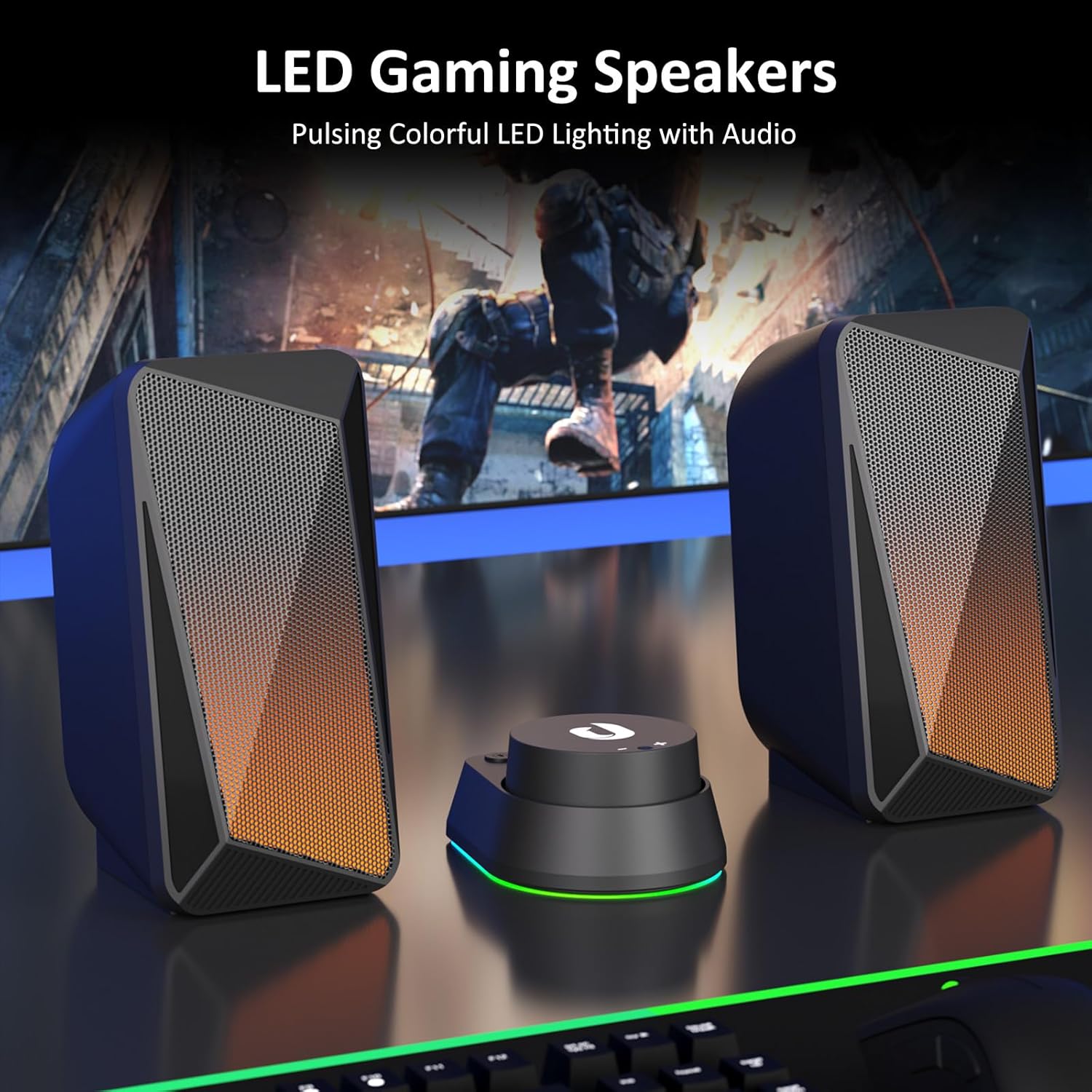
Image: Jeecoo M40 speakers and control unit connected to a laptop, illustrating the setup.

Image: Diagram showing 3.5mm AUX connection for Nintendo, Laptop, PC, and Bluetooth connection for Mobile, Laptop, iPad.
Operating Instructions
The convenient in-line control unit allows for easy management of your speaker functions:
- Power ON/OFF: Press and hold the ON/OFF button (labeled with a power symbol) for 3 seconds.
- Volume Control: Rotate the large dial on the control unit to adjust the volume. Turn clockwise for volume up (+), and counter-clockwise for volume down (-).
- Switch Audio Input Mode: Press the MODE button (labeled with "O/M") to switch between Bluetooth and 3.5mm AUX input modes.
- Change LED Lighting Mode: Press the LIGHT button (labeled with a light bulb symbol) to cycle through the three available lighting modes: Pulsing, LED Flame, and Lights Off.
- Reset Bluetooth Connection: When in Bluetooth mode, press and hold the LIGHT button for 3 seconds to wipe off the current Bluetooth connection and reset.

Image: Detailed view of the control unit, highlighting the volume dial, mode switch, and LED lighting control.
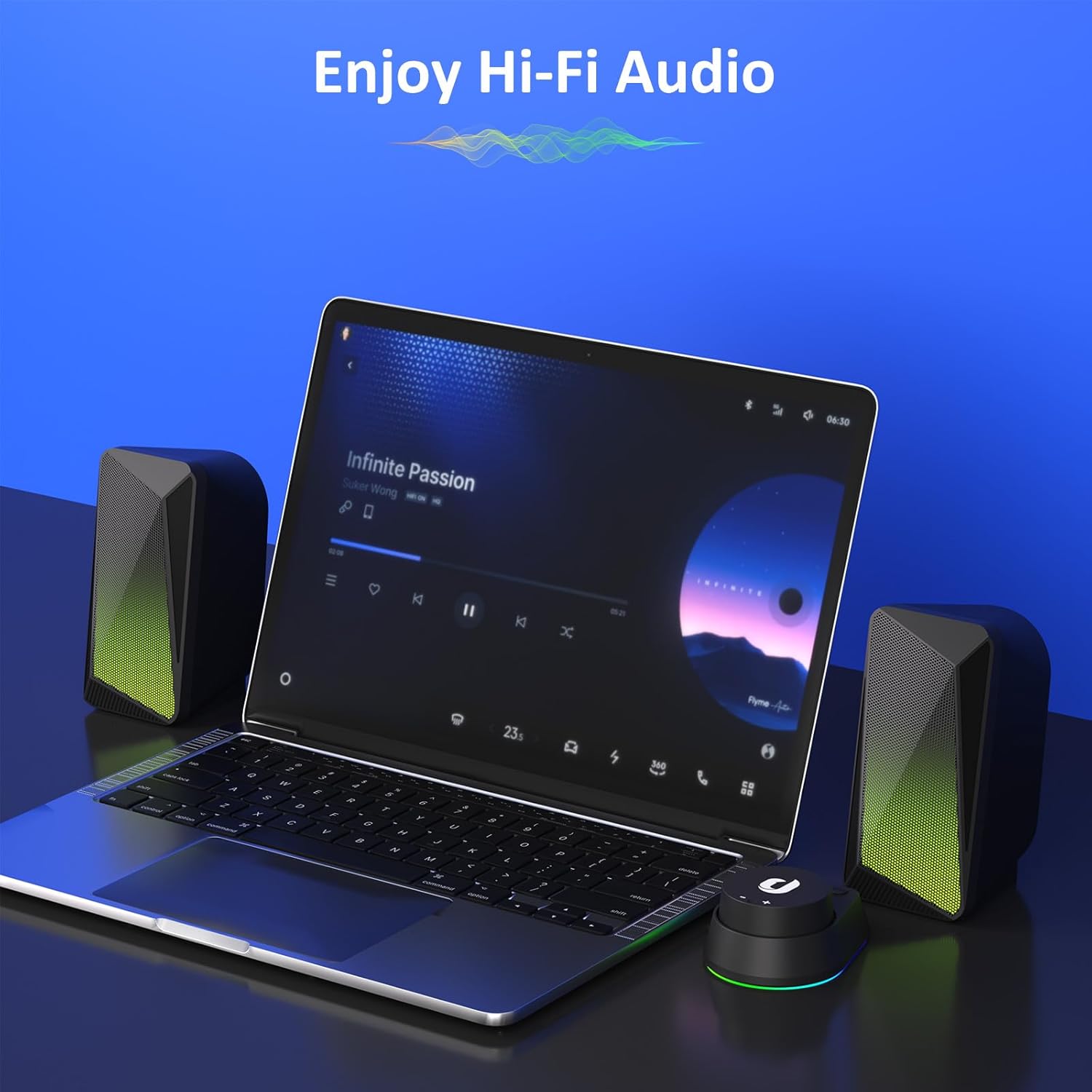
Image: Speakers in use with a laptop, demonstrating the audio experience.
LED Lighting Modes
The Jeecoo M40 speakers feature three distinct LED lighting modes to enhance your audio experience:
- Pulsing Mode: The LED lights change colors and pulse in sync with the beat of your audio, creating a dynamic visual effect.
- LED Flame Mode: The lights display a warm, flickering flame-like effect, ideal for a relaxed or gaming atmosphere.
- Lights Off: For a distraction-free listening experience, the LED lights can be turned off completely.
To cycle through these modes, press the LIGHT button on the control unit.

Image: Speakers showcasing the LED flame lighting in a typical PC gaming environment.
Audio Features
The Jeecoo M40 speakers are designed to deliver a balanced and clear audio experience:
- Enhanced 2.0 Channel Stereo Sound: Equipped with custom-tuned 2-inch driver units, these speakers provide clear and crisp stereo audio.
- Balanced Audio Profile: Enjoy well-balanced highs and mids, complemented by a noticeable bass response for a full sound.

Image: Illustration of the speaker's internal driver unit and sound projection for enhanced stereo audio.
Maintenance
To ensure the longevity and optimal performance of your speakers, follow these maintenance guidelines:
- Cleaning: Use a soft, dry cloth to wipe down the speaker surfaces. Avoid using abrasive cleaners or solvents.
- Storage: When not in use for extended periods, store the speakers in a cool, dry place away from direct sunlight and extreme temperatures.
- Cable Management: Avoid sharp bends or excessive pulling on the cables to prevent damage.
- Avoid Liquids: Do not expose the speakers to water or other liquids, as they are not waterproof.
Troubleshooting
If you encounter any issues with your Jeecoo M40 speakers, refer to the following common solutions:
| Problem | Solution |
|---|---|
| No sound from speakers. |
|
| Bluetooth connection issues. |
|
| LED lights are not working or stuck. |
|
| Sound cuts out intermittently. |
|
Specifications
| Feature | Detail |
|---|---|
| Brand | Jeecoo |
| Model Number | M40 |
| Speaker Maximum Output Power | 12 Watts |
| Frequency Response | 18000 Hz |
| Connectivity Technology | Auxiliary, Bluetooth |
| Audio Output Mode | Stereo (2.0 Channel) |
| Speaker Size | 2 Inches (Driver Units) |
| Power Source | USB-powered (5 Volts Input Voltage) |
| Bluetooth Range | 10 Meters |
| Item Dimensions (D x W x H) | 3.5"D x 3.1"W x 6.5"H (9.0*7.8*16.5cm) per speaker |
| Cable Length (3.5mm Aux) | 4.9ft (150cm) |
| Cable Length (between L/R units) | 3.9ft (120cm) |
| Control Method | Button, Dial |
| Additional Features | Unique Pulsing & LED Flame Lighting |
| Compatible Devices | PC Desktop Computers; Macbook Air/Pro, iMac, laptops; iPad, Tablet, Smartphones; PS4/PS5 Nintendo Switch Game Consoles (Not for Xbox) |

Image: Visual representation of speaker dimensions and key product specifications.
Warranty and Support
The Jeecoo M40 speakers come with a 6-month warranty from the date of purchase. This warranty covers manufacturing defects and ensures reliable performance of your product.
For warranty claims, technical support, or any inquiries, please contact Jeecoo customer service through the retailer where you purchased the product or visit the official Jeecoo website for contact information.
Please retain your proof of purchase for warranty validation.
Related documentsM40


Ask a question about this manual
Ask about setup, troubleshooting, compatibility, parts, safety, or missing instructions. Manuals+ will review the question and use this page’s manual context to help answer it.