
Xiegu DE-19
Xiegu DE-19 Data Interface Expansion Card User Manual
Model: DE-19 | Brand: Xiegu
1. Introduction and Overview
The Xiegu DE-19 is an external expansion adapter specifically designed to enhance the functionality of Xiegu G90, G106, and XPA125B transceivers. It serves as a crucial link for connecting these radio devices to a personal computer, enabling advanced control and data communication capabilities, particularly for digital modes.
This unit integrates a USB interface, an isolation and amplification unit, and dedicated interface units tailored for compatibility with the specified Xiegu models. Its design prioritizes ease of connection and reliable performance for various amateur radio applications.
2. Product Features
- Enhanced Performance: Seamlessly integrates with G90, G106, and XPA125B models for improved functionality.
- Convenient Connectivity: Features a built-in USB interface for direct PC connection, simplifying control and data communication.
- Integrated Units: Includes isolation and amplification units, along with specific interface units for optimal compatibility.
- High-Quality Construction: Manufactured with durable materials to ensure long-lasting performance and stable connections.
- Versatile Compatibility: Functions as an external adapter for a range of Xiegu transceivers, offering flexibility for amateur radio setups.
3. Package Contents
Upon opening the package, please verify that all the following items are present:
- Xiegu DE-19 Data Interface Expansion Card Unit
- USB Cable (Type-A to Micro-B)
- CIV Cable (3.5mm to 3.5mm audio jack)
- ACC Cable (8-pin mini-DIN to 3.5mm audio jack)

Figure 3.1: The Xiegu DE-19 unit displayed alongside its included USB, CIV, and ACC connection cables.
4. Setup Guide
Follow these steps to properly set up your Xiegu DE-19 with your compatible transceiver and computer.
4.1. Component Identification

Figure 4.1: Top view of the DE-19 showing USB port, LED indicators, CIV, PA, and ACC labels.

Figure 4.2: Close-up view of the DE-19's USB port and the three LED indicators for USB activity.

Figure 4.3: Close-up view of the DE-19's CIV (3.5mm), PA (3.5mm), and ACC (8-pin mini-DIN) ports.
4.2. Connection Steps
- Connect to Transceiver:
- For Xiegu G90/G106: Connect the supplied CIV cable (3.5mm to 3.5mm) from the DE-19's 'CIV' port to the 'CIV' port on your G90/G106 transceiver.
- For Xiegu XPA125B: Connect the supplied ACC cable (8-pin mini-DIN to 3.5mm) from the DE-19's 'ACC' port to the 'ACC' port on your XPA125B amplifier.
- For audio input/output (e.g., for digital modes), connect the appropriate audio cables (not always included, may require separate purchase) from your transceiver's audio out/in ports to the corresponding audio input/output on the DE-19 (if available and required for your specific setup). The DE-19 primarily handles CAT and PTT.
- Connect to PC: Connect the supplied USB cable from the DE-19's 'USB' port to an available USB port on your computer.
- Power On: Ensure your transceiver and computer are powered on. The DE-19 draws power directly from the USB connection.
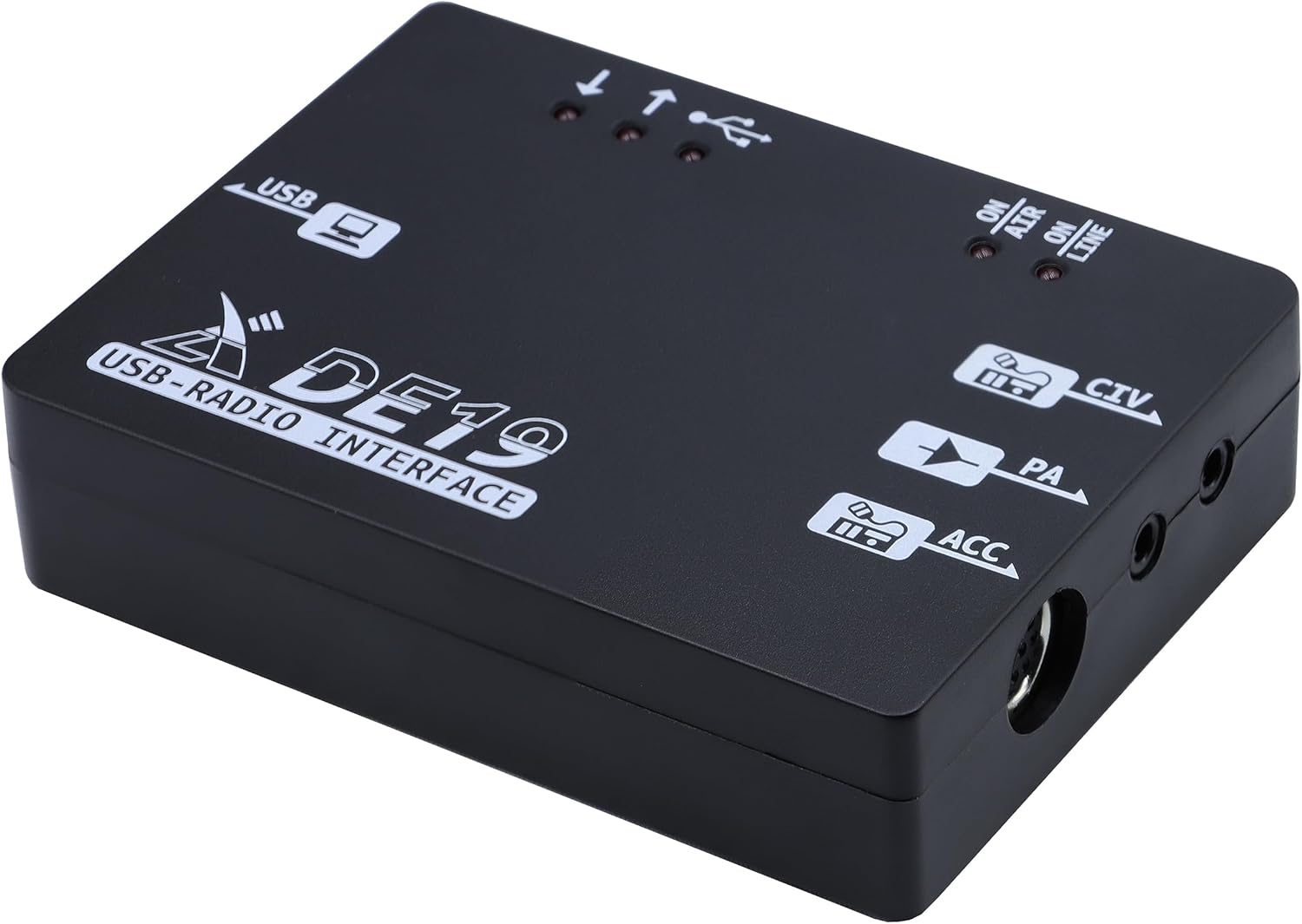
Figure 4.4: The DE-19 unit with USB, CIV, and ACC cables connected, illustrating typical setup.
4.3. Driver Installation
Upon connecting the DE-19 to your computer via USB, the necessary drivers (typically for a virtual COM port and USB audio device) should install automatically on most modern operating systems (Windows 10/11, macOS, Linux). If automatic installation fails, please visit the official Xiegu website (www.xiegu.eu or www.radioddity.com/collections/xiegu for Radioddity distribution) to download and manually install the latest drivers for the DE-19.
5. Operating Instructions
Once the DE-19 is physically connected and drivers are installed, you can begin using it with your PC software.
5.1. LED Indicators
- USB Activity LEDs (3 LEDs): These indicators illuminate to show data transmission and reception activity over the USB connection. A blinking light indicates active data flow.
- ON AIR LED: This LED illuminates when the transceiver is transmitting (PTT activated).
- ON LINE LED: This LED indicates that the DE-19 is powered on and communicating with the connected transceiver.
5.2. Software Configuration
The DE-19 provides a virtual COM port for CAT control and a USB audio device for digital mode sound card functionality. You will need to configure your amateur radio software (e.g., WSJT-X, FLdigi, Ham Radio Deluxe, etc.) to use these interfaces:
- Identify COM Port: In your computer's Device Manager (Windows) or System Information (macOS/Linux), locate the newly installed virtual COM port associated with the DE-19. Note its COM port number.
- Identify Audio Device: Similarly, identify the USB audio device (often named something like 'USB Audio CODEC') provided by the DE-19.
- Configure CAT Control: In your radio control software, select the identified COM port for CAT control and set the baud rate to match your transceiver's settings (refer to your transceiver's manual).
- Configure PTT: PTT (Push-To-Talk) can typically be configured via CAT commands or DTR/RTS lines on the virtual COM port. Select the appropriate method in your software.
- Configure Audio: In your digital mode software, select the DE-19's USB audio device for both input (receive) and output (transmit) audio. Adjust audio levels within the software and your operating system for optimal performance.
6. Maintenance
To ensure the longevity and optimal performance of your Xiegu DE-19, follow these simple maintenance guidelines:
- Cleaning: Use a soft, dry cloth to clean the exterior of the unit. Avoid using harsh chemicals, solvents, or abrasive materials.
- Storage: When not in use for extended periods, store the DE-19 in a cool, dry place, away from direct sunlight and extreme temperatures.
- Connections: Periodically check all cable connections to ensure they are secure and free from damage. Avoid bending cables sharply or putting strain on the connectors.
- Environment: Operate the DE-19 in a stable environment, free from excessive dust, moisture, or vibrations.
7. Troubleshooting
If you encounter issues with your DE-19, refer to the following common problems and solutions:
| Problem | Possible Cause | Solution |
|---|---|---|
| DE-19 not recognized by PC | Loose USB connection, missing/corrupt drivers, faulty USB port. | Ensure USB cable is securely connected. Try a different USB port on your PC. Reinstall drivers from the Xiegu website. |
| No CAT control or data communication | Incorrect COM port selected in software, incorrect baud rate, transceiver not configured for CAT, incorrect cabling. | Verify COM port and baud rate settings in your software match Device Manager and transceiver. Check CIV/ACC cable connections. Ensure transceiver's CAT settings are enabled. |
| No audio for digital modes | Incorrect audio device selected in software, audio levels too low/high, transceiver audio settings. | Select the DE-19's USB audio device for input/output in your digital mode software. Adjust audio levels in both software and OS. Check transceiver's audio output settings. |
| ON AIR LED not illuminating during transmit | PTT not configured correctly, faulty PTT line. | Verify PTT settings in your software (CAT PTT or DTR/RTS). Check ACC cable connection to XPA125B if applicable. |
8. Specifications
| Feature | Detail |
|---|---|
| Model Number | Xiegu DE-19 |
| Compatible Devices | Xiegu G90, G106, XPA125B |
| Hardware Interface | USB |
| Dimensions (Package) | 6.14 x 4.96 x 1.73 inches (approx.) |
| Item Weight | 8.8 ounces (approx.) |
| First Available | August 1, 2023 |
9. Warranty and Support
Xiegu products typically come with a standard manufacturer's warranty. For specific warranty terms and conditions, please refer to the documentation included with your purchase or visit the official Xiegu website. For technical support, troubleshooting assistance, or service inquiries, please contact Xiegu customer support through their official channels or your authorized dealer.
Official Xiegu Website: www.xiegu.eu
Related documentsDE-19


Ask a question about this manual
Ask about setup, troubleshooting, compatibility, parts, safety, or missing instructions. Manuals+ will review the question and use this page’s manual context to help answer it.