1. Product Overview and Compatibility
This manual provides detailed instructions for the Roinvou 9-inch IPS HD Touch Screen Car Stereo, featuring 5G WiFi, Android 13 operating system, Wireless CarPlay, Android Auto, Bluetooth, and GPS navigation. This unit is specifically designed for Toyota Prius models manufactured between 2010 and 2015 (Left-Hand Drive, JBL audio system variant).
Key Features:
- 9-inch IPS HD Touch Screen (1024x600 resolution)
- Android 13 Operating System
- 5G WiFi Connectivity
- Wireless and Wired Apple CarPlay & Android Auto
- Bluetooth for hands-free calling and music streaming
- Built-in GPS Navigation with offline map support
- Hi-Fi Audio Processing
- FM/RDS Radio
- Mirror Link Functionality
- Support for HD Reversing Camera (included)
- Steering Wheel Control (SWC) compatibility
Vehicle Compatibility: This car stereo is compatible with Toyota Prius 2010-2015 (LHD) models. Please verify your vehicle's dashboard and wiring harness configuration against the images provided in the installation section to ensure proper fitment and functionality, especially for JBL audio systems.
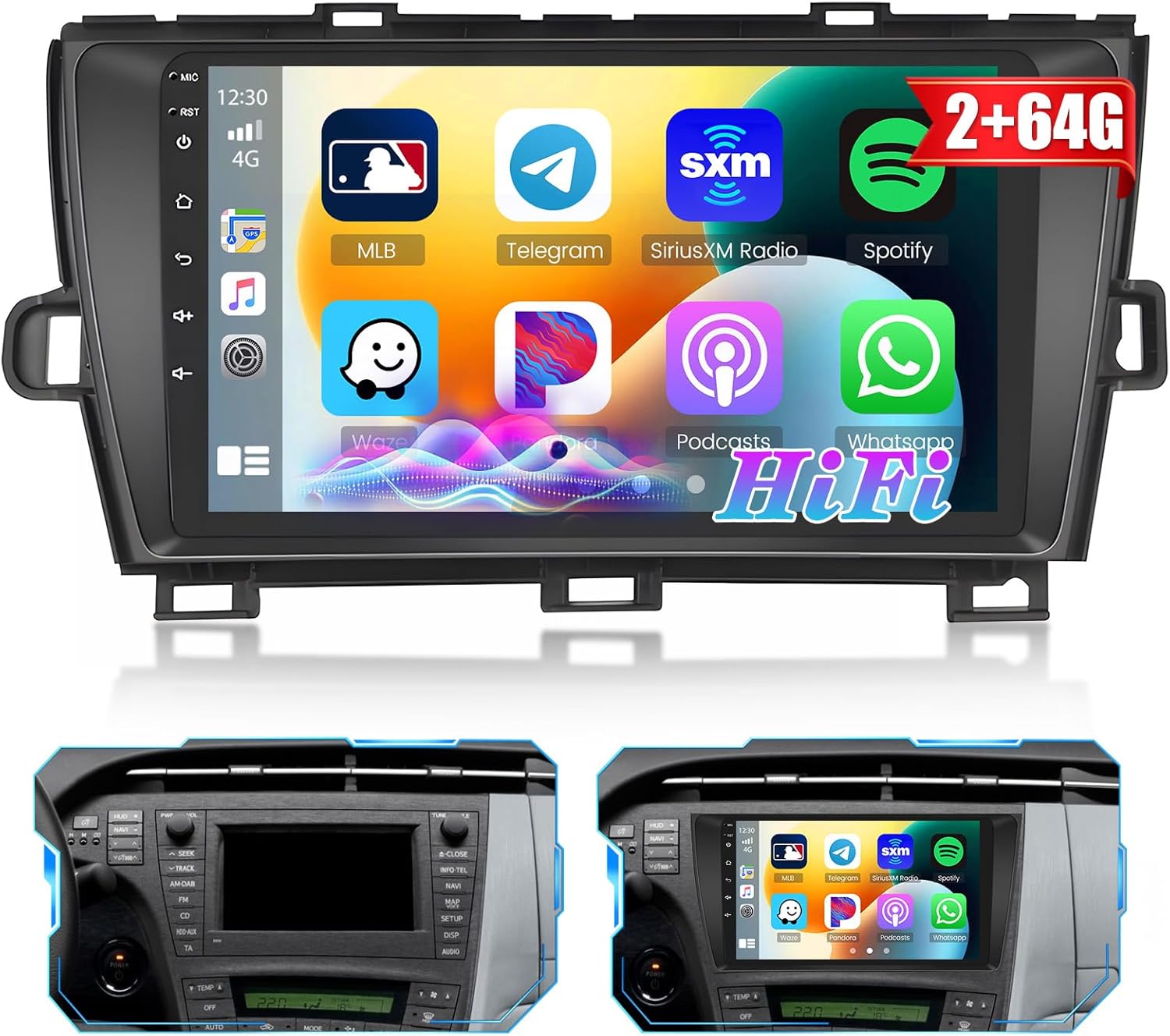
Image 1.1: Front view of the Roinvou 9-inch Android 13 Car Stereo unit, showing the display with various app icons.
2. Setup and Installation
Professional installation is recommended. Before beginning, ensure the vehicle's battery is disconnected. Refer to your vehicle's service manual for specific dashboard removal procedures.
2.1. Package Contents
Verify that all components are present in the package:
- Roinvou Car Stereo Unit for Toyota Prius (LHD)
- Power Cable
- CANBUS Box (if applicable for steering wheel control)
- Dual RCA Harness
- GPS Antenna
- AHD Backup Camera
- External Microphone
- Rear Camera Input Cable
- Dual USB Cable
- Installation Tool & Accessories

Image 2.1: Comparison of the Toyota Prius dashboard before and after the Roinvou car stereo installation, showing seamless integration.
2.2. Wiring Diagram and Connections
Carefully follow the wiring diagram provided with your unit. Ensure all connections are secure to prevent electrical issues or malfunction.
- Power Cable: Connect to the vehicle's main power harness.
- CANBUS Box: Connect the CANBUS box to the vehicle's CAN-bus system and the stereo unit. This is crucial for retaining factory features like steering wheel controls and potentially the JBL amplifier.
- RCA Harness: For external amplifiers, subwoofers, or auxiliary audio/video inputs/outputs.
- GPS Antenna: Mount the GPS antenna in a location with a clear view of the sky, typically on the dashboard or under the windshield, away from metal obstructions.
- AHD Backup Camera: Connect the camera's video output to the "CAM-IN" input on the stereo. The camera's power wire (red) should be connected to the reversing lamp's positive (+) wire, and the ground wire (black) to a chassis ground (GND).
- External Microphone: Plug into the dedicated microphone input for improved call quality.
- USB Cables: Connect for data transfer, charging, or wired CarPlay/Android Auto.

Image 2.2: Comprehensive diagram illustrating the connections for the Roinvou car stereo, including power, RCA, USB, GPS antenna, and camera inputs.

Image 2.3: Illustration of the backup camera connection, detailing power and video signal wiring to the head unit.
2.3. Important Notes on Compatibility
This product supports specific CD player and back interface configurations. Please review the following images to confirm your vehicle's compatibility before installation.

Image 2.4: Visual guide for compatible and incompatible factory CD players and rear wiring interfaces for the Toyota Prius.
3. Operating Instructions
3.1. Wireless CarPlay & Android Auto
The unit supports both wired and wireless Apple CarPlay and Android Auto. This allows for seamless integration of your smartphone's navigation, communication, and entertainment features.
- Wireless Connection: Connect your smartphone via Bluetooth for wireless CarPlay or Android Auto. Ensure Bluetooth is enabled on both devices.
- Wired Connection: Connect your smartphone via a USB cable to the unit's USB port.
- Once connected, the CarPlay or Android Auto interface will appear on the screen, allowing access to supported apps.

Image 3.1: Display of Apple CarPlay and Android Auto interfaces on the Roinvou car stereo, showing app integration.
3.2. Mirror Link
Mirror Link allows you to display your smartphone's screen directly onto the car stereo. This feature is supported via USB/WiFi Hotspot for iOS devices and USB/Bluetooth/WiFi for Android devices.

Image 3.2: Demonstration of the Mirror Link function, showing a smartphone screen mirrored onto the car stereo display.
3.3. GPS Navigation
The unit includes a built-in GPS module for navigation. It supports both online and offline maps. The system comes preloaded with free offline navigation maps via the Here WeGo application. You can also download other navigation apps from the Play Store when connected to WiFi.

Image 3.3: Screenshot of the GPS navigation interface, displaying a route and map details.
3.4. WiFi Connectivity
Connect the car stereo to a WiFi network or a mobile hotspot to access online features, download applications from the Play Store, stream videos, and use online navigation services.

Image 3.4: Display showing the WiFi Hotspot feature enabled, with the YouTube application interface visible.
3.5. Bluetooth Functionality
The built-in Bluetooth module with A2DP support enables hands-free calling, phonebook synchronization, and wireless music streaming from your smartphone.
- Pairing: Go to the Bluetooth settings on the stereo and your phone, search for available devices, and pair with the car stereo.
- Hands-Free Calls: Make and receive calls directly from the stereo screen.
- Music Streaming: Play audio from your phone through the car's speakers.

Image 3.5: Screenshot of the Bluetooth interface, showing options for hands-free calling and music playback.
3.6. FM/RDS Radio
The high-quality FM radio with RDS (Radio Data System) allows you to listen to local broadcasts, real-time traffic information, and weather forecasts. You can save up to 18 common stations for quick access.

Image 3.6: Display of the FM radio interface, showing the current frequency and station presets.
3.7. Hi-Fi Audio Settings
The Hi-Fi setting reproduces sound similar to your car's original audio system, providing an enhanced listening experience. The unit features an equalizer with various presets (e.g., Custom, Classical, Jazz, Pop) and manual adjustments to fine-tune the audio output.

Image 3.7: Screenshot of the Hi-Fi equalizer settings, showing various audio adjustment options.
3.8. HD Capacitive Touch Screen and Split Screen
The 9-inch IPS HD capacitive touch screen offers sensitive and accurate responses, supporting 1080P video playback. The split-screen function allows you to view two applications simultaneously, such as navigation and music playback.

Image 3.8: Display demonstrating the split-screen feature, with music playback on one side and GPS navigation on the other.
3.9. Reversing Display (Backup Camera)
The included waterproof night vision AHD backup camera automatically displays the reverse image on the screen when the vehicle is shifted into reverse gear. This feature enhances safety during parking and reversing maneuvers.

Image 3.9: Example of the reversing display, showing the view from the backup camera with parking guidelines.
3.10. Steering Wheel Control (SWC)
If your vehicle has original steering wheel control buttons, you can configure them to control the car stereo. This requires the CANBUS decoder box to be correctly installed and connected. Access the "Steering Learn" menu in the unit's settings to program the buttons.

Image 3.10: Screenshot of the steering wheel control learning interface, allowing users to map vehicle buttons to stereo functions.
4. Maintenance
Regular maintenance ensures optimal performance and longevity of your Roinvou car stereo.
- Screen Cleaning: Use a soft, lint-free cloth to gently wipe the touch screen. Avoid abrasive cleaners or solvents that may damage the display.
- Software Updates: Periodically check for available software updates through the unit's settings menu (requires WiFi connection). Updates can improve performance, add new features, and fix bugs.
- Cable Connections: Ensure all wiring connections remain secure. Loose connections can lead to intermittent issues.
- Environmental Care: Avoid exposing the unit to extreme temperatures, direct sunlight for prolonged periods, or excessive moisture.
5. Troubleshooting
This section addresses common issues you might encounter. For persistent problems, contact customer support.
| Problem | Possible Cause | Solution |
|---|---|---|
| Unit does not power on. | Incorrect wiring, blown fuse, power supply issue. | Check power cable connections. Verify vehicle fuses. Ensure battery is connected. |
| No sound or poor sound quality. | Incorrect speaker wiring, amplifier issue (JBL), incorrect audio settings. | Check speaker connections. Ensure CANBUS is correctly installed for JBL systems. Adjust equalizer settings. |
| Wireless CarPlay/Android Auto fails to connect automatically. | Bluetooth interference, software glitch, phone settings. | Ensure Bluetooth is enabled on both devices. Try turning Bluetooth off and on on your phone. Restart the car stereo. Ensure the phone is not connected to other Bluetooth devices. |
| Backup camera not displaying. | Incorrect camera wiring, faulty camera, incorrect input selection. | Verify camera power and video signal connections. Ensure the camera's red wire is connected to the reverse light. Check if the unit automatically switches to camera input when in reverse. |
| GPS signal is weak or inaccurate. | GPS antenna placement, antenna fault. | Ensure the GPS antenna is mounted in a clear, unobstructed location. Check antenna connection to the unit. |
| Screen is too dark in sunlight. | Brightness settings. | Adjust the screen brightness settings to maximum. Note that direct strong sunlight can still affect visibility on any screen. |
| Steering wheel controls not working. | CANBUS not connected, incorrect programming. | Ensure the CANBUS box is correctly installed and connected. Access the "Steering Learn" menu in settings to program the buttons. |
6. Specifications
| Feature | Detail |
|---|---|
| Brand | Roinvou |
| Model | 2+64G (JBL) |
| Operating System | Android 13 |
| Screen Size | 9 Inches (23 cm diagonal) |
| Screen Resolution | 1024 x 600 IPS HD Touch Screen |
| Connectivity | Bluetooth, USB, Wi-Fi (5G) |
| Special Features | Wireless/Wired CarPlay & Android Auto, Mirror Link, GPS Navigation, Hi-Fi Sound, FM/RDS, EQ Settings, 1080P Video Playback, SWC, Split Screen |
| Included Components | Car Stereo, Power Cable, CANBUS Box, Dual RCA Harness, GPS Antenna, AHD Backup Camera, External Microphone, Rear Camera Input Cable, Dual USB Cable, Installation Tool & Accessories |
| Product Dimensions | 10.63 x 2.36 x 5.91 inches |
| Item Weight | 3.01 pounds |
7. Warranty and Customer Support
Roinvou products are designed for quality and performance. For any issues or inquiries, please refer to the following information:
- Return Policy: This product is eligible for a 30-day refund/replacement policy. Please refer to the retailer's specific return guidelines.
- Technical Support: For technical assistance, installation guidance, or troubleshooting not covered in this manual, please contact Roinvou customer support.
You can typically find customer support contact information on the product packaging, the retailer's website, or by visiting the Roinvou brand store online.

Image 7.1: Information on how to contact Roinvou customer support, including steps to ask a question via the Amazon store.