
ASHATA ASHATAqeo3f0th5m
S99 Drone User Manual
Model: ASHATAqeo3f0th5m | Brand: ASHATA
Introduction
The ASHATA S99 Drone is a sophisticated folding quadcopter designed for an engaging flight experience. It features advanced capabilities such as 4-way obstacle avoidance, optical hovering for stable flight, and a high-definition dual camera for capturing stunning aerial footage. This manual provides essential information for the safe and effective operation, setup, and maintenance of your S99 Drone.
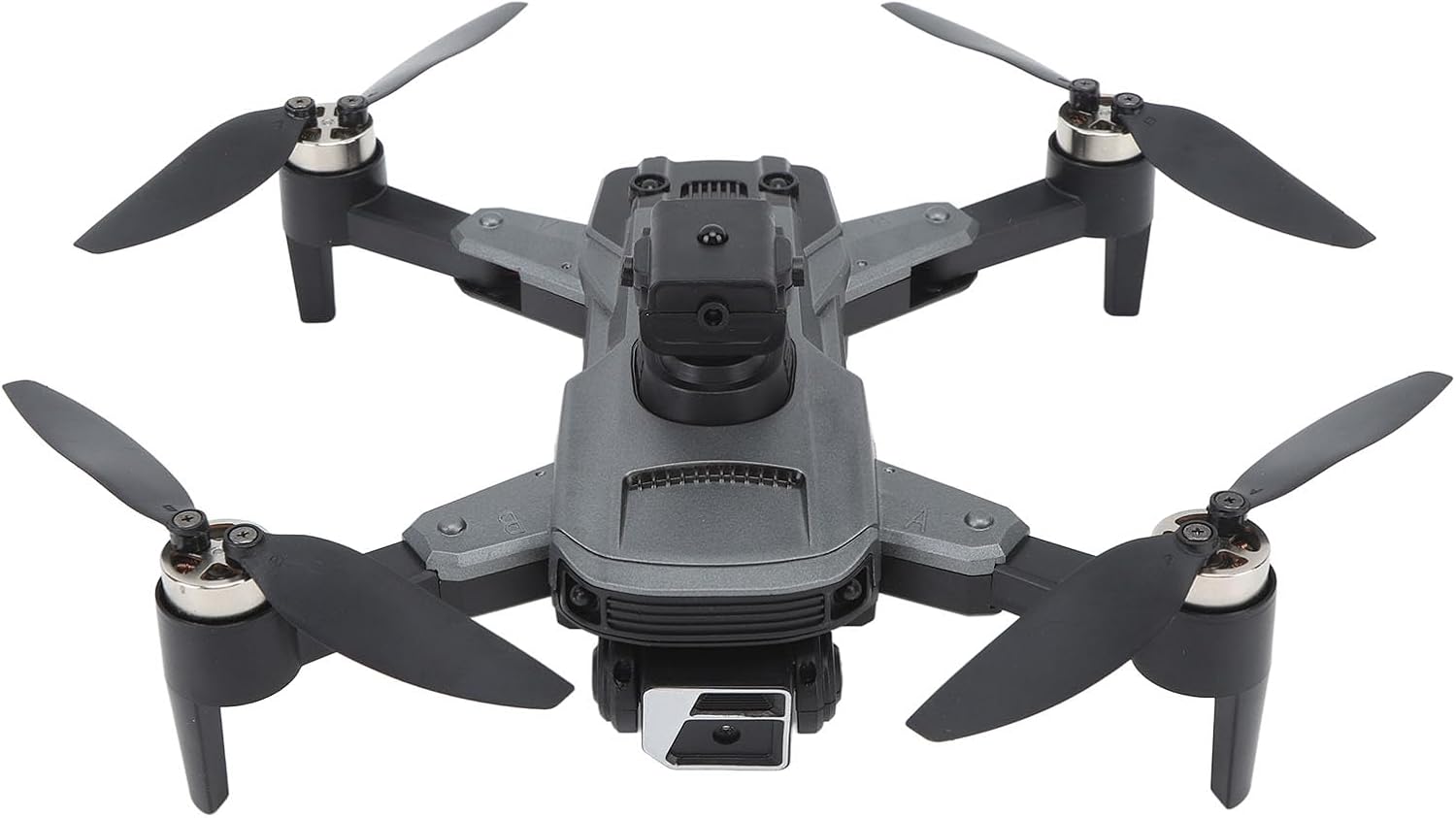
Image: The ASHATA S99 Drone, a folding quadcopter with its propellers extended, showcasing its compact design and integrated camera system.
Key Features
- High Definition Dual Camera: Features a high-resolution lens with clear image quality, supporting 90-degree electric angle adjustment and 50x digital zoom via the app.
- Four-Way Obstacle Avoidance: Equipped with front, rear, left, and right sensors for automatic detection and intelligent avoidance of surrounding obstacles, enhancing flight safety.
- 360 Degree Rolling Stunts: Enables easy execution of 360-degree aerial stunts with a single command.
- Optical Visual Hovering: Automatically maintains stable hovering in real-time, eliminating the need for constant throttle adjustment for altitude control.
- Trajectory Guidance: Allows users to draw a flight path on the companion app for automated flight.
- Beauty and Filter Functions: Supports online photo editing and sharing, along with hands-on gesture photography.
- Gravity Induction Control: Control flight by tilting your smartphone.
- Bilateral Lighting Upgrade: Features high brightness LED colored lights for enhanced visibility.
What's in the Box
Upon unboxing your S99 Drone, please ensure all the following components are present:
- S99 Drone Unit
- Remote Control
- Battery (Modular)
- Propeller Blades (Spare)
- Camera (Integrated)
- Carrying Case
- Screwdriver
- USB Charging Cable (Not explicitly listed but implied for battery charging)

Image: The ASHATA S99 Drone and its remote control neatly stored within the included carrying case, demonstrating portability and protection.
Setup Guide
1. Battery Installation and Charging
The S99 Drone uses a modular battery for easy installation and removal.
- Locate the battery compartment on the drone.
- Insert the modular battery firmly until it clicks into place.
- Before first use, fully charge the drone battery and the remote control battery using the provided USB charging cable. Connect the cable to a standard USB power adapter (not included).

Image: A visual representation of the modular battery being inserted into the drone, highlighting its easy-to-install design and long endurance.
2. Propeller Attachment
If propellers are not pre-installed, use the included screwdriver to attach them according to the markings (A and B) on the propellers and motor arms. Ensure they are securely fastened.
3. Remote Control Preparation
Install the required batteries (not specified in input, assume standard AA/AAA) into the remote control. Power on the remote control.
4. App Installation and Connection
Download the official S99 Drone app from your device's app store. Power on the drone, then connect your smartphone to the drone's Wi-Fi network. Open the app to establish a connection for advanced features and real-time camera feed.

Image: The ASHATA S99 Drone positioned next to its remote control, illustrating the primary components for operation.
Operating Instructions
1. Basic Flight Controls
Familiarize yourself with the remote control's joysticks and buttons. The left joystick typically controls altitude (throttle) and rotation, while the right joystick controls forward/backward and left/right movement. Refer to the remote control diagram in the app or a separate quick start guide for detailed button functions.
2. Obstacle Avoidance System
The S99 Drone is equipped with a 4-way obstacle avoidance system. When activated, the drone will automatically detect obstacles in its front, rear, left, and right paths and adjust its flight to avoid collisions. Always fly in open areas and do not solely rely on the obstacle avoidance system.
3. 360 Degree Rolling Stunts
To perform a 360-degree roll, ensure the drone is at a sufficient altitude (at least 3 meters). Press the designated 360-degree roll button on the remote control, then push the right joystick in the desired direction of the roll. The drone will execute the maneuver automatically.

Image: Multiple ASHATA S99 Drones depicted in mid-air, illustrating the execution of a 360-degree aerial roll, a key operational feature.
4. Optical Visual Hovering
The optical visual hovering feature allows the S99 Drone to maintain a stable position in the air without constant manual throttle input. This is particularly useful for beginners and for capturing steady photos/videos. Ensure good lighting conditions for optimal performance of this feature.
5. Trajectory Flight
Using the companion app, you can draw a desired flight path on your smartphone screen. The drone will then follow this pre-defined trajectory automatically. This feature is ideal for cinematic shots or exploring specific areas.

Image: The ASHATA S99 Drone flying above a desert, illustrating its trajectory indication feature where it follows a pre-drawn path on a map.
6. Gravity Induction Control
Activate gravity induction mode in the app. You can then control the drone's direction by tilting your smartphone. This offers an intuitive and engaging way to fly the drone.
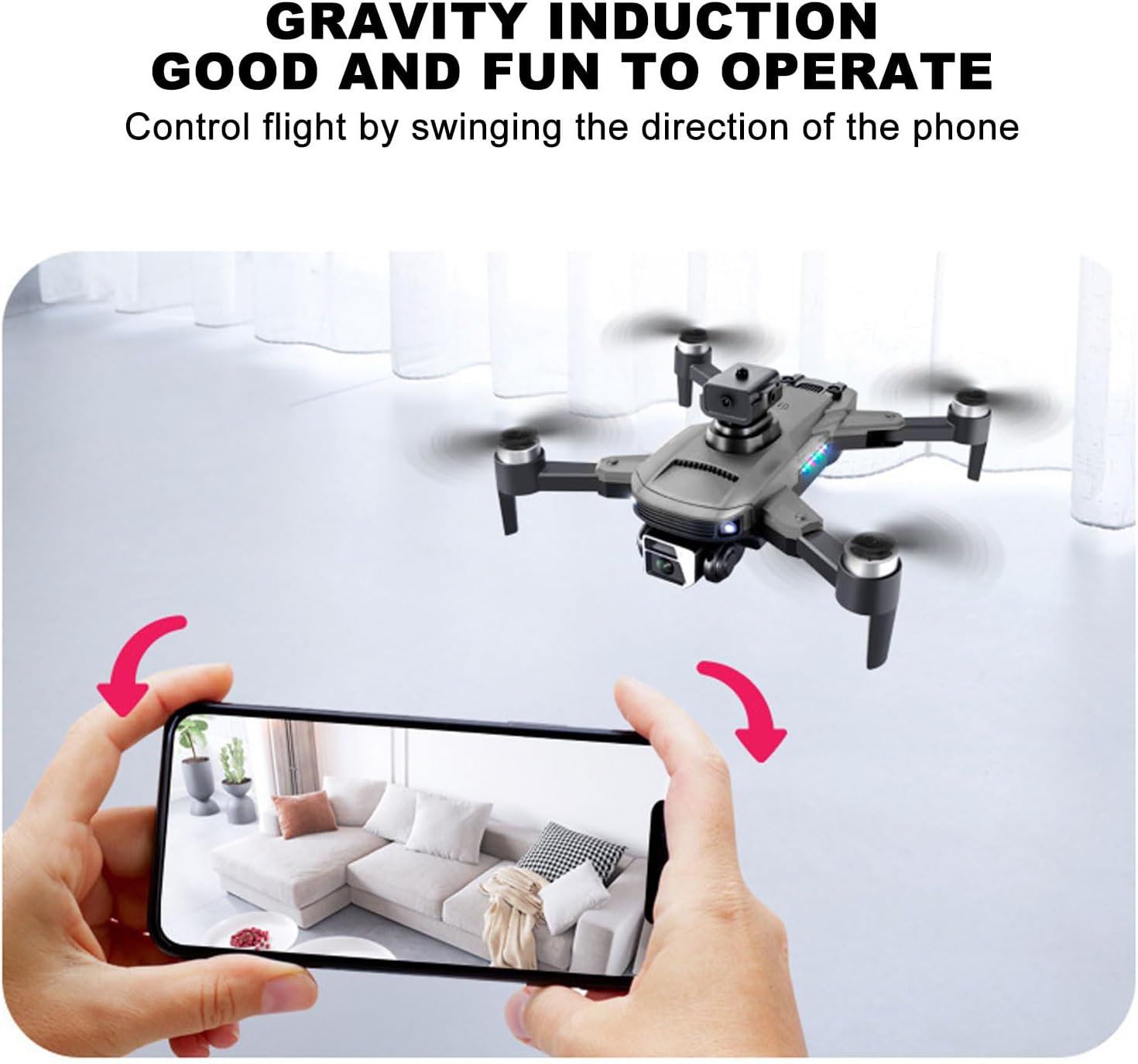
Image: A user holding a smartphone, demonstrating the gravity induction control feature where the drone's flight is controlled by tilting the phone.
7. Camera Functions
The dual camera allows for high-definition photo and video capture. Use the app to switch between cameras, adjust the 90-degree electric angle, and utilize the 50x zoom function. The app also supports online photo editing, applying beauty filters, and direct sharing to social media platforms. Gesture photography allows you to trigger photo capture with specific hand gestures.

Image: A detailed view of the ASHATA S99 Drone highlighting its bilateral lighting upgrade with high brightness LED colored lights.
Maintenance
Regular maintenance ensures the longevity and optimal performance of your S99 Drone:
- Cleaning: Gently wipe the drone's body and camera lens with a soft, dry cloth after each use to remove dust and debris. Avoid using liquid cleaners.
- Propeller Inspection: Regularly check propellers for any cracks, bends, or damage. Replace damaged propellers immediately using the included screwdriver and spare blades.
- Battery Care: Store batteries in a cool, dry place. Do not overcharge or over-discharge batteries. If storing for extended periods, charge batteries to approximately 50% capacity.
- Storage: When not in use, store the drone and its components in the provided carrying case to protect them from dust and physical damage.
Troubleshooting
If you encounter issues with your S99 Drone, refer to the following common problems and solutions:
- Drone Not Powering On: Ensure the battery is fully charged and correctly installed. Check if the power button is pressed firmly.
- No Connection to Remote Control/App: Make sure both the drone and remote control are powered on. Re-pair the remote control with the drone. For app connection, ensure your phone is connected to the drone's Wi-Fi network.
- Unstable Flight/Drifting: Perform a gyroscope calibration as instructed in the app or quick start guide. Check for damaged or unbalanced propellers. Ensure you are flying in an area with minimal wind interference.
- Camera Feed Not Displaying: Verify the app is correctly connected to the drone's Wi-Fi. Ensure sufficient lighting for the camera.
- Obstacle Avoidance Not Working: Ensure the sensors are clean and unobstructed. Fly in well-lit conditions as sensors may be less effective in low light.
- Short Flight Time: Ensure the battery is fully charged. Battery performance can degrade over time; consider replacing if flight time significantly decreases.
Specifications
| Feature | Specification |
|---|---|
| Brand | ASHATA |
| Model Name | ASHATAqeo3f0th5m |
| Special Features | High Definition Dual Camera, Four Way Obstacle Avoidance |
| Age Range (Description) | 168 months (14 years and up) |
| Color | Black |
| Video Capture Resolution | 1080p (Output: 2048 x 1080) |
| Connectivity Technology | USB, Wi-Fi |
| Skill Level | Intermediate |
| Battery Capacity | 2000 Milliamp Hours |
| Video Capture Format | MP4 |
| Control Type | Remote Control |
| Media Type | SD |
| Material | ABS |
| Battery Cell Composition | Lithium |
| Supported Image Format | JPEG |
| Optical Sensor Technology | CMOS or CCD |
| Item Weight | 1.1 pounds |
| Package Dimensions | 9.06 x 6.69 x 3.54 inches |
| Date First Available | August 4, 2023 |

Image: A diagram illustrating the physical dimensions of the ASHATA S99 Drone (35cm x 28cm x 8cm) and its carrying case (22cm x 16cm x 8.5cm).
Warranty and Support
For any product inquiries, technical support, or warranty claims, please contact ASHATA customer service. Refer to the product packaging or the official ASHATA website for contact information. Please retain your proof of purchase for warranty purposes.
Ask a question about this manual
Ask about setup, troubleshooting, compatibility, parts, safety, or missing instructions. Manuals+ will review the question and use this page’s manual context to help answer it.