
1. Introduction
This manual provides detailed instructions for the setup, operation, and maintenance of your DEERFAMY A89 Mini Projector. Please read this manual thoroughly before using the product to ensure optimal performance and safety.
2. What's in the Box
Verify that all items are present upon unboxing:
- DEERFAMY A89 Mini Projector
- Power Cord
- Remote Control
- HDMI Cable
- Warranty Card
- Cleaning Kit
3. Product Overview
The DEERFAMY A89 is a portable mini projector designed for versatile use. It features electric focus, digital keystone correction, and dual-band WiFi for seamless connectivity.
3.1 Front View

Image: Front view of the DEERFAMY A89 Mini Projector, showing the projection lens and a sleek black design.
3.2 Rear View & Ports
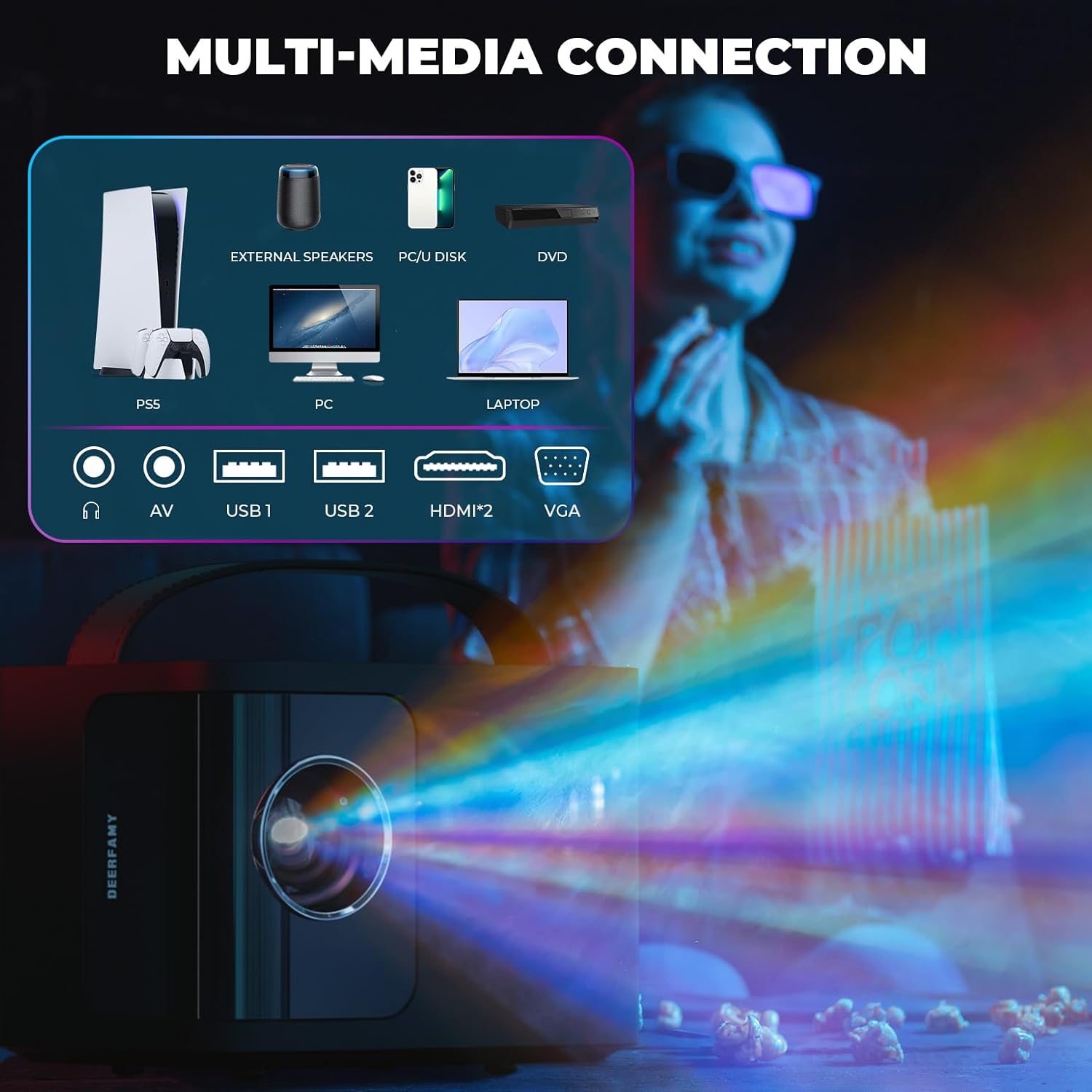
Image: Rear view of the DEERFAMY A89 Mini Projector, highlighting the various connectivity ports including HDMI, USB, and audio jacks.
- HDMI Port: For connecting devices like laptops, gaming consoles, or TV boxes.
- USB Ports (x2): For connecting USB drives or other compatible accessories.
- 3.5mm Audio Jack: For connecting external speakers or headphones.
- IR Receiver: For remote control signals.
3.3 Top Controls & Portability
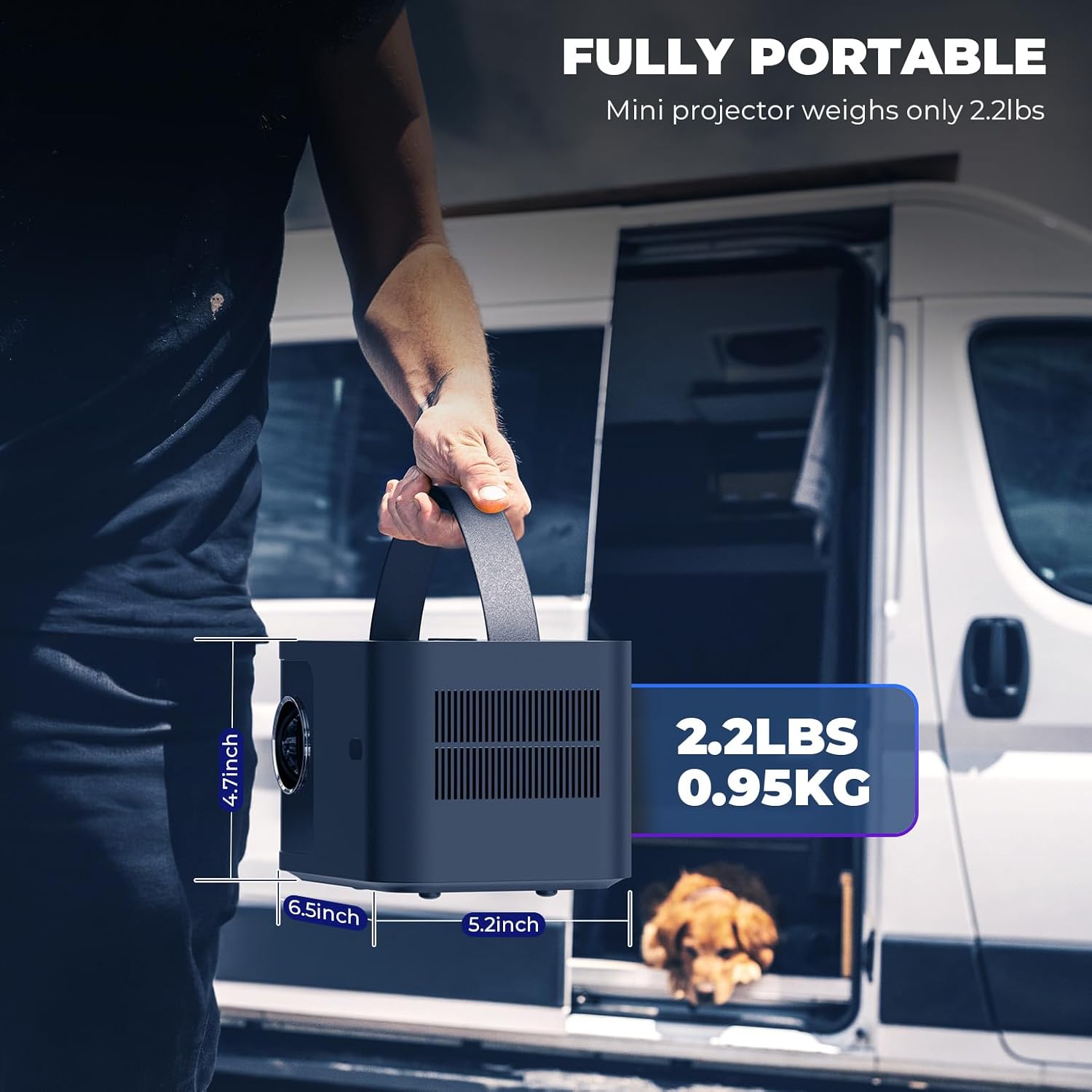
Image: The DEERFAMY A89 Mini Projector being carried by its integrated handle, demonstrating its portability. Dimensions are shown as 4.7 inches height, 6.5 inches width, and 5.2 inches depth, with a weight of 2.2 lbs (0.95 kg).
- Power Button: To turn the projector on/off.
- Focus Buttons: For electric focus adjustment.
- Integrated Handle: For easy portability.
4. Setup
4.1 Initial Power On
- Connect the power cord to the projector and a power outlet.
- Press the power button on the projector or remote control to turn it on.
- The projector will display the main interface.
Video: Demonstrates the initial power-on sequence and electric focus adjustment using the remote control and top buttons.
4.2 Focusing the Image
The DEERFAMY A89 features electric focus for convenient image clarity adjustment.
- Use the dedicated focus buttons on the top of the projector or the remote control (F+ / F-) to sharpen the image.
- Adjust until the projected image is clear and crisp.
4.3 Keystone Correction
The projector supports ±40° vertical keystone correction to adjust for distorted images when the projector is not perfectly perpendicular to the screen.
- Navigate to the Setting menu on the home screen.
- Select Option and then Keystone Correction.
- Use the arrow keys on the remote to adjust the vertical keystone until the image is rectangular.
Video: Illustrates the process of connecting the projector, adjusting focus, and performing keystone correction for a clear, rectangular image.
5. Operating Instructions
5.1 Connecting to Wi-Fi
The projector supports 2.4G/5G dual-band Wi-Fi for stable and fast wireless connections.
- From the home screen, select Setting.
- Choose Network and then select your desired Wi-Fi network.
- Enter the password using the on-screen keyboard and select Connect.
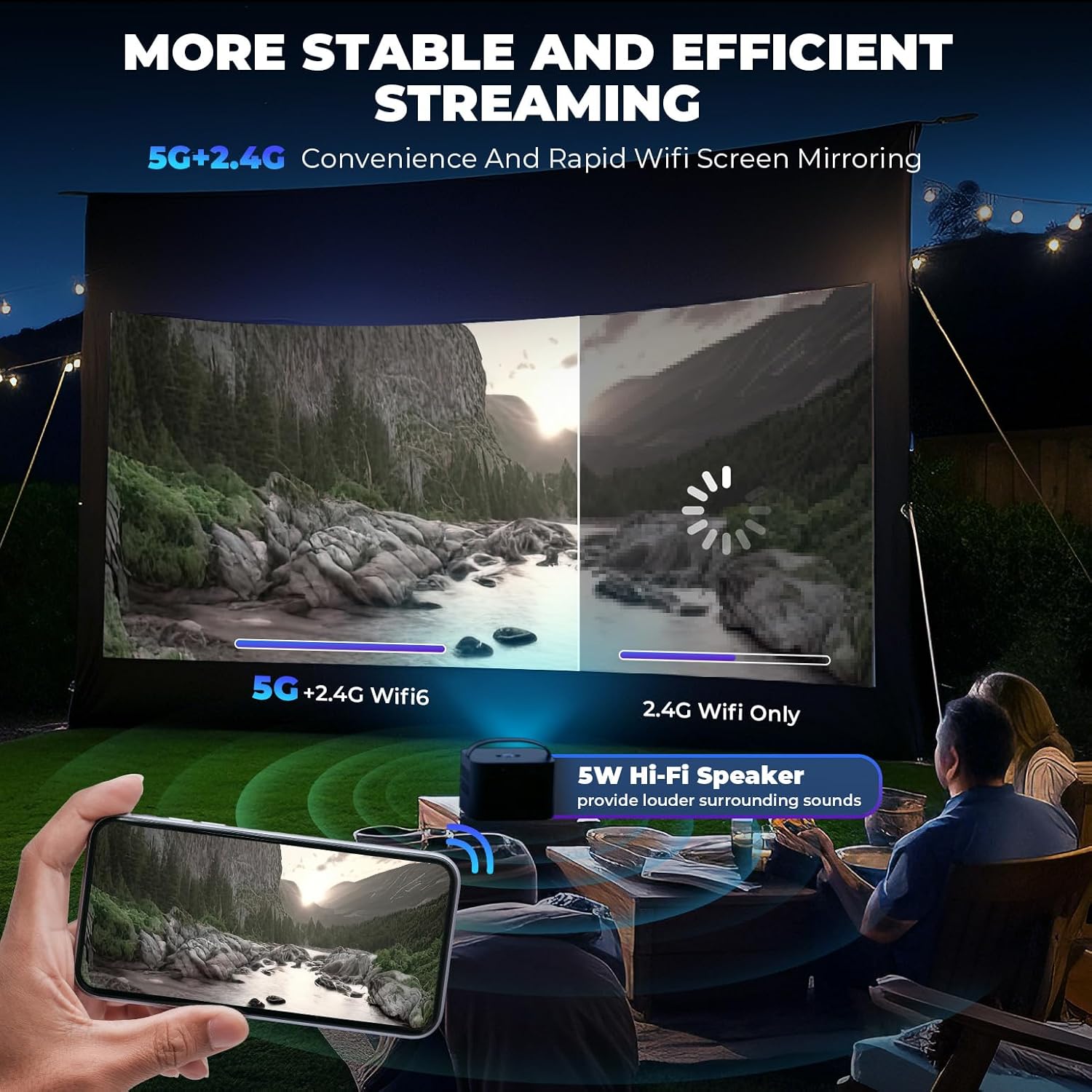
Image: A visual comparison showing the stability and speed of 5G+2.4G dual-band WiFi versus 2.4G WiFi only, emphasizing efficient streaming.
5.2 Screen Mirroring (iOS/Android)
Wirelessly mirror your smartphone or tablet screen to the projector.
- For iOS Devices (Airplay):
- Ensure your iOS device and projector are connected to the same Wi-Fi network.
- On your iOS device, open Control Center and tap Screen Mirroring.
- Select the projector from the list (e.g., "A89-AirPlay-XXXX").
- For Android Devices (Miracast):
- Ensure your Android device and projector are connected to the same Wi-Fi network.
- On your Android device, open the settings menu and find Display Settings or Screen Mirroring (names may vary by device).
- Select the projector from the list (e.g., "A89-Miracast-XXXX").
Note: Due to copyright protection, some streaming services like Netflix, Amazon Prime Video, and Hulu do not support direct screen mirroring.
5.3 Wired Connections (HDMI, USB)
Connect various devices using the available ports:
- HDMI: Connect gaming consoles (PS4/PS5, X-Box), laptops, DVD players, or TV boxes using an HDMI cable. Select the HDMI input from the home screen.
- USB: Insert a USB drive to play media files directly. Select Media from the home screen.

Image: The DEERFAMY A89 projector connected to various devices like a PS5, external speakers, PC, U disk, DVD, and laptop, illustrating its multi-media connectivity options.
5.4 Projection Zoom
Adjust the projection size from 75% to 100% without moving the projector.
- Navigate to the Setting menu.
- Select Option and then Projection Zoom.
- Use the arrow keys to adjust the zoom level.
Video: Demonstrates how to enlarge and reduce the projected image size using the zoom function in the settings menu.
6. Image and Sound Settings
6.1 Picture Mode
Adjust picture settings for optimal viewing experience:
- Go to Setting and select Picture.
- Choose from various Picture Modes (e.g., Standard, Dynamic, Mild, User) or adjust individual settings like Contrast, Brightness, Color, Sharpness, and Tint.
- You can also adjust Color Temperature and Noise Reduction.

Image: A visual representation of the DEERFAMY A89's high-definition image quality, supporting Full HD 1080P and 4K, with an optical coating glass lens for less visual fatigue.
6.2 Sound Mode & Bluetooth Audio
The projector has a built-in 5W Hi-Fi speaker. For enhanced audio, connect external Bluetooth speakers or headphones.
- Go to Setting and select Sound to adjust Sound Mode or Auto Volume.
- To connect Bluetooth devices, select Bluetooth from the settings menu, turn Bluetooth Mode to On, and search for devices.
- Select your desired Bluetooth device to pair.
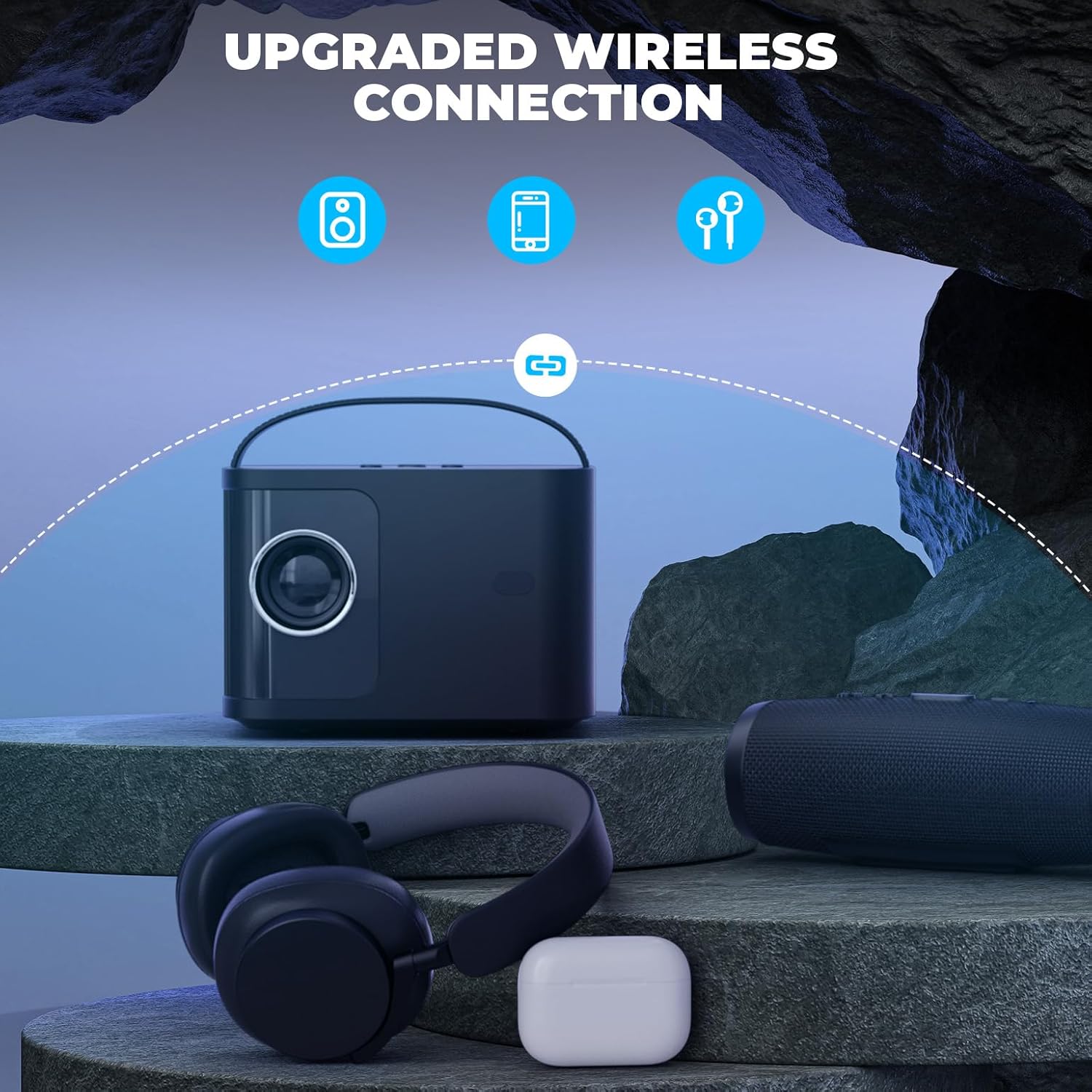
Image: The DEERFAMY A89 projector wirelessly connected to headphones and a portable speaker via Bluetooth, showcasing its upgraded wireless audio capabilities.
7. Usage Scenarios
The DEERFAMY A89 is suitable for various environments and activities:
- Home Entertainment: Enjoy movies, TV shows, and gaming on a large screen (60''-120'' recommended).
- Outdoor Movie Nights: Its portable design makes it ideal for outdoor use.
- Presentations: Connect to laptops or other devices for clear and sharp presentations.

Image: Illustrates the DEERFAMY A89 projecting a 120-inch screen, showing different mounting options like ceiling mount, tripod, and table mount for a cinema-like viewing experience.
Image: Depicts the DEERFAMY A89 being used for an outdoor movie night and for enjoying family time indoors, highlighting its versatility.
8. Specifications
| Brand | DEERFAMY |
| Model Name | DF A89 |
| Display Resolution | 1920 x 1080 (Supports 1080P Full HD) |
| Brightness | 10000 Lumens |
| Contrast Ratio | 10000:1 |
| Connectivity Technology | Wireless (2.4G/5G WiFi, Bluetooth), HDMI, USB, 3.5mm Jack |
| Keystone Correction | ±40° Vertical Electric Keystone Correction |
| Projection Zoom | 75%-100% |
| Projection Distance | 1.3M-3.5M (60''-120'' screen) |
| Light Source Operating Life | 50000 Hours |
| Built-in Speaker | 5W Hi-Fi Speaker |
| Dimensions (L x W x H) | 7.87"L x 7.48"W x 7.09"H |
| Weight | 2.2 lbs (0.95 kg) |
9. Maintenance
Regular maintenance ensures the longevity and optimal performance of your projector.
- Lens Cleaning: Use the provided cleaning kit to gently clean the projector lens. Avoid abrasive materials that could scratch the lens.
- Dust Filter: The projector features a detachable dust filter. Regularly clean or replace the filter to prevent dust buildup, which can affect image quality and internal components.
- Storage: When not in use, store the projector in a cool, dry place, away from direct sunlight and extreme temperatures. Use the lens cap to protect the lens.
10. Troubleshooting
If you encounter issues with your DEERFAMY A89 projector, refer to the following common solutions:
- No Power:
- Ensure the power cord is securely connected to both the projector and a working power outlet.
- Check if the power adapter is functioning correctly.
- No Image/Signal:
- Verify that the correct input source (HDMI, Media, Airplay, Miracast) is selected on the projector.
- Check all cable connections (HDMI, USB) for looseness or damage.
- For wireless connections, ensure both the device and projector are on the same Wi-Fi network and screen mirroring is activated.
- Blurred Image:
- Adjust the electric focus using the projector's buttons or remote control.
- Perform keystone correction to ensure the image is rectangular.
- Ensure the projection surface is flat and the projector is placed at an appropriate distance.
- No Sound:
- Check the volume settings on both the projector and the connected device.
- If using external speakers, ensure they are properly connected via Bluetooth or the 3.5mm audio jack.
- Wi-Fi/Bluetooth Connection Issues:
- Restart the projector and your Wi-Fi router/Bluetooth device.
- Ensure the projector is within range of your Wi-Fi network or Bluetooth device.
- Re-enter Wi-Fi passwords carefully.
11. Warranty and Support
DEERFAMY provides a 2-year warranty policy and lifelong professional technical support for the A89 Mini Projector.
For technical assistance or warranty claims, please contact DEERFAMY customer support through their official channels or the retailer where the product was purchased.
Visit the DEERFAMY Store on Amazon for more information and support resources.
