1. Introduction
This manual provides essential information for the safe and efficient operation of your HYUNDAI Smart TV 42-inch Full HD. Please read this manual thoroughly before using the television and retain it for future reference. This television features a 42-inch Full HD (1920x1080p) display, VIDAA operating system, and integrated smart applications such as Netflix, YouTube, and Prime Video. It also supports Screencast functionality for content sharing from mobile devices.
2. Safety Information
Always follow basic safety precautions when using this television to reduce the risk of fire, electric shock, and injury. Ensure the television is placed on a stable surface. Do not block ventilation openings. Avoid exposing the television to rain or moisture. Disconnect the power cord during lightning storms or when unused for long periods. Refer to the full safety guidelines in the included safety sheet.
3. Setup
3.1 Unpacking and Stand Installation
Carefully remove the television from its packaging. Attach the included stands to the bottom of the television using the provided screws. Ensure the stands are securely fastened before placing the TV upright.

Front view of the HYUNDAI 42-inch Smart TV with its stand, displaying the VIDAA smart interface.
3.2 Connecting External Devices
Your television is equipped with multiple ports for connecting various devices:
- HDMI Ports (3x): Connect Blu-ray players, game consoles, or set-top boxes.
- USB Ports (2x): Connect USB storage devices for media playback.
- CI+ Slot: Insert a CI+ module for encrypted digital channels.
- RJ45 (Ethernet): Connect to your home network for internet access.
- Optical Output: Connect to an external audio system.
- Headphone Output: Connect headphones for private listening.

Side view of the HYUNDAI 42-inch Smart TV, showing various input and output ports including HDMI and USB.
3.3 Initial Setup Wizard
Upon first power-on, the TV will guide you through an initial setup process. This includes selecting your language, connecting to a Wi-Fi network, and scanning for available channels.
4. Operating
4.1 Basic TV Functions
- Power: Press the power button on the remote control to turn the TV on or off.
- Volume: Use the VOL +/- buttons to adjust the sound level.
- Channels: Use the CH +/- buttons to change channels or the number buttons for direct channel selection.
- Input Source: Press the SOURCE button to select between HDMI, USB, TV, and other inputs.
4.2 Smart TV Features (VIDAA OS)
Your HYUNDAI Smart TV runs on the VIDAA operating system, providing access to a variety of applications and features.

The HYUNDAI Smart TV displaying the VIDAA smart interface with various streaming app icons like Netflix, YouTube, Prime Video, and Disney+.
- Pre-installed Apps: Access popular streaming services like Netflix, YouTube, and Prime Video directly from the home screen.
- App Store: Explore and download additional applications from the VIDAA App Store.
- Screencast: Use the Screencast feature to mirror content from your compatible smartphone or tablet to the TV screen.

A smartphone displaying a city skyline next to the HYUNDAI Smart TV, which is mirroring the same image, illustrating the Screencast feature.
5. Maintenance
5.1 Cleaning the Television
Before cleaning, unplug the power cord from the wall outlet. Use a soft, dry cloth to wipe the screen and cabinet. For stubborn marks, lightly dampen the cloth with water or a mild, non-abrasive cleaner specifically designed for electronics. Never spray liquid directly onto the screen or cabinet.
5.2 Software Updates
The television may receive software updates to improve performance and add new features. Ensure your TV is connected to the internet to receive automatic updates. You can also check for updates manually through the TV's settings menu.
6. Troubleshooting
If you encounter issues with your television, refer to the following common solutions:
- No Power: Check if the power cord is securely plugged into both the TV and the wall outlet. Ensure the power outlet is functional.
- No Picture/Sound: Verify the correct input source is selected. Check all cable connections (HDMI, antenna). Try another channel or input device.
- No Internet Connection: Ensure your Wi-Fi router is on and functioning. Reconnect to the Wi-Fi network in the TV settings. For wired connections, check the Ethernet cable.
- Remote Control Not Working: Replace the batteries in the remote control. Ensure there are no obstructions between the remote and the TV's IR sensor.
- Picture Quality Issues: Adjust picture settings (brightness, contrast, sharpness) in the TV menu. Ensure the input source is providing a high-quality signal.
If problems persist, consider performing a factory reset through the TV's settings menu (note: this will erase all personalized settings and data). For further assistance, contact customer support.
7. Specifications
| Feature | Specification |
|---|---|
| Model Number | HY-TV42SFHD-001 |
| Screen Size | 42 inches (105 cm) |
| Resolution | Full HD (1920 x 1080p) |
| Operating System | VIDAA |
| HDMI Ports | 3 (version 1.4, 1x ARC) |
| USB Ports | 2 (version 2.0) |
| Connectivity | Wi-Fi, RJ45 (Ethernet) |
| Special Features | Smart TV, Netflix, YouTube, Prime Video, Screencast, CI+ |
| Voltage | 230 Volt |
| Product Dimensions (W x D x H) | 96.8 x 23.1 x 62.2 cm (with stand) |
| Weight | 6.15 kg |
| Energy Efficiency Class | E |
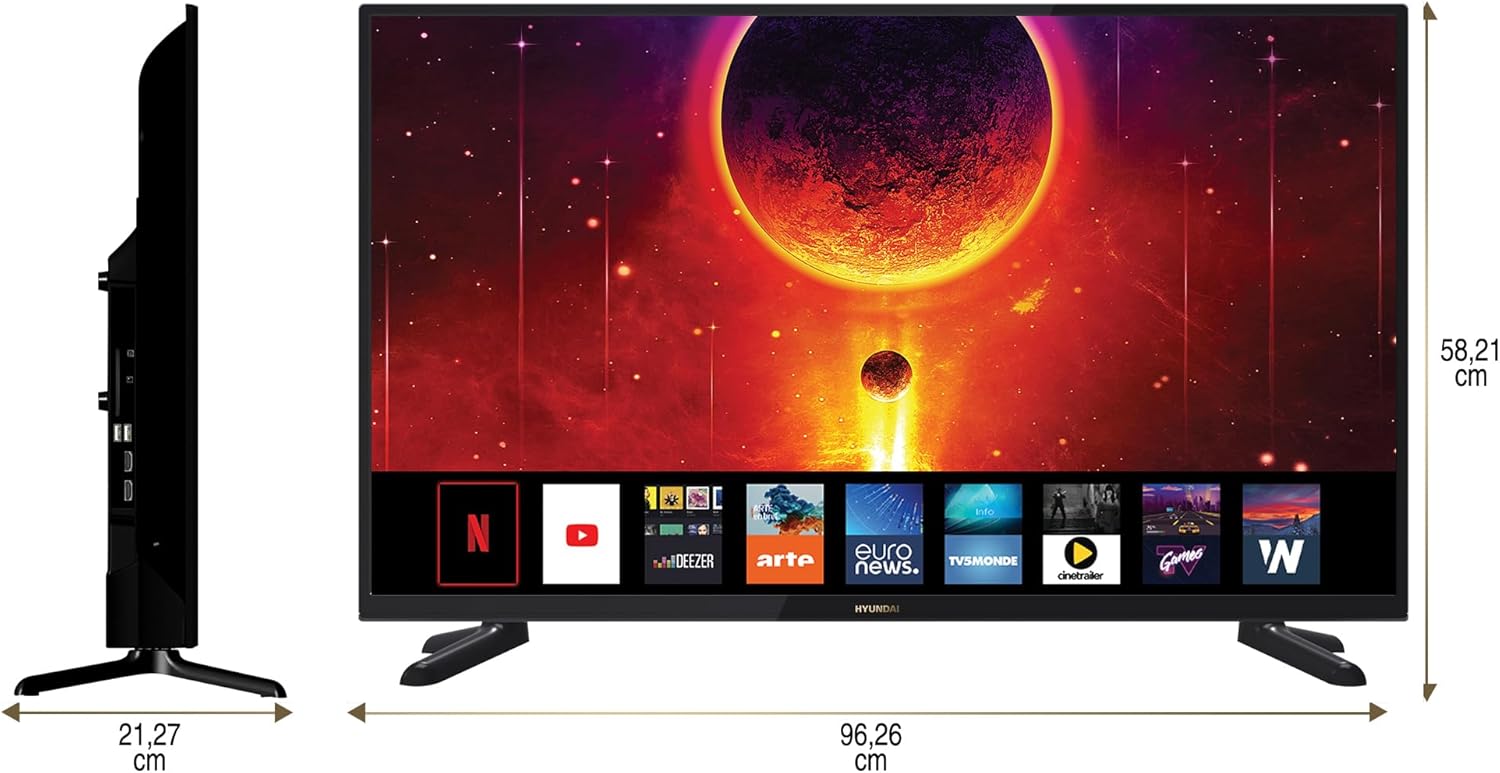
Diagram showing the dimensions of the HYUNDAI 42-inch Smart TV, with a width of 96.26 cm and a height of 58.21 cm.
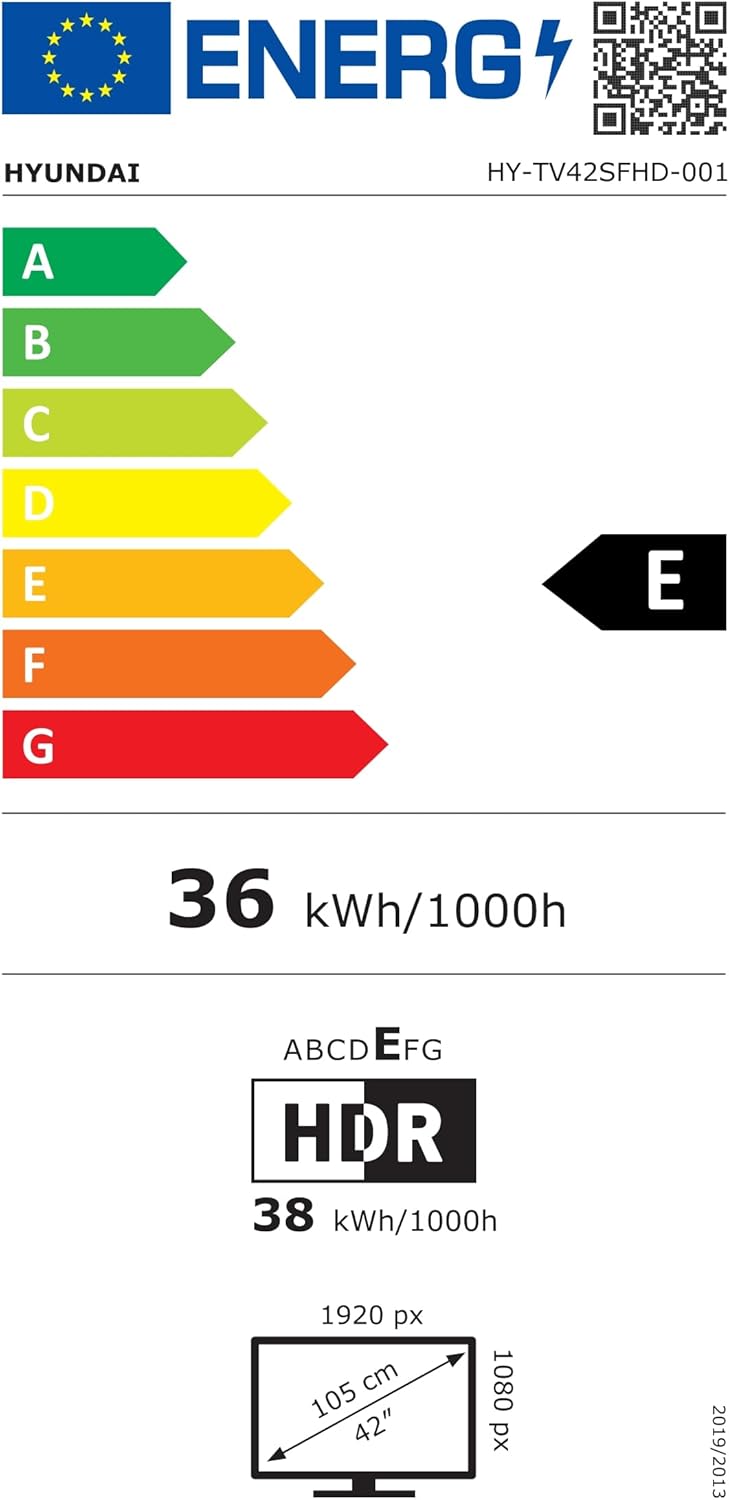
EU Energy Label for the HYUNDAI HY-TV42SFHD-001 television, showing an energy efficiency class of E and energy consumption of 36 kWh/1000h. For more details, visit eprel.ec.europa.eu/qr/1598831.
8. Warranty and Support
8.1 Warranty Information
Your HYUNDAI Smart TV is covered by a manufacturer's warranty. The specific terms and duration of the warranty may vary by region. Please refer to the warranty card included with your product or visit the official HYUNDAI website for detailed warranty information.
8.2 Customer Support
For technical assistance, troubleshooting not covered in this manual, or warranty claims, please contact HYUNDAI customer support. Contact details can typically be found on the official HYUNDAI website or in the documentation provided with your television.


