
1. Introduction
This manual provides detailed instructions for the installation, operation, maintenance, and troubleshooting of your Lehwey Portable Car Stereo. This device is designed to enhance your driving experience by integrating smartphone functionalities such as Apple CarPlay and Android Auto into your vehicle.
2. Safety Information
- Always operate the device responsibly and in accordance with local traffic laws. Distracted driving can lead to accidents.
- Ensure the device is securely mounted and does not obstruct your view of the road or interfere with vehicle controls.
- Do not attempt to disassemble or modify the device. This may void the warranty and pose safety risks.
- Keep the device away from extreme temperatures, direct sunlight for prolonged periods, and moisture.
- Use only the provided power cable and accessories to prevent damage or fire.
3. Package Contents
Verify that all items are present in the package:
- Lehwey Portable Car Stereo (7-inch touch screen)
- Power Cable
- AUX Cable
- Self-adhesive Bracket
- Suction Cup Bracket
- User Manual
4. Product Features
- Wireless Apple CarPlay & Android Auto: Seamless integration with your smartphone for navigation, calls, messages, and music.
- 7-inch IPS Touch Screen: High-definition display (1080P resolution) for clear visuals and responsive interaction.
- Bluetooth 5.0: Stable wireless connectivity for hands-free calling and audio streaming.
- Multiple Audio Output Options: Built-in speaker, AUX cable connection, and FM transmission to your car's audio system.
- Mirror Link Functionality: Display your smartphone screen directly on the car stereo (Wireless for Apple AirPlay, Wired for Android Autolink).
- Voice Control: Compatible with Siri and Google Assistant for hands-free operation.
- Universal Compatibility: Supports 12-24V vehicles, including cars and trucks.
- Media Playback: Supports USB and TF card inputs for local media files.
5. Setup and Installation
The Lehwey Portable Car Stereo offers flexible mounting options for various vehicles.
5.1 Mounting the Device
Choose between the self-adhesive bracket for dashboard mounting or the suction cup bracket for windshield mounting. Ensure the chosen location does not obstruct your driving view or interfere with airbags.
- Clean the mounting surface thoroughly to ensure a strong adhesion.
- Attach the desired bracket to the back of the car stereo unit.
- Securely attach the bracket to your dashboard or windshield. Adjust the angle for optimal viewing.

Image 5.1: Various mounting options and vehicle types compatible with the Lehwey Portable Car Stereo.
5.2 Power Connection
Connect the provided power cable to the car stereo and then to your vehicle's 12-24V power outlet (cigarette lighter socket).
6. Operating Instructions
6.1 Power On/Off
- Power On: The device will automatically power on when connected to your vehicle's power outlet and the vehicle is started.
- Power Off: The device will power off automatically when the vehicle's ignition is turned off.
6.2 Wireless Apple CarPlay / Android Auto
To use wireless Apple CarPlay or Android Auto, ensure your smartphone's Bluetooth and Wi-Fi are enabled.
- On the car stereo, select the 'CarPlay' or 'Android Auto' icon.
- On your smartphone, search for and connect to the car stereo's Bluetooth name (usually 'Lehwey_XXXX').
- Confirm the pairing request on both devices.
- Once connected via Bluetooth, the device will prompt you to enable Wi-Fi for the CarPlay/Android Auto connection. Allow this connection.
- Apple CarPlay or Android Auto will launch automatically.

Image 6.2: The car stereo displaying the Apple CarPlay interface with various applications.
6.3 Bluetooth 5.0 Connectivity
Beyond CarPlay/Android Auto, the Bluetooth 5.0 chip allows for direct phone calls and music streaming.
- Enable Bluetooth on your smartphone.
- On the car stereo, navigate to the Bluetooth settings.
- Select 'Pair New Device' and choose your smartphone from the list.
- Confirm the pairing code if prompted.
- You can now make hands-free calls and stream audio directly.

Image 6.3: The car stereo displaying navigation and a hands-free call interface.
6.4 Audio Output Options
The device offers three ways to output audio:
- Built-in Speaker: Audio plays directly from the unit's integrated speaker.
- AUX Connection: Use the provided AUX cable to connect the car stereo to your vehicle's auxiliary audio input for sound through your car speakers.
- FM Transmission: Tune the car stereo to an unused FM frequency, then tune your car's radio to the same frequency to transmit audio wirelessly.

Image 6.4: Illustration of the three available audio output methods.
6.5 Mirror Link Functionality
Mirror Link allows you to display your smartphone's screen on the car stereo.
- For Apple Devices (AirPlay): Connect wirelessly via Wi-Fi.
- For Android Devices (Autolink): Connect using a USB cable.
- Select the 'Mirror Link' icon on the car stereo and follow the on-screen instructions for your specific device.
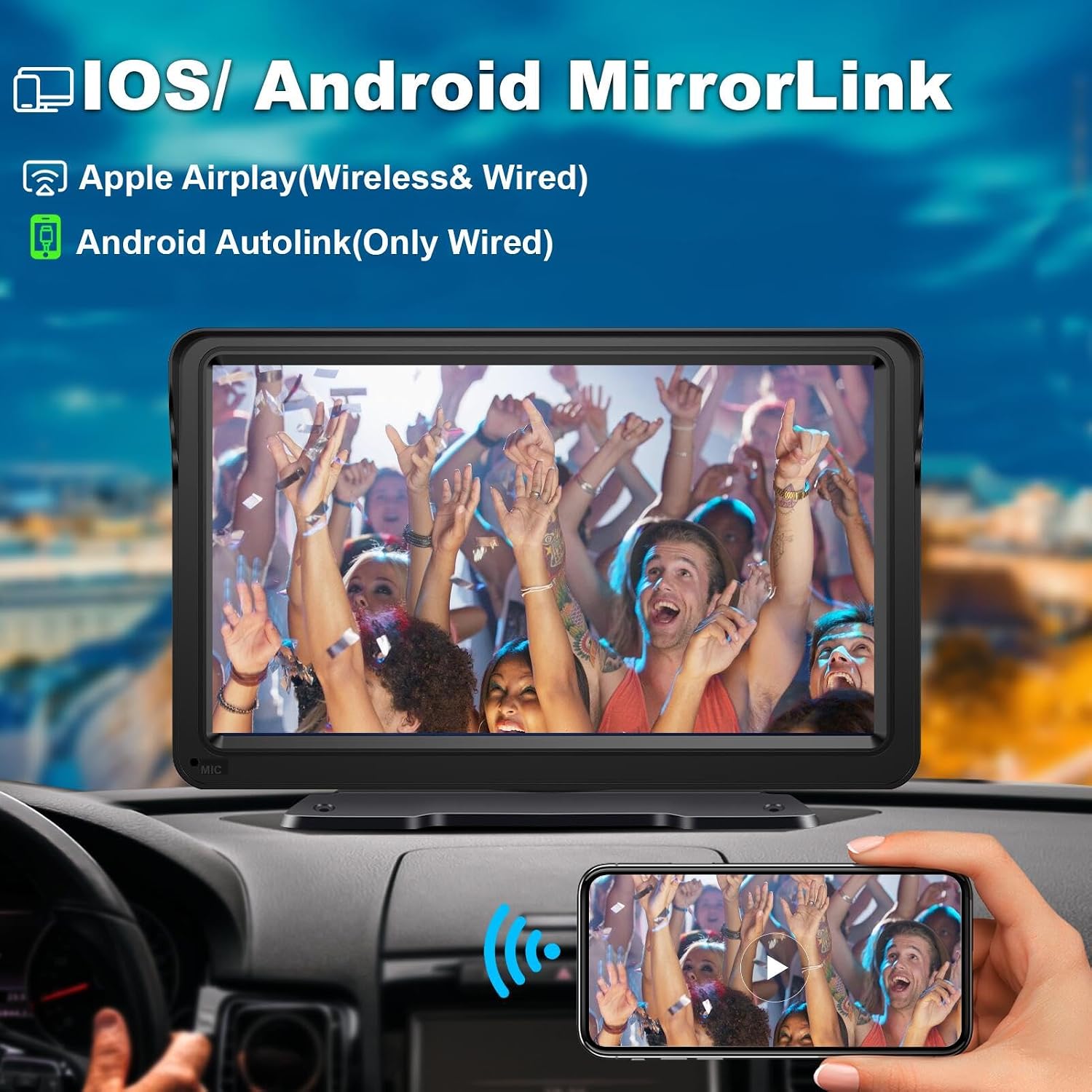
Image 6.5: The car stereo displaying a mirrored smartphone screen.
6.6 Voice Control
Activate your smartphone's voice assistant (Siri for Apple, Google Assistant for Android) through the car stereo for hands-free commands.
- Ensure your phone is connected via CarPlay, Android Auto, or Bluetooth.
- Use the designated voice command button on the screen or say the activation phrase (e.g., "Hey Siri" or "Hey Google") if your phone supports it.
- You can then issue commands for navigation, calls, music, and more.

Image 6.6: The car stereo demonstrating voice control capabilities with Siri and Google Assistant.
6.7 Navigation
When connected to Apple CarPlay or Android Auto, you can use your preferred navigation apps (e.g., Apple Maps, Google Maps, Waze) directly on the car stereo screen.
- Select your desired navigation app from the CarPlay/Android Auto interface.
- Enter your destination using the touch screen or voice commands.
6.8 USB/TF Card Playback
Insert a USB drive or TF card containing audio or video files into the designated port on the car stereo. The device will automatically detect the media and allow you to browse and play content.
6.9 Touch Screen Operation
The 7-inch IPS touch screen provides intuitive control. Use gestures such as tap, swipe, and pinch-to-zoom (where applicable) to navigate menus and applications. Brightness can be adjusted in the settings menu.
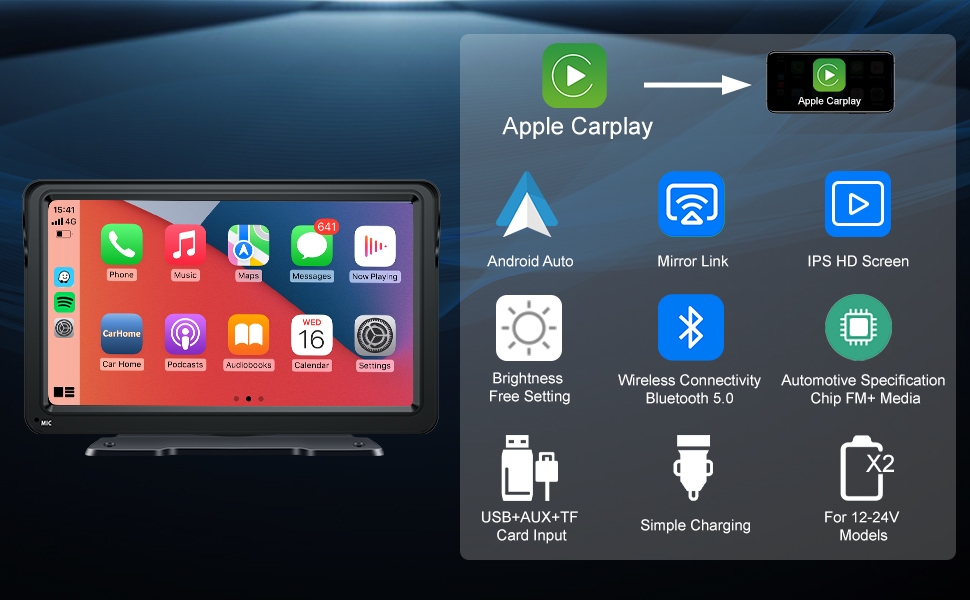
Image 6.9: The 7-inch IPS touch screen displaying the Apple CarPlay interface.
7. Maintenance
- Cleaning: Use a soft, dry cloth to clean the screen and exterior of the device. Do not use abrasive cleaners or solvents.
- Storage: If storing the device for an extended period, disconnect it from power and store it in a cool, dry place.
- Cable Care: Handle cables gently to prevent damage. Avoid sharp bends or excessive pulling.
8. Troubleshooting
If you encounter issues with your Lehwey Portable Car Stereo, refer to the following common solutions:
- Device Not Powering On:
- Ensure the power cable is securely connected to both the device and the vehicle's power outlet.
- Check if the vehicle's power outlet is functioning (e.g., by plugging in another device).
- No Sound from Car Speakers:
- Verify that the AUX cable is correctly connected to both the car stereo and your vehicle's AUX input.
- If using FM transmission, ensure the car stereo and your vehicle's radio are tuned to the exact same unused FM frequency.
- Check the volume levels on both the car stereo and your vehicle's audio system.
- Wireless CarPlay/Android Auto Not Connecting:
- Ensure your smartphone's Bluetooth and Wi-Fi are enabled.
- Forget the device from your phone's Bluetooth settings and attempt to pair again.
- Restart both your smartphone and the car stereo (by unplugging and replugging the power cable).
- Ensure your phone's operating system is up to date.
- Touch Screen Unresponsive:
- Restart the device by unplugging and replugging the power cable.
- Ensure the screen is clean and free of debris or moisture.
- Mounting Bracket Not Holding:
- Ensure the mounting surface is clean, dry, and smooth before applying the adhesive or suction cup.
- For suction cups, ensure the lever is fully engaged to create a vacuum seal.
9. Specifications
| Feature | Specification |
|---|---|
| Brand | Lehwey |
| Model | B0CDM2WYH9 |
| Screen Size | 7 Inches |
| Display Type | LCD, IPS Touch Screen |
| Resolution | 1080p (1024x600P HD Screen) |
| Connectivity Technology | Wireless Bluetooth 5.0, Wired USB |
| Operating System | Android (for internal system, supports Apple CarPlay/Android Auto) |
| Audio Output Mode | Stereo (Built-in Speaker, AUX, FM Transmitter) |
| Compatible Devices | Smartphone (Apple iOS, Android) |
| Vehicle Service Type | Car, Truck (12-24V) |
| Item Dimensions (L x W x H) | 6.97" x 4.3" x 0.75" |
10. Warranty and Support
Lehwey provides professional customer service. For any questions or support needs, please contact us. We aim to reply within 24 hours.
Please refer to your purchase documentation for specific warranty terms and conditions.