
HUGEROCK X7
HUGEROCK X7 Rugged Tablet User Manual
Model: X7
1. Introduction
The HUGEROCK X7 is a 7-inch rugged tablet designed for demanding outdoor environments. Featuring a 2600-nit sunlight-readable display, IP68 waterproof rating, and MIL-STD-810H drop-proof certification, it is built for durability and performance. This manual provides essential information for setting up, operating, maintaining, and troubleshooting your X7 tablet.
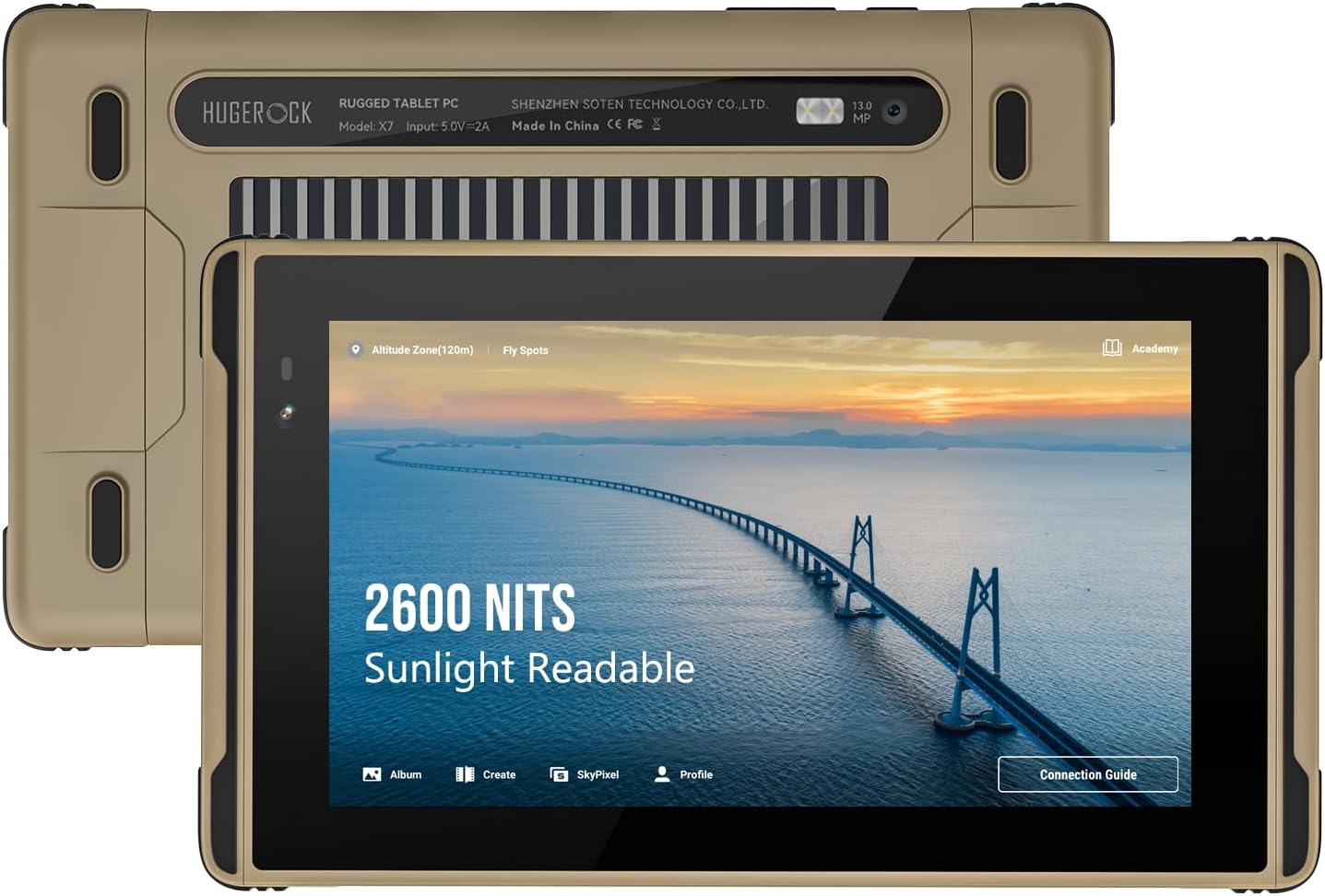
Image: Front and back view of the HUGEROCK X7 Rugged Tablet, highlighting its 2600 NITS sunlight readable display and robust design.
2. Safety Information
- Do not attempt to disassemble or repair the device yourself. Refer to qualified service personnel.
- Use only approved chargers and accessories to prevent damage and ensure safety.
- Avoid exposing the tablet to extreme temperatures outside its operating range (-40°C to 80°C).
- Ensure all port covers are securely closed when operating in wet or dusty conditions to maintain IP68 rating.
- Keep the device away from strong magnetic fields.
3. What's in the Box
Verify that all items are present upon unboxing:
- X7 Rugged Tablet
- Flight Controller Data Cable
- Type-C Data Cable
- Hex Wrench/Screen Protector (Screen protector is pre-attached)
- Introduction Manual (this document)
4. Product Overview
The HUGEROCK X7 features a robust casing designed for protection. Familiarize yourself with the tablet's physical components:

Image: Side view of the HUGEROCK X7 Rugged Tablet, showing various ports and the durable chassis.
Key Components:
- Display: 7-inch, 1920x1080 FHD, 2600 NITS sunlight readable.
- Front Camera: For video calls and selfies.
- Rear Camera: 13 MP for high-quality photos and videos.
- USB-C Port: For charging and data transfer.
- SIM/MicroSD Card Slot: Supports dual Nano SIM and MicroSD expansion.
- Power Button: To turn the device on/off or put it to sleep.
- Volume Buttons: To adjust audio levels.
- Magnetic Charging Port: For convenient charging with the custom cable.
5. Setup
5.1 Initial Charging
Before first use, fully charge your HUGEROCK X7 tablet. Connect the provided Type-C data cable or the magnetic charging cable to the tablet and a power adapter (not included). The charging indicator will show the charging status.
5.2 SIM Card and MicroSD Card Installation
The tablet supports dual Nano SIM cards for 4G connectivity and a MicroSD card for expanded storage.
- Locate the SIM/MicroSD card slot on the side of the tablet.
- Use the provided hex wrench to open the protective cover.
- Carefully insert the Nano SIM card(s) and/or MicroSD card into the designated slots, ensuring correct orientation.
- Close the protective cover securely to maintain the device's waterproof and dustproof rating.

Image: Diagram showing the SIM and MicroSD card installation process and the tablet's connectivity options.
5.3 Power On/Off
- To Power On: Press and hold the Power button until the HUGEROCK logo appears.
- To Power Off: Press and hold the Power button, then select 'Power off' from the options.
- To Restart: Press and hold the Power button, then select 'Restart' from the options.
5.4 Network Connection
- Wi-Fi: Go to Settings > Network & internet > Wi-Fi, then select your desired network and enter the password.
- Mobile Data (4G): Ensure a valid SIM card is installed. Go to Settings > Network & internet > Mobile network and enable mobile data.
- Bluetooth: Go to Settings > Connected devices > Connection preferences > Bluetooth to pair with Bluetooth accessories.
6. Operating the Tablet
The HUGEROCK X7 runs on Android 13, offering a familiar and intuitive user experience.
6.1 Basic Navigation
- Touch Gestures: Tap, swipe, pinch-to-zoom are standard Android gestures.
- Home Screen: Access apps, widgets, and notifications.
- Settings: Customize tablet functions, network, display, and more.
6.2 Display Brightness
The 2600-nit display ensures excellent visibility in direct sunlight. Adjust brightness via the quick settings panel (swipe down from the top of the screen) or in Settings > Display > Brightness level.

Image: Visual comparison demonstrating the superior brightness of the HUGEROCK X7 tablet (2600 Nits) compared to a standard display in bright conditions.
6.3 Outdoor Applications
The X7 tablet is optimized for various outdoor uses:
- Drone Control: Connect the tablet to your drone controller using the provided Flight Controller Data Cable for a clear, bright monitoring screen.
- External Camera Monitor: Utilize the tablet as a high-brightness monitor for professional camera setups.
- Navigation: Integrated GPS and sunlight-readable display make it ideal for motorcycle navigation, cycling, and marine use.

Image: The HUGEROCK X7 tablet in use as a drone control monitor, providing clear visuals for outdoor drone operations.

Image: The HUGEROCK X7 tablet serving as an external monitor for a professional camera, enhancing visibility during shoots.
6.4 Rugged Features
The X7 tablet is built to withstand harsh conditions:
- IP68 Waterproof: Protected against continuous immersion in water up to 1.5 meters for 30 minutes.
- Class 6 Dustproof: Completely protected against dust ingress.
- MIL-STD-810H Drop-proof: Designed to survive drops from specified heights onto hard surfaces.

Image: Visual representation of the HUGEROCK X7 tablet's resistance to drops, water, and dust, showcasing its rugged design.
7. Maintenance
7.1 Cleaning
- Wipe the screen and body with a soft, damp cloth. Avoid abrasive cleaners or solvents.
- Ensure all port covers are closed before cleaning with water.
7.2 Battery Care
- Avoid fully discharging the battery frequently.
- Store the tablet with a partial charge (around 50%) if not used for extended periods.
- Do not expose the battery to extreme heat or cold.
7.3 Storage
When storing the tablet, especially for long durations, ensure it is in a cool, dry place, away from direct sunlight and extreme temperatures.
8. Troubleshooting
If you encounter issues with your HUGEROCK X7 tablet, try the following solutions:
- Tablet not powering on: Ensure the battery is charged. Connect to a charger and wait a few minutes before attempting to power on again.
- Screen unresponsive: Try restarting the tablet. If unresponsive, press and hold the power button for about 10-15 seconds for a forced restart.
- Wi-Fi/4G connectivity issues: Check if Wi-Fi or mobile data is enabled in settings. Ensure SIM card is correctly installed and has an active plan. Try restarting the tablet and your router (for Wi-Fi).
- Apps crashing: Clear the cache of the problematic app (Settings > Apps > [App Name] > Storage & cache > Clear cache). If the issue persists, try reinstalling the app.
- Slow performance: Close unnecessary background apps. Clear cached data. Consider a factory reset as a last resort (back up your data first).
For persistent issues, refer to the Support section.
9. Specifications
| Feature | Specification |
|---|---|
| Brand | HUGEROCK |
| Model Name | X7 |
| Operating System | Android 13 |
| Screen Size | 7 Inches |
| Screen Resolution | 1920 x 1080 Pixels (FHD) |
| Brightness | 2600 NITS (Sunlight Readable) |
| Processor | 2 GHz (MediaTek) |
| RAM | 8 GB |
| Flash Memory Size | 128 GB |
| Rear Webcam Resolution | 13 MP |
| Wireless Type | 802.11g (Dual-band 2.4GHz/5GHz Wi-Fi) |
| Bluetooth | 5.0 |
| Battery Capacity | 7000mAh |
| Average Battery Life | 7 Hours |
| Item Weight | 1.02 pounds (465g) |
| Product Dimensions | 8.19 x 4.76 x 0.63 inches |
| Color | Black/Grey |
| Durability | IP68 Waterproof, Class 6 Dustproof, MIL-STD-810H Drop-proof |
10. Warranty and Support
10.1 Warranty Information
For detailed warranty information, please refer to the documentation provided with your purchase or contact the seller directly. Standard warranty terms typically cover manufacturing defects.
10.2 Customer Support
If you have any questions, require technical assistance, or experience issues with your HUGEROCK X7 tablet, please reach out to us via Amazon for prompt after-sales service. Our support team is available to assist you.
You can also visit the official HUGEROCK Store on Amazon for additional product information and accessories: HUGEROCK Store
Related documentsX7


Ask a question about this manual
Ask about setup, troubleshooting, compatibility, parts, safety, or missing instructions. Manuals+ will review the question and use this page’s manual context to help answer it.