
1. Product Overview
The Bmax B6 Plus Mini PC is a compact desktop computer designed for efficient performance in various tasks, from everyday computing to 4K multimedia and multitasking. It features an Intel Core i3-1000NG4 processor, 12GB LPDDR4 RAM, and a 512GB NVMe SSD, with options for storage expansion. This manual provides essential information for setting up, operating, and maintaining your device.
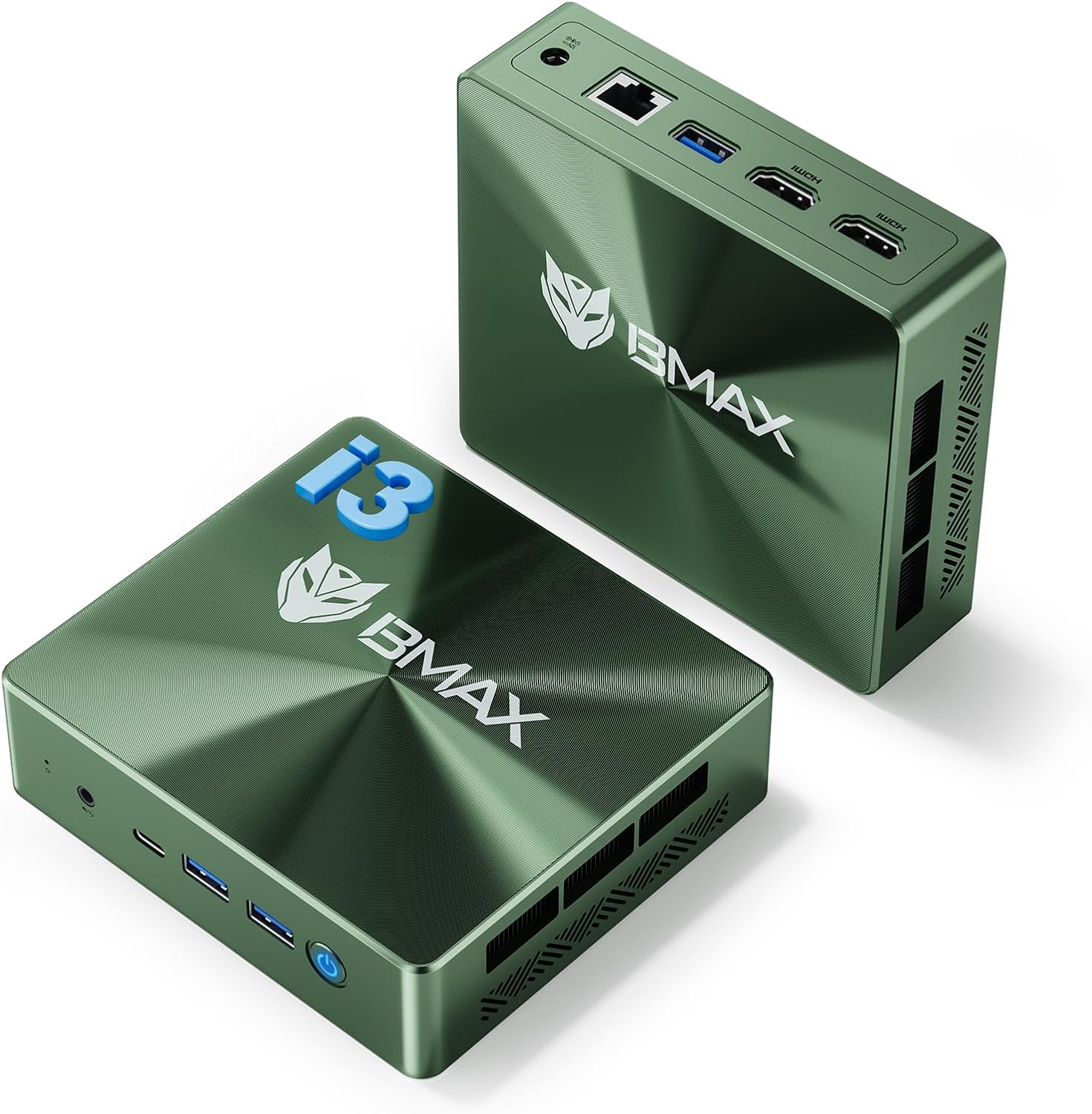
Image 1.1: The Bmax B6 Plus Mini PC, showcasing its compact form factor and available ports on the front and rear.
2. What's in the Box
Verify that all items listed below are included in your package:
- 1 x Bmax Intel Core i3-1000NG4 Mini PC B6 Plus
- 1 x User Manual
- 1 x DC 12V/3A Power Adapter
- 1 x HDMI Cable
- 1 x VESA Mount with Screws

Image 2.1: All components included with the Bmax B6 Plus Mini PC.
3. Setup Instructions
Follow these steps to set up your Bmax B6 Plus Mini PC:
- Connect Peripherals: Connect your monitor(s) using the HDMI ports or the Type-C port. Connect your keyboard, mouse, and other USB devices to the available USB 3.0 ports.
- Network Connection: For a wired connection, plug an Ethernet cable into the Gigabit Ethernet port. For wireless, ensure Wi-Fi 5 is enabled after initial setup.
- Power Connection: Connect the DC 12V/3A Power Adapter to the mini PC and then to a power outlet.
- Initial Boot: Press the power button. The system will boot into Windows 11 Pro. Follow the on-screen instructions to complete the initial Windows setup. It is recommended to keep the Ethernet cable unplugged during the first boot for a smoother setup process.
- VESA Mount Installation (Optional): Use the included VESA bracket and screws to mount the mini PC behind a compatible monitor for a space-saving setup.

Image 3.1: Example of VESA mount installation for a tidy workspace.
4. Operating Instructions
4.1. Power On/Off
- Power On: Press the power button located on the front of the device.
- Power Off: Use the standard Windows shutdown procedure (Start Menu > Power > Shut down).
- Auto Power On: This feature can be enabled in the BIOS settings to automatically power on the PC when power is restored after an outage.
- Wake On LAN (WOL): This feature allows you to remotely wake up the PC over a network connection. It can be configured in the BIOS.
4.2. Display Configuration
The Bmax B6 Plus supports up to three 4K@60Hz displays simultaneously, utilizing its two HDMI 2.0 ports and one full-function Type-C port. You can configure display settings within Windows to extend, duplicate, or use only one screen.

Image 4.1: Triple-screen display setup for enhanced productivity.
4.3. Connectivity
The device offers comprehensive connectivity options:
- USB 3.0 Ports: Three ports for connecting various USB devices.
- Type-C Port: A full-function port supporting data transfer, charging, and 4K video output.
- HDMI 2.0 Ports: Two ports for connecting displays.
- Gigabit Ethernet (RJ45): For stable, high-speed wired internet.
- Audio/Mic Combo Jack: For headphones or external microphones.
- Wi-Fi 5 (2.4G/5G): Dual-band wireless connectivity.
- Bluetooth 4.2: For connecting wireless accessories.

Image 4.2: Front and rear connectivity ports of the Bmax B6 Plus Mini PC.
5. Maintenance
5.1. Cooling System
The Bmax B6 Plus features a smart fan and dual copper heat pipes for efficient cooling, ensuring stable performance. To maintain optimal cooling:
- Ensure the ventilation openings on the device are not obstructed.
- Keep the mini PC in a well-ventilated area.
- Periodically clean dust from the vents using compressed air.

Image 5.1: Internal view of the advanced smart cooling system.
5.2. Storage Expansion
The mini PC includes a 512GB NVMe SSD and supports storage expansion up to 2TB via dual NVMe slots. Refer to the detailed instructions in the full user manual for safe installation of additional storage.

Image 5.2: Dual NVMe M.2 2280 slots for high-speed storage expansion.
6. Troubleshooting
6.1. System Recovery
The Bmax B6 Plus includes a user-friendly recovery feature to restore your PC to its factory-fresh condition. This can resolve many software-related issues.
- Step 1: Power On. Power on your Mini PC.
- Step 2: Enter Recovery Mode. As soon as the screen lights up, immediately and repeatedly tap the F9 key until the System Recovery menu appears.
- Step 3: Start the Recovery. You have two options:
- Using Keyboard: Press the 'Y' key to begin the factory reset.
- Using Mouse: Click the [Restore System] button.
- Step 4: Set Up Windows. Once complete, you will be greeted by the initial Windows setup screen. Simply follow the on-screen instructions to set up your fresh system.

Image 6.1: Steps for utilizing the Bmax Smart Recovery System.
6.2. General Issues
- No Display: Ensure all display cables are securely connected and the monitor is powered on and set to the correct input.
- No Power: Verify the power adapter is correctly connected to both the PC and a working power outlet.
- Slow Performance: Check for background applications, ensure sufficient free storage space, and consider running system diagnostics.
7. Technical Specifications
| Feature | Detail |
|---|---|
| Processor | Intel Core i3-1000NG4 (up to 3.2 GHz) |
| RAM | 12 GB LPDDR4 (2133 MHz) |
| Storage | 512 GB NVMe SSD (Expandable up to 2TB via dual NVMe slots) |
| Graphics | Intel Iris Plus Graphics |
| Operating System | Windows 11 Pro (also supports Linux) |
| Display Output | 2x HDMI 2.0, 1x Full-function Type-C (supports 4K@60Hz triple display) |
| USB Ports | 3x USB 3.0, 1x Full-function Type-C |
| Network | Gigabit Ethernet (RJ45), Wi-Fi 5 (2.4G/5G) |
| Wireless | Bluetooth 4.2 |
| Dimensions | Approximately 4.9 x 4.4 x 1.4 inches |
| Weight | Approximately 16 ounces |
8. Warranty and Support
The Bmax B6 Plus Mini PC comes with a full 1-year warranty. For technical assistance or warranty claims, please contact Bmax customer support.
8.1. Contacting Support
- For Amazon Purchases: Go to 'Your Orders' on Amazon, find your Bmax product, and select 'Get product support'.
- Direct Support Team: You may also contact the dedicated support team via email at minipcfae@bmaxit.com for any technical questions or general inquiries.

Image 8.1: Bmax customer support contact information.
9. Product Video
Video 9.1: Official product video for the Bmax B6 Plus Mini PC, highlighting its features and capabilities. This video demonstrates the compact design, rich interface configuration, efficient cooling, superfast memory, SSD expansion, and various use cases like creating, editing, gaming, and 4K video playback.


