
1. Introduction
This manual provides detailed instructions for the installation, operation, and maintenance of your CP PLUS 4MP Wi-Fi Floodlight Camera, model CP-F42A. Please read this manual thoroughly before using the product to ensure proper functionality and safety. This camera combines high-resolution video surveillance with integrated floodlighting for enhanced security.
2. Safety Information
- Ensure the power supply matches the camera's requirements.
- Do not attempt to disassemble or modify the camera.
- Install the camera in a location where it is protected from extreme weather conditions, although it has an IP54 rating, direct exposure to heavy rain or prolonged submersion is not recommended.
- Keep the camera away from heat sources and direct sunlight.
- Handle the camera with care to avoid physical damage.
- Consult a qualified electrician for installation if you are unsure about electrical wiring.
3. Package Contents
Verify that all items are present in the package:
- CP PLUS 4MP Wi-Fi Floodlight Camera (CP-F42A)
- Power Adapter
- Mounting Screws and Wall Plugs
- Quick Start Guide (not included in this manual)
4. Product Overview
The CP-F42A is an outdoor Wi-Fi floodlight camera designed for surveillance and illumination. It features a 4MP sensor for clear video, H.265 video compression for efficient storage, and a 110° viewing angle. The integrated floodlight provides illumination, and the PIR sensor detects motion up to 12 meters.
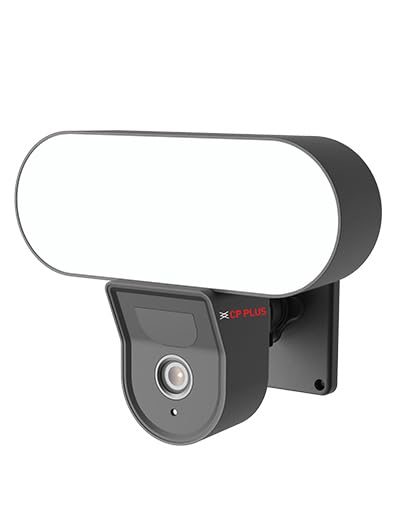
Image: Front view of the CP PLUS 4MP Wi-Fi Floodlight Camera CP-F42A, showing the camera lens and the integrated floodlight panel.
Key Components:
- Camera Lens: Captures 4MP video.
- Floodlight Panel: Provides illumination.
- PIR Sensor: Detects motion.
- Microphone: For audio input.
- Speaker: For two-way audio output.
- Mounting Bracket: For secure installation.
5. Setup
5.1 Physical Installation
- Choose a Location: Select an outdoor location with a clear view of the area you wish to monitor and within Wi-Fi range. Ensure the mounting surface is sturdy.
- Mark Drilling Points: Use the mounting bracket as a template to mark the screw holes on the wall.
- Drill Holes: Drill pilot holes at the marked points. Insert wall plugs if mounting on masonry.
- Mount the Camera: Secure the mounting bracket to the wall using the provided screws. Attach the camera to the bracket.
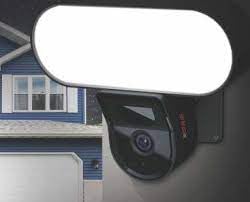
Image: The CP PLUS Floodlight Camera mounted on the exterior of a house, illustrating a typical installation scenario during the day.
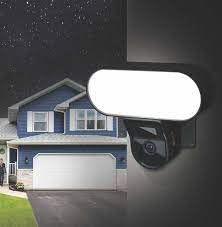
Image: The CP PLUS Floodlight Camera mounted on the exterior of a house at night, with the floodlight illuminated, demonstrating its night-time functionality.
5.2 Power Connection
Connect the provided power adapter to the camera's power input port and then plug it into a suitable electrical outlet. Ensure the connection is secure and protected from moisture.
5.3 Wi-Fi Connection and App Pairing
- Download the App: Search for the "ezyKam+" app (or the recommended CP PLUS app) on your smartphone's app store (iOS or Android) and install it.
- Create an Account: Open the app and register for a new account or log in if you already have one.
- Add Device: Follow the in-app instructions to add a new device. Select "Floodlight Camera" or a similar option.
- Connect to Wi-Fi: The app will guide you through connecting the camera to your home Wi-Fi network. This usually involves scanning a QR code on the camera or entering your Wi-Fi credentials.
- Complete Setup: Once connected, you can name your camera and adjust initial settings.
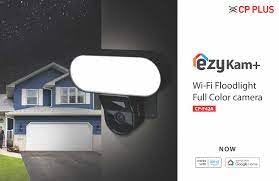
Image: Branding for CP PLUS ezyKam+ Wi-Fi Floodlight Full Color Camera, indicating compatibility with Alexa and Google Home, relevant for app pairing and smart home integration.
6. Operating Instructions
Access all camera functions through the dedicated mobile application.
6.1 Live View
Open the app and select your camera from the device list to view the live video feed. You can pinch to zoom and pan across the image.
6.2 Recording and Playback
- Manual Recording: Tap the record button in the live view to start/stop manual recording.
- Event Recording: The camera automatically records when motion is detected. These recordings are stored on the installed microSD card (if any) or cloud storage (subscription may be required).
- Playback: Access recorded footage through the "Playback" or "History" section in the app.
6.3 Motion Detection and Alerts
Configure motion detection sensitivity and areas within the app settings. When motion is detected, the camera can send push notifications to your phone and trigger recording. The PIR sensor has a detection range of 6-12 meters.
6.4 Floodlight Control
The floodlight can be controlled manually via the app or set to activate automatically upon motion detection during specific times or low-light conditions. Adjust brightness and duration settings in the app.
6.5 Two-Way Audio
Use the microphone and speaker icons in the live view to communicate with visitors or deter intruders. Press and hold the microphone icon to speak, and release to listen.
6.6 Night Vision
The camera features infrared (IR) night vision for clear black-and-white video in low-light conditions and can also utilize the floodlight for full-color night vision when activated. The night vision range is up to 12 meters.
7. Maintenance
7.1 Cleaning
Wipe the camera lens and floodlight panel with a soft, damp cloth to remove dust and dirt. Do not use harsh chemicals or abrasive cleaners.
7.2 Firmware Updates
Periodically check the app for available firmware updates. Keeping your camera's firmware up-to-date ensures optimal performance and security features.
7.3 Storage Management
If using a microSD card, regularly check its status in the app. Format the card periodically to maintain performance. Back up important recordings before formatting.
8. Troubleshooting
| Problem | Possible Solution |
|---|---|
| Camera not powering on. | Check power adapter connection and ensure the outlet is functional. |
| Unable to connect to Wi-Fi. | Ensure the camera is within Wi-Fi range. Verify Wi-Fi password. Try resetting the camera and router. |
| Poor video quality. | Check Wi-Fi signal strength. Clean the camera lens. Ensure sufficient lighting. |
| Motion detection not working. | Adjust motion detection sensitivity and area settings in the app. Ensure there are no obstructions. |
| Floodlight not activating. | Check floodlight settings in the app. Ensure it's set to activate on motion or during low light. |
9. Specifications
| Feature | Detail |
|---|---|
| Model Number | CP-F42A |
| Resolution | 4MP (Effective Still Resolution: 4 MP) |
| Video Compression | H.265, MPEG |
| Viewing Angle | 110 Degrees |
| PIR Distance | 6~12 Meters |
| Wireless Technology | Wi-Fi |
| Night Vision Range | 12 Meters (Infrared, Night Color) |
| Frame Rate | 20 frames per second |
| Optical Zoom | 3x |
| International Protection Rating | IP54 |
| Alert Type | Motion Only |
| Power Source | Corded Electric |
| Included Components | Adapter |
| Dimensions (L x W x H) | 20 x 12 x 10 Centimeters |
| Item Weight | 630 g |
| Indoor/Outdoor Usage | Outdoor |
| Photo Sensor Technology | CMOS |
| Recommended Uses | Home Security, Night Vision |
10. Warranty and Support
For warranty information and technical support, please refer to the official CP PLUS website or contact their customer service. Keep your purchase receipt as proof of purchase for warranty claims.
CP PLUS Official Website: www.cpplusworld.com
