1. Introduction
Thank you for choosing the ANKEWAY Double Din Car Stereo. This advanced car audio receiver features a 7-inch touchscreen, integrating wireless CarPlay and Android Auto for seamless smartphone connectivity. Equipped with Bluetooth, WiFi, RDS/FM radio, GPS navigation, and support for a backup camera, this unit provides a comprehensive in-car entertainment and navigation solution. This manual provides detailed instructions for installation, operation, and troubleshooting to ensure optimal performance and user experience.

Image: The ANKEWAY 7-inch Double Din Car Stereo, highlighting its compatibility with CarPlay and Android Auto.
2. Safety Information
Please read all safety instructions carefully before installation and operation. Failure to follow these guidelines may result in injury or damage to the device or vehicle.
- Always consult a professional for installation if you are unsure about any wiring or electrical connections.
- Do not operate the device in a manner that distracts you from driving. Always prioritize road safety.
- Ensure all connections are secure and properly insulated to prevent short circuits.
- Avoid exposing the unit to extreme temperatures, direct sunlight for prolonged periods, or excessive moisture.
- Keep the volume at a level that allows you to hear external traffic sounds.
3. Package Contents
Verify that all items are present in the package before beginning installation:
- ANKEWAY Double Din Car Stereo Unit
- Power Harness
- GPS Antenna
- USB Cables (Dual)
- External Microphone
- Rear View Camera
- RCA Cables
- Mounting Brackets and Screws
- User Manual (this document)

Image: Overview of the main unit and included accessories.
4. Product Features
The ANKEWAY AW1010 Car Stereo is designed with a range of features to enhance your driving experience:
- Android System: Runs on an Android operating system with 2GB RAM and 32GB internal storage, allowing app installation via the Play Store.
- Wireless CarPlay & Android Auto: Seamlessly integrate your iPhone or Android smartphone for navigation, music, calls, and voice commands. Supports both wired and wireless connections.
- 7.0-inch HD 1080P IPS Touch Screen: High-definition, sensitive, and transparent display with 2.5D curved edge for clear visuals and responsive interaction.
- Mirror Link: Project your phone's display directly onto the car stereo screen.
- Connectivity: Dual USB ports, Bluetooth for hands-free calls and music streaming, WiFi for internet access, and support for external steering wheel controls (SWC).
- GPS Navigation: Built-in GPS module with pre-installed navigation software (e.g., TomTom, Here WeGO).
- Audio/Video Output: 4x60W audio output and 1080P HD video support. Features an equalizer for sound customization (Pop, Rock, Jazz, etc.).
- Rear Camera Input: Includes a backup camera for enhanced safety during reversing.
- Radio: RDS/FM radio tuner for clear reception.

Image: Visual representation of the car stereo's core features.

Image: Detail of the HD Full Touch Screen technology.
5. Setup and Installation
Proper installation is crucial for the performance and longevity of your car stereo. It is recommended to have the unit installed by a qualified professional.
5.1 Wiring Diagram
Refer to the following diagram for correct wiring connections. Ensure all wires are connected to their corresponding terminals in your vehicle's wiring harness.

Image: Main Cable Wiring Diagram.
- Speaker Connections (RL/RR/FL/FR): Connect to your vehicle's 4 speakers.
- ANT-CONT: Connect to the antenna control wire (if applicable).
- Lamp Control (ILL): Connect to the car's front small light wire.
- Back (REVERSE): Connect to the rear camera signal input cable.
- KEY1(KEY2): Use one of these cables to connect to the signal output cable of your car's Steering Wheel Control (SWC). If KEY1 is not compatible, select KEY2.
- GND: Connect to the battery negative/iron/ground.
- B+: Connect to the car battery positive.
- ACC: Connect to the car ignition detection cable.
5.2 Physical Installation
- Carefully remove your existing car stereo.
- Connect the ANKEWAY stereo's wiring harness to your vehicle's harness according to the diagram.
- Connect the GPS antenna, WiFi antenna, and external microphone. Position the GPS antenna in a location with a clear view of the sky (e.g., dashboard or windshield).
- Install the rear view camera and connect its video and power cables to the stereo.
- Secure the stereo unit into the dashboard using the provided mounting brackets and screws.
- Test all functions (power, audio, radio, GPS, camera, Bluetooth, CarPlay/Android Auto) before fully reassembling the dashboard.
6. Operating Instructions
The ANKEWAY car stereo features an intuitive touchscreen interface. Here are basic operating guidelines:
6.1 Touchscreen Operation
Navigate through menus and control functions by tapping, swiping, and dragging on the 7-inch IPS touchscreen. The interface is designed to be responsive and user-friendly.

Image: Various screen interfaces of the car stereo.
6.2 Steering Wheel Control (SWC)
If your vehicle supports steering wheel controls, you can configure them to operate the stereo. Access the 'Steering Learn' or 'SWC Settings' menu in the system settings to map your vehicle's steering wheel buttons to the stereo's functions (e.g., volume up/down, track skip, mode change).

Image: Steering Wheel Control learning interface.
7. Connectivity
7.1 Wireless CarPlay & Android Auto
This unit supports both wireless and wired CarPlay and Android Auto. To connect wirelessly:
- Ensure Bluetooth and Wi-Fi are enabled on your smartphone.
- On the car stereo, go to the CarPlay/Android Auto application.
- Follow the on-screen prompts to pair your phone via Bluetooth. Once paired, the system will automatically establish a Wi-Fi connection for CarPlay/Android Auto functionality.
This allows access to navigation apps (e.g., Waze, Google Maps), music streaming (e.g., Spotify, YouTube Music), hands-free calling, and voice assistants (Siri, Google Assistant) directly from the stereo display.

Image: CarPlay interface on the stereo and smartphone integration.

Image: Android Auto interface with Spotify.

Image: Wireless CarPlay and Android Auto with voice command examples.
7.2 Bluetooth
Pair your smartphone via Bluetooth for hands-free calling and audio streaming.
- On the stereo, go to the Bluetooth application.
- Enable Bluetooth on your phone and search for available devices.
- Select 'ANKEWAY' (or similar device name) from the list and confirm pairing.
- Once connected, you can make/receive calls and play music through the car speakers.
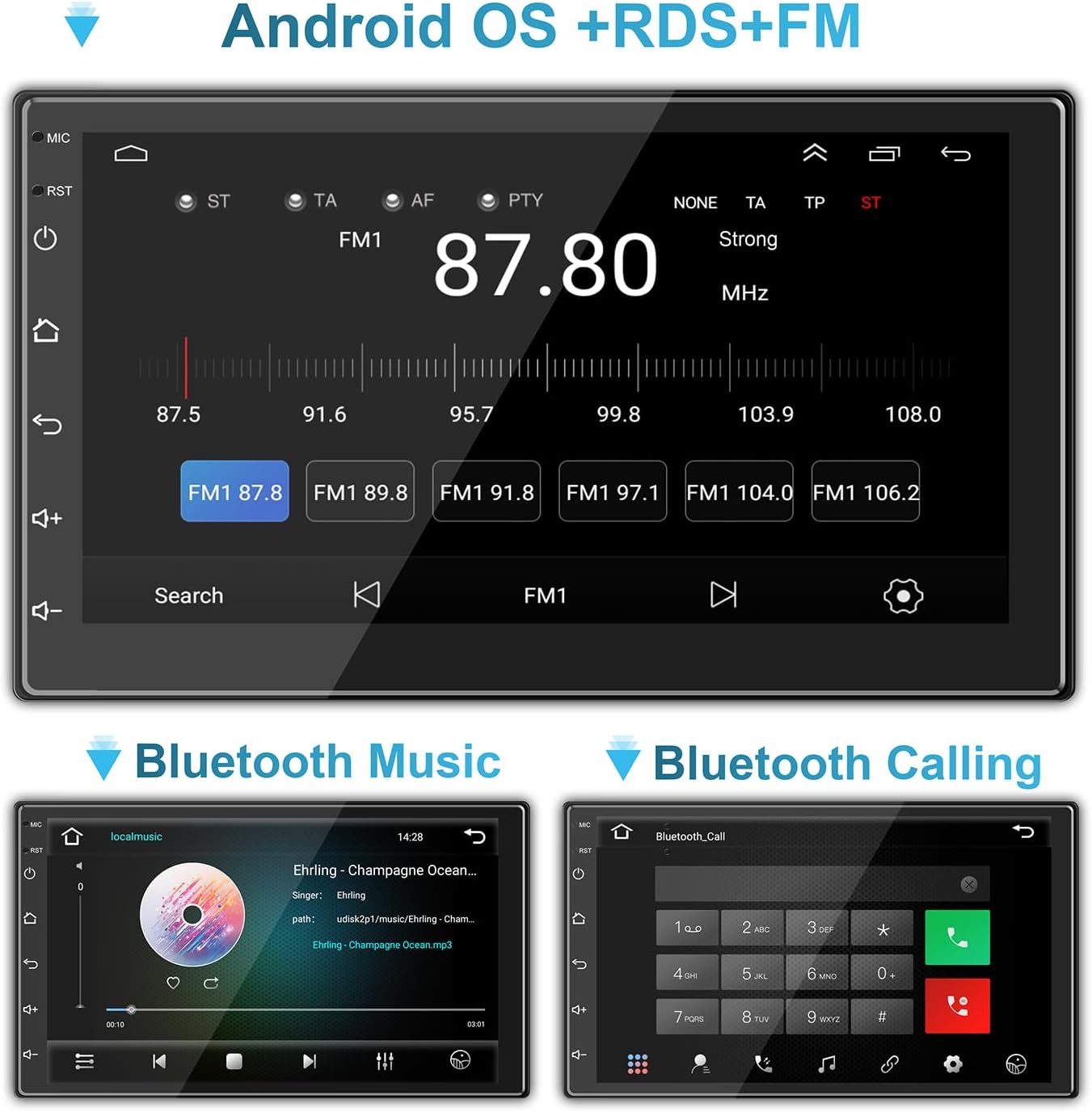
Image: Bluetooth music and calling interfaces.
7.3 WiFi & Internet
Connect the stereo to a Wi-Fi network (e.g., mobile hotspot) to access online features, download apps, and stream content.
- Go to 'Settings' on the stereo and select 'Wi-Fi'.
- Turn on Wi-Fi and select your desired network from the list.
- Enter the password if prompted and connect.

Image: Connecting to mobile WiFi and streaming content.

Image: WiFi and Bluetooth connectivity features.
7.4 Mirror Link
Mirror Link allows you to display your smartphone's screen directly on the car stereo. This feature is typically accessed via a dedicated app on the stereo and may require a wired USB connection for initial setup.
8. GPS Navigation
The stereo comes with a built-in GPS module and pre-installed navigation software. Ensure the GPS antenna is properly installed and has a clear view of the sky for accurate positioning.
- Access the navigation application from the main menu.
- Enter your destination, and the system will provide turn-by-turn directions.
- Maps can be updated via Wi-Fi connection or by downloading map data to the unit's storage.
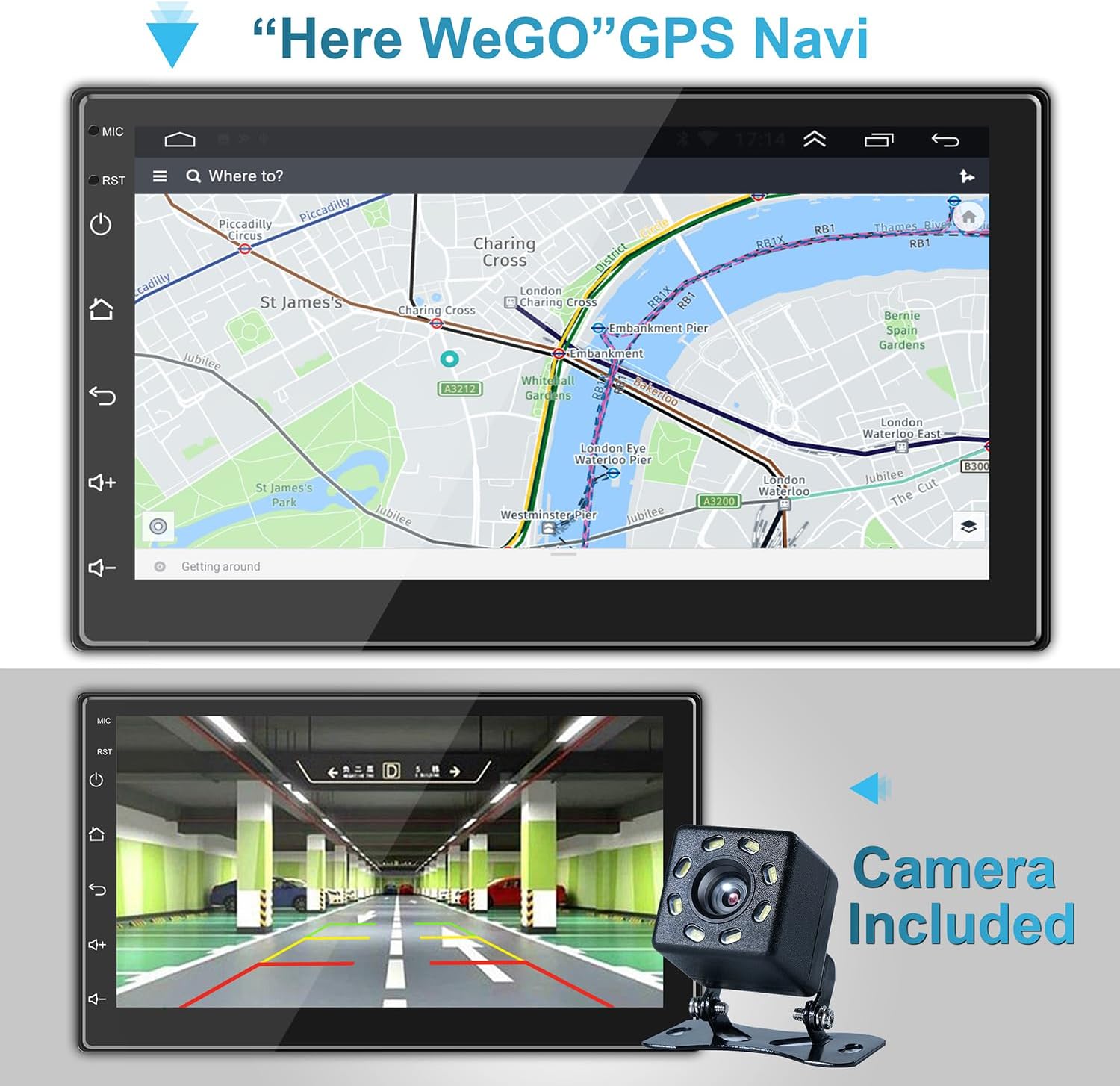
Image: GPS Navigation interface.

Image: GPS Navigation within CarPlay.
9. Backup Camera
The included backup camera automatically displays the rear view on the stereo screen when the vehicle is shifted into reverse gear. This feature significantly aids in safe parking and maneuvering.
- Ensure the camera is properly installed and connected to the 'Back (REVERSE)' input on the stereo's wiring harness.
- The screen will automatically switch to the camera view when reverse gear is engaged.
Image: Backup camera view on the stereo screen.
10. Multimedia Settings
The stereo supports various multimedia functions, including audio playback and video viewing.
10.1 Audio Equalizer
Customize your audio experience using the built-in equalizer. Access the equalizer settings to adjust sound effects and music styles (e.g., Pop, Rock, Jazz, Classical, Custom).
10.2 Video Playback
The unit supports 1080P HD video playback from USB drives or streaming via connected Wi-Fi. Ensure video files are in compatible formats (e.g., H.264).
Image: High-definition video playback.
11. Maintenance
To ensure the longevity and optimal performance of your ANKEWAY car stereo, follow these maintenance tips:
- Cleaning: Use a soft, dry cloth to clean the touchscreen and unit exterior. For stubborn smudges, slightly dampen the cloth with water or a screen-safe cleaner. Avoid abrasive materials or harsh chemicals.
- Temperature: Do not expose the unit to extreme temperatures. Prolonged exposure to direct sunlight or very cold conditions can affect performance and lifespan.
- Software Updates: Periodically check for software updates from the manufacturer to ensure the best performance and access to new features. Updates can often be downloaded via Wi-Fi.
- Connections: Occasionally check all wiring connections to ensure they are secure and free from corrosion.
12. Troubleshooting
If you encounter issues with your car stereo, refer to the following common problems and solutions:
| Problem | Possible Cause | Solution |
|---|---|---|
| No Power | Loose power connection; Blown fuse; Incorrect wiring. | Check ACC and B+ wiring; Inspect fuse in the vehicle's fuse box and on the stereo's harness; Ensure proper grounding. |
| No Sound | Speaker wires disconnected; Volume too low; Mute function active; Incorrect audio settings. | Verify speaker connections; Increase volume; Check if mute is on; Adjust audio output settings. |
| Bluetooth/Wi-Fi Connectivity Issues | Phone not discoverable; Incorrect pairing; Weak signal; Software glitch. | Ensure phone's Bluetooth/Wi-Fi is on and discoverable; Re-pair device; Move closer to Wi-Fi source (for hotspot); Restart stereo and phone. |
| CarPlay/Android Auto Not Connecting | Incorrect USB cable; Phone software outdated; App not installed/updated; Wireless connection issues. | Use a high-quality USB cable; Update phone OS and CarPlay/Android Auto apps; Ensure Bluetooth and Wi-Fi are active for wireless connection. |
| GPS Signal Lost/Inaccurate | GPS antenna obstructed or disconnected; Poor satellite reception. | Ensure GPS antenna is securely connected and placed in a clear area (e.g., dashboard); Move vehicle to an open area. |
| Rear Camera Not Displaying | Camera power/video cable disconnected; Reverse trigger wire (BACK) not connected. | Check camera connections; Ensure the 'BACK' wire is correctly connected to the vehicle's reverse light trigger. |
If the problem persists after trying these solutions, please contact ANKEWAY customer support for further assistance.
13. Specifications
| Feature | Specification |
|---|---|
| Model Number | AW1010 |
| Product Dimensions | 1.73"D x 7.01"W x 3.98"H (4.39 x 17.81 x 10.11 cm) |
| Item Weight | 2.38 pounds (1.08 kg) |
| Screen Size | 7 inches (18 cm) |
| Operating System | Android |
| Memory (RAM) | 2GB |
| Storage (ROM) | 32GB |
| Connectivity Technology | USB, RCA, Cable, Bluetooth, WiFi |
| Special Features | Wireless Android Auto, Wireless Apple CarPlay, Mirror Link, GPS Navigation, RDS/FM Radio |
| Audio Output Mode | Stereo |
| Output Power | 4 x 60 Watts |
| Video Encoding | H.264 |

Image: Product dimensions and rear panel layout.
14. Warranty and Support
For warranty information, technical support, or any inquiries regarding your ANKEWAY Double Din Car Stereo, please contact ANKEWAY customer service. Refer to the contact information provided with your purchase or visit the official ANKEWAY website for support resources.


