Introduction
This user manual provides comprehensive instructions for operating and maintaining your KOMERY 4K Video Camera (Model AF5). Please read this manual thoroughly before using the camera to ensure proper function and longevity of the device. This camera is designed for capturing high-quality video and still images, featuring 10X optical zoom, 4K resolution, and various advanced functions.
What's in the Box
Upon unboxing, please verify that all components listed below are present:
- 10X Optical Video Camera
- NP40 Rechargeable Batteries (2 units)
- HDMI Cable
- Type C Cable
- Cleaning Cloth
- DV Bag
- 2.4G Remote Control
- User Manual (this document)

Figure 1: Included accessories with the KOMERY 4K Video Camera.
Product Overview
The KOMERY 4K Video Camera is a compact and versatile device designed for various recording needs. Key features include 4K video recording, 10X optical zoom, a 3.0-inch touch screen, and Wi-Fi connectivity.

Figure 2: Front view of the KOMERY 4K Video Camera.
Camera Components and Controls

Figure 3: Detailed diagram of camera components and controls.
- Hot Shoe: For attaching external accessories like microphones or lights.
- W/T (Zoom Out/In): Controls the optical and digital zoom.
- Photo Button: Captures still images.
- 3.0" Rotation Screen: Adjustable touch screen display.
- POWER Button: Turns the camera on/off.
- LIGHT Button: Activates the built-in LED fill light.
- MENU Button: Accesses camera settings and options.
- DISP Button: Toggles display information on the screen.
- MODE Button: Switches between video, photo, and playback modes.
- External MIC/HD/USB Interface: Ports for external microphone, HDMI output, and USB connection.
- Video Start/Stop Button: Initiates and ends video recording.
Setup
1. Charging the Batteries
The camera comes with two NP40 rechargeable batteries. Before first use, fully charge both batteries. Insert a battery into the camera and connect the camera to a power source using the provided Type C cable. The charging indicator light will show the charging status. A full charge typically takes approximately 3-4 hours.
2. Inserting an SD Card
This camera requires an SD card (not included) for storing videos and photos. It supports SD cards up to 256GB. Ensure the camera is powered off before inserting or removing the SD card. Locate the SD card slot, typically on the side or bottom of the camera, and insert the card with the metal contacts facing the correct direction until it clicks into place.
3. Initial Power On
Press and hold the POWER button to turn on the camera. The 3.0-inch touch screen will illuminate. You may be prompted to set the date and time upon first use.
Operating Instructions
Basic Recording
To switch between video and photo modes, press the MODE button. The current mode will be displayed on the screen.
- Video Recording: In video mode, press the Video Start/Stop button to begin recording. Press it again to stop.
- Photo Capture: In photo mode, press the Photo button to take a still image.
Zoom Functions
The camera features 10X optical zoom and 4X digital zoom. Use the W/T (Wide/Telephoto) button to adjust the zoom level. Optical zoom allows for magnification without loss of image quality, while digital zoom digitally enlarges the image, which may result in some pixelation at higher levels.

Figure 4: Demonstration of 10X Optical Zoom.
Touch Screen Operation
The 3.0-inch touch screen allows for intuitive navigation of menus and settings. Tap on icons or options to select them. Swipe gestures may also be supported for browsing photos or videos in playback mode.
Remote Control Usage
The included 2.4G remote control allows for convenient operation from a distance, especially useful when the camera is mounted on a tripod. Functions typically include starting/stopping recording, taking photos, and controlling zoom.

Figure 5: Remote control and webcam functionality.
Wi-Fi Function
Connect the camera to your smartphone or tablet via Wi-Fi to instantly download, transfer, and share photos and videos. Refer to the camera's on-screen menu for Wi-Fi setup instructions and recommended mobile application.

Figure 6: Wi-Fi and HDMI connectivity options.
HDMI Output
Connect the camera to a TV or monitor using the provided HDMI cable to view your recordings on a larger screen.
Webcam Mode
The camera can function as a webcam for video calls. Connect the camera to your computer via the Type C USB cable and select "PC Camera" mode from the camera's menu when prompted.

Figure 7: Camera used as a webcam.
Special Features
- Time-Lapse Recording/Photography: Capture events over a period of time and condense them into a short video.
- Pause Function: Pause and resume video recording without creating multiple files.
- Motion Detection: The camera starts recording automatically when motion is detected.
- Slow Motion Recording: Record video at a higher frame rate for slow-motion playback.
- Continuous Shooting: Capture a rapid sequence of still images.
- Anti-Shake: Digital image stabilization to reduce blur from camera movement.
- Smile Capture: Automatically takes a photo when a smile is detected.
- Face Detection: Optimizes focus and exposure for faces in the frame.
- Self Timer: Delays photo capture for a set period.
- LED Fill Light: Provides additional illumination in low-light conditions. Activate using the LIGHT button.

Figure 8: Overview of advanced camera features.
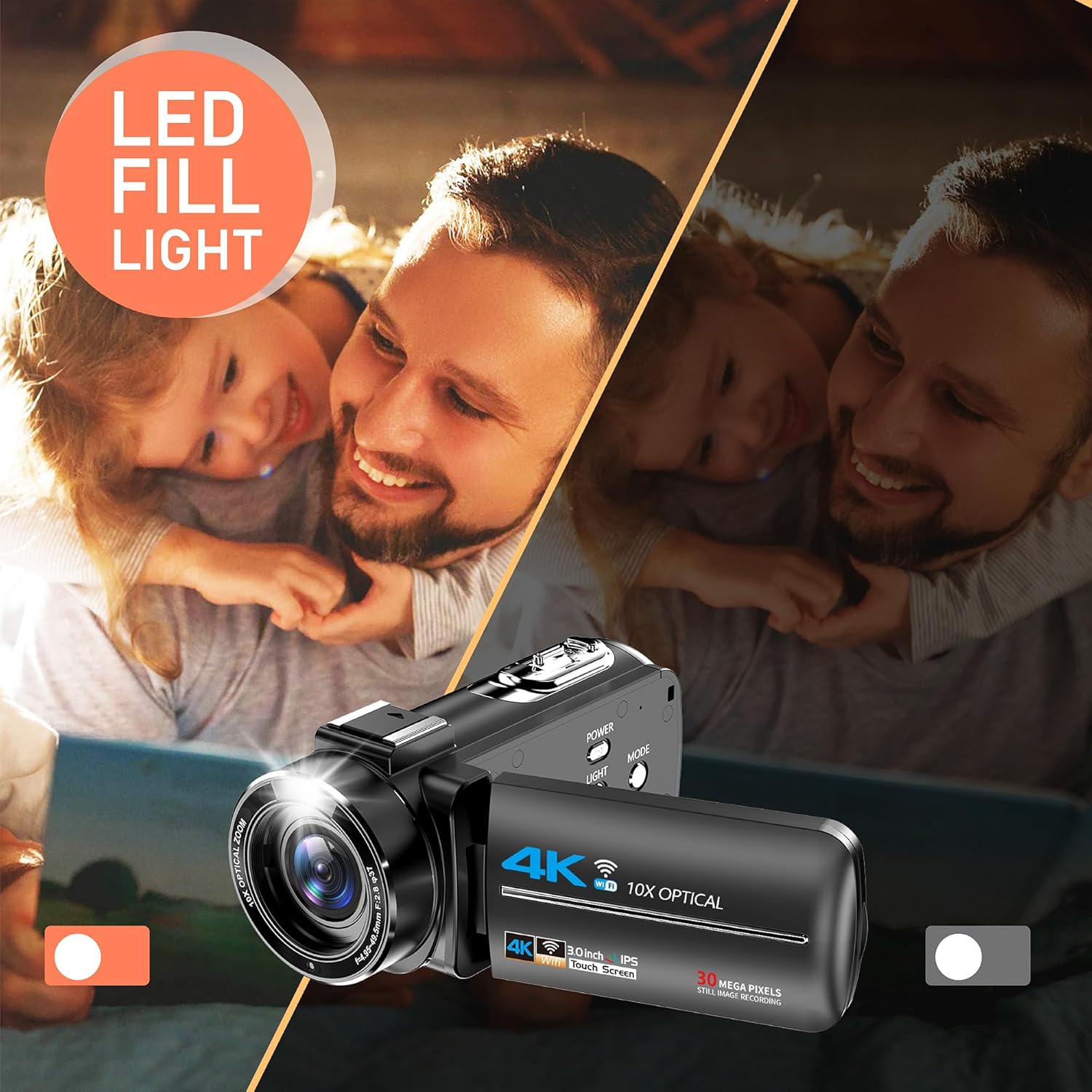
Figure 9: Demonstration of the built-in LED fill light.
Maintenance
- Cleaning: Use the provided cleaning cloth to gently wipe the lens and screen. Do not use liquid cleaners or abrasive materials.
- Battery Care: Store batteries in a cool, dry place. Avoid fully discharging batteries frequently to prolong their lifespan. If the camera will not be used for an extended period, remove the batteries.
- Storage: Store the camera in the included DV bag to protect it from dust and scratches when not in use.
- Firmware Updates: Check the manufacturer's website periodically for any available firmware updates to ensure optimal performance and access to new features.
Troubleshooting
| Problem | Possible Cause | Solution |
|---|---|---|
| Camera does not power on. | Battery is depleted or not inserted correctly. | Ensure batteries are fully charged and correctly inserted. Try using the second battery. |
| Cannot record video/take photos. | No SD card inserted, SD card full, or SD card error. | Insert a compatible SD card. Delete unnecessary files or replace with an empty card. Format the SD card (this will erase all data). |
| Poor image/video quality. | Low light conditions, dirty lens, or digital zoom used excessively. | Ensure adequate lighting. Clean the lens with the provided cloth. Minimize use of digital zoom for best quality. |
| Camera not charging. | Faulty cable, adapter, or charging port. | Try a different Type C cable and USB power adapter. Ensure the charging port on the camera is clean and free of debris. If issues persist, contact customer support. |
| Wi-Fi connection issues. | Incorrect password, out of range, or app issues. | Ensure correct Wi-Fi password. Move closer to the camera. Restart both camera and mobile device. Reinstall the mobile application if necessary. |
Specifications
| Feature | Detail |
|---|---|
| Brand | KOMERY |
| Model Number | AF5 |
| Item Weight | 1.34 pounds |
| Product Dimensions | 2.3 x 5 x 2.2 inches |
| Country of Origin | China |
| Batteries | 1 Lithium Ion batteries required (included) |
| Color Name | black-AF05 |
| Special Features | Built-In Flash |
| Photo Sensor Technology | CMOS |
| Video Capture Resolution | 4K |
| Maximum Focal Length | 49 Millimeters |
| Maximum Aperture | 2.8 f |
| Flash Memory Type | SD (Supports up to 256GB, not included) |
| Video Capture Format | MP4 |
| Supported Audio Format | MP4 |
| Screen Size | 3 Inches |
| Connectivity Technology | HDMI, Wi-Fi, USB |
Warranty and Support
KOMERY offers a 1-year warranty for this product. For any questions, technical support, or warranty claims, please contact the seller directly through your purchase platform. On Amazon, you can typically find the "Contact seller" option under "Your orders" by locating the specific order ID.
Customer service is available 7 days a week, 24 hours a day.
Product Video Demonstration
Video 1: A demonstration of the KOMERY 4K Video Camera's 10X optical zoom capability, showcasing its ability to zoom in on distant objects like the moon while maintaining clarity.