1. Introduction
Thank you for choosing the NOVOO 11-in-1 USB-C Docking Station. This device is designed to expand the connectivity of your USB-C enabled laptop, providing multiple ports for display, data transfer, networking, and power delivery. Please read this manual carefully to ensure proper setup and operation.

Image 1.1: The NOVOO 11-in-1 USB-C Docking Station with connected peripherals.
2. Product Overview
The NOVOO 11-in-1 USB-C Docking Station provides a comprehensive solution for expanding your laptop's connectivity. It features the following ports:
- 2 x HDMI Ports: For connecting external displays (HDMI 1: up to 4K@30Hz, HDMI 2: up to 4K@60Hz).
- 1 x VGA Port: For connecting external displays (up to 1080P@60Hz).
- 1 x Gigabit Ethernet Port (RJ45): For stable wired network connection (up to 1Gbps).
- 2 x USB-A 3.0 Ports: For high-speed data transfer (up to 5Gbps).
- 2 x USB-A 2.0 Ports: For connecting peripherals like keyboards and mice (up to 480Mbps).
- 1 x USB-C PD Port: For power delivery to your laptop (up to 100W).
- 1 x SD Card Reader: For accessing SD memory cards.
- 1 x TF (Micro SD) Card Reader: For accessing Micro SD memory cards.

Image 2.1: Labeled diagram of the 11-in-1 docking station ports.
3. Setup Instructions
Follow these steps to set up your NOVOO 11-in-1 USB-C Docking Station:
- Verify Laptop Compatibility: Ensure your laptop's USB-C port supports video output (DisplayPort Alternate Mode) and power delivery. Refer to your laptop's manual or the port symbols shown below. Ports that only support charging or data transfer will not enable full docking station functionality.
- Connect to Laptop: Plug the integrated USB-C cable from the docking station into a compatible USB-C port on your laptop.
- Connect Power Adapter (Optional but Recommended): For optimal performance, especially when using multiple peripherals or monitors, connect a 100W or higher-rated USB-C power adapter (not included) to the docking station's USB-C PD port. This ensures stable power delivery to your laptop and connected devices.
- Connect External Displays: Connect your monitors to the HDMI and/or VGA ports on the docking station using appropriate cables.
- Connect Peripherals: Plug in your USB devices (keyboard, mouse, external drives, etc.) into the USB-A 3.0 and USB-A 2.0 ports. Insert SD or TF cards into their respective slots if needed.
- Connect Ethernet Cable: For a wired network connection, plug an Ethernet cable into the RJ45 port on the docking station.

Image 3.1: USB-C port symbol guide for compatibility check.

Image 3.2: Example setup of the docking station with a laptop and multiple displays.
4. Operating Instructions
4.1 Display Modes
The docking station supports various display configurations depending on your operating system.
Windows OS:
- Mirror Mode: Displays the same content on all connected screens (laptop and external monitors).
- Extend Mode: Extends your desktop across multiple screens, allowing for more workspace.
- MST (Multi-Stream Transport) Mode: Allows for independent display output to multiple external monitors. This mode supports extending to up to 3 displays simultaneously, provided your laptop's USB-C port supports DP1.4 or Thunderbolt 3/4.
Resolution Support for Windows:
- Single Display: HDMI 1 (4K@30Hz), HDMI 2 (4K@60Hz), VGA (1920x1080@60Hz).
- Dual Display: Up to 4K@30Hz (HDMI 1) + 1080P@60Hz (HDMI 2 or VGA). May vary to dual 1080P@60Hz depending on monitor capabilities.
- Triple Display: Up to 1920x1080@60Hz on all three external displays (HDMI 1, HDMI 2, VGA). Requires DP1.4 or Thunderbolt 3/4.

Image 4.1: Single Display Configurations (Windows/Mac OS).

Image 4.2: Windows Dual Display Configurations.

Image 4.3: Windows Triple Display Configurations.
macOS:
Due to macOS system limitations, only screen mirroring is supported for multiple external displays. MST (Multi-Stream Transport) is not supported by macOS, resulting in identical images displayed on external monitors.
Resolution Support for macOS:
- Mirror & Extend Mode: Supports 4K@30Hz.
- Dual Display: Up to 4K@30Hz (HDMI 1) + 4K@30Hz (HDMI 2) or 1920x1080@60Hz (HDMI 1/2) + 1920x1080@60Hz (VGA).
- Triple Display: Up to 1920x1080@60Hz on all three external displays (HDMI 1, HDMI 2, VGA) in mirror or extend mode (extended desktop on all external monitors will show the same content).

Image 4.4: Mac OS Dual Display Configurations.

Image 4.5: Mac OS Triple Display Configurations.
4.2 Data Transfer
Utilize the USB-A ports and card readers for efficient data management:
- USB-A 3.0: Connect external hard drives, USB flash drives, or other high-speed devices for data transfer up to 5Gbps.
- USB-A 2.0: Ideal for connecting standard peripherals like keyboards, mice, and printers.
- SD/TF Card Readers: Insert your memory cards to quickly access photos and files.
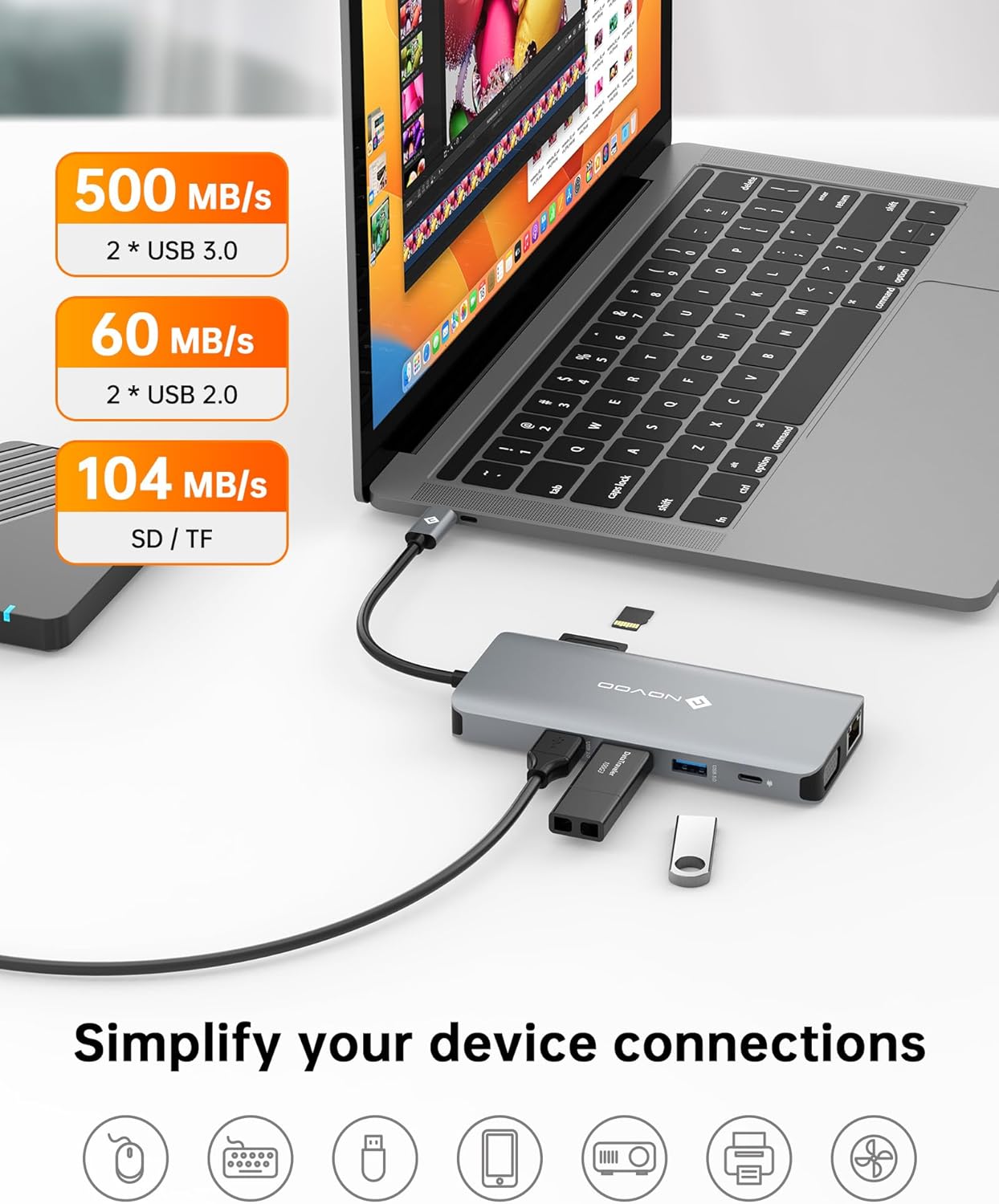
Image 4.6: Data transfer capabilities with USB 3.0, USB 2.0, and SD/TF card slots.
4.3 Network Connectivity
The Gigabit Ethernet port provides a reliable and fast internet connection:
- Connect an Ethernet cable to the RJ45 port for speeds up to 1Gbps, offering a more stable connection than Wi-Fi.

Image 4.7: Gigabit Ethernet port for stable internet connection.
4.4 Power Delivery
The USB-C PD port allows you to charge your laptop while using the docking station:
- Connect your laptop's original USB-C power adapter (or a compatible 100W+ USB-C PD charger) to the docking station's PD port. This will pass power through to your laptop, ensuring it remains charged during use.

Image 4.8: 100W Power Delivery feature.
5. Maintenance
To ensure the longevity and optimal performance of your docking station, follow these maintenance guidelines:
- Cleaning: Use a soft, dry cloth to clean the exterior of the docking station. Avoid liquid cleaners or abrasive materials.
- Storage: Store the docking station in a cool, dry place away from direct sunlight and extreme temperatures.
- Handling: Avoid dropping or subjecting the device to strong impacts. Do not attempt to disassemble the unit.
- Cable Management: Ensure cables are not excessively bent or strained, which can lead to damage over time.
6. Troubleshooting
If you encounter issues with your docking station, refer to the following common problems and solutions:
| Problem | Possible Cause | Solution |
|---|---|---|
| No display output on external monitor(s). |
|
|
| External monitors are mirroring instead of extending (macOS). | macOS limitation. | This is expected behavior for macOS when connecting multiple external displays via a single MST-enabled hub. macOS does not support MST for extended displays. |
| Slow data transfer speeds. | Device connected to USB 2.0 port instead of USB 3.0. | Ensure high-speed devices are connected to the blue USB-A 3.0 ports. |
| Laptop not charging or charging slowly. |
|
|
| Ethernet connection issues. |
|
|
7. Specifications
| Feature | Detail |
|---|---|
| Model Number | NHM11D-111S2 |
| Product Dimensions | 2.2 x 0.6 x 5.1 inches |
| Item Weight | 3.84 ounces |
| Color | Silver Gray |
| Hardware Interface | USB Type C |
| HDMI 1 Output | Up to 4K@30Hz |
| HDMI 2 Output | Up to 4K@60Hz |
| VGA Output | Up to 1080P@60Hz |
| USB-A 3.0 Data Transfer | Up to 5Gbps |
| USB-A 2.0 Data Transfer | Up to 480Mbps |
| Ethernet Speed | 10/100/1000Mbps (Gigabit) |
| USB-C PD Input | Up to 100W |
| Card Reader | SD/TF (Micro SD) |
| Compatible Devices | Laptops with full-function USB-C ports (DisplayPort Alt Mode, Power Delivery) |
| Manufacturer | NOVOO |
8. Warranty and Support
NOVOO provides a 2-year after-sales service for this product. If you encounter any issues or require assistance, please contact NOVOO customer support. We are committed to ensuring customer satisfaction.
For support, please refer to the contact information provided with your product packaging or visit the official NOVOO website.


