
1. Introduction
This manual provides comprehensive instructions for the installation, operation, and maintenance of the Alta Labs S24-POE Cloud-Managed PoE+ Switch. The S24-POE is an enterprise-class network switch designed for scalable networks, offering 24 Gigabit Ethernet ports, 16 of which support PoE+, and two 10 Gbps SFP+ uplink ports. It features cloud-managed capabilities and advanced networking features to ensure efficient and secure network deployments.
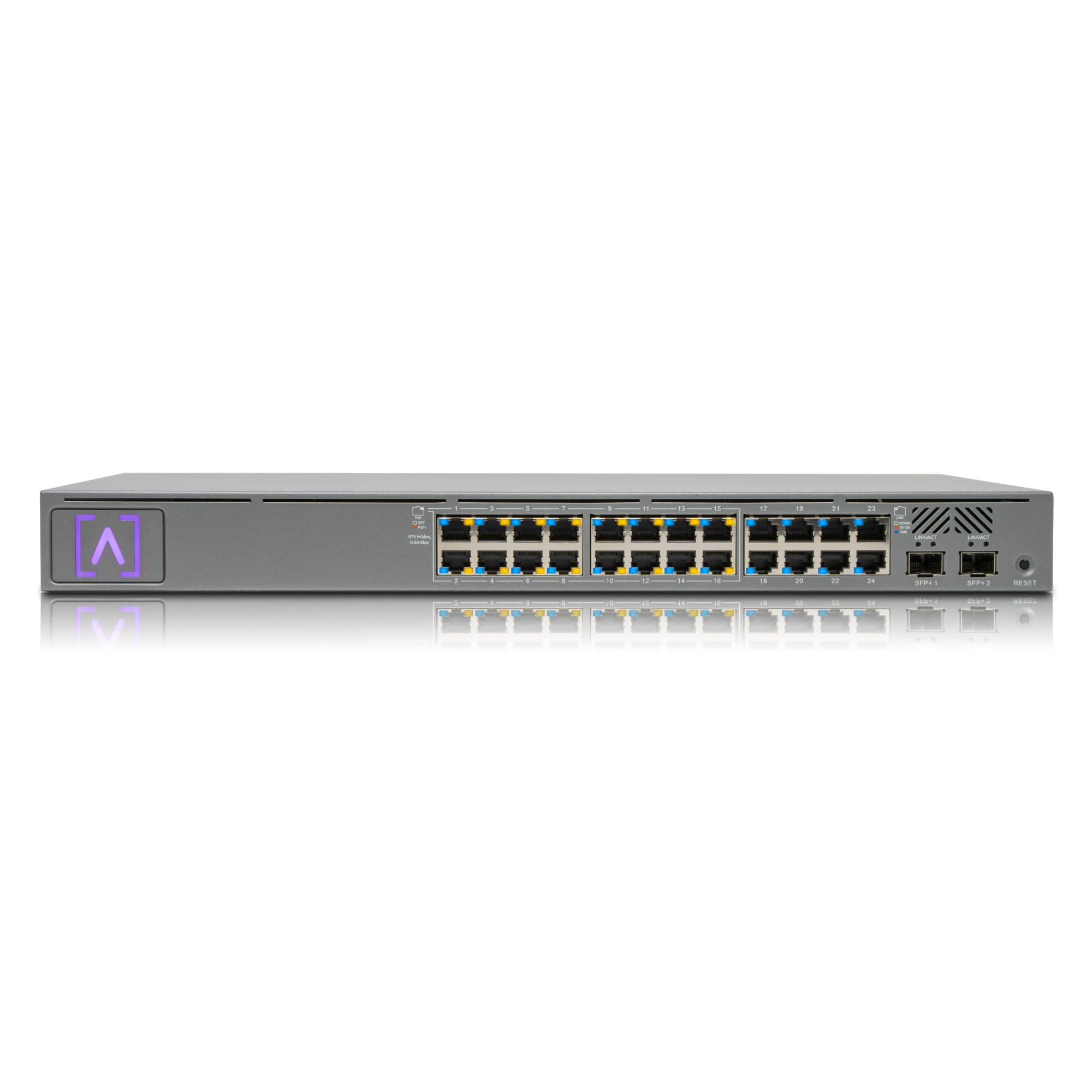
Figure 1: Front view of the Alta Labs S24-POE Switch, highlighting its 16 PoE+ ports, 240W PoE budget, and 10 Gbps SFP+ ports.
2. Product Overview
2.1 Key Features
- Enterprise-Class 24-Port PoE+ Switch: Provides 24 Gigabit Ethernet ports, with 16 PoE+ (802.3at/af) ports and a total 240W PoE budget, suitable for powering IP cameras, VoIP phones, and access points.
- High-Capacity SFP+ Uplinks: Includes two SFP+ ports supporting fiber or copper links up to 10 Gbps for high-speed backbone connectivity.
- Cloud-Managed Switching: Seamless configuration, monitoring, and management via the Alta Labs cloud platform or Bluetooth mobile app.
- Advanced Networking Features: Supports VLAN stacking, IGMP snooping, egress/ingress rate limiting, 802.1X authentication, and network loop detection.
- Rackmountable Design: Engineered for professional installations with included rack ears and Alta Labs Rackstud DUO toolless mounting system.
2.2 Port Configuration
The S24-POE switch features a versatile port configuration to support various network requirements:
- 16 PoE+ (802.3at) Gigabit Ethernet Ports: Deliver up to 30W per port, with an aggregate 240W PoE budget.
- 8 Standard Gigabit Ethernet Ports: Provide standard network connectivity for non-PoE devices.
- 2 SFP+ Ports: Support 1/2.5/5/10 Gbps fiber or copper connections for high-speed uplinks.

Figure 2: Diagram illustrating the port types and counts on the Alta Labs S24-POE Switch.
3. Setup
3.1 Initial Connection
- Connect the power cable to the switch and a power outlet.
- Connect an Ethernet cable from your router or existing network to any of the Gigabit Ethernet ports on the S24-POE switch.
- The switch will power on and begin its boot sequence.
3.2 Cloud Management and Mobile App Setup
The Alta Labs S24-POE switch is designed for seamless cloud management. You can configure and monitor your network using the Alta Labs cloud platform or the dedicated mobile application.
- Download the Alta Labs mobile app from your device's app store (available on iOS and Android).
- Open the app and follow the on-screen instructions to create an Alta Labs account or log in if you already have one.
- Use the app's Bluetooth functionality to discover and add your S24-POE switch to your network. This allows for quick and intuitive initial setup.
- Alternatively, access the Alta Labs cloud management portal via a web browser to manage your devices.

Figure 3: Overview of Alta Labs network management options, including local and cloud-based control.

Figure 4: Screenshot showing the intuitive Bluetooth setup process and egress/ingress rate limiting configuration within the Alta Labs interface.
4. Operating Instructions
4.1 Cloud and Mobile App Management
The Alta Labs cloud platform and mobile app provide real-time visibility into traffic, device status, PoE usage, and VLAN segmentation. You can manage your network from anywhere with secure remote access.
- Dashboard: View network activity, top active network devices, and applications.
- Device Status: Monitor the status of all connected devices, including PoE consumption.
- Configuration Changes: Apply configuration changes on-the-fly without requiring a network reboot.

Figure 5: The Alta Labs mobile and web application dashboard, displaying real-time network statistics and device information.

Figure 6: The Alta Labs mobile app interface, allowing users to monitor and manage their networks conveniently from a mobile device.
4.2 Advanced Network Features
- VLAN Stacking (Q-in-Q): Isolate broadcast domains and manage network traffic efficiently.
- IGMP Snooping: Optimize multicast streams for applications like IPTV.
- Egress/Ingress Rate Limiting: Control inbound and outbound bandwidth per connection, useful for guest networks or specific device requirements.
- 802.1X Authentication: Enhance network security by authenticating devices connecting to the switch.
- Network Loop Detection: Prevent network outages caused by accidental network loops.
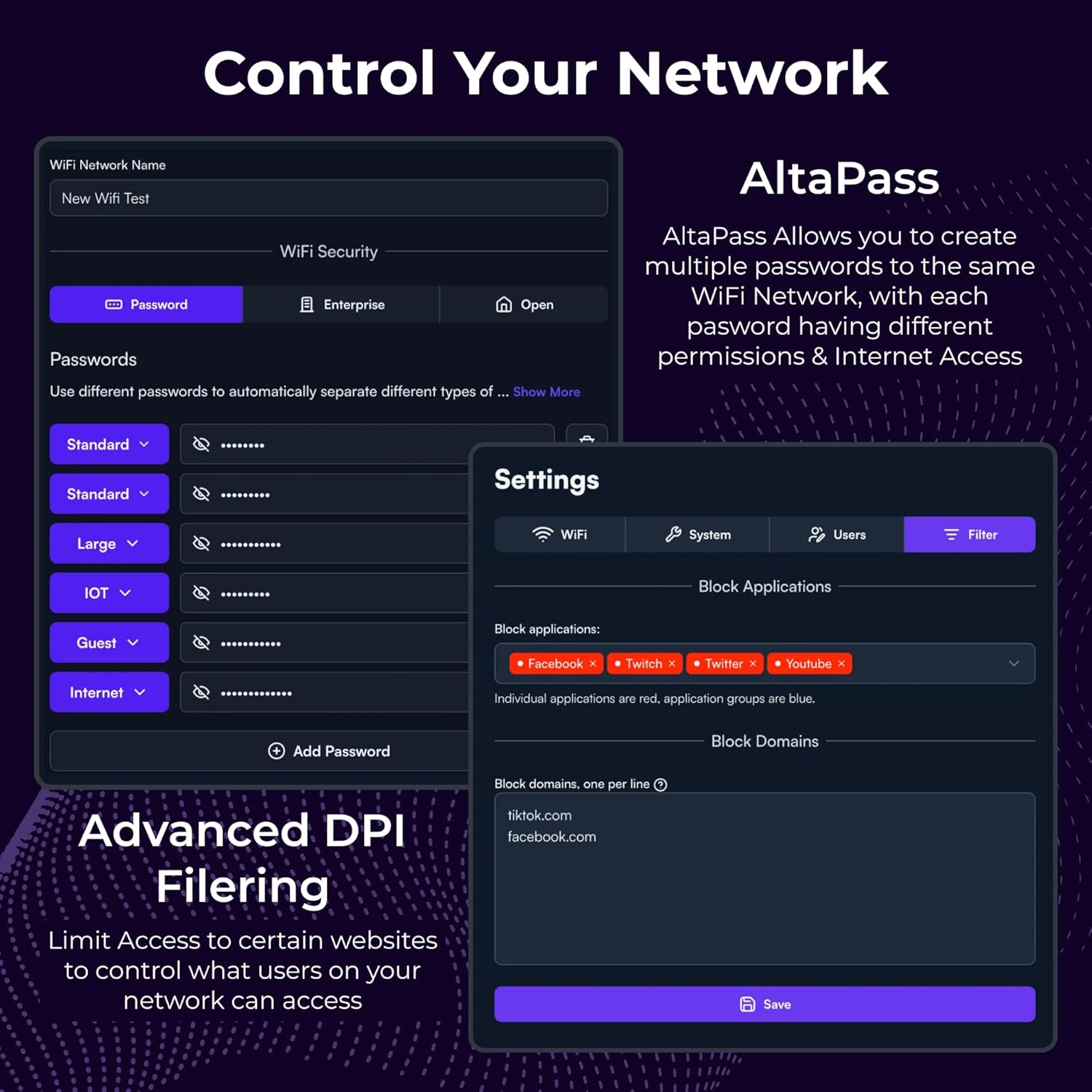
Figure 7: The 'Control Your Network' interface, demonstrating AltaPass for multiple WiFi passwords and advanced DPI filtering options.

Figure 8: The 'Control Your Network' interface, showcasing Hotspot functionality and the ability to make on-the-fly configuration changes without rebooting the network.

Figure 9: The scalable cloud-based management interface, designed for optimum scalability and worldwide accessibility.

Figure 10: The Alta Labs PoE Network Switch with intuitive VLAN and device configuration using the Alta Cloud Management platform.
4.3 Power Over Ethernet (PoE) Usage
The S24-POE provides 16 PoE+ ports with a 240W aggregate budget. This allows for powering a wide range of PoE devices, reducing the need for separate power supplies.
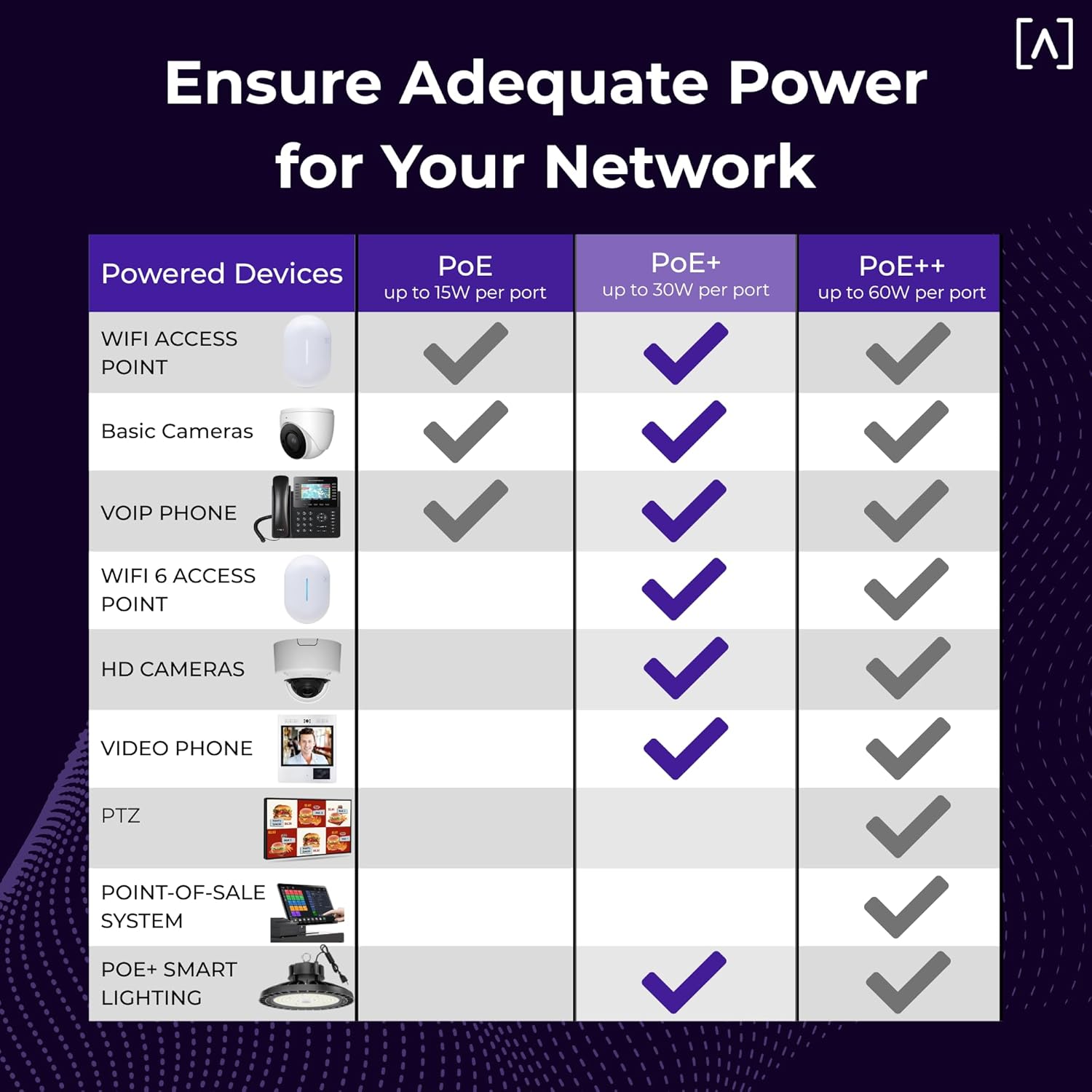
Figure 11: A table illustrating the power capabilities of PoE, PoE+, and PoE++ and compatible devices.
Video 1: An official Alta Labs video showcasing the features of Alta Labs switches, including PoE capabilities and management options.
5. Mounting
The S24-POE switch is designed for flexible installation, supporting both rack-mount and wall-mount configurations. It comes with included rack ears and Alta Labs Rackstud DUO for toolless mounting.

Figure 12: Image demonstrating the mounting versatility of Alta Labs switches, including rack ears and Rackstud DUO for easy installation.
Video 2: An official Alta Labs video demonstrating how Alta Labs products integrate into a home network, including physical installation aspects.
6. Specifications
| Feature | Specification |
|---|---|
| Brand | Alta Labs |
| Model Number | S24-POE |
| Number of Ports | 26 (24x Gigabit Ethernet, 2x SFP+) |
| PoE+ Ports | 16 |
| PoE Budget | 240 Watts |
| SFP+ Port Speed | Up to 10 Gbps |
| Data Transfer Rate | 1000 Megabytes Per Second (Gigabit Ethernet) |
| Switch Type | Power over Ethernet |
| Case Material | Powder coated steel |
| Item Weight | 3.6 Kilograms |
| Voltage | 240 Volts |
| Upper Temperature Rating | 50 Degrees Celsius |
7. Maintenance
To ensure optimal performance and longevity of your Alta Labs S24-POE switch, regular maintenance is recommended:
- Firmware Updates: Regularly check for and apply firmware updates through the Alta Labs cloud platform or mobile app. Updates often include performance improvements, new features, and security patches.
- Cleaning: Keep the switch and its ventilation openings free from dust and debris. Use a soft, dry cloth for cleaning. Do not use liquid cleaners or aerosols.
- Environmental Conditions: Ensure the switch operates within the specified temperature and humidity ranges to prevent overheating and component damage.
- Cable Management: Maintain organized cable connections to prevent accidental disconnections and improve airflow around the device.
8. Troubleshooting
If you encounter issues with your S24-POE switch, consider the following troubleshooting steps:
- No Power: Verify that the power cable is securely connected to both the switch and a working power outlet. Check the power indicator LED on the switch.
- No Network Connectivity: Ensure all Ethernet cables are properly connected to the correct ports. Check the link/activity LEDs on the ports to confirm connection status. Verify your router or upstream network device is functioning correctly.
- PoE Device Not Powering On: Confirm that the connected device is PoE compatible and within the PoE+ (802.3at/af) standard. Check the PoE budget allocation in the Alta Labs management interface. Try connecting the device to a different PoE port.
- Slow Performance: Check for network loops using the management interface. Monitor network traffic and device utilization. Ensure firmware is up to date.
- Accessing Management Interface: Ensure your device is connected to the same network as the switch. Verify the switch has an IP address and that your firewall is not blocking access.
- Factory Reset: If issues persist, you may perform a factory reset. Locate the reset button on the switch (often recessed) and press and hold it for approximately 10 seconds until the LEDs indicate a reset. Warning: A factory reset will erase all custom configurations.
9. Warranty and Support
9.1 Product Warranty
The Alta Labs S24-POE switch comes with a 2-Year Limited Warranty. This warranty covers defects in materials and workmanship under normal use. For specific terms and conditions, please refer to the warranty documentation included with your product or visit the official Alta Labs website.
9.2 Technical Support
For technical assistance, product inquiries, or to report issues, please contact Alta Labs support through the following channels:
- Online Support: Visit the official Alta Labs website for FAQs, knowledge base articles, and support forums.
- Contact Form: Submit a support request through the contact form available on the Alta Labs website.
Please have your product model number (S24-POE) and serial number ready when contacting support.


