
1. Setup
This section provides instructions for the initial setup of your TCL 55S41 television, including unpacking, stand installation, wall mounting, and connecting external devices.
1.1 Unpacking
- Carefully remove the television from its packaging.
- Ensure all accessories are present: remote control, AAA batteries, power cord, and stand components.
- Retain the packaging materials for future transport or service needs.
1.2 Stand Installation
If you are not wall-mounting the television, install the included stand according to these steps:
- Place the television face-down on a soft, clean surface to prevent screen damage.
- Align the stand legs with the screw holes on the bottom of the television. The stand separation distance is approximately 41.5 inches.
- Secure each stand leg using the provided M4 x 25 screws (4 screws total). Tighten securely with a screwdriver.
- Carefully lift the television to an upright position on a stable, level surface.
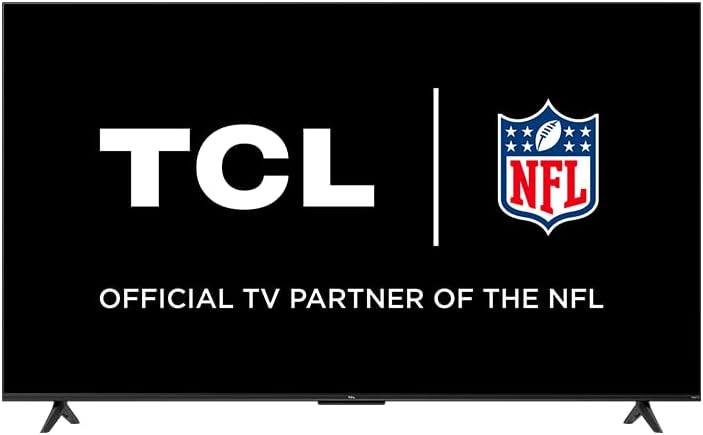
Image: The TCL 55S41 television with its stand attached, illustrating the typical appearance after stand installation. The stand provides stable support for the television on a flat surface.
1.3 Wall Mounting
If you plan to wall-mount your television, ensure you use a VESA-compatible wall mount (sold separately) that supports the television's weight and size.
- The VESA wall mount pattern for this model is 200mm x 200mm.
- Use M6 x 12 screws for attaching the wall mount bracket to the television.
- Follow the instructions provided with your specific wall mount for safe and secure installation.
- Remove the stand legs before wall mounting.
1.4 Connecting Devices
Connect your external devices to the appropriate ports on the back of the television.
- HDMI Inputs: The TV features 4 HDMI inputs, including 1 eARC port for enhanced audio return channel functionality. Use these for connecting Blu-ray players, game consoles, cable boxes, etc.
- Composite Audio/Video Input: 1 input for older devices using RCA cables.
- Digital Optical Audio Output: 1 output for connecting to soundbars or audio receivers.
- Headphone Jack: 1 output for private listening with headphones.
- RF Antenna Input: 1 input for connecting an antenna for over-the-air broadcasts.
- USB 2.0 Port: 1 port for connecting USB storage devices to play media.
- Ethernet Port: For a wired internet connection.
- Wireless Connection: Supports 802.11ac 2x2 Dual Band (2.4GHz & 5GHz) Wi-Fi for wireless internet access.
Image: A general view of the TCL 55S41 television, indicating the typical location of various input and output ports on the rear panel for connecting external devices.
1.5 Initial Power On and Roku Setup
- Connect the power cord to the television and then to a power outlet.
- Press the power button on the remote control or on the TV.
- Follow the on-screen instructions to complete the Roku guided setup, which includes selecting your language, connecting to a network, and activating your Roku account.
2. Operating the Television
This section details the basic operation of your TCL Roku TV, including remote control functions, smart features, and input selection.
2.1 Remote Control
The included remote control (model RC280) requires two "AAA" batteries. It provides intuitive control over your television and Roku OS.
- Power Button: Turns the TV on or off.
- Directional Pad: Navigates menus and selects items.
- Home Button: Returns to the Roku home screen.
- Back Button: Returns to the previous screen.
- Volume Buttons: Adjusts the television volume.
- Mute Button: Mutes or unmutes the sound.
- Shortcut Buttons: Dedicated buttons for popular streaming channels.
2.2 Smart Features (Roku TV)
Your TCL TV is powered by Roku OS, offering a wide range of smart features:
- Streaming Channels: Access thousands of streaming channels for movies, TV shows, news, sports, and more.
- Voice Control: The TV works with Siri, Alexa, and Hey Google for voice commands to search for content, launch apps, or switch inputs.
- AirPlay: Share videos, photos, and music directly from your Apple devices.
- Customizable Home Screen: Organize your favorite channels and inputs for quick access.
- Roku Mobile App: Use the free Roku mobile app for private listening via headphones, voice control, and as an alternative remote.
2.3 Input Selection
To switch between connected devices or the antenna input:
- From the Roku home screen, navigate to the desired input tile (e.g., HDMI 1, Antenna TV).
- Press the OK button on your remote to select the input.
2.4 Audio Features
- Dolby Digital Plus: Enhanced audio quality for compatible content.
- Private Listening: Use the Roku mobile app with headphones for personal audio.
2.5 Live TV Pause
If you have an antenna connected, you can pause live TV for up to 30 minutes. A USB drive (sold separately) is required for this feature.
3. Maintenance
Proper maintenance ensures the longevity and optimal performance of your television.
3.1 Cleaning
- Screen: Gently wipe the screen with a soft, lint-free cloth. For stubborn marks, use a screen cleaner specifically designed for televisions, applied to the cloth, not directly to the screen.
- Cabinet: Wipe the TV cabinet with a soft, dry cloth. Avoid using abrasive cleaners or solvents.
- Always unplug the TV before cleaning.
3.2 Software Updates
Your TCL Roku TV receives automatic software updates to improve performance and add new features. Ensure your TV is connected to the internet for these updates.
4. Troubleshooting
This section provides solutions to common issues you might encounter with your TCL 55S41 television.
4.1 No Power
- Check if the power cord is securely plugged into both the TV and the power outlet.
- Verify the power outlet is functional by plugging in another device.
- Try pressing the power button on the TV itself, not just the remote.
4.2 No Picture / Poor Picture Quality
- Ensure the correct input source is selected.
- Check all cable connections (HDMI, composite) to external devices.
- If using an antenna, check antenna connection and try rescanning for channels.
- Adjust picture settings (brightness, contrast, etc.) in the TV menu.
4.3 No Sound / Poor Sound Quality
- Check the volume level and ensure the TV is not muted.
- If using external audio equipment (soundbar, receiver), ensure it is powered on and correctly connected.
- Check audio output settings in the TV menu.
4.4 Remote Control Not Responding
- Replace the batteries with fresh "AAA" batteries.
- Ensure there are no obstructions between the remote and the TV's IR sensor.
- Try pairing the remote again if it's a voice remote (refer to Roku TV settings).
4.5 Network Connectivity Issues
- Check your Wi-Fi router and modem to ensure they are powered on and functioning.
- Restart your router and modem.
- Go to the TV's network settings and try reconnecting to your Wi-Fi network.
- If using a wired connection, ensure the Ethernet cable is securely connected.
5. Specifications
Detailed technical specifications for the TCL 55S41 55-inch 4-Series 4K UHD HDR LED Smart Roku TV.
| Feature | Specification |
|---|---|
| Model Name | 55S41 |
| Screen Size | 55 inches (54.6" Viewable) |
| Panel Resolution | 3840 x 2160 (4K UHD) |
| Refresh Rate | 60 Hz |
| Display Technology | LED-LCD |
| HDR Format Supported | HDR10, HLG |
| Smart Platform | Roku TV |
| Audio Output Power | 10W + 10W |
| Premium Audio | Dolby Digital Plus |
| HDMI Inputs | 4 (1 eARC) |
| USB 2.0 Ports | 1 |
| Wireless Connectivity | 802.11ac 2x2 Dual Band (2.4GHz & 5GHz) |
| Ethernet Port | 1 |
| Product Size (WxHxD) with Stand | 48.3" x 29.8" x 10.1" |
| Product Size (WxHxD) without Stand | 48.3" x 28" x 3.2" |
| Product Weight with Stand | 22.5 lbs |
| Product Weight without Stand | 22 lbs |
| VESA Wall Mount Pattern | 200mm x 200mm |
| VESA Screw Size | M6 x 12 |
| Included Remote Control | RC280 |
| Remote Control Battery Type | Two "AAA" |
| UPC | 846042065061 |
6. Warranty and Support
Information regarding the product warranty and how to obtain support.
6.1 Warranty Information
This TCL television comes with a 1-year limited warranty. This warranty covers manufacturing defects and issues arising from normal use. Please refer to the warranty card included with your product or visit the official TCL website for full terms and conditions.
6.2 Customer Support
For technical assistance, troubleshooting beyond this manual, or warranty claims, please contact TCL Customer Support. You can typically find support contact information (phone, email, or live chat) on the official TCL website. When contacting support, have your TV model number (55S41) and serial number ready.


