
UGREEN B0CDBXLB84
Contents
UGREEN Fun+Kit Wireless Keyboard and Mouse User Manual
Model: B0CDBXLB84
Product Overview
The UGREEN Fun+Kit is a versatile wireless keyboard and mouse combo designed for enhanced productivity and comfort. It offers multiple connectivity options, including 2.4GHz wireless and Bluetooth, and is compatible with a wide range of operating systems.

Image: The UGREEN Fun+Kit wireless keyboard and mouse set, featuring a pastel pink and blue keyboard, a matching pink mouse, and a small USB receiver. This image provides a general overview of the product components.
Package Contents
- UGREEN Fun+Kit Wireless Keyboard
- UGREEN Fun+Kit Wireless Mouse
- USB 2.4GHz Receiver
- USB-C Charging Cable (for keyboard)
- User Manual (this document)
Please ensure all items are present before proceeding with setup.
Setup and Connectivity
1. Powering On and Charging
The keyboard is rechargeable via a USB-C port. Connect the provided USB-C cable to the keyboard and a power source (e.g., computer USB port, USB wall adapter) to charge. The mouse requires one AA battery (not included).

Image: Underside view of the keyboard highlighting the "System Switch" and "Power Switch" for easy identification during setup.
Locate the power switch on the back of the keyboard and slide it to the "On" position. For the mouse, insert the AA battery and ensure its power switch is also in the "On" position.
2. Connection Modes
The UGREEN Fun+Kit supports three connection methods: 2.4GHz wireless, Bluetooth, and wired (keyboard only).

Image: A detailed diagram illustrating the three connection modes: 2.4GHz wireless (default), wired connection for the keyboard, and Bluetooth pairing instructions for various operating systems.
2.1. 2.4GHz Wireless Connection (Default)
- Connect the USB 2.4GHz receiver to an available USB port on your device (desktop, laptop, tablet).
- Ensure the power switch on both the keyboard and mouse is in the "On" position.
- The devices should automatically connect.
2.2. Bluetooth Connection
For Bluetooth pairing, ensure the keyboard's system switch is set to the correct operating system (Windows/Android or macOS/iOS).
- For Windows 10 users: Please click the system pop-up button to complete pairing.
- The keyboard can be searched by name: UGREEN KB 5.0 or UGREEN KB 3.0.
- UGREEN KB 5.0 (Bluetooth 5.0) requires Windows 8 and above.
- Windows 7 is only compatible with UGREEN KB 3.0 (Bluetooth 3.0).
- For other operating systems (macOS, Linux, Android, iOS), navigate to your device's Bluetooth settings and select "UGREEN KB" or similar from the list of available devices to pair.
2.3. Wired Mode (Keyboard Only)
To use the keyboard in wired mode, connect it to your device using the USB-C cable. Briefly press the Fn + ~ keys to switch to wired mode.
Operating Instructions
Keyboard Features
- 85-Key Spanish Layout: The keyboard features a compact 85-key layout with Spanish characters, optimized for efficient typing.

Image: Top-down view of the UGREEN keyboard, clearly showing its 85-key layout with Spanish characters and symbols.
- Backlight Customization: Personalize your typing experience with 4 levels of brightness and 15 different light effects. Use the dedicated backlight control keys to cycle through modes and adjust intensity.

Image: The keyboard illuminated with its customizable backlight, demonstrating one of the available light effects.
- Ergonomic Design: The keyboard is designed with a 7-degree ergonomic angle to provide a comfortable typing experience and reduce hand fatigue during prolonged use.

Image: A side profile of the keyboard illustrating its 7-degree ergonomic tilt, designed for comfortable hand positioning.
- Personalized Keys: Activate various emoticons with a single click using the personalized key feature.

Image: A close-up of a keyboard key labeled "PGDN" with an icon, indicating its function to activate personalized emoticons.
- Short Stroke Design: The keyboard features a 3.5mm short stroke design for quick and responsive key presses.
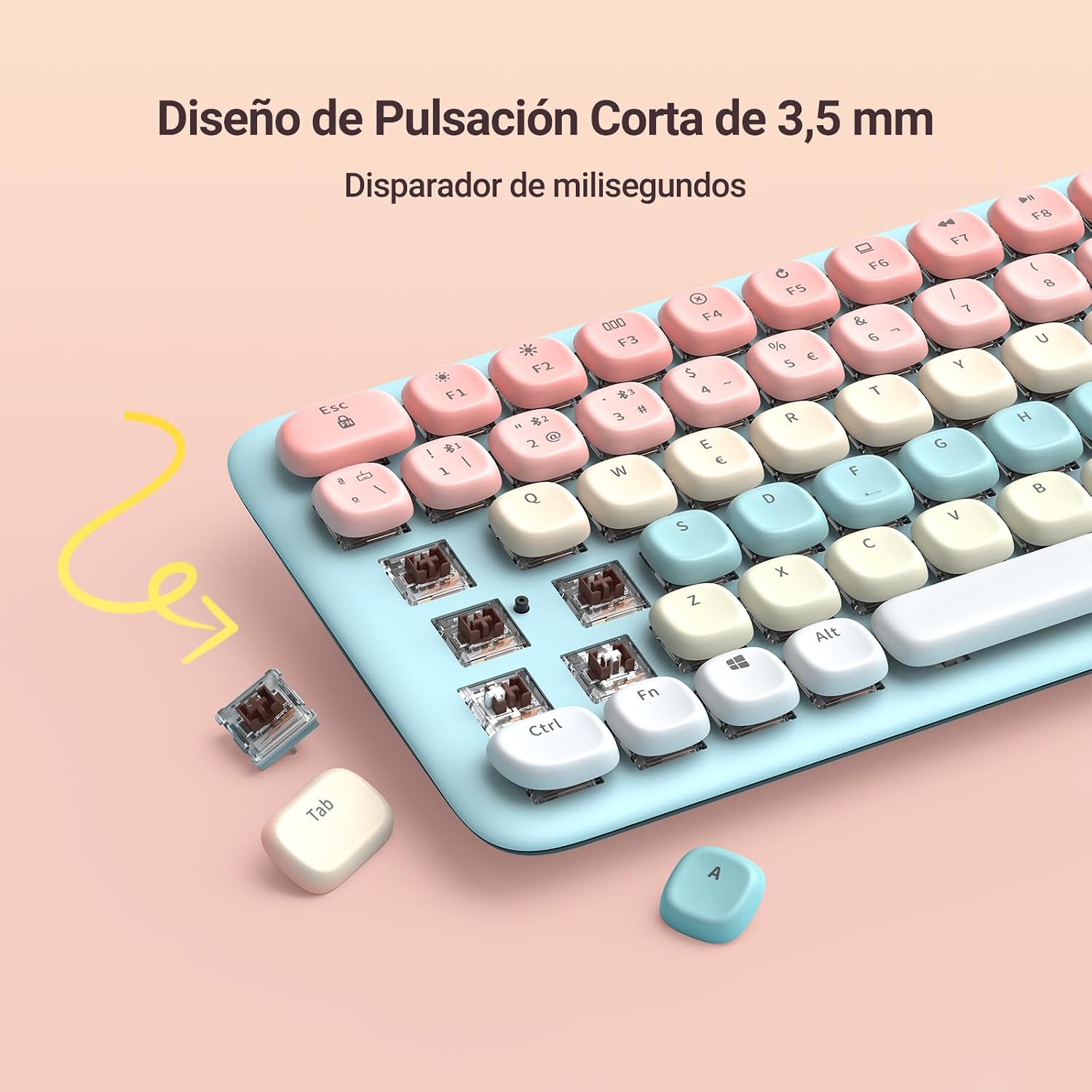
Image: An exploded view of a keyboard key, revealing the internal switch mechanism and illustrating the 3.5mm short stroke design.
Mouse Features
- Silent Click: The mouse is designed with silent click buttons to minimize noise during use.
- Adjustable DPI: Customize your cursor sensitivity with adjustable DPI settings: 1000, 1600, 2000, and 4000 DPI. Use the DPI button on the mouse to cycle through settings.

Image: A close-up of the UGREEN mouse, highlighting its silent click feature and indicating the adjustable DPI settings (1000/1600/2000/4000).
Maintenance
- Cleaning: Use a soft, dry cloth to clean the keyboard and mouse. Avoid using harsh chemicals or abrasive materials.
- Battery Care:
- For the keyboard, recharge it regularly to maintain optimal battery life.
- For the mouse, replace the AA battery when performance degrades.
- Storage: Store the devices in a cool, dry place away from direct sunlight and extreme temperatures.
Troubleshooting
- Device Not Connecting:
- Ensure both the keyboard and mouse are powered on.
- Check if the USB receiver is securely plugged into your device for 2.4GHz connection.
- For Bluetooth, ensure Bluetooth is enabled on your device and the devices are in pairing mode. Try re-pairing the devices.
- Verify that the keyboard's system switch is set correctly for your operating system.
- Mouse Not Responding via Bluetooth (iPhone example from review):
- If experiencing issues with Bluetooth connectivity, especially with certain mobile devices, try using the 2.4GHz USB adapter as an alternative connection method.
- Keyboard Backlight Not Working:
- Ensure the keyboard is sufficiently charged.
- Press the backlight control keys to cycle through brightness levels and effects.
- Keys or Mouse Buttons Unresponsive:
- Check battery levels for both devices.
- Try reconnecting the devices (unplug/replug USB receiver, re-pair Bluetooth).
- Ensure no debris is lodged under the keys or mouse buttons.
Specifications
| Brand | UGREEN |
| Model | B0CDBXLB84 |
| Connectivity Technology | Bluetooth, 2.4GHz Wireless (Wifi) |
| Keyboard Layout | 85-key Spanish, Ergonomic, Programmable |
| Mouse DPI Settings | 1000/1600/2000/4000 |
| Power Source | Keyboard: Rechargeable (USB-C); Mouse: AA Battery (not included) |
| Special Features | Rechargeable Keyboard, Backlight (4 levels, 15 effects), Silent Click Mouse |
| Compatible Operating Systems | Windows (2000, 7, 8, 10, 11), macOS (10.15+), Linux (5.0+), Android (5.0+), iOS (13.4+), iPad OS (14.0+), Chrome OS |
| Compatible Devices | Desktop Computer, Laptop, Tablet, Smartphone |
| Dimensions (Package) | 42.29 x 20.5 x 5.7 cm |
| Weight (Package) | 1.02 kg |

Image: A visual representation of the keyboard and mouse's compatibility with multiple operating systems, including Linux, Windows, Android, macOS, and iOS, along with specific version requirements.
Warranty and Support
For product support, please refer to the official UGREEN website or contact their customer service. This product is typically covered by a manufacturer's warranty, details of which can be found on the product packaging or UGREEN's official support channels.
Additionally, purchases made through Amazon.com.mx are subject to a 30-day free return policy from the date of purchase.
For further assistance, you may visit the UGREEN Brand Store on Amazon.
Ask a question about this manual
Ask about setup, troubleshooting, compatibility, parts, safety, or missing instructions. Manuals+ will review the question and use this page’s manual context to help answer it.