
Introduction
This manual provides comprehensive instructions for setting up, operating, and maintaining your Geevon Digital Atomic Alarm Clock. Please read this manual thoroughly before use to ensure optimal performance and longevity of your device.
Package Contents
- Geevon Digital Atomic Alarm Clock
- AC Power Adapter
- User Manual
An official product video demonstrating the unboxing, initial setup, and alarm setting process for the Geevon Digital Atomic Alarm Clock. It shows how to navigate the menu, set time, date, time zone, and activate/deactivate the alarm.
Product Overview
The Geevon Digital Atomic Alarm Clock features a large, clear VA display with multiple indicators for time, date, indoor temperature, humidity, and moon phases. It is designed for easy readability from various angles.
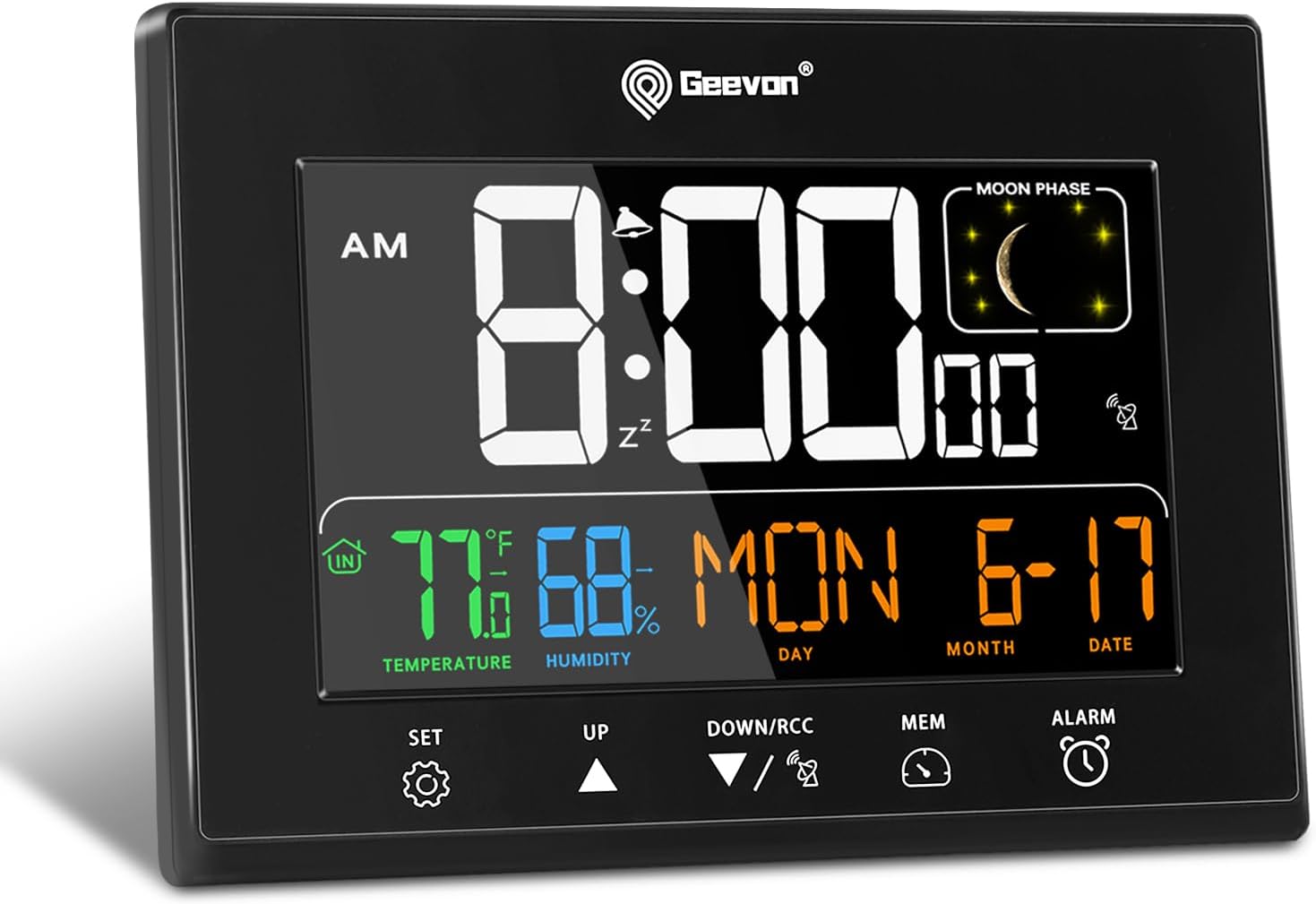
Front view of the Geevon Digital Atomic Alarm Clock, displaying time, temperature, humidity, date, and moon phase.

Comparison image highlighting the wide 350-degree viewing angle of the Geevon Digital Atomic Alarm Clock's HD color display, showing clear visibility from various perspectives compared to a standard clock.

An overview of the clock's key features including HD Color Display, Alarm & Snooze, Indoor Temperature & Humidity, Max & Min Values, Date & Time, Moon Phase, 12/24H Switchable, and Adjustable Brightness. Also shows product dimensions (6.3 inches wide, 4.7 inches high, 0.78 inches thick) and indicates the need for 3 AAA batteries for backup (not included).
Setup
Powering the Clock
The clock is primarily powered by the included AC adapter. For uninterrupted operation during power outages and to retain settings, it is recommended to install 3 AAA batteries (not included) as a backup.
Installing Backup Batteries
- Open the battery compartment cover on the back of the clock.
- Insert 3 new AAA batteries, observing the correct polarity (+/-).
- Close the battery compartment cover securely.

Rear view of the clock showing the battery compartment, indicating where to insert 3 AAA batteries for backup power.
Initial Setup (Time, Date, Time Zone)
Upon first power-up or after a prolonged power loss without battery backup, the clock will enter setup mode.
- Press and hold the SET/C/F button for 3 seconds to enter setup mode.
- Use the UP or DOWN/RCC buttons to adjust the flashing value.
- Press SET/C/F to confirm the setting and move to the next item.
- The sequence of settings is typically: Language (ENG/GER/FRE/ITA/SPA/DUT/DAN), RCC (Atomic Clock function ON/OFF), Time Zone (AST, EST, CST, MST, PST, AKST, HST), DST (Daylight Saving Time ON/OFF), Year, Month, Date, 12/24 Hour Format, Hour, Minute.
- After setting the minute, press SET/C/F to exit setup.
Atomic Time Synchronization (WWVB)
The clock automatically attempts to synchronize with the WWVB atomic clock signal overnight. Ensure the WWVB function is set to ON during initial setup. Place the clock near a window for optimal signal reception.

An illustration showing the WWVB signal coverage across the United States, indicating how the Geevon Atomic Clock automatically sets and updates time, including Daylight Saving Time, across seven time zones.
Temperature Unit Selection
Briefly press the SET/C/F button to switch between Celsius (°C) and Fahrenheit (°F) for temperature display.
Setting the Alarm
- Press and hold the ALARM button for 3 seconds. The alarm hour will flash.
- Use the UP or DOWN/RCC buttons to adjust the alarm hour.
- Press ALARM to confirm and move to the alarm minute.
- Use the UP or DOWN/RCC buttons to adjust the alarm minute.
- Press ALARM to confirm and exit alarm setting.
Operating Features
Display Brightness Adjustment
The clock offers 5 levels of adjustable brightness (100%, 60%, 30%, 5%, or off) when powered by the AC adapter. Briefly press the SNOOZE/LIGHT button to cycle through the brightness levels.

Image illustrating the 5-level adjustable brightness feature of the clock, showing how the display intensity changes from 0% (off) to 100% brightness, suitable for various lighting conditions.
Snooze Function
When the alarm sounds, press the SNOOZE/LIGHT button to activate the 5-minute snooze function. The alarm will sound again after 5 minutes. To turn off the alarm completely, press any other button except SNOOZE/LIGHT.

Image demonstrating the 5-minute snooze function. It shows a person pressing the SNZ/LIGHT button for an extra nap and how to turn off the alarm by pressing any other button.
Moon Phase Display
The clock displays real-time moon phases, providing a visual representation of the lunar cycle.

An illustration showing the moon phase display on the clock, alongside a diagram of the different phases of the moon.
USB Charging Ports
The clock is equipped with two USB charging ports (2.1A and 1A) for convenient charging of your mobile devices, tablets, and other electronics.

Image showing the Geevon clock on a bedside table with a phone charging via one of its two USB ports. An inset highlights the USB ports on the side of the clock.
Placement Options
The clock features a built-in stand bracket for tabletop placement and a hanging hole for wall mounting, offering versatile placement options for your convenience.

Image illustrating the two placement options for the clock: as a desk clock using its built-in stand, and as a wall clock using the hanging hole on its back.
Maintenance
Cleaning
To clean the clock, use a soft, dry cloth. Avoid using abrasive cleaners or solvents, as they may damage the display or casing.
Battery Replacement
When the low-battery warning appears on the display, replace the 3 AAA backup batteries promptly to ensure continuous operation and setting retention during power interruptions.
Troubleshooting
No Display / Power Issues
- Ensure the AC adapter is securely plugged into both the clock and a working power outlet.
- Check if the power outlet is functional by plugging in another device.
- If using battery backup, ensure batteries are correctly inserted and not depleted. Replace if necessary.
Incorrect Time / No Atomic Synchronization
- Verify that the correct time zone is selected in the setup menu.
- Ensure the WWVB function is enabled (ON) in the setup menu.
- Place the clock near a window and away from electronic devices that may cause interference.
- Allow up to 24-48 hours for the initial atomic synchronization.
Alarm Not Sounding
- Check if the alarm is activated (alarm icon visible on display).
- Verify the alarm time is set correctly.
Specifications
| Feature | Detail |
|---|---|
| Brand | Geevon |
| Model Number | 230342 |
| Display Type | Digital VA Color Display |
| Product Dimensions | 6.3"W x 4.9"H x 0.7"D |
| Item Weight | 11.2 ounces |
| Power Source | Corded Electric & 3 AAA Batteries (Backup) |
| Material | Acrylonitrile Butadiene Styrene (ABS), Metal, Plastic |
| Special Features | Adjustable Brightness, Alarm, Atomic Time, Auto Dimmable, Calendar, Indoor Temperature & Humidity, Moon Phases, 2 USB Charging Ports |
Warranty and Support
Geevon offers a 12-month warranty and lifetime consulting services for this product. For any questions or support needs, please contact Geevon customer service through the official channels.
For additional information, you may refer to the official Geevon store: Geevon Store.


